Views
Views are different presentations of the same cards. Switching from Kanban to Table or Calendar never creates a copy. Labels, assignees, custom fields, checklists, comments, and activity remain attached to the original card.
Boards support:
- Kanban.
- Table.
- Calendar.
- Work Done.
Global Work extends these presentations across boards. My Cards supports the same four displays and a docked personal Up next queue. Team Cards adds a dedicated Up next display with grid and table layouts. Portfolio supports a Summary rollup and Table drill-downs.
Shared search and filters
Board and Global Work views share a consistent toolbar. Available controls depend on the display and scope, but can include:
- Search.
- Labels.
- Members.
- Workflow lists.
- Due dates and overdue state.
- Completion-date range.
- Archived mode.
- Supported custom field conditions.
- Board scope in Global Work.
Search matches card titles and current card keys. A partial current key works, while a key that uses an earlier workspace prefix must be entered in full.
Completed cards are not archived cards. Use Filter -> Completed to add cards from a chosen completion-date range to the main view. Use archived mode only for cards intentionally moved into the archive lifecycle.
Kanban view
Kanban shows workflow lists as columns and cards as movable tiles.
Use it when you need to:
- Move work through stages.
- Scan a workflow visually.
- Prioritize cards manually.
- See a card's rank in the focused person's cross-board Up next queue.
- Create cards in the right stage.
- Collapse lists or change list-level sorting.
- Use card covers, labels, assignees, dates, and progress as visual signals.
On a board, each card belongs to that board. In My Cards or Team Cards, cards from several boards can share the same workflow lane while retaining source-board context.
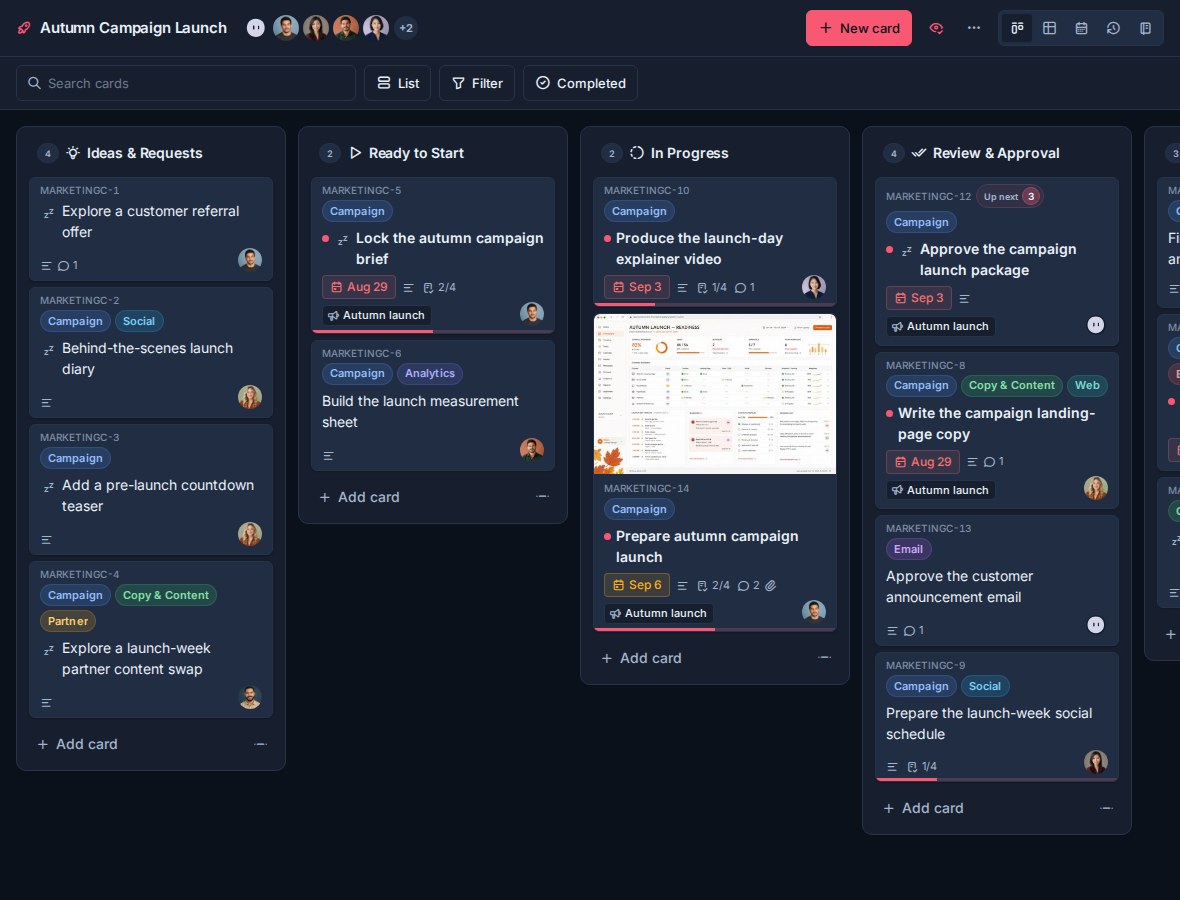
Table view
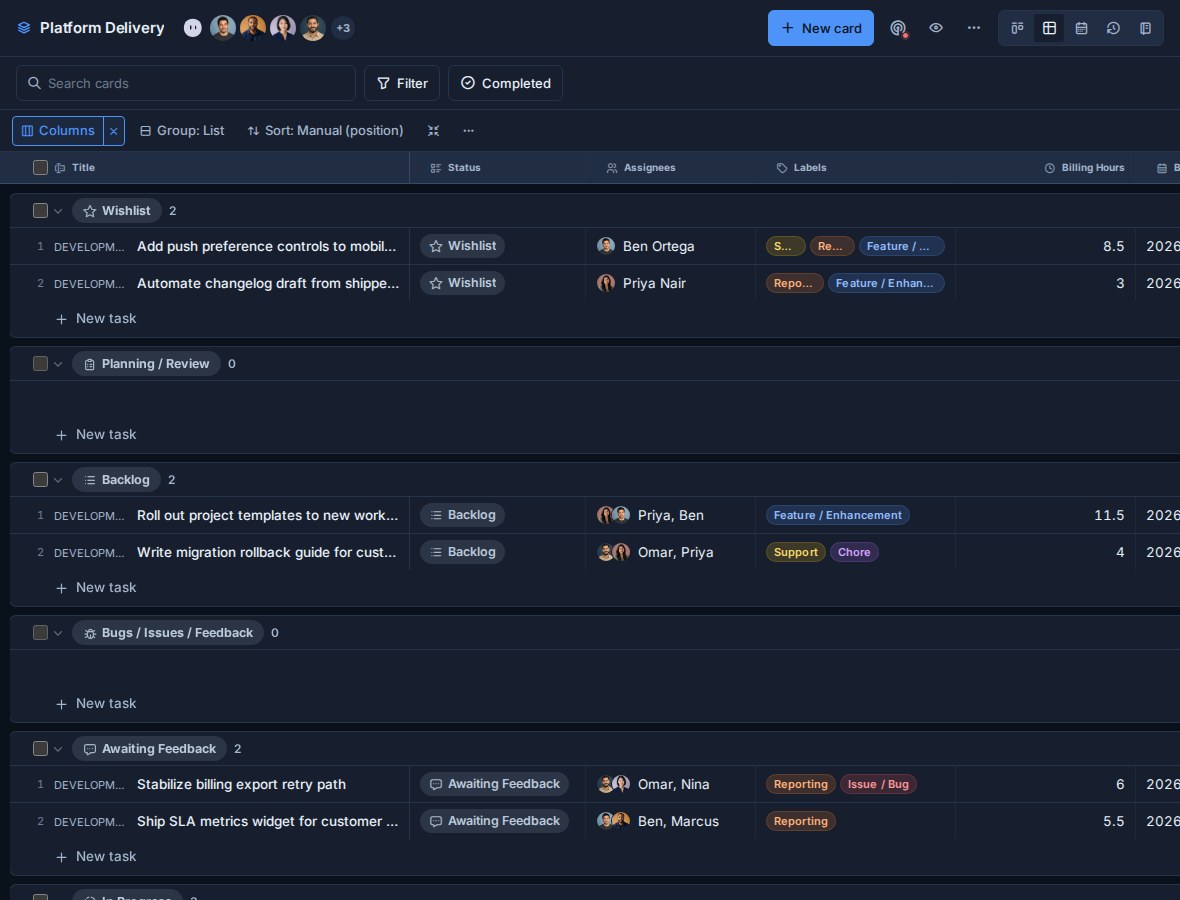
Table replaces the former List view. It is an editable, configurable table for detailed work, bulk changes, calculations, and exports.
Use Table when you need to:
- See more fields at once.
- Edit card data inline.
- Group and sort cards.
- Select cards for bulk actions.
- Calculate totals or averages.
- Break aggregates down by a second dimension.
- Export the current result to Excel or JSON.
Group cards
Built-in grouping dimensions include:
| Group by | What it shows |
|---|---|
| List | One group for each workflow stage. |
| Assignee | One group per assigned person, plus Unassigned when needed. |
| Label | One group per label, plus No label when needed. |
| Due date | Urgency buckets such as overdue, today, later, and no due date. |
| Completion | Open and completed cards. |
| Organisation, workspace, or board | Source hierarchy in Global Work. |
| No grouping | One result set. |
Supported custom fields can also be grouping dimensions.
A card can appear in more than one group when it has multiple assignees, labels, select values, or user values. The group shows every match instead of forcing a multi-value card into one arbitrary bucket.
Sort cards
Table can sort by:
- Manual position.
- Title.
- Due date.
- Created date.
- Updated date.
Manual drag reordering is available when the grouping and sorting preserve a real workflow lane, such as grouping by List with manual position.
Configure columns
The Columns menu controls which built-in and custom fields appear.
Built-in columns can include:
- Status.
- Source board in Global Work.
- Assignees.
- Due date.
- Labels.
- Checklist progress.
- Updated and created dates.
- Description.
- Up next order.
You can show or hide columns, drag them into a new order, and resize them from the header. Kanera remembers the setup for the current board or Global Work lens. A saved Global Work view preserves the Table presentation for other users too.
Edit and act from rows
Table supports inline editing for the fields the current user can change. Rows also support:
- Opening card detail.
- Completing or reopening a card.
- Row actions.
- Multi-card selection and bulk actions.
- Adding a card in supported grouped contexts.
- Moving or reordering when the current grouping permits it.
Aggregates and breakdowns
Choose Sum or Avg for numeric custom fields. The result appears per group.
Break down by adds a second dimension. For example:
- Group by Client, sum Hours, break down by Work Type.
- Group by Assignee, sum Effort, break down by Priority.
- Group by Due date, sum Budget, break down by Board.
See Reporting and Board Export.
Export Table
Table exports the current filtered result to Excel or JSON. The export follows the selected columns, grouping, sorting, aggregates, and breakdown. This is different from Export board, which creates a complete board Excel file or restorable Kanera JSON archive; see Boards.
Excel can include:
| Sheet | Purpose |
|---|---|
| Cards | Card rows with the chosen fields and source links. |
| Summary | Spreadsheet-friendly aggregate rows. |
| Report | A readable grouped report that references Summary values. |
JSON contains the report definition, groups, card rows, and any configured summaries.
Calendar view
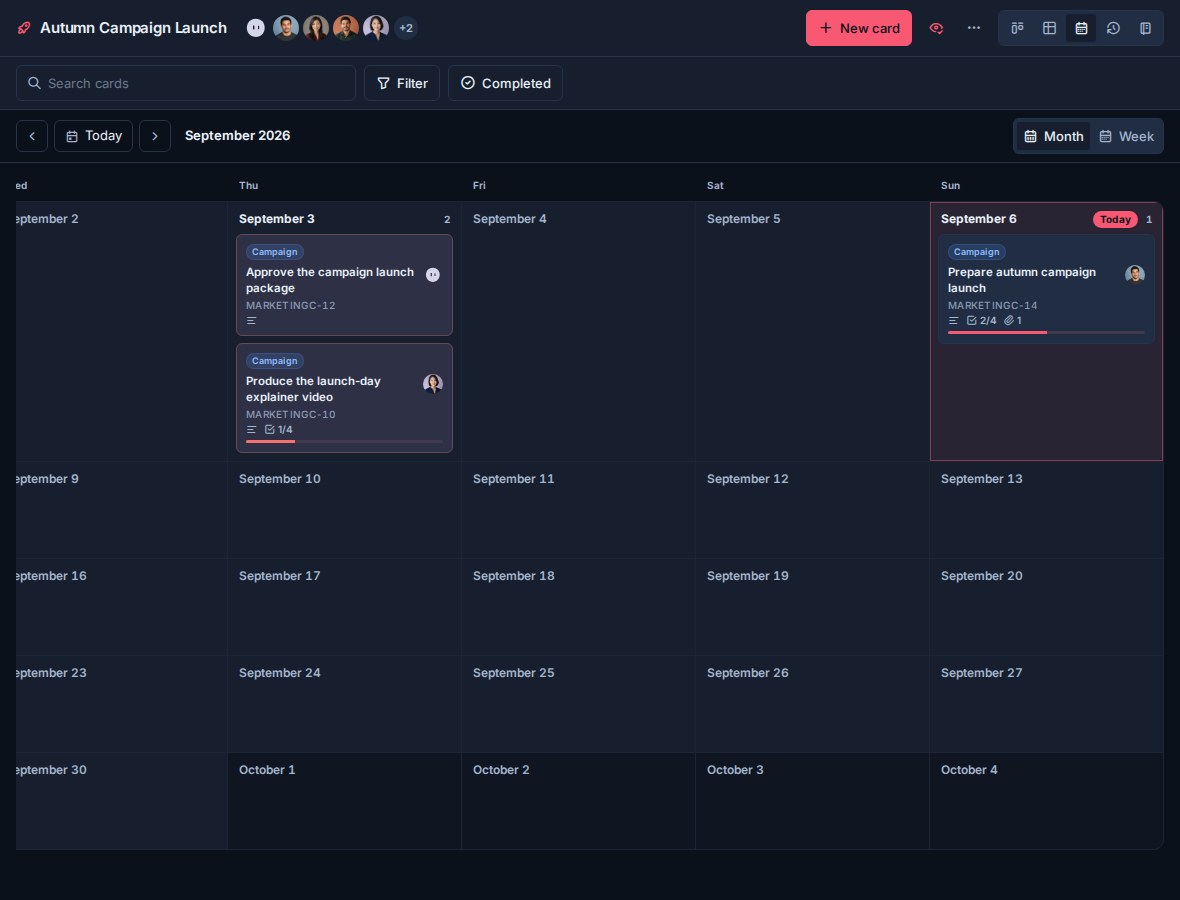
Calendar places cards on their due dates.
Use it to:
- Review crowded days.
- Switch between a month and a week range.
- Move to the previous or next range, or return to today.
- Open a card from its date.
- Right-click a card for its actions menu, then use Quick edit to change its due date.
- See due-time slots where one is set.
Cards without due dates remain available in Kanban and Table.
In Global Work, Calendar keeps the source board visible so similarly named cards remain distinguishable.
Up next view
Up next is an ordered layer across project boards. It ranks assigned cards without moving them from their source list or changing a custom-field value.
My Cards opens your queue as a dock beside the current display. Team Cards can open one selected teammate's queue in the same way, or switch to a dedicated team display:
- Grid places one ranked queue in each visible person's lane.
- Table keeps the same order while exposing more card fields and configurable columns.
Use Up next for exact work order. Use due dates for time commitments and the Priority custom field when your team needs a category such as High, Medium, or Low. These are separate signals.
See Up next for adding and reordering cards, the personal drawer, Team Cards layouts, and teammate queue permissions.
Work Done
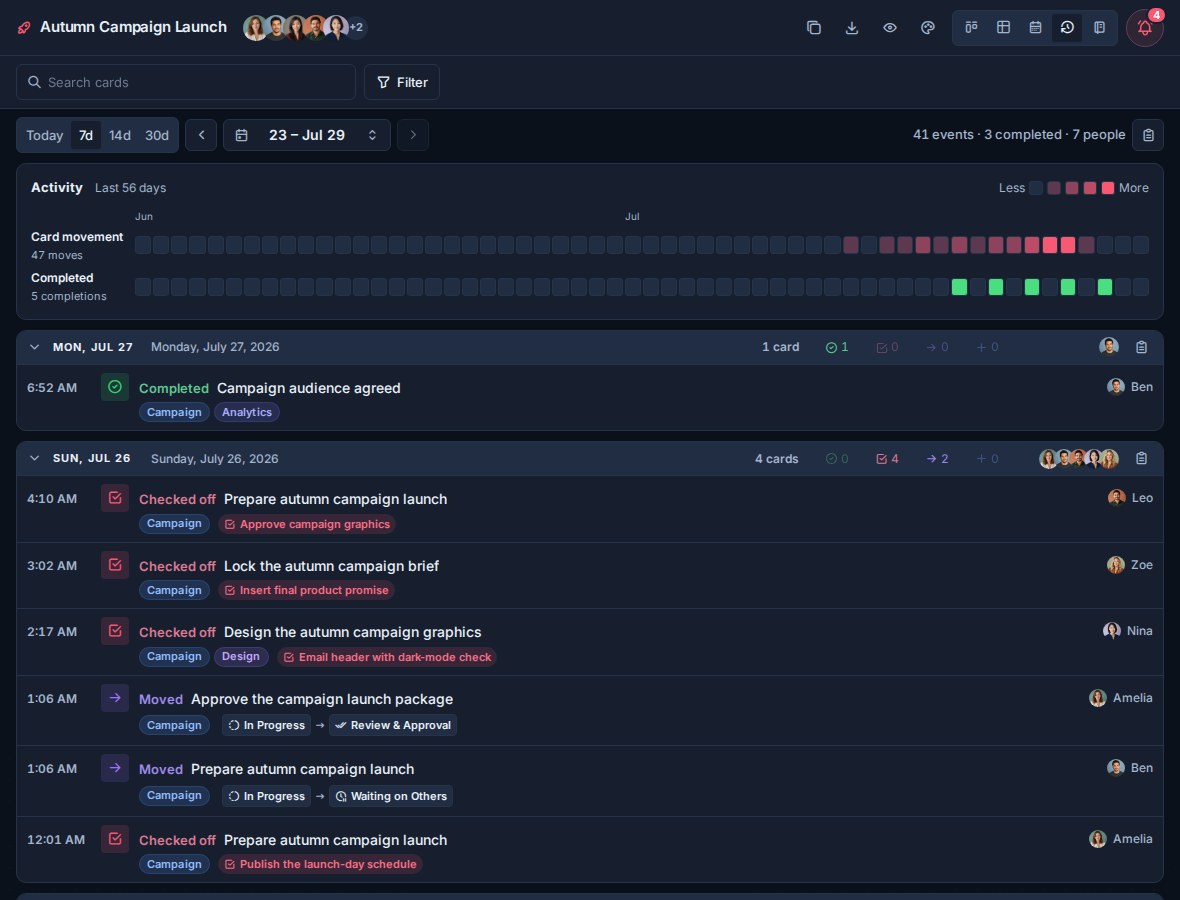
Work Done is a historical timeline. It answers "what changed?" rather than "what is open?"
Events include:
| Event | Meaning |
|---|---|
| Created | A card was created. |
| Moved | A card moved through one or more workflow lists. |
| Completed | A card was marked complete. |
| Checked off | A checklist or sub-checklist item was completed. |
Moved cards can be coalesced into one path for the day. Each row keeps the event time, actor, source context, and relevant list movement.
Pick and filter a day
Work Done loads one day at a time and looks back up to 60 days. You can move between days, return to today, or pick a date.
Search and historical filters can include:
- Card title or key.
- Labels on the card.
- The member who performed the action.
- Supported custom field values.
- Board scope in My Cards or Team Cards.
Board and Global Work scope
On a board, Work Done shows activity from that board.
In My Cards, it follows the personal Global Work lens. In Team Cards, it can follow the whole team or a selected teammate. Portfolio does not have Work Done; its Summary includes separate 60-day movement and delivery activity strips instead.
Choosing a view
| Need | Use |
|---|---|
| Move work through stages | Kanban |
| Edit, compare, calculate, or export cards | Table |
| Plan around due dates | Calendar |
| Set the exact cross-board work order | Up next |
| Explain what changed on a day | Work Done |
| Triage your personal week | Home |
| Work across all accessible boards | My Cards or Team Cards |
| Review delivery health across the hierarchy | Portfolio |