Dependencies View, Timeline, and Editing
Open Dependencies on a board, in My Cards, or in Team Cards to see how work fits together. The view follows blocking chains across boards, shows what can start now, and helps you find the prerequisite holding up the most work.
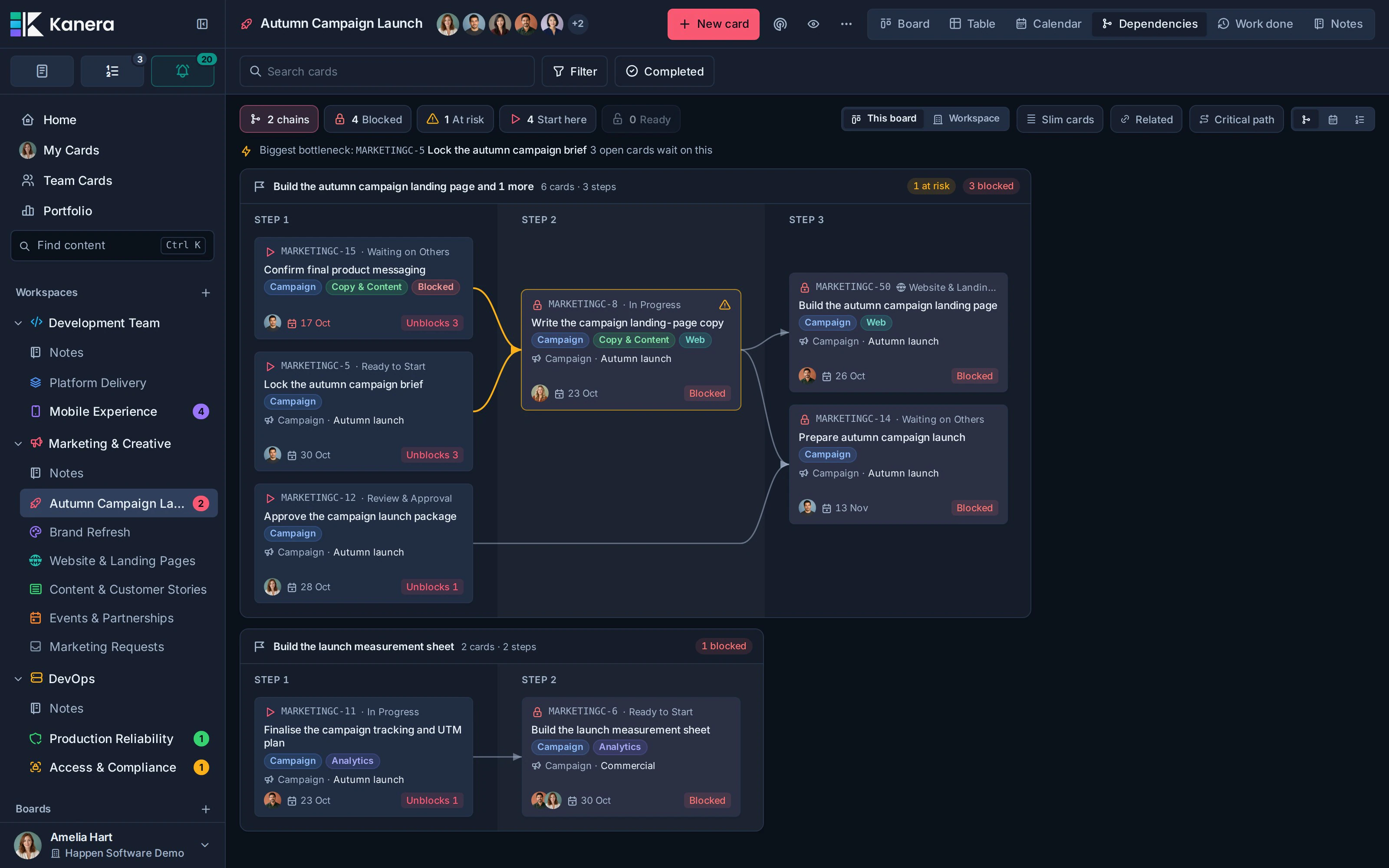
For adding your first relationship or understanding blocked and ready-to-start handoffs, see Card Relationships and Blocking.
Choose the scope
On a workspace board, switch between This board and Workspace:
- This board shows chains touching the board, following prerequisites and dependent work onto other accessible boards in the same workspace. Those out-of-scope cards have dashed outlines.
- Workspace shows chains across the workspace's accessible boards. Cards identify their source board.
- In My Cards or Team Cards, the map starts from the cards loaded by that lens and follows their connected blocking work. It can include context cards outside your current assignments or board selection when you have access to them.
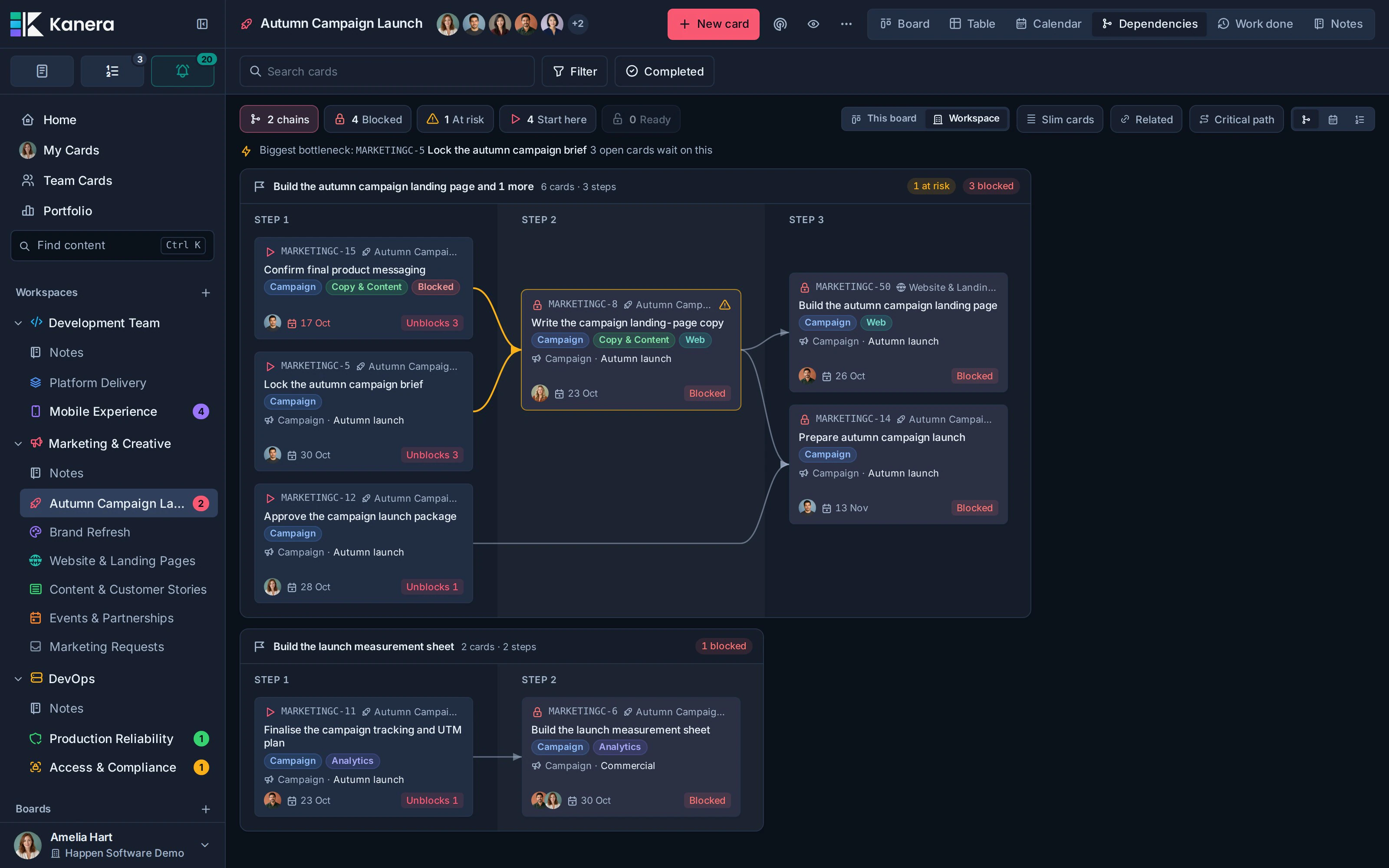
The map follows your existing board permissions. A blocker you cannot open is counted without revealing its title, owner, or board. It does not use a hidden card as a bridge to expose the rest of a private chain.
The view starts from open, unarchived cards with relationships. Completed prerequisites can remain at the end of a walk to show what has cleared, but the map does not continue through their earlier history. Cards without relevant relationships do not appear. A map stops at 400 cards and displays a notice if chains were cut short; narrow the scope to inspect them.
Find the next useful action
The summary counts also act as filters. Select one to keep chains containing matching cards; select it again, or select the chain count, to return to every chain.
| Filter | What it tells you |
|---|---|
| Blocked | An open card is still waiting on an active blocker, including blockers you cannot see. |
| At risk | An active blocker is overdue or due after the card it blocks. The affected card and connection are marked amber. |
| Start here | Nothing blocks the card, and other open work waits on it. |
| Ready | The card had blockers and every one on its chain is now done. |
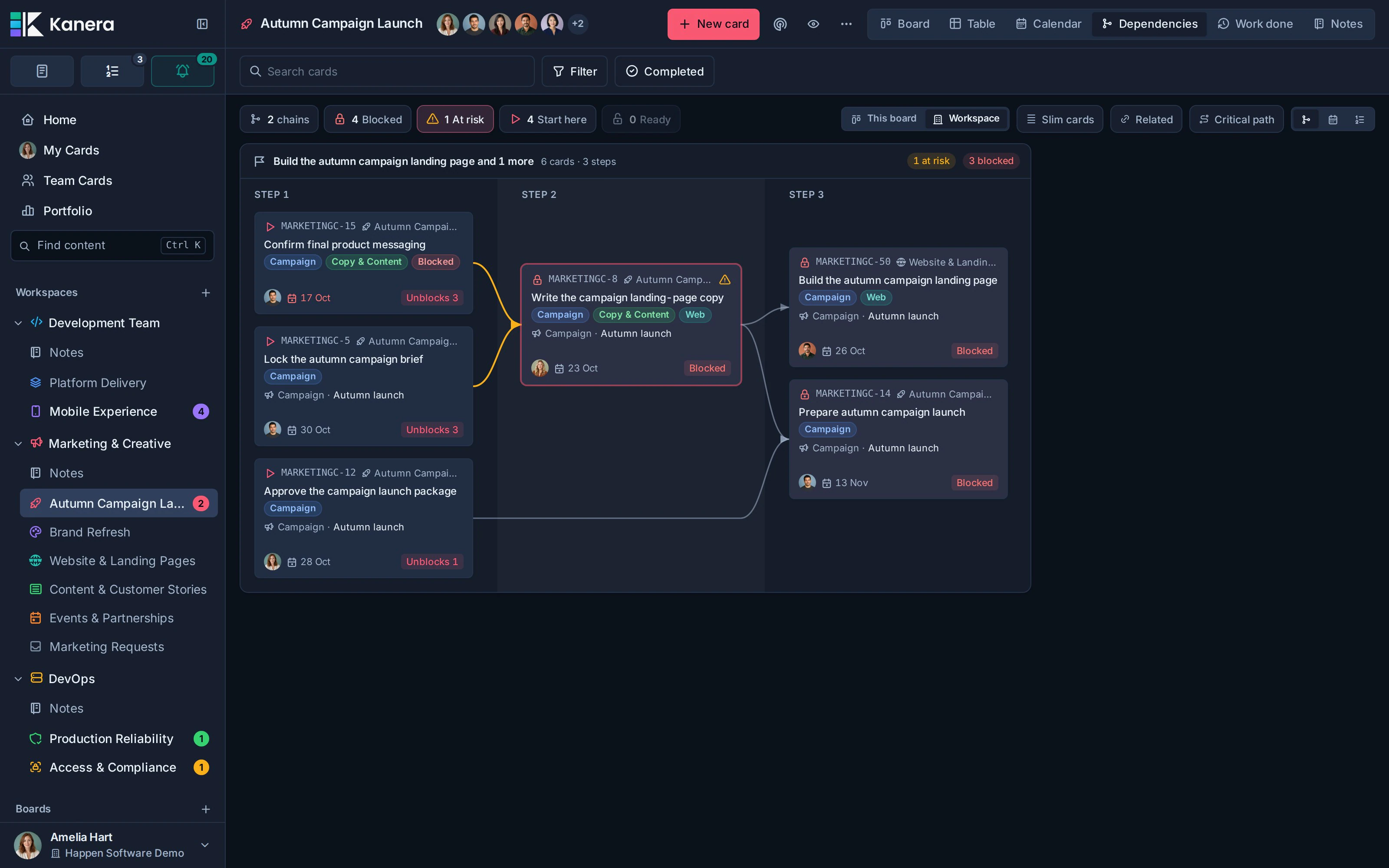
The Biggest bottleneck callout names the open card holding up the most other open work, including further down its chain. Select it to open the card.
Board and Global Work search and filters still apply. A matching card keeps its chain around it, preserving the context you need to understand its prerequisites rather than hiding every non-matching card.
Map: follow the order of work
Map lays each chain out from left to right. A card appears in the next numbered step after its latest prerequisite. This shows the order of work even when no due dates are set.
Hover a card, or focus it with the keyboard, to trace its upstream and downstream work. Select a card to open its detail. Cards show their key, title, owners, dates, labels, and the custom fields configured to appear on card faces.
Use Slim cards when you want just keys and titles. Use Related to include optional Relates to links; these are context links and do not block work or determine readiness.
Highlight the critical path
Turn on Critical path to highlight the longest run of open work in each chain and fade cards outside it. If several routes tie for the longest run, all of those routes are highlighted.
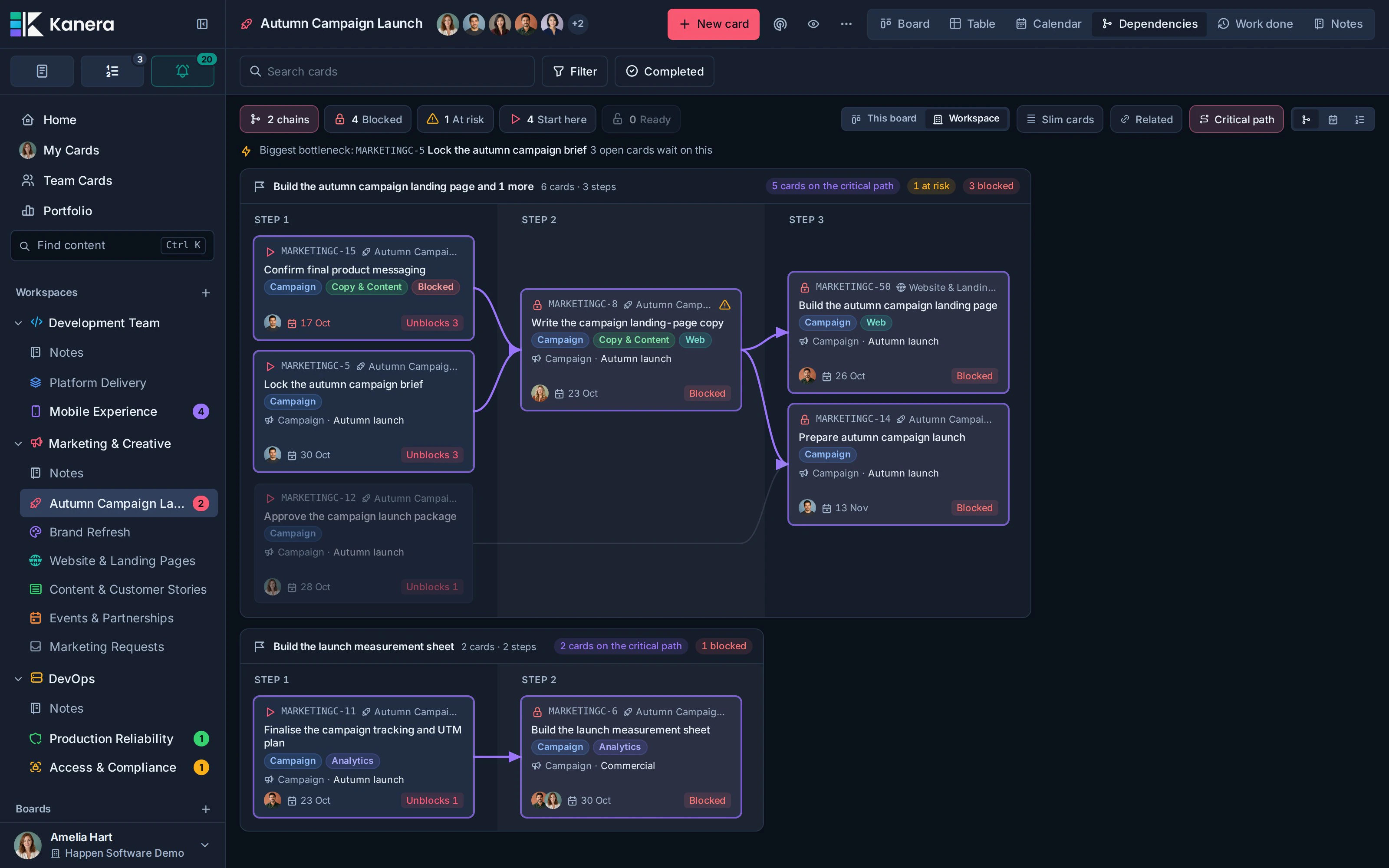
The highlight is based on the number of open cards along a route. It does not calculate task durations, slack, or a predicted finish date.
Timeline: compare due weeks
Choose Timeline to place each card in the week it is due. All chains share the same week columns and scroll horizontally together, so you can compare deadlines across chains. This week stays on the axis as an anchor, and undated cards appear under No due date.
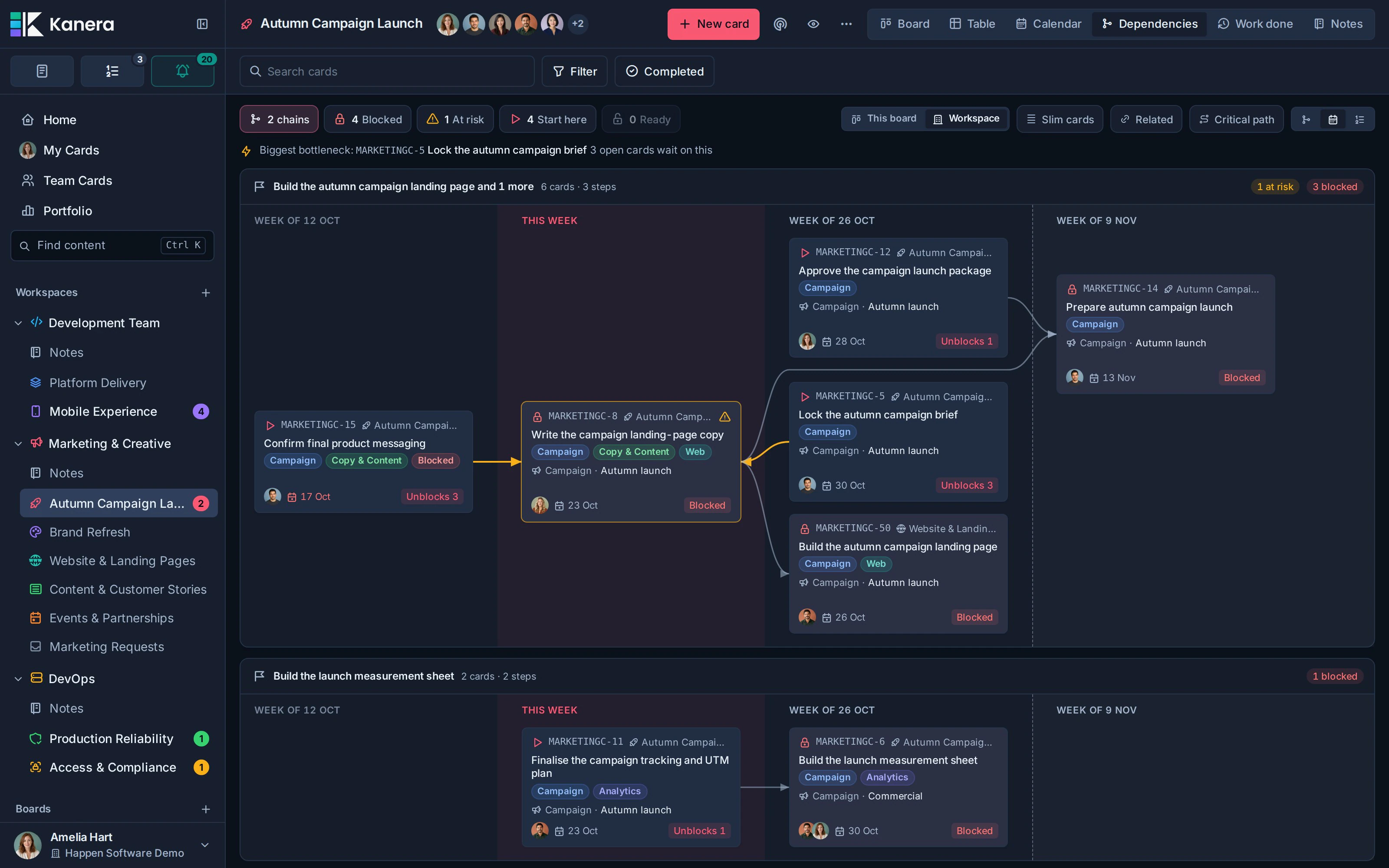
A blocker due after its dependent appears to the right of it, with an amber connector pointing backward. Empty weeks can be omitted; a dashed divider marks the gap. The layout places cards by their due week without adding start dates or duration bars.
Switch back to Map when you want prerequisite order rather than calendar position. The relationships are the same in both layouts.
Steps: read the chain as a list
Choose Steps for a numbered list of the same chain. Each row shows the card, which cards it waits on or unblocks, its due date, owners, status, and any risk or hidden-blocker count.
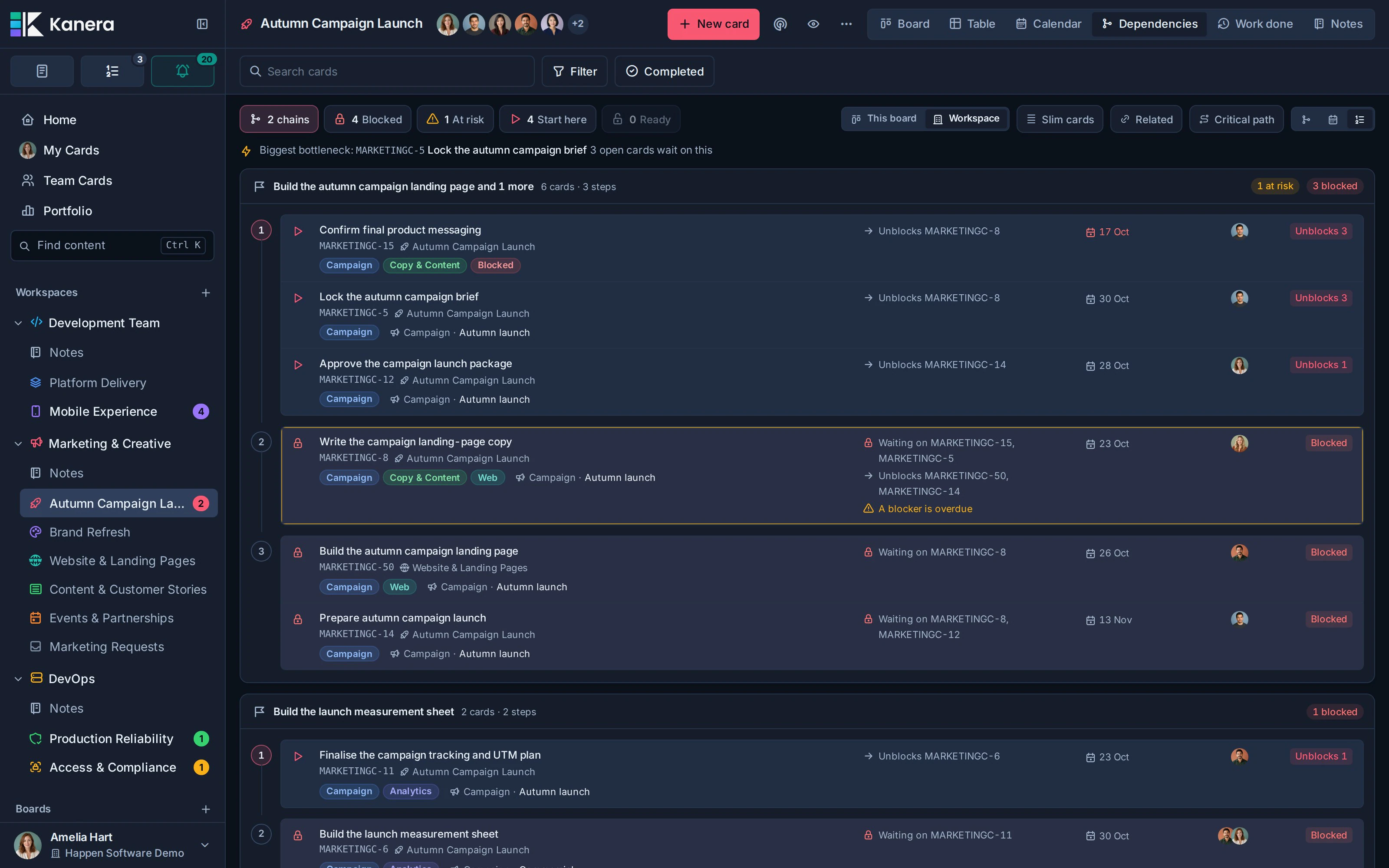
On wide screens those details line up in columns. On a phone they stack under the title. A phone opens in Steps by default unless you have chosen another remembered layout; Map and Timeline remain available with horizontal scrolling.
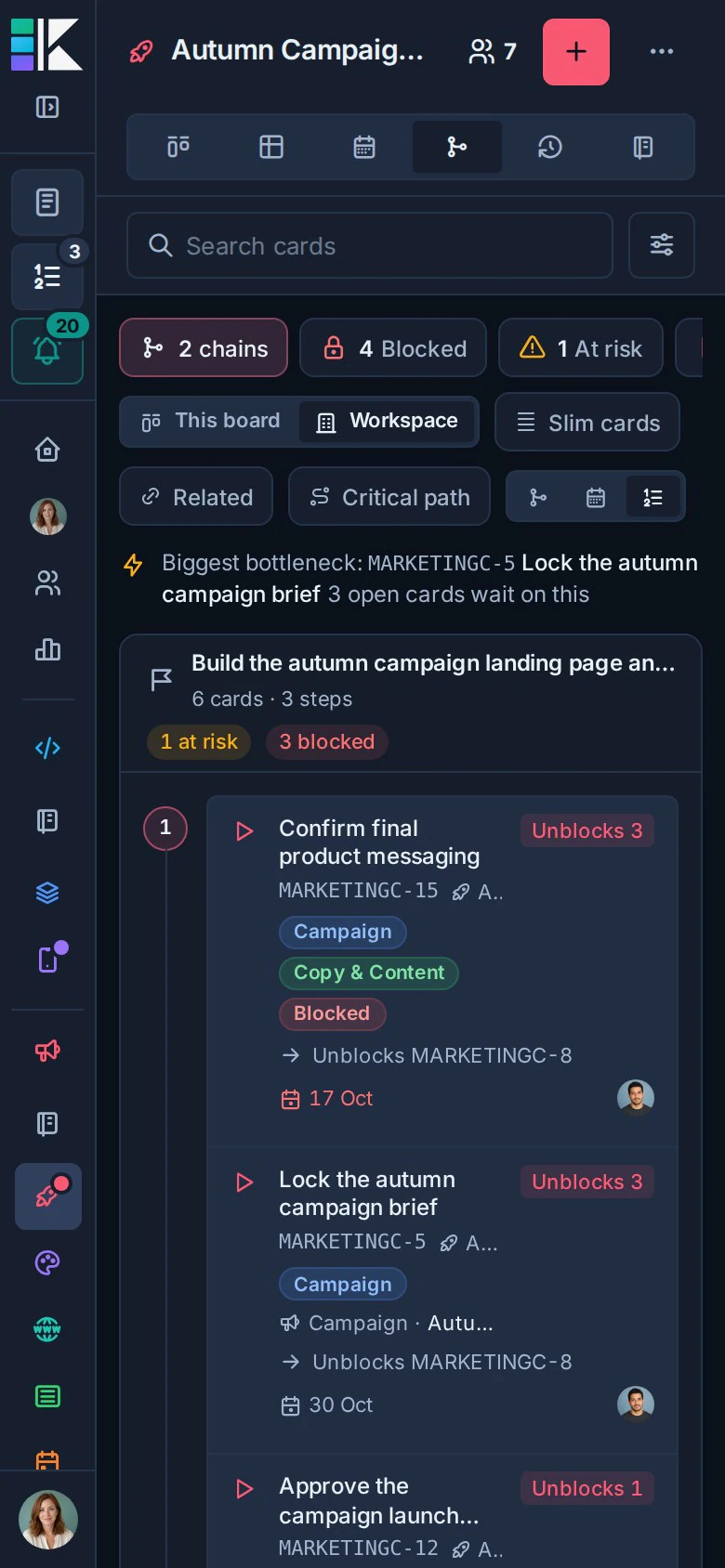
Scope, layout, Slim cards, Related, and Critical path choices are remembered in your browser for that view.
Edit dependencies on the map
You can add blocking links between cards already shown in Map or Timeline:
- Find the card that must happen first.
- Drag from the + handle on its right edge to the card it blocks.
- Drop on the dependent card to save the relationship.
On a phone, tap the handle and then the target card. With a keyboard, focus the handle and press Enter or Space, then choose the target card. Escape cancels linking. Ineligible targets are dimmed, including cards already upstream, existing dependents, completed cards, and cards you cannot edit.
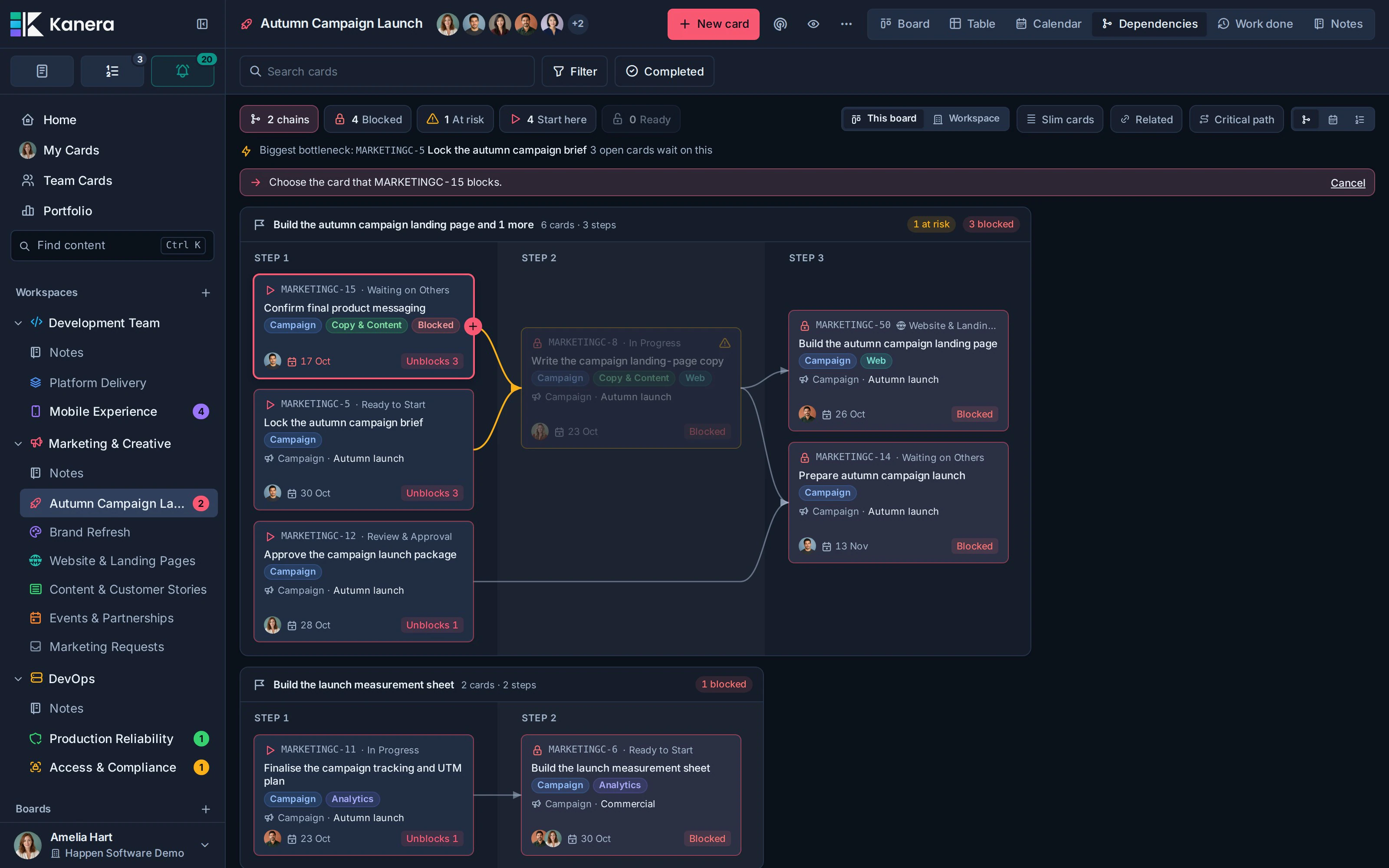
The source card blocks the target card. You need read access to the source and edit access to the card becoming blocked. To connect a card not yet on the map, use its Dependencies section or right-click menu.
To remove a relationship, select its connector and choose Remove. Keyboard users can focus a connector and press Enter or Space to reveal the button. This removes the relationship from both cards and preserves the cards themselves.
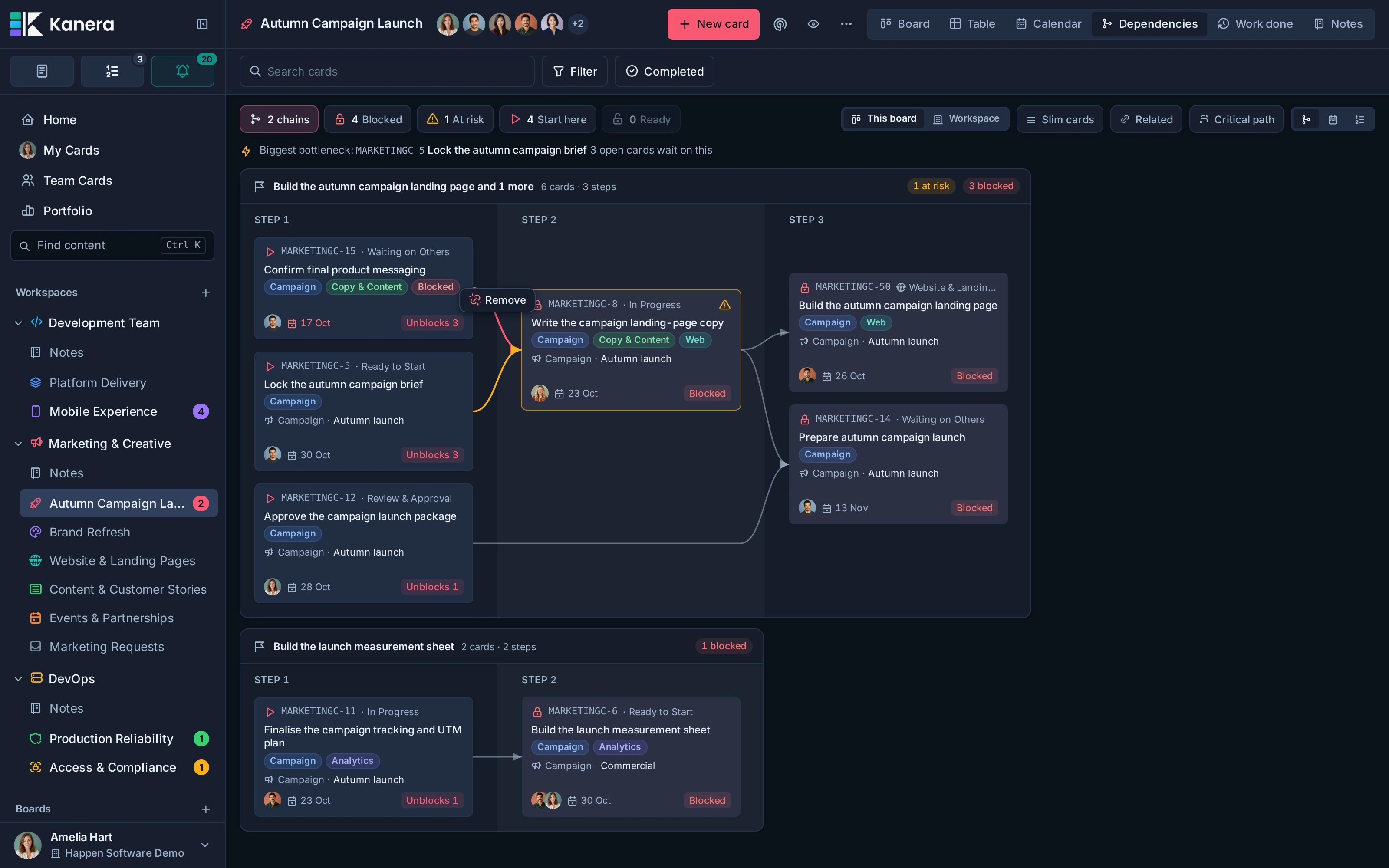
Removing the last active blocker can hand off the dependent card, send notifications, and run automations. Normal permissions and dependency-cycle checks apply to map edits too.
Undo and redo map edits
Every relationship you add or remove on this map goes into its edit history:
- Ctrl+Z, or Command+Z on a Mac, undoes your latest map edit.
- Ctrl+Shift+Z, or Command+Shift+Z on a Mac, redoes it.
- The edit's notification toast also provides Undo or Redo.
The history holds up to 50 of your edits for this map visit. It does not include other people's live changes, and a new edit clears the redo history. If another change makes an undo impossible, Kanera reports it and drops that entry. These controls are separate from the ten-second undo window for archive and delete actions.
Live updates and integrations
The view updates when visible cards, their custom fields, and their relationships change, including across boards. A prerequisite completed elsewhere can make work ready while you keep the map open.
Kanera saves a copy of each map you open on this device. If you lose your connection, the view shows that saved copy with an Offline copy from note, and refreshes itself when you reconnect. A map you have never opened needs a connection; if it cannot load, select Try again.
The board overview and Portfolio count Blocked and At risk cards by the same rules as this view, and selecting either count opens those cards.
Agents can read the same blocking chains with MCP cards.dependency_graph, CLI kanera deps, SDK cards.dependencyGraph, or the public API's POST /api/v1/cards/dependency-graph. These are reads and follow the connected identity's access. Use the MCP reference, CLI, SDK, or API for inputs and result details.
Troubleshooting
| Problem | What to check |
|---|---|
| No dependencies appear | Add a blocking relationship to an open card, or enable Related for context-only links. The view omits unrelated cards and archived work. |
| A filter leaves extra cards visible | Filters keep whole matching chains so their prerequisites remain readable. |
| A card is blocked without a visible incoming link | Its blocker may be on a private board or beyond a truncated map. Check the off-map blocker count. |
| The handle or Remove action is unavailable | Confirm the cards are active and your board role allows the change. Use Map or Timeline to edit connectors. |
| A week is missing from Timeline | Weeks with nothing due can be collapsed behind a dashed divider. |
| A long map is cut short | The server stopped at 400 cards. Narrow the board, workspace, or Global Work scope. |
| The map shows an Offline copy note | You are offline or the server could not be reached. The saved copy refreshes when the connection returns. |