Completed Cards
Completed cards help Kanera keep active boards clear without losing finished work.
In many board tools, finished cards stay in the same lists until someone manually moves, archives, or deletes them. Over time, those cards can crowd the board and make current work harder to scan.
Kanera treats completion as its own state. A completed card can stay visible for a short, configurable period, then move out of active board and Global Work views automatically. It is still completed work history, not an archived card.
Complete cards with dependencies
Completing a blocker clears that prerequisite for the cards waiting on it. When it was the last active blocker, Kanera removes their Blocked state and notifies their assignees and watchers that work is ready. Reopening a blocker can block those cards again.
Completing a card that is itself blocked shows Cancel and Complete anyway in the web app, including bulk completion and priority queues. You can suppress the warning for the session. Completion through the API does not require this prompt. See Card Relationships and Blocking.
Set how long completed cards stay visible
Open Workspace settings -> Lists and use the Completed cards setting.
Enter the number of days Kanera should continue showing completed cards in active board and Global Work views. The value can be from 0 to 365 days.
Use this setting to balance visibility and noise:
- A short window keeps active boards cleaner.
- A longer window helps teams see recent progress without opening history.
- A value of 0 hides completed cards from active views right away.
This setting applies across the workspace, so its boards and cards shown through Global Work follow the same completed-card visibility rule.
What happens after the visibility window
When the visibility window passes, completed cards are hidden from board and Global Work views by default. You can temporarily bring completed cards from a chosen date range back into those views with the Completed filter.
They do not become archived cards. The simple comparison is:
| State | What happens |
|---|---|
| Completed | The card is finished work. It is hidden by default after the workspace visibility window, but can be included again with the Completed date-range filter and remains available in completed-card history. |
| Archived | The card is intentionally moved into archive mode and follows the archived-card retention policy. |
Use completion for work that is done. Use archive only when a card should be removed from active work and enter the archive lifecycle.
Include older completed cards in a view
Open Filter -> Completed on a board or in My Cards, Team Cards, or a Portfolio Table drill-down, then choose a completion-date range. Kanera reloads the view with active cards plus completed cards from that range.
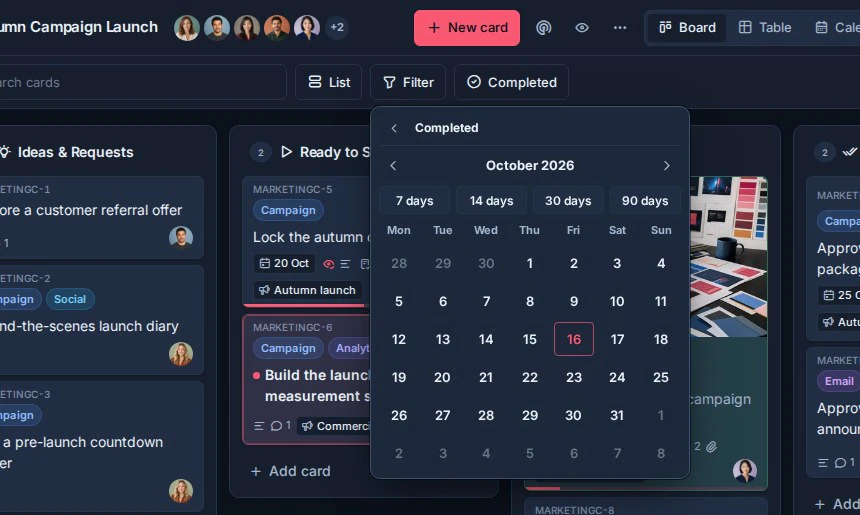
Those completed cards become part of the normal view, so you can:
- Combine the range with search, label, member, board, overdue, and custom-field filters where those controls are available.
- Group, sort, choose columns, and calculate custom-field aggregates in Table view.
- Export the resulting Table view to one JSON or Excel file using the current columns and grouping.
Kanera remembers the completed range in your browser for each board and Global Work lens. Clear the Completed filter to return to the default decluttered view.
The Completed filter and Archived filter are independent. Archived mode still determines whether the view loads active or archived cards; the completed range determines which completed cards are included in that set.
Review completed cards
Use the separate Completed button on a board to open completed-card history for that board.
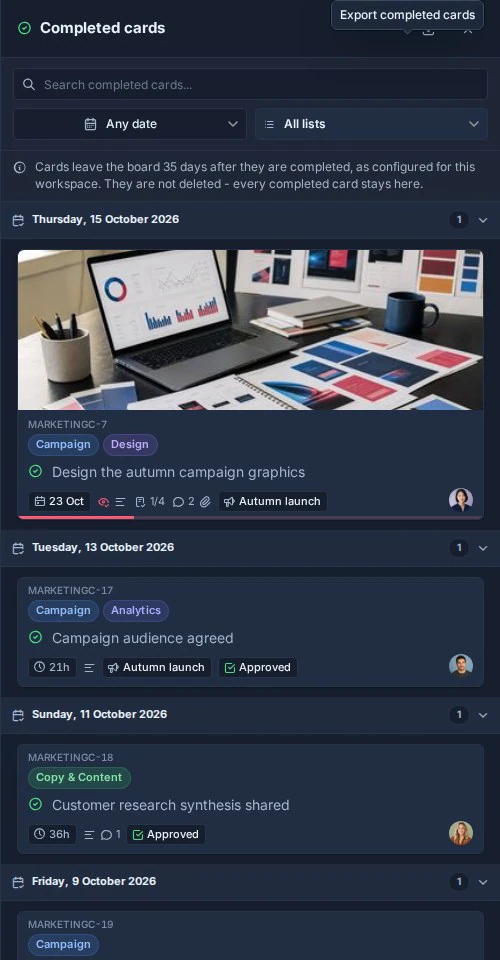
The completed cards panel shows completed cards grouped by the date they were completed. This makes it easier to review what finished on a given day without crowding active lists.
You can:
- Search completed cards by title or card key, including an exact key that uses a previous workspace prefix.
- Filter by completed-date range.
- Filter by list.
- Open completed card details.
- Export the matching completed cards to JSON or Excel.
The completed cards panel is board-scoped. Use the Completed date-range filter in Global Work when completed work needs to span boards or participate in filters, grouping, aggregates, or Table export.
Use the Completed date-range filter when completed work needs to participate in the main view's filters, grouping, aggregates, or Table export. Use board completed-card history when you want to browse or export completed work independently without adding it back to the main board view.
Completed cards and Work Done
Completed-card history and Work Done answer related but different questions.
Use completed-card history when you want to find or export cards that are already complete.
Use Work Done when you want a daily activity timeline, including cards created, cards moved, cards completed, and checklist items checked off.