Checklists
Checklists break a card into smaller pieces of work. A top-level checklist item can act as a mini-subtask with its own description, assignee, due date, and one level of sub-checklists.
Use a checklist item when the work belongs to the card but still needs a clear owner or a few supporting steps. Create a separate card when the work needs its own workflow status, labels, custom fields, comments, attachments, or reporting row.
Checklist structure
A card can contain multiple named checklists, and each checklist can contain multiple items.
Card
  -> Checklist
    -> Checklist item
      -> Description
      -> Assignee
      -> Due date
      -> Sub-checklist
        -> Sub-item
The nesting stops after the sub-item level. Sub-items support text, ordering, and completion. They do not have another detail panel, assignee, due date, description, or deeper checklist.
Add a checklist
- Open a card.
- Find Checklists in the card detail panel.
- Choose Add checklist.
- Enter a checklist title.
- Add the first item.
A card can have several checklists for different parts of the work, such as Content, Design review, and Release.
You can rename and reorder checklists, drag items into a different order, move top-level items between the card's top-level checklists, and hide completed items. Progress counters show how many items are complete.
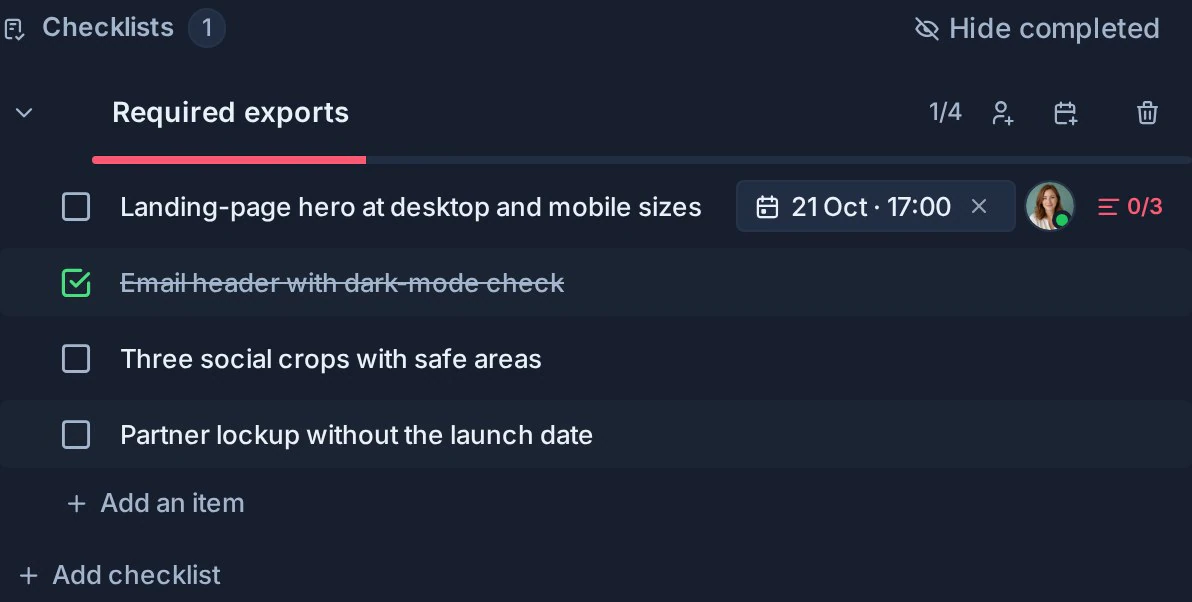
Use a checklist item as a mini-subtask
Select the item text or its detail control to open the item-detail panel.
From that panel you can:
- Rename the item.
- Mark it complete or incomplete.
- Assign one workspace member.
- Set or clear a due date and time slot.
- Add a formatted description with links, mentions, and images.
- Add one or more sub-checklists.
The card's checklist row shows when an item has a description and displays combined sub-checklist progress. This keeps the main card compact while making deeper work visible.
Observers can open item details in read-only mode. Editors can change them.
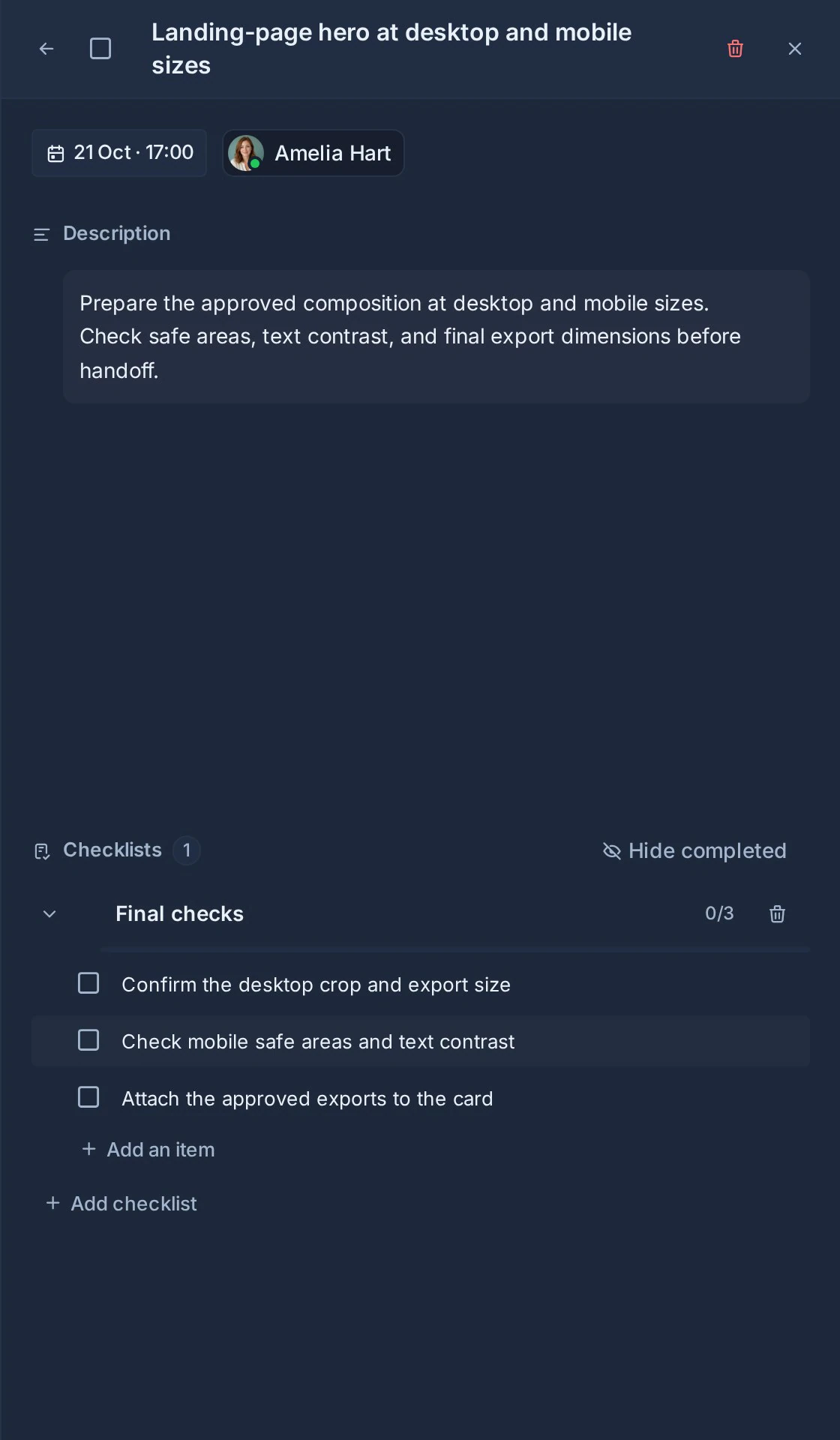
Add sub-checklists
Open a top-level checklist item, then choose Add checklist inside its detail panel.
Use sub-checklists for the small completion steps within that item. For example:
Prepare release notes
  Description: Summarize user-facing changes for the July release.
  Assignee: Release owner
  Due: Friday afternoon
  Sub-checklist: Draft
    -> Collect merged changes
    -> Write the summary
  Sub-checklist: Review
    -> Product review
    -> Final proofread
Sub-items can be reordered or moved between sub-checklists that belong to the same parent item. They cannot be moved into the card's top-level checklists or into another parent item's sub-checklists.
Progress and completion
Kanera keeps the two levels of progress separate:
- Card fronts and view columns count top-level checklist items.
- A checklist item's detail indicator shows the combined progress of its sub-checklists.
- Work Done records completed checklist and sub-checklist items.
- The All checklist items complete automation waits for every top-level item on the card. Sub-checklist items do not count toward it, matching the card-front progress.
Completing every sub-item does not automatically complete its parent item. Mark the parent complete when the mini-subtask itself is finished.
Assign checklist work
Top-level checklist items can have one assignee and one due date. Assigned items appear on Home, in My Cards, and when Team Cards is focused on one person. They retain their parent card, board, and list context.
Sub-items do not have their own assignee or due date. Assign the parent item to the person responsible for that group of steps.
This distinction keeps small execution steps inside the card without turning every row into a full task.
Use checklist templates
Checklist templates add a reusable checklist title and set of top-level items to a card. After applying a template, open any item to add its card-specific description, assignee, due date, or sub-checklists.
Templates are workspace-wide. The resulting checklist belongs to the card and can be changed without changing the template.
Copy, export, and restore
Duplicating a card preserves checklist item descriptions and sub-checklists. Kanera board exports and imports also preserve this structure, so a restored board keeps the item detail hierarchy.
A Trello import brings across the checklist information available in the Trello export, including item completion, assignees, and due dates where present. Descriptions and sub-checklists can then be added in Kanera.
Recommended patterns
Use checklist items for:
- A clear part of a card owned by one person.
- Review or approval steps that need extra instructions.
- A small deliverable with one due date and a short set of actions.
- Repeatable processes applied from a checklist template.
Use sub-checklists for:
- Steps that only need text and completion.
- Separate phases inside one owned checklist item.
- A compact definition of done for the mini-subtask.
Create a new card instead when the work needs independent status, collaboration history, reporting, files, or metadata.
Build checklists with an AI agent
Through Kanera MCP or the CLI, an agent can create a whole checklist in one step: items with descriptions, assignees, and due dates, plus their sub-checklists. It can then tick off or reassign several chosen items at once. The same nesting rules apply, every change appears live on the card, and the card's activity shows what the agent did.