Up next
Up next is a ranked queue of active assigned cards. Rank 1 is the card the person plans to work on next, followed by ranks 2, 3, and so on.
The queue spans boards and workspaces without moving a card from its source list. It is separate from due dates and from a Priority custom field:
| Signal | Use it for |
|---|---|
| Up next | The exact order in which a person plans to work. |
| Due date | A time commitment or deadline. |
| Priority field | A category such as High, Medium, or Low. |
Only active cards assigned to the queue owner can be added. Completing, archiving, or unassigning a card takes it out of the active queue.
Open your personal queue
The numbered Up next button beside notifications is available throughout Kanera. Open it to see and manage your personal queue without leaving the current page.
The drawer lets you:
- Open a card.
- Add another assigned card.
- Drag rows into a new order.
- Use the up and down controls for a precise move.
- Mark a card complete.
- Remove a row from Up next without changing the card.
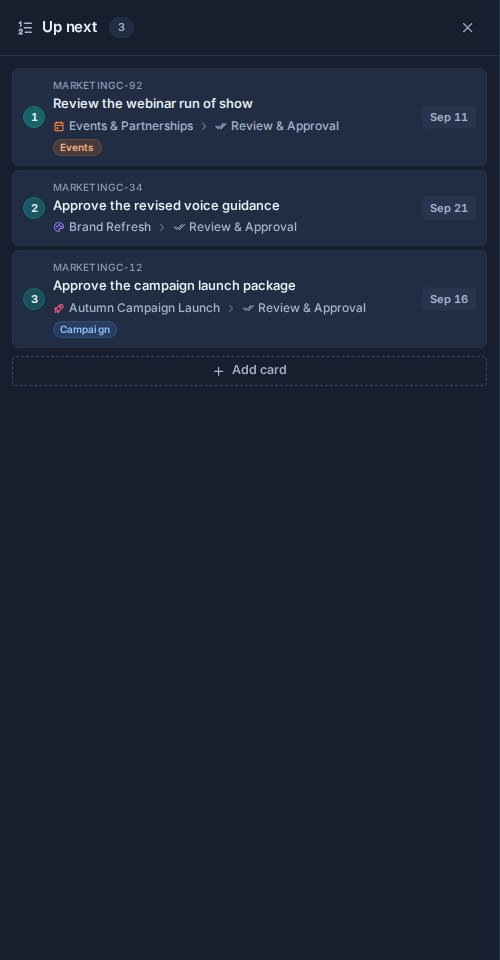
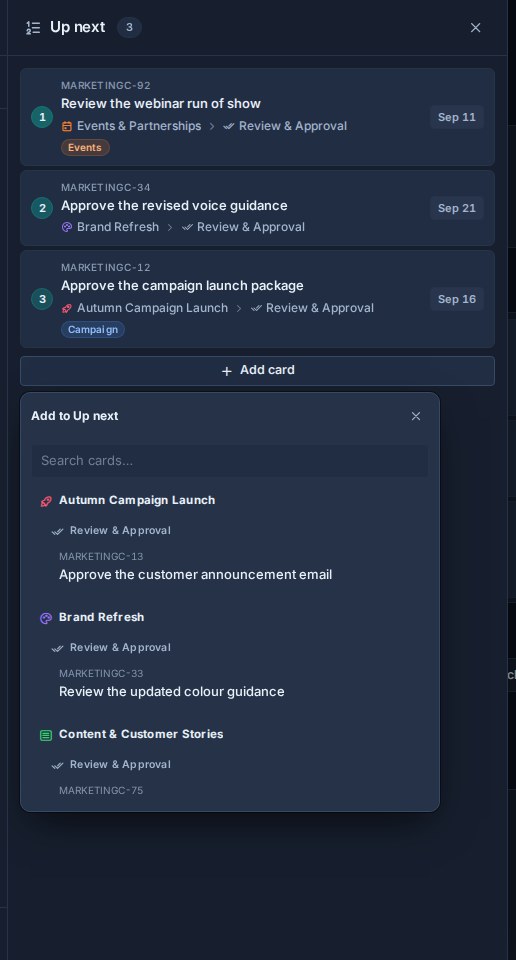
The drawer does not show a cached order while offline. This prevents an old queue from looking like the current instruction.
Manage your queue in My Cards
My Cards gives the queue more room beside your complete cross-board work view.
- Open My Cards.
- Choose Up next beside Filter to dock the queue.
- Add a card with Add card, use Add to Up next on an eligible card, or drag a card tile into the dock.
- Drag queue rows to reorder them. You can also use the row controls when you need an exact one-position move.
- Drag a row out of the dock or choose Remove from Up next to remove it. The source card remains unchanged.
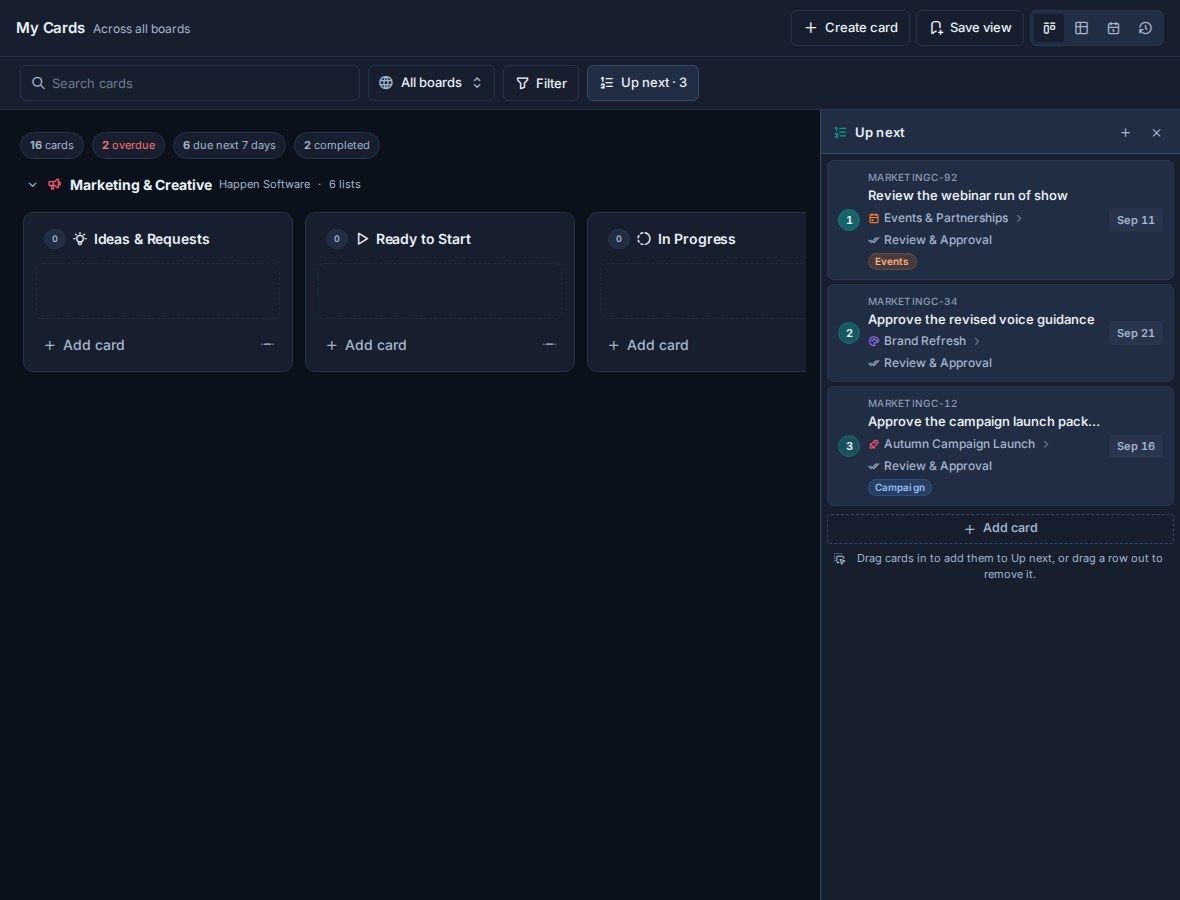
Show only queued cards
Open Filter and enable In Up next to limit the current Board or Table result to cards in your personal queue. The filter can be saved as part of a Global Work saved view.
On Team Cards, this filter appears only after one teammate is selected. It still means the signed-in person's queue, so the result is the intersection of the selected teammate's assigned cards and your own Up next cards. Use the dedicated Up next view to inspect the selected teammate's actual queue.
Manage one person's queue in Team Cards
Use the focused Team Cards view when you want to compare a person's queue with the rest of their assigned work.
- Open Team Cards.
- Choose a teammate from the people control.
- Choose Up next beside Filter.
- Add an assigned card, drag rows to reorder them, or remove a row using the same controls as My Cards.
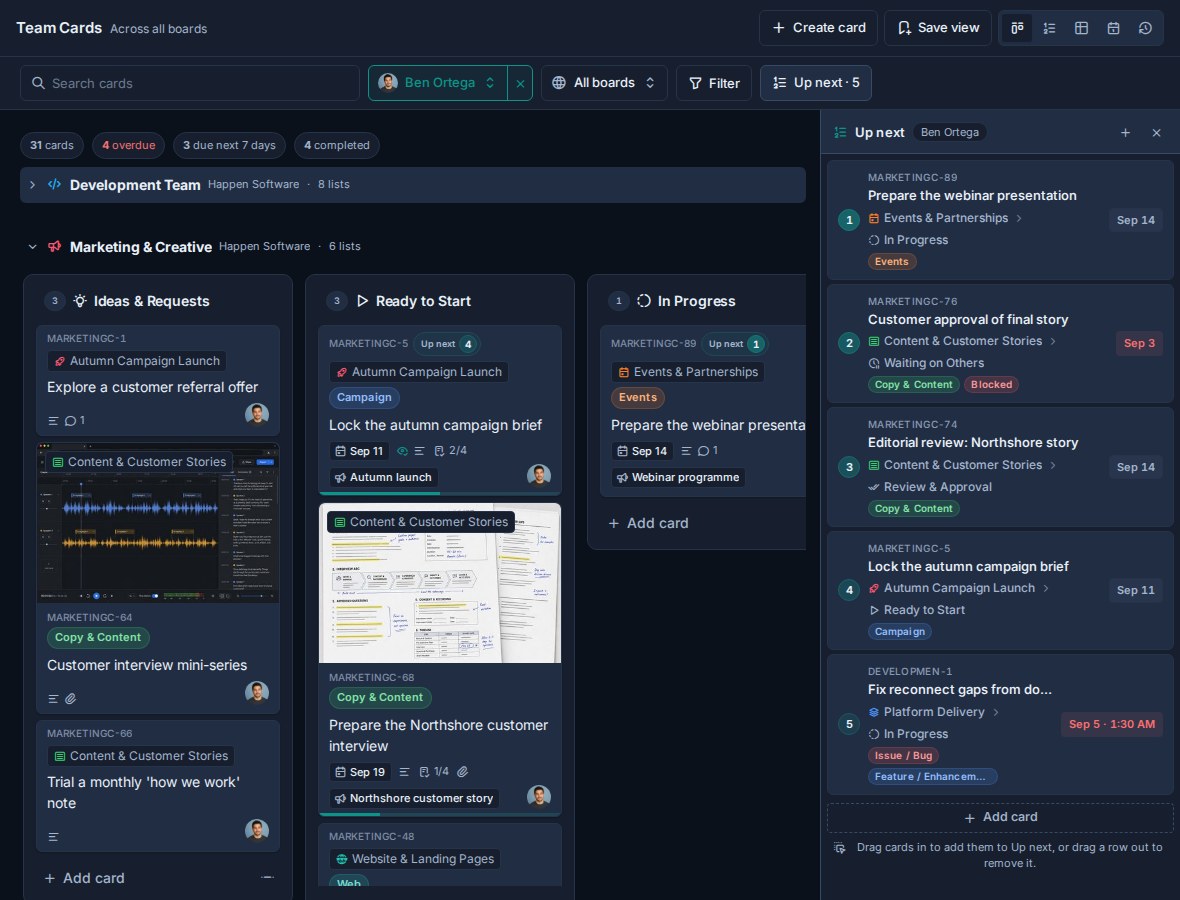
If no teammate is selected, the dock control stays disabled and explains that you can select one person or switch to Up next view.
Coordinate several queues in Team Cards
Choose Up next view in Team Cards to work with every queue you are allowed to read. The queue order is independent of the normal Global Work board scope and filters, so a hidden project filter cannot make ranks appear to change.
Grid layout
Grid places each person in a separate lane. Use it to scan who has a clear order, add cards, and make quick drag-and-drop changes. The profile controls beside search show each queue size and can hide lanes you do not need.
Search narrows the visible card titles without renumbering a person's underlying queue.
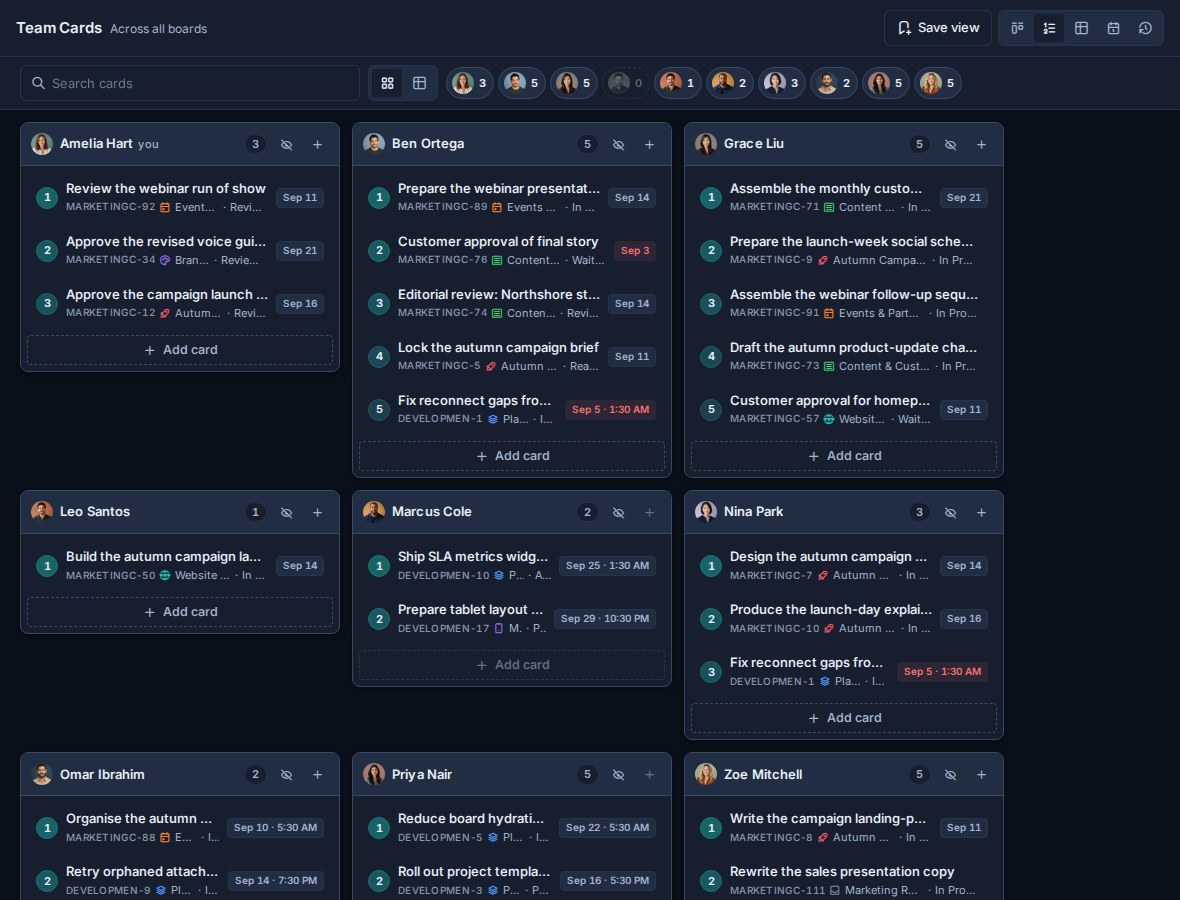
Table layout
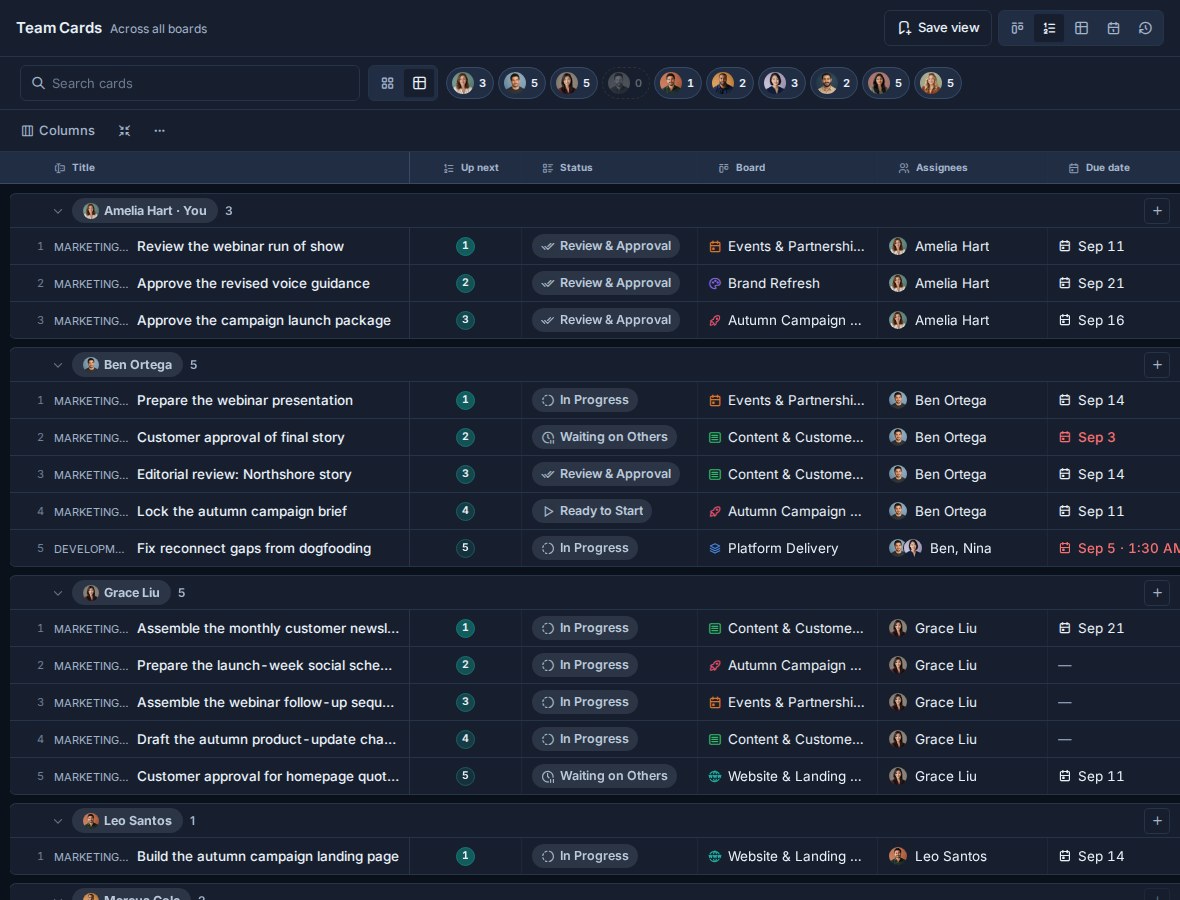
Table keeps the same per-person order while exposing Status, Board, Assignees, Due date, labels, and other configurable columns. Use it when the sequence needs to be checked against delivery context.
Dragging a row within a person's group updates that person's real queue order.
Permissions for teammate queues
Your own queue follows normal card visibility and edit permissions. Teammate queues add two authority checks:
- Reading another person's queue requires effective admin authority in a workspace you share with that person.
- Changing a teammate's queue also requires admin authority for the workspace that contains the card being changed.
A ranked card outside your access appears as a locked placeholder. Its position stays intact, but Kanera does not reveal the card details or let you move it.
Where the order appears
The same rank is reused across Kanera:
- The personal drawer shows the complete active queue.
- Home shows the first items in that order.
- My Cards can dock the complete queue beside Board, Table, or Calendar.
- Board cards and Table rows can show an Up next rank.
- Team Cards can show one focused person's dock or several readable queues in Grid and Table.
- API and MCP priority tools use the same underlying order.