Workspaces
Every Kanera workspace belongs to an organisation, the top-level Kanera space for one person or a group. A workspace coordinates several related boards inside that organisation. It is more than a folder: it is the shared operating system for boards that should follow the same process.
Workspaces are optional. If one board should have its own workflow and settings, use a standalone board instead.
Inside a workspace, lists, labels, custom fields, checklist templates, automations, and the member roster are shared. Content access is still granted per board. This gives teams consistent cross-board work without forcing every workspace member to see every board.
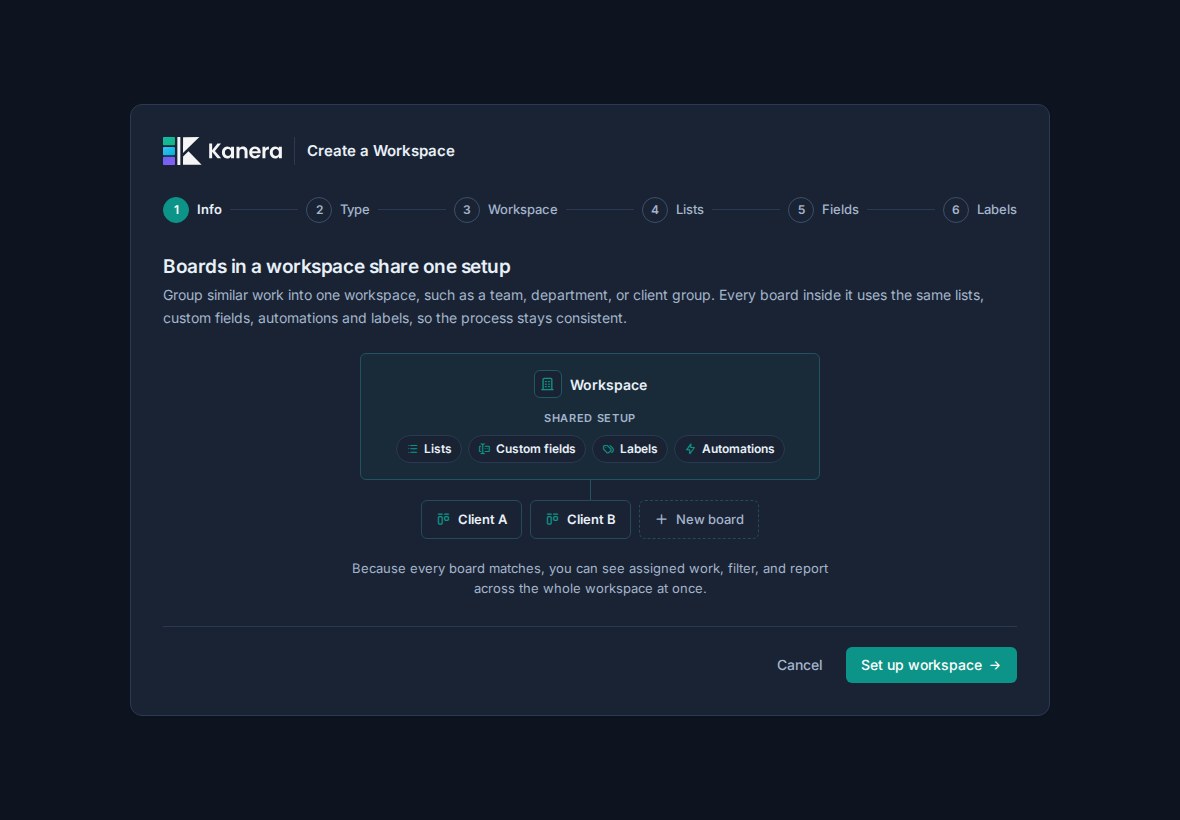
What a workspace is
A workspace is the boundary where a team, department, client group, or operating process shares the same structure.
Use a workspace for work that should have:
- The same lists or workflow stages.
- The same labels and custom field catalogue.
- The same member roster and board-level access model.
- The same automations or repeated processes.
- The same reporting dimensions and workflow context.
For example, an agency might keep all internal client boards in one Client Delivery workspace. Each client can have its own board, but every board uses the same lists, fields, labels, and workflow. Project managers can then scope Team Cards or Portfolio to that workspace and compare each client on consistent dimensions.
Workspaces compared with standalone boards
Kanera supports both independent boards and structured workspaces. Choose based on whether sharing is useful:
| Standalone board | Workspace |
|---|---|
| One independent board. | Multiple related boards. |
| Lists, labels, fields, templates, and automations belong only to that board. | Those resources are shared across every board in the workspace. |
| People are granted access directly to the board. | A workspace roster supplies candidates, then access is granted board by board. |
| Best for one-off, personal, client-specific, or Trello-style workflows. | Best for repeatable team processes and consistent cross-board reporting. |
| Its setup remains independent, but it still appears in Global Work when you can access it. | Board groups and shared fields make Global Work and reporting more consistent across related boards. |
Standalone boards maximise independence. Workspaces make consistency and cross-board coordination deliberate. You can use both in the same organisation.
Why shared setup matters
When boards in a workspace use the same structure, Kanera can make better sense of the work inside them.
Shared lists help people compare progress across boards. If every client board has Intake, Active, Waiting, and Done, a project manager can scan the same workflow for every client.
Shared custom fields make grouping and aggregation more useful. A field such as Priority, Client, Risk, Effort, or Target Date means the same thing everywhere in the workspace.
Shared labels keep categories from drifting. A Blocked label or Needs Review label should mean the same thing no matter which board a card is on.
Shared membership makes Team Cards easier to interpret, while per-board grants keep access intentional. People see only cards from boards they can access; workspace admins can coordinate across the workspace, and Global Work can still include other accessible work when its scope is broader.
Set the card key prefix
Each workspace or standalone board has a prefix used for human-readable card keys, such as PROJ in PROJ-123. Open Workspace settings -> General or Board settings -> General to change it.
A prefix must contain 2 to 10 letters or numbers, start with a letter, and is stored in uppercase. It must be unique within the organisation, including across that organisation's standalone boards, but it does not need to be unique across all of Kanera. Organisation names also do not form part of the card address; Kanera uses an opaque organisation reference in the link instead.
Choose a prefix people will recognize in chat, documents, and support requests. If Kanera says the prefix is already reserved, choose a different one used by no current or deleted workspace in the organisation.
Changing the prefix updates the current keys shown on cards but does not break old references. Every previous prefix remains a permanent alias for that workspace, and its reservation remains in place even if the workspace is later deleted. This prevents an old key or link from ever pointing at unrelated work.
Boards inside a workspace
A board is where a specific stream of work is managed. Boards are useful for separating client work, product areas, campaigns, launches, queues, or recurring processes.
Create separate boards when the work needs its own conversation or surface, but still belongs to the same shared operating model.
Good board examples inside one workspace:
| Workspace | Boards |
|---|---|
| Client Delivery | Acme Onboarding, Brightlane Retainer, Northstar Launch |
| Product Team | Roadmap, Bug Triage, Release Planning |
| Marketing | Content Calendar, Campaigns, Website Requests |
| Operations | Facilities, Procurement, Internal Requests |
The board separates the context. The workspace keeps the process consistent.
Configure board health
Open Workspace settings -> General -> Board health to enable or disable health for every board in the workspace. When enabled, choose whether overdue, unassigned, and inactive cards participate in the status calculation. The workspace also owns the inactivity window used by the Inactive signal.
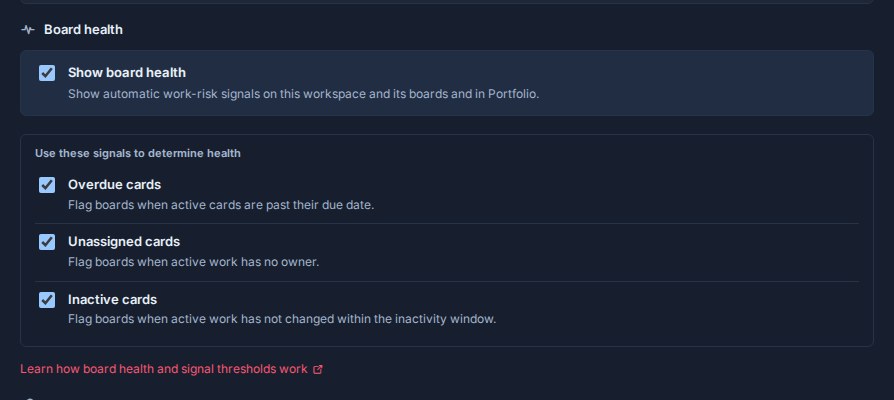
The organisation setting supplies only the initial enabled state for new workspaces. Existing workspaces keep their own setting, and signal choices remain workspace-specific. See Board Health for thresholds and Portfolio behavior.
Choosing workspace boundaries
Create workspaces around groups of work that should be managed consistently.
Good workspace boundaries include:
- A department, such as Product, Marketing, Operations, or Support.
- A team that shares one operating process.
- A client group that follows the same delivery workflow.
- A business unit with its own members, guests, and reporting needs.
- A sensitive area of work that should be kept separate from other teams.
Avoid creating a new workspace for every small initiative. If the work is independent, a standalone board is simpler. If it uses the same people, lists, labels, and fields as existing boards, add a board to that workspace.
When to use separate workspaces
Use separate workspaces when shared setup would create confusion or access problems.
Separate workspaces are usually better when:
- Different teams need different workflow stages.
- Custom fields mean different things in different departments.
- Guest access should be isolated.
- Client or business-unit data must not overlap.
- Reporting should not combine the work.
- Automations or process rules should be managed separately.
For example, a Product workspace and a Client Delivery workspace may both use a Priority field, but their lists, members, reporting, and day-to-day workflows may be different enough to keep apart.
If each area needs only one board, use separate standalone boards instead. Create separate workspaces when each area expects to grow into several related boards.
Practical setup patterns
Start with a standalone board when you are learning Kanera or managing one independent project. Start with a workspace when the work already spans several boards that naturally share the same process.
Use multiple boards inside that workspace for different clients, initiatives, or work streams.
Standardize your workspace lists early. Lists are one of the strongest signals Kanera uses to organize work across boards.
Create custom fields only when the field will be useful across multiple boards. If a detail applies to one card or one board only, put it in the card description, checklist, or comments.
Review labels and fields before duplicating a process. Clean shared setup keeps every board easier to scan.