Boards
Boards are the main Kanban-style places where work happens in Kanera. Every board belongs to an organisation. It can be standalone or sit inside a workspace. Use one for a client, product area, campaign, service queue, launch, or any other stream of work that needs its own surface.
On a standalone board, lists, labels, custom fields, checklist templates, automations, and access are independent. Inside a workspace, those workflow resources are shared across its boards while access is still granted per board.
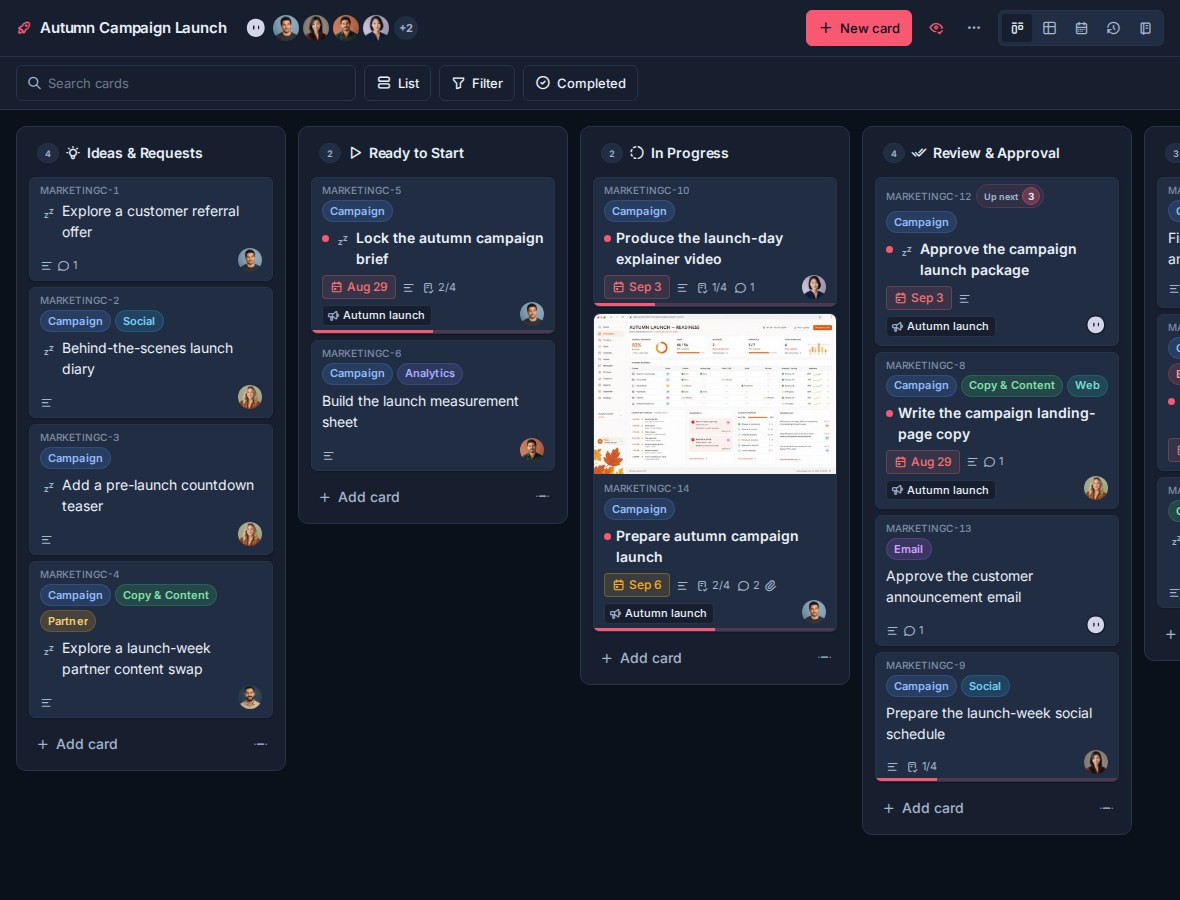
Choose the board model
Use a standalone board when one board should be configured independently. Use a board inside a workspace when it should share its workflow with related boards.
See Standalone Boards and Workspaces for a detailed comparison.
Open workspace board settings
- Open the workspace.
- Go to Workspace settings.
- Choose Boards.
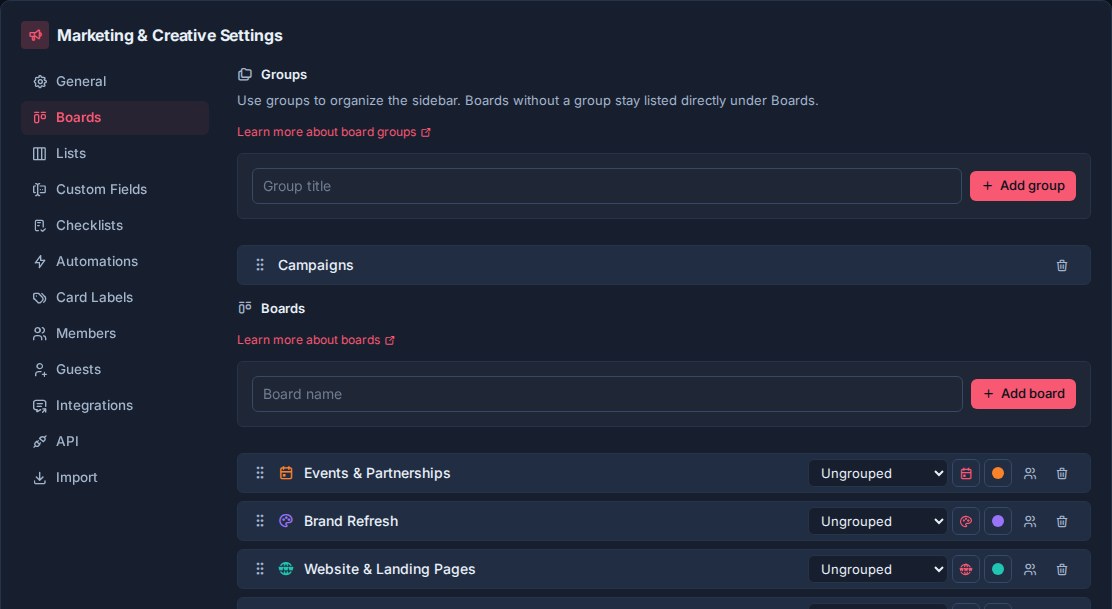
The Boards settings page has two sections:
- Groups: organize boards in the sidebar.
- Boards: create, rename, reorder, group, style, manage access, or delete boards.
For a standalone board, open the board and choose Board settings. It has no Boards tab because a standalone board cannot contain another board.
Manage board access
Workspace admins and organisation admins can manage access from the people icon beside a workspace board in Workspace settings -> Boards. The same access control is available from any board, including a standalone board.
From the access menu, an admin can:
- Add an internal workspace Member to the board.
- Choose Editor or Observer.
- Restrict a person to Assigned items only.
- Change an existing role or restriction.
- Remove a person from the board.
- Review accepted external guests alongside internal members.
Removing a person from a board hides the access row immediately and provides Undo for ten seconds before Kanera commits the removal. See Undo Recent Actions.
For boards inside a workspace, Workspace Admins automatically have Editor access to every board. Their inherited access is marked Admin and cannot be changed or removed board by board. Ordinary workspace Members have no board access until they are explicitly added.
For standalone boards, the access menu offers active organisation members directly because there is no separate workspace member roster.
Assigned items only limits either an Editor or Observer to cards where they are a card assignee or are assigned a checklist item. Use it for contractors, clients, or teammates who should participate without seeing unrelated cards on the same board.
Export a board
Kanera can export a board directly to Excel or JSON. Use the board export when you need the whole board for a backup, migration, offline review, or further processing.
- Open the board.
- Switch to Board view if you are currently in Table. Table has a separate export for its filtered result.
- Select the download button labelled Export board in the top toolbar.
- Choose Excel or JSON.
The board export is available to Editors and admins. An Editor with Assigned items only receives only the board data they are allowed to see.
| Format | What it contains | Best for |
|---|---|---|
| Excel | One Cards sheet with every visible card, its list, key, description, assignees, labels, dates, counts, attachment links, and active custom fields. | Offline review, spreadsheets, handoff, and analysis. |
| JSON | A structured Kanera board archive with the board, lists, cards, labels, custom fields, members, assignments, checklists, comments, reactions, watchers, and attachment metadata visible to you. | Backup, migration, scripts, and importing into Kanera. |
The JSON file can be imported from Workspace settings -> Import -> Kanera or Board settings -> Import -> Kanera. An imported copy receives new card keys from its destination; the source keys remain in the archive but are not reused as the new board's identities.
Board export and Table export serve different purposes:
- Export board exports the complete board data visible to you.
- Export this table exports the current Table result after search, filters, columns, grouping, sorting, aggregates, and breakdowns. It supports Excel and JSON.
Treat exported files as potentially sensitive because they can contain card content, member details, comments, and attachment links. See Reporting and Board Export for the Table export workflow.
Check the board overview
Select the radar button beside the board name to open Board overview.
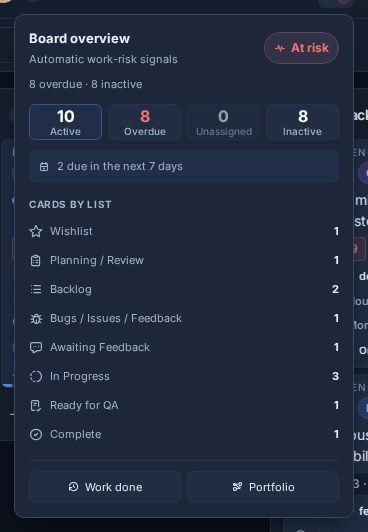
The panel summarizes active, overdue, unassigned, inactive, and due-soon work, alongside card counts by list. Select a risk metric to filter the board to those cards; select Active to clear the drill-down. These session-local filters combine with the board's normal search and filters.
How health is calculated
Health uses incomplete, non-archived cards. Workspace admins can enable or disable health, choose whether overdue, unassigned, and inactive cards participate, and set the inactivity window. The calculation assigns the worst threshold reached by an enabled signal; due-soon and per-list counts are context only.
See Board Health for the exact thresholds, workspace and organisation settings, disabled-signal behavior, and Portfolio rollups. Treat the result as a triage signal rather than a delivery forecast. The panel also links to Work done and Portfolio for broader reporting.
What boards are for
A board should represent a meaningful stream of work, not a one-off status or category.
Good boards are usually named after:
| Board type | Examples |
|---|---|
| Client or account | Northstar Launch, Brightlane Retainer, Acme Onboarding |
| Team or function | Engineering, Support Queue, Marketing Requests |
| Product area | Roadmap, Integrations, Mobile App |
| Repeatable process | Hiring Pipeline, Content Calendar, Release Planning |
| Operational queue | Procurement, Facilities, Internal Requests |
Boards inside one workspace work best when they follow the same general workflow. Use standalone boards when each board needs different lists, fields, labels, templates, or automations.
Create a board inside a workspace
Use the board creation row in Workspace settings -> Boards.
- Enter the board name.
- Click Add board.
New boards automatically include workspace and organisation admins. Add other workspace Members from the board's access menu. If your plan has a board limit and the workspace has reached it, Kanera disables board creation and shows a plan-limit message.
Create a standalone board
Organisation admins can select the + button beside Boards in the main sidebar, enter a board name, and choose a starting template. New accounts can also choose Create a board during onboarding.
The template can seed a workflow, fields, labels, checklist templates, starter cards, and automations for that board only. See Standalone Boards for the complete setup flow and First-Time Setup for the current template choices.
Rename a board
For a workspace board, click the board name in Workspace settings -> Boards to edit it.
For a standalone board, open Board settings -> General and edit the board name.
- Press Enter or click away to save.
- Press Escape to cancel.
Use names that make the board easy to recognize in navigation, search, internal links, Home, and Global Work.
Reorder boards
This section applies to boards inside a workspace. Standalone boards appear in their own sidebar section and are not placed into workspace order or groups.
Drag boards directly in the sidebar to change their order. You can move a board within its current group, into another group, or into the ungrouped board list. The same order is reflected in Workspace settings -> Boards and in board pickers.
Board order affects how boards appear in workspace navigation and board pickers. Put the boards people use most often near the top.
Group boards
Groups organize boards in the sidebar. They do not change the cards, lists, labels, fields, or permissions inside a board.
Use groups when a workspace has enough boards that a flat list becomes hard to scan.
Good group examples:
| Workspace | Groups |
|---|---|
| Client Delivery | Active Clients, Onboarding, Completed |
| Product Team | Planning, Delivery, Maintenance |
| Marketing | Campaigns, Content, Requests |
| Operations | Internal Services, Vendors, Admin |
Boards without a group stay listed directly under Boards.
Create and manage groups
Use the Groups section at the top of Workspace settings -> Boards.
To create a group:
- Enter a group title.
- Click Add group.
You can also:
- Click a group title to rename it.
- Drag groups by the grip handle to reorder them.
- Delete a group when it is no longer useful.
Deleting a group does not delete its boards. Boards in that group move to Ungrouped.
Assign a board to a group
Each board row has a group selector.
- Find the board in the Boards list.
- Open the group selector.
- Choose a group, or choose Ungrouped.
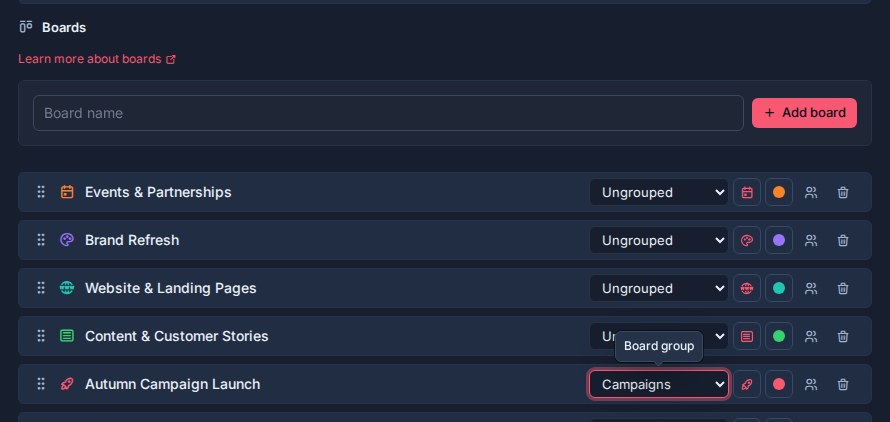
Use groups for navigation clarity. If you need to separate access, reporting, or workflow rules, create a separate workspace instead.
Set board icons
Each board can have its own icon. Icons make boards easier to recognize in the sidebar, board pickers, card links, and other workspace views.
To change a board icon:
- Find a workspace board in Workspace settings -> Boards, or open Board settings -> General for a standalone board.
- Open the icon picker.
- Choose an icon.
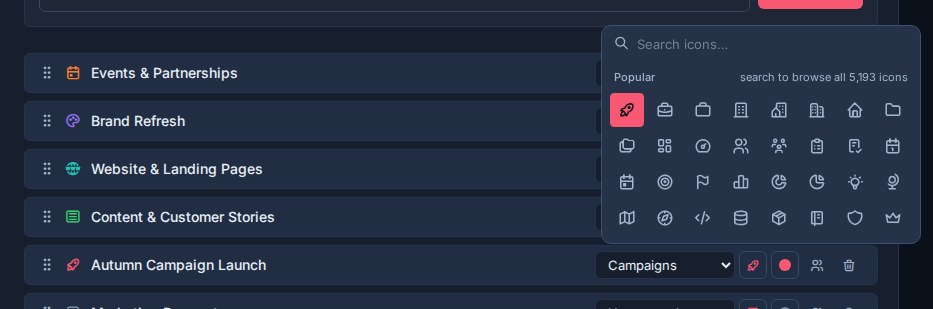
If a board has no custom icon, Kanera uses the default board icon.
Choose icons that describe the board's purpose:
| Board | Icon idea |
|---|---|
| Support Queue | Headset, inbox, or alert icon |
| Roadmap | Chart, route, or rocket icon |
| Content Calendar | Calendar, pencil, or broadcast icon |
| Client Onboarding | Briefcase, users, or checklist icon |
Set board colors
Each board can also have an icon color. The color appears with the board icon anywhere Kanera shows the board.
To change a board color:
- Find a workspace board in Workspace settings -> Boards, or open Board settings -> General for a standalone board.
- Open the color picker.
- Choose a color. A workspace board can clear the color to fall back to the workspace accent color.
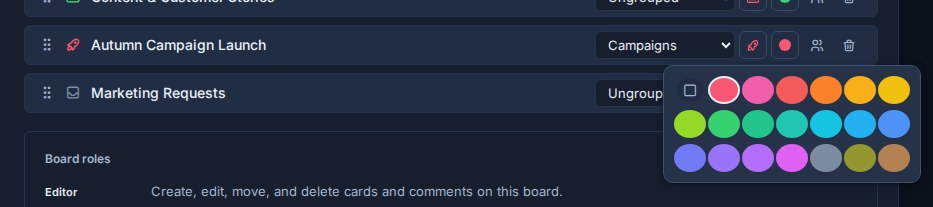
Use colors sparingly. They work best when they help people recognize a category at a glance.
Good color patterns:
- Use one color family for active client boards and another for internal boards.
- Use stronger colors for urgent queues, such as support or incident boards.
- Use neutral colors for archive-like or reference boards.
- Keep similar boards visually similar so the workspace does not become noisy.
Delete a board
Deleting a board permanently deletes the board and all its cards. Deleting a standalone board also removes its independent lists, labels, fields, templates, automations, access, and settings.
Kanera asks for confirmation before deleting a board. Use this carefully. If the board contains historical work that people may need later, consider whether it should stay available instead.
Good board design
Create a board when the work deserves its own place to plan, discuss, and review.
Avoid creating boards for every small status, label, or temporary slice of work. Lists, labels, custom fields, and filters are usually better for those.
Keep boards inside the same workspace when they should share the same process. Use a standalone board when the work is independent. Use a different workspace when several boards need another shared workflow, access model, or reporting context.