Add and Manage Attachments
Attachments keep supporting files with the card or note that uses them.
Add an attachment to a card
- Open the card.
- Use the attachment upload control, drag a file onto the card detail panel, or paste a supported image.
- Wait for the upload to finish.
- Confirm that the file appears in the card detail.
Kanera shows upload progress and keeps failed uploads available for retry or dismissal where supported.
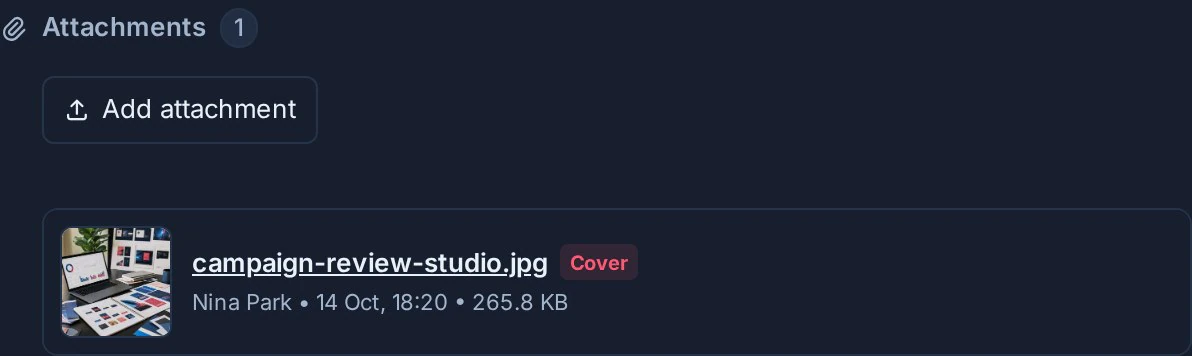
Add an attachment to a note
- Open the note.
- Find its Attachments section.
- Select Add attachment, drag in a file, or paste a supported image.
- Wait for the file to appear.
Open or download a file
Images can open in Kanera's media viewer. Other supported files can be downloaded using their stored filename.
Attachment access follows the parent card or note. Do not attach a file to a shared item if everyone with access to that item should not be able to open it.
Use a card image as a cover
Supported card image attachments can be selected as the card cover. Remove the cover without deleting the underlying attachment when the image should remain available in the card.
Find an attachment
Global search can find accessible attachments by filename. See Find Work Across Kanera.
Remove an attachment
Open the parent card or note, find the attachment, and choose its delete action. The file disappears immediately and a toast provides Undo for ten seconds. If you do not undo, Kanera permanently deletes the attachment from the item when the toast closes or expires. See Undo Recent Actions.
Attach or read files with an AI agent
A connected AI agent can work with card attachments for you:
- Attach a local file. Ask an agent to "attach the screenshot of the failing login to MKT-42". It gets a one-time upload link and uploads the file from its own machine, so screenshots, logs, and build output do not have to fit in a chat message. The attachment appears on the card straight away and is labelled with the agent's name. Log files are stored as plain text.
- Read an attachment. Ask "what does the build log on MKT-42 say failed?". The agent sees images as images (a smaller copy of large photos) and reads text, Markdown, CSV, JSON, logs, and email. PDFs, Office documents, audio, video, and archives are not read; the agent can still give you their link.
The agent needs the same access you would: Editor access to attach, and access to the card to read. See Kanera MCP and the API for the underlying tools.
Troubleshooting
| Problem | What to check |
|---|---|
| The upload is too large | Check the per-file limit that applies to your organisation. |
| The organisation storage limit was reached | An organisation owner or admin can find and delete large or old files under Storage, or change the plan. |
| The file type is rejected | Use a supported attachment type and confirm that its extension matches its actual format. |
| A pasted image does not upload | Click inside the card or note surface before pasting, or use the upload control. |
| A file cannot be opened | Confirm that you still have access to the parent card or note. |