Create and Manage Cards
Cards are the individual pieces of work in Kanera. Each card belongs to one board and one list, and can hold the context people need to complete it.
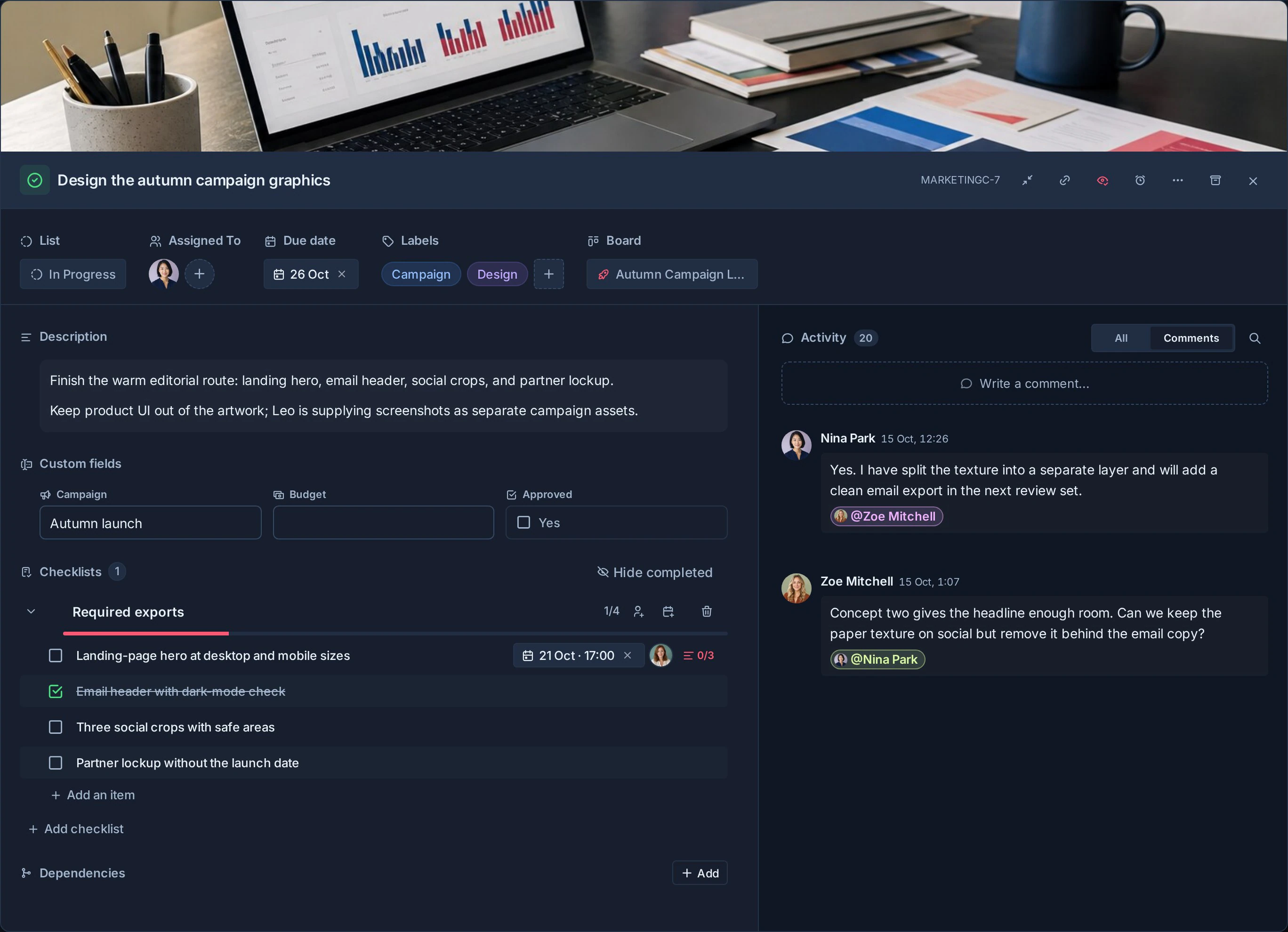
Card keys and links
Every card receives a short, human-readable key such as PROJ-123. The key appears on cards and in card detail, so you can use it in a conversation, document, notification, or search without copying an internal database id.
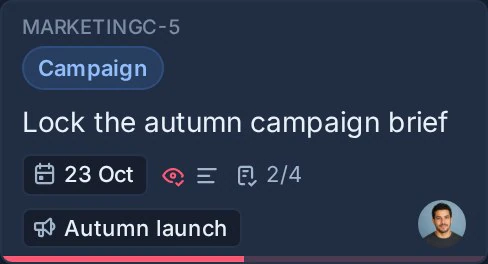
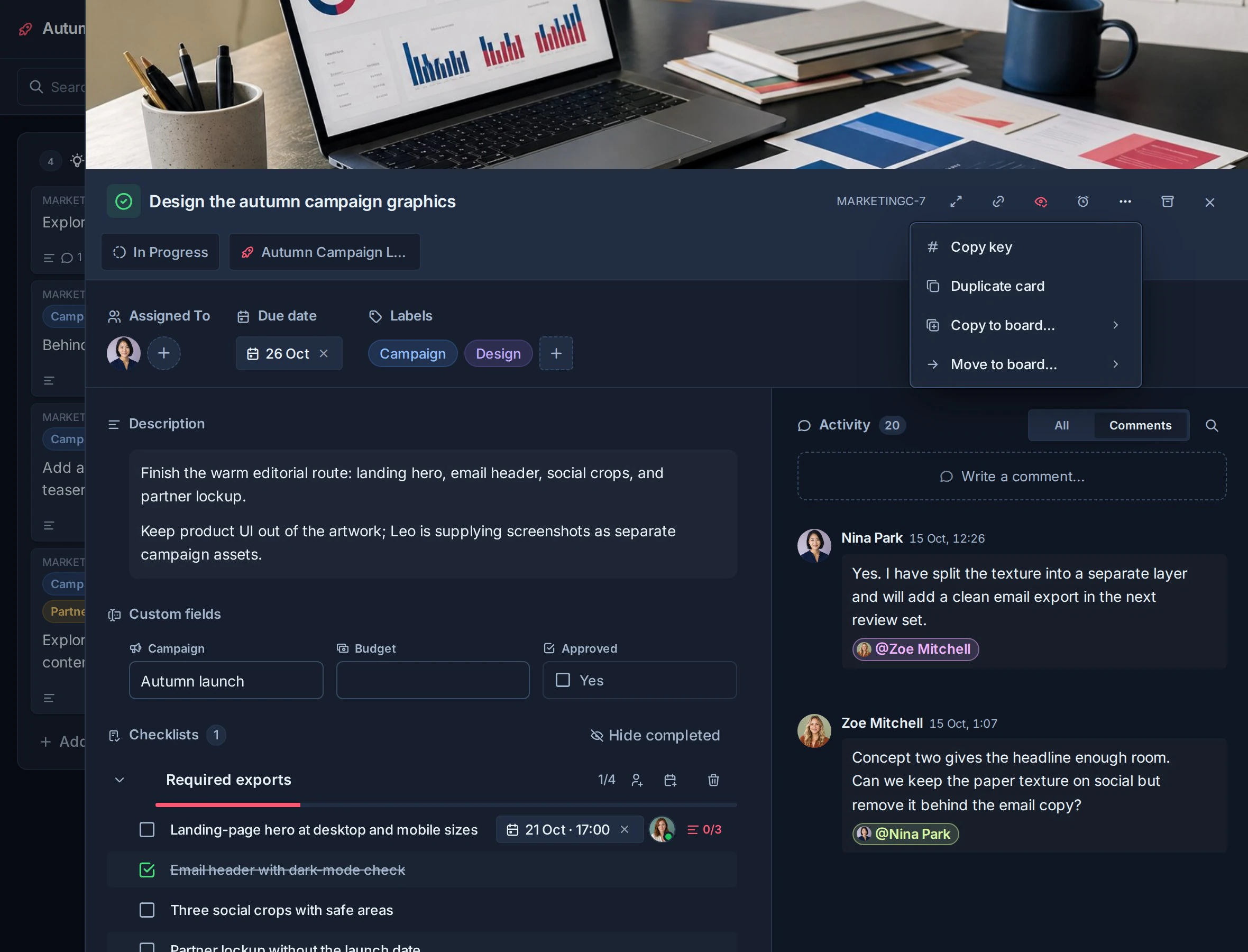
Select the key in card detail, or use Card actions -> Copy key, to copy it. Copy card link, in card actions or at the top of card detail, copies the card's clean Kanera link. The link includes an opaque organisation reference as well as the card key, so two separate organisations can both use PROJ-123 without their links conflicting.
The number belongs to the card and is never reused. Moving a card between boards in the same workspace keeps its identity. Duplicating a card, copying it to another workspace, importing it, or creating a linked copy gives the new card its own destination key.
Workspace administrators can change the prefix. Existing cards then show the new prefix, while links and exact searches using an earlier prefix continue to resolve to the same cards.
To hide or show card keys across the app, open Settings -> Preferences under Your account and change Show card keys. This changes your display preference without changing any card identities.
Before you begin
You need edit access to create or change cards. Observers can open cards and read the information available to them, but cannot update the work.
Create a card
- Open a board.
- Find the list where the work should begin.
- Select Add card.
- Enter a clear title.
- Press Enter from the title field, or select Create card.
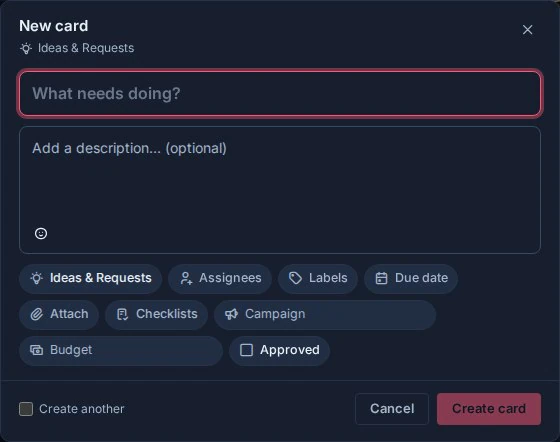
The quick-capture composer opens with the selected list already set. A short title is enough to create the card, so you can capture work without leaving the board.
You can also press C from a board to open the composer. See Keyboard Shortcuts for card editing and navigation shortcuts.
Set details before creating
Use the composer when the card already needs more context. You can add:
- A description.
- Assignees and labels.
- A due date and time slot.
- Attachments from Attach, the clipboard, or a drag and drop.
- Checklist templates.
- Custom field values configured for the workspace.
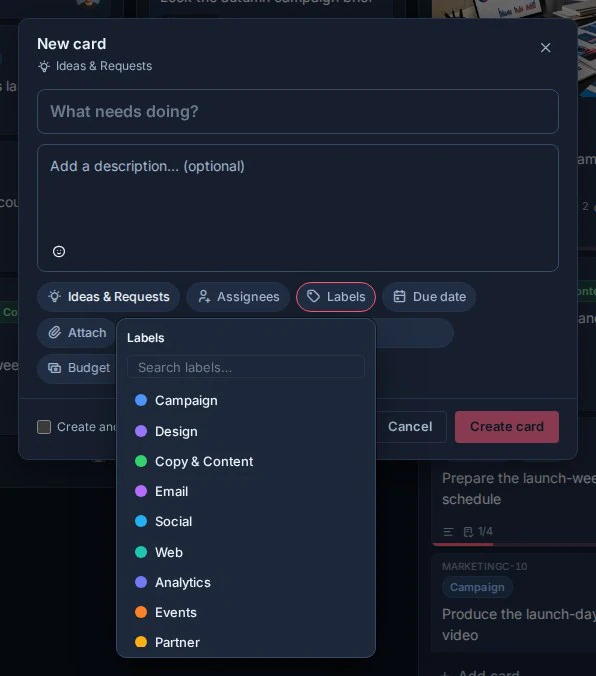
The available property controls reflect the selected board and workspace. Select a control such as Labels to choose a value without leaving the composer.
Attachments are staged in the composer before the card exists. Select Attach, paste an image or file, or drop files anywhere over the dialog. Review the staged file list and remove anything you do not want before creating the card. Kanera creates the card first, then uploads its staged attachments.
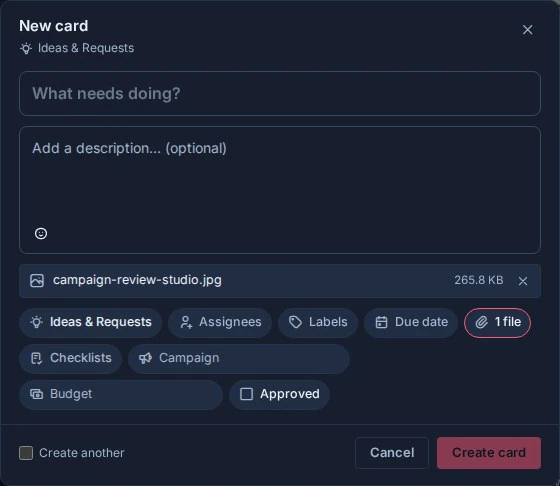
Press Ctrl+Enter or Command+Enter to create the card from anywhere in the composer. Select Create another to keep the composer open after creation and reuse the destination and relevant property choices for the next card.
Closing the composer with its close button, the backdrop, or Escape preserves typed content as a recoverable draft. Selecting Cancel discards the draft. Files cannot be restored after the composer closes, so Kanera asks for confirmation before closing when files are staged.
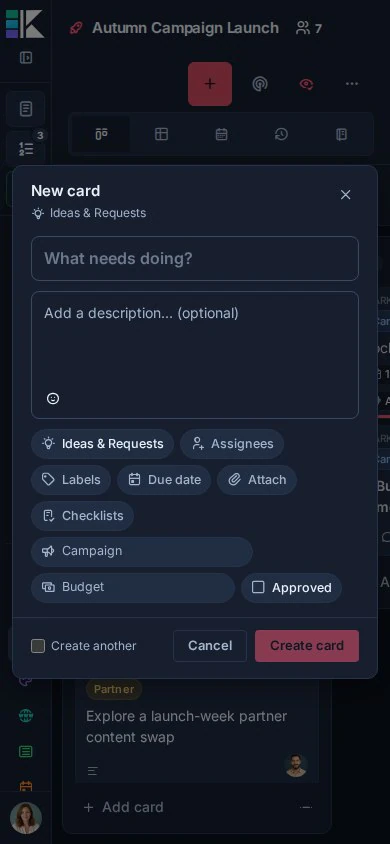
On mobile, the same composer keeps the title, description, properties, and actions together in a single dialog.
Add card details
Open a card to manage:
- Its title and description.
- The current list.
- Assignees and due date.
- Labels and custom fields.
- Checklists and checklist templates.
- Attachments and linked notes.
- Comments and activity.
- Watchers.
- Dependencies and related cards.
- Its time in progress, when the workflow has In progress lists.
Kanera saves most card changes as you make them. If the app is offline, controls that need the server are paused until the connection returns.
View a person's profile
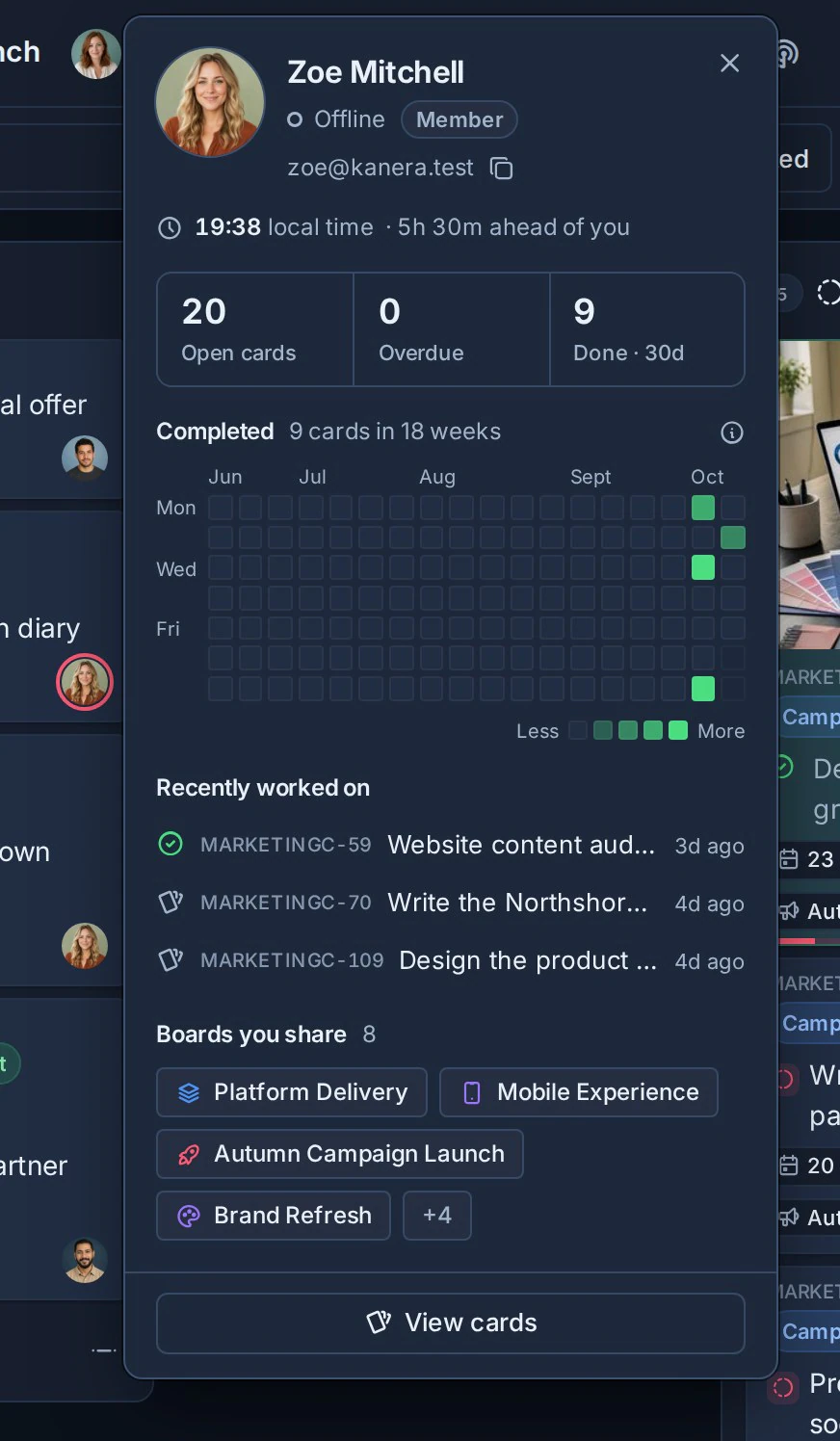
Select a person's profile picture on a card, in a card's assignees, beside a comment or activity row, or on a members page to open their profile card. It shows:
- Their name, role, and whether they are online now or when they were last seen.
- Their email address, when you belong to the same organisation.
- Their local time and how far ahead or behind you they are.
- Their open, overdue, and recently completed cards.
- A grid of the cards they completed over the last 18 weeks, counted the same way as the Completed strip on Work Done.
- The cards they worked on most recently and the boards you share.
The numbers only include boards you can open, so a profile never reveals work you cannot see.
Select View cards to open Team Cards focused on that person. On your own profile, My cards and Edit profile appear instead.
To remove someone from a card, open the card, select their picture under Assigned To, and select Unassign on their profile card.
Card relationships and blocking
Use Dependencies -> Add to mark this card as Blocked by, Blocks, or Relates to another card in the same workspace. You can also right-click a card and choose Dependencies…. A card with active prerequisites shows a Blocked chip; clearing its last blocker hands it off to assignees and watchers.
Dependencies track readiness separately from the reference links described below. See Card Relationships and Blocking for directions, filters, completion warnings, permissions, and handoff behavior.
Link cards and notes
Link related work by pasting a Kanera link into a card description or a note:
- Copy the link: Copy card link on a card, or Copy note link beside a note's title.
- Paste it into another card's description, or into a note.
The pasted link shows as a chip with the card or note's current title, so it stays readable when the item is renamed. Links work in both directions:
- A card's Linked items section lists the cards and notes it links to, and the ones that link to it.
- A note's Backlinks section lists the cards and notes that link to it.
Some things to know:
- Linked items and Backlinks only track cards and notes in the same workspace. A link to something in another workspace still opens it, but is not listed there.
- Each person sees only the linked items they can open. A card on a board you cannot access, or someone else's personal note, is left out.
- Links in comments show as chips but do not add to Linked items. Put lasting relationships in the description.
- Removing the link from the description or note removes it from both sides.
- While notes are turned off for a workspace, cards stop listing linked notes. Turning notes back on restores them. See Turn notes on or off.
AI agents link cards the same way: they write the card or note's canonical link into a description or note through MCP, the CLI, or the API.
Move a card
Move a card to another list by dragging it on a Kanban board or by opening the card and choosing a different List.
To move the card to another board:
- Open the card.
- Open Card actions.
- Select Move to board.
- Choose the destination board and list.
Moving between boards is available when the destination can accept the card and your access allows the change.
Complete or reopen a card
Select the completion control beside the card title, or open Card actions and choose Mark complete. Completed cards leave active board lists but remain available through the completed-cards panel and Work Done history.
Open a completed card and choose Mark incomplete to return it to active work.
See Completed Cards for retention and date-range behavior.
Duplicate or copy a card
Use Duplicate card when you want another card on the same board with the same starting detail.
Use Copy to board when you want a separate card on another board while keeping the original. The copied card is independent after creation.
The duplicate or copy receives a new card key. The original card keeps its own key. Dependencies and related-card relationships are not copied.
Use Board Syncing when two cards should remain linked and exchange supported updates.
Archive a card
Archive work that should leave normal views without being treated as completed.
- Open the card.
- Select Archive card.
- Use Undo in the confirmation toast if you archived it by mistake.
The Undo toast remains available for ten seconds. Archived cards can also be restored while they remain within the configured archive retention period. See Undo Recent Actions and Archived Cards.
Select several cards
On a Kanban board, hold Ctrl on Windows or Linux, or Command on macOS, and select a card to add or remove it from the current selection. Select one card, then hold Shift and select another card in the same list to select the range between them.
You can also open a list's List options menu and choose Select all cards. Hold Shift while choosing it to add that list to an existing selection instead of replacing it.
The board toolbar shows the number of selected cards. Select that count, or right-click any selected card, to open the bulk actions menu. Press Escape, select the clear control, or select the board background to clear the selection.
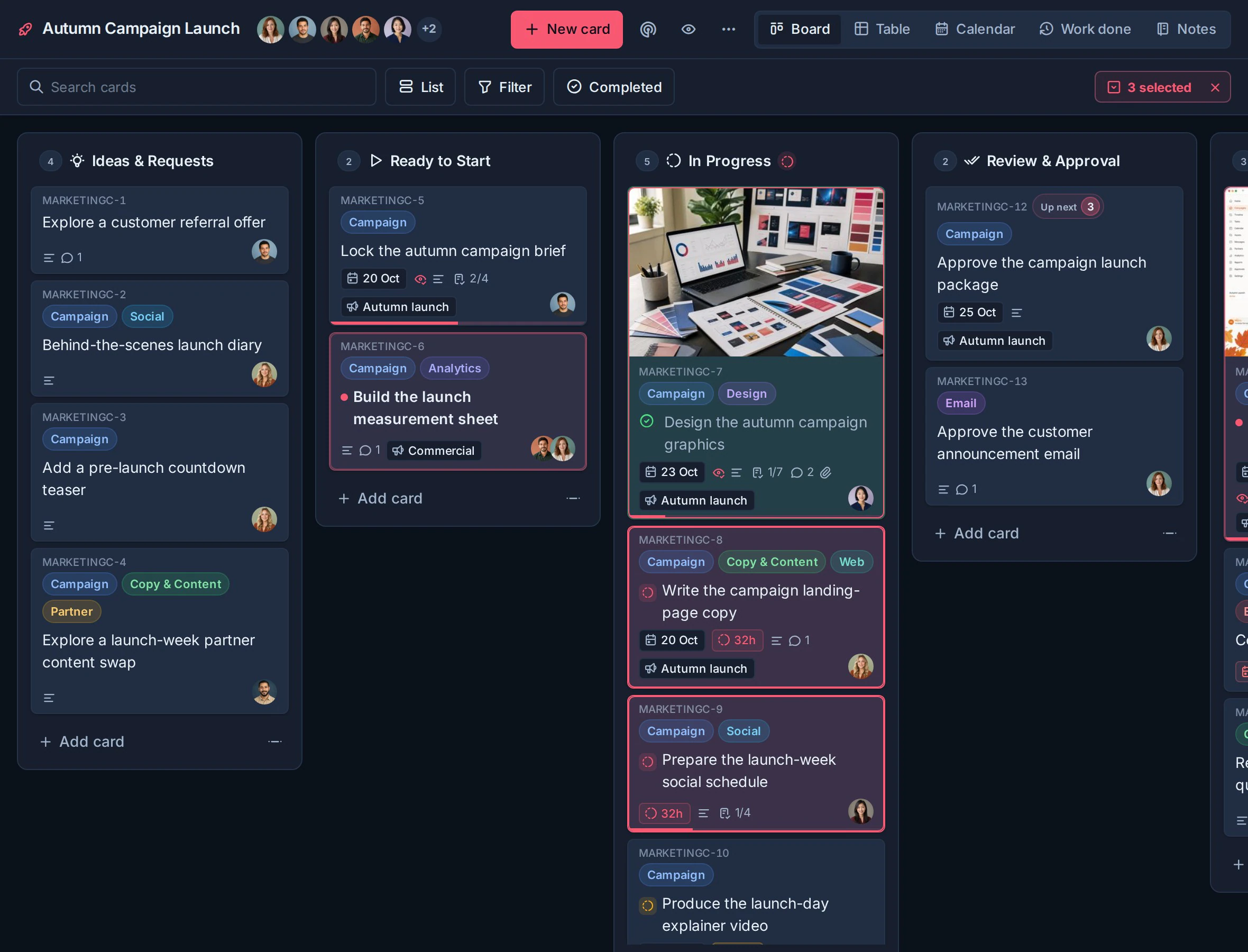
Available bulk actions include:
- Mark complete or incomplete.
- Set a due date.
- Add or remove labels and assignees.
- Move cards to another list.
- Set supported custom field values.
- Duplicate or archive cards.
Review the selected count and destination before a bulk change. Archiving selected cards provides the same ten-second Undo action as archiving one card.
Drag selected cards to another list
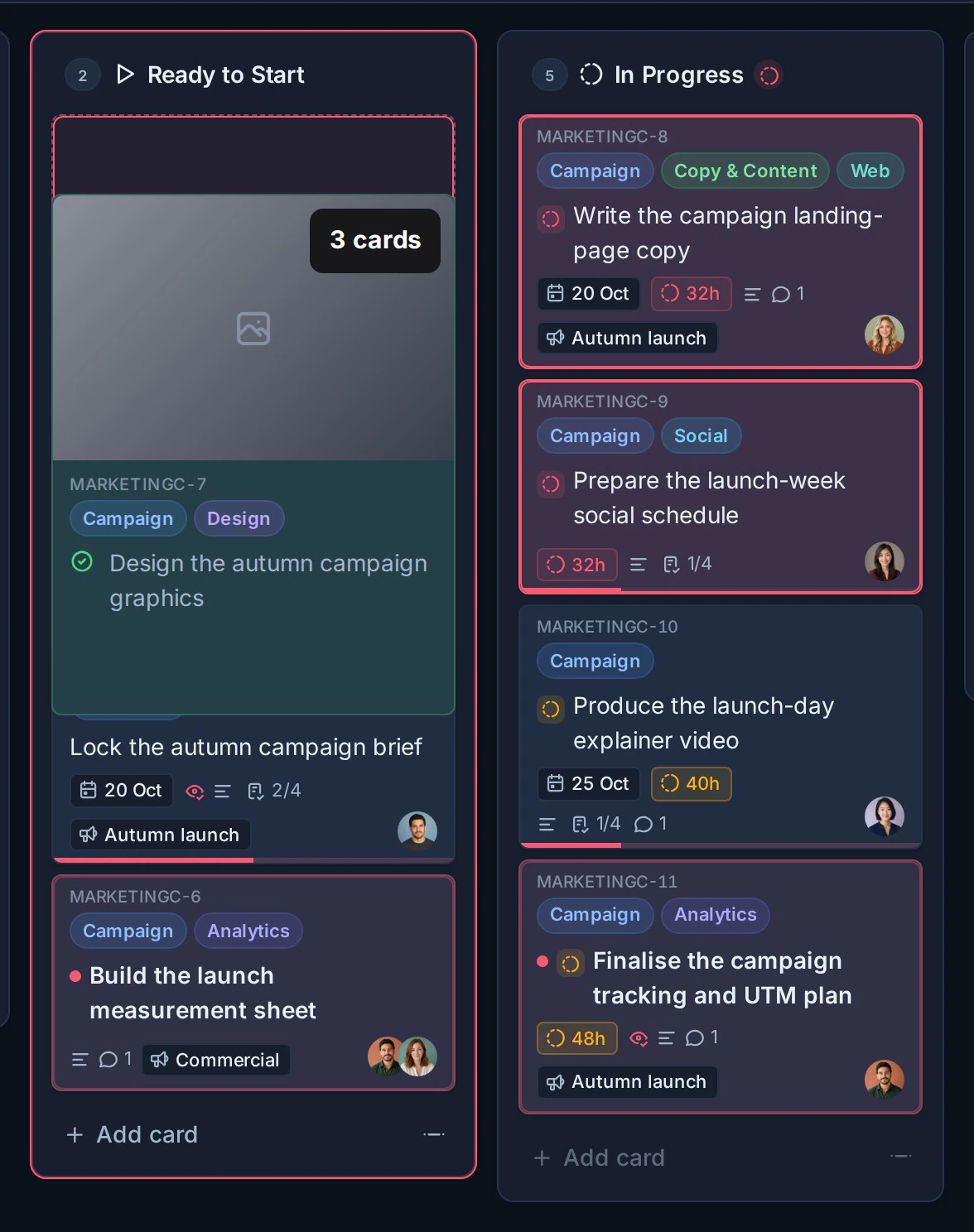
When two or more cards are selected on a Kanban board, drag any selected card to move the whole selection:
- Select the cards you want to move.
- Drag one of the selected cards into the destination list.
- Use the card-count badge in the drag preview to confirm how many cards will move.
- Drop the group at the required position.
Kanera moves the selected cards together and keeps their relative order. Dragging a card that is not part of the selection moves only that card.
Troubleshooting
| Problem | What to check |
|---|---|
| Editing controls are unavailable | Confirm that you have editor or administrator access to the board. |
| A destination board is missing | Confirm that you can access the board and that the move or copy is valid for its workspace. |
| A field or label is unavailable | Workspace boards share their configured fields and labels. The destination may use a different setup. |
| A change is paused | Check the connection indicator and wait for Kanera to reconnect. |