Create and Organize Notes
Notes keep longer-form context close to the work without forcing it into a card description or comment thread.
Use Scratchpad instead when the material is private work in progress, such as meeting prep, reminders, rough drafts, or temporary research.
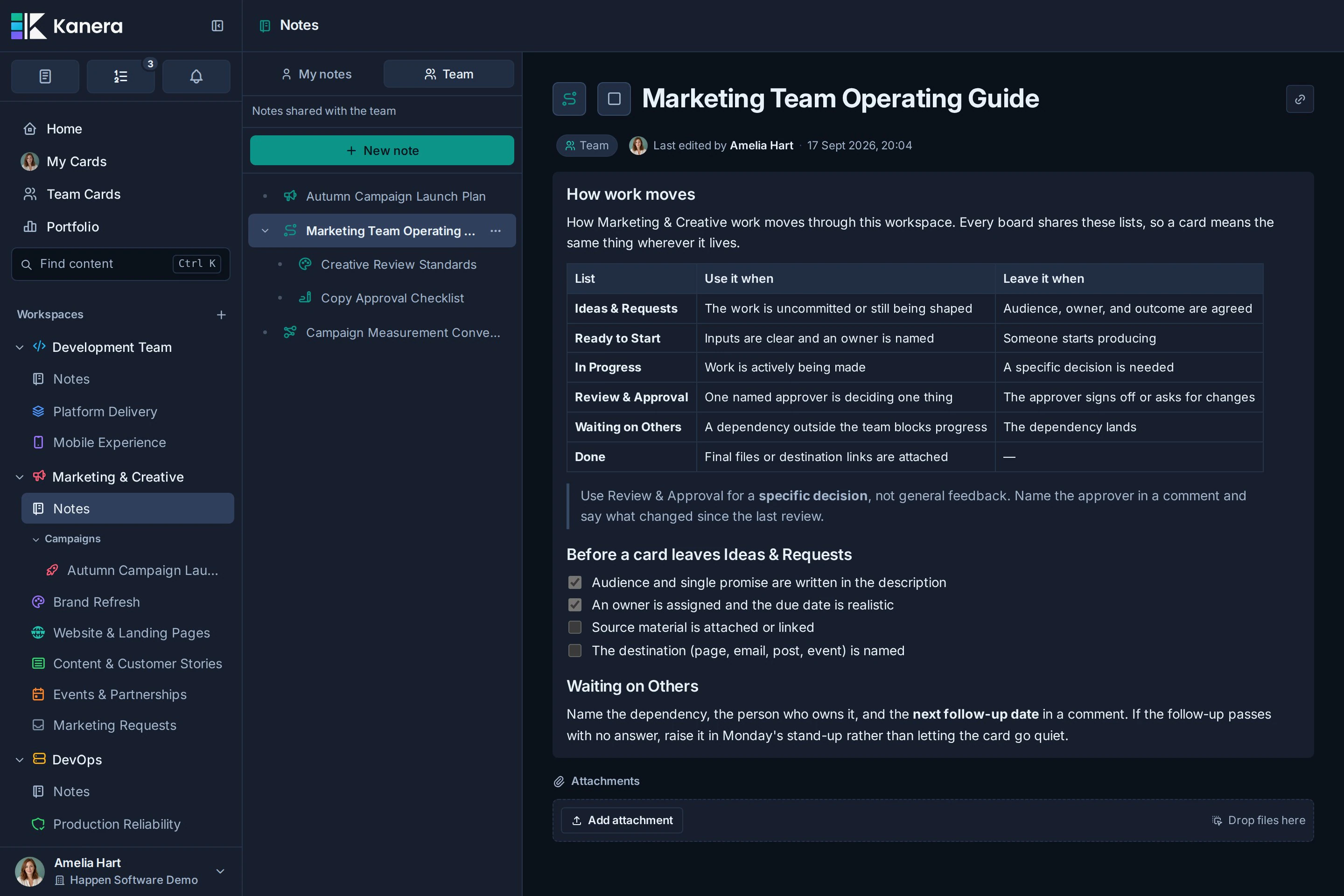
Open notes
Open a workspace and select Notes in its sidebar section. Boards can also expose notes in board context through the Notes view.
If Notes is missing from the sidebar or a board's view switcher, an admin has turned notes off for that workspace or standalone board. See Turn notes on or off.
Notes have two scopes:
| Scope | Who it is for |
|---|---|
| My notes | Personal material associated with your account. |
| Team | Shared workspace material for people with access. |
Create a note
- Open Notes.
- Choose My notes or Team.
- Select New note.
- Replace the default title.
- Add the note content.
Changes are saved as you work. When Kanera is offline, editing is paused to avoid conflicting updates.
Organize notes
Use the note tree to create parent and child notes. This works well for structures such as:
- A project brief with research and decision subpages.
- A client area with meeting notes beneath it.
- A team handbook with one note per practice.
You can move notes in the tree, duplicate a note, or delete material that is no longer needed. Deleting a Note also removes its sub-notes; the toast names that impact and provides Undo for ten seconds. Check the target scope and parent before moving or deleting shared information. See Undo Recent Actions.
Add people and files
The editor supports member mentions and attachments. You can add an attachment with the upload control, drag a file into the editor, or paste a supported image.
Use Comments and Mentions when the discussion belongs to a card. Use a team note when the material should remain useful beyond one task.
Link notes and cards
Select Copy note link beside a note's title, then paste the link into a card description or another note. It shows as a chip with the note's title. Paste a card link into a note the same way, using Copy card link on the card.
A note's Backlinks section lists every card and note that links to it, and a linked card lists the note under Linked items. These lists only track items in the same workspace, and each person sees only the items they can open. See Link cards and notes.
Turn notes on or off
Notes are on by default. Workspace and organisation admins can turn them off for a workspace that does not use them.
Open Workspace settings -> General and clear Enable notes. On a standalone board, use Board settings -> General.

The setting covers the whole workspace: its workspace-level notes and the notes on every board inside it. While notes are off:
- The workspace's Notes sidebar link and each board's Notes view are hidden. A link to a note opens the board view instead.
- Notes no longer appear in search, and cards no longer list linked notes.
- The API, CLI, and MCP note tools return a
NOTES_DISABLEDerror for that workspace.
Turning notes off does not delete anything. Select Enable notes again to bring back every note, attachment, and card link exactly as it was. People with Notes open see the change straight away without reloading.
Troubleshooting
| Problem | What to check |
|---|---|
| Editing is unavailable | Check the connection indicator. Note changes pause while Kanera is offline. |
| Notes is missing from the sidebar or a board | An admin has turned notes off. Ask them to select Enable notes in the workspace or standalone board's General settings. |
| A team note is missing | Confirm that you are in the correct workspace and Team scope. |
| A personal note is missing | Switch to My notes and confirm that you are signed in with the same account. |
| A linked card or note is missing from Backlinks | Check that both are in the same workspace and that you can open the other item. Links in comments are not listed. |
| An upload fails | Check the file type, file-size limit, and organisation storage allowance. |