Card Relationships and Blocking
Use Dependencies to show which cards must finish before another can start, and which cards simply share context. Relationships work between boards in the same workspace and update live as the work changes.
For example, Confirm final product messaging can block Write the campaign landing-page copy. The copy stays blocked until its prerequisites clear, and the people responsible hear when it is ready to start.
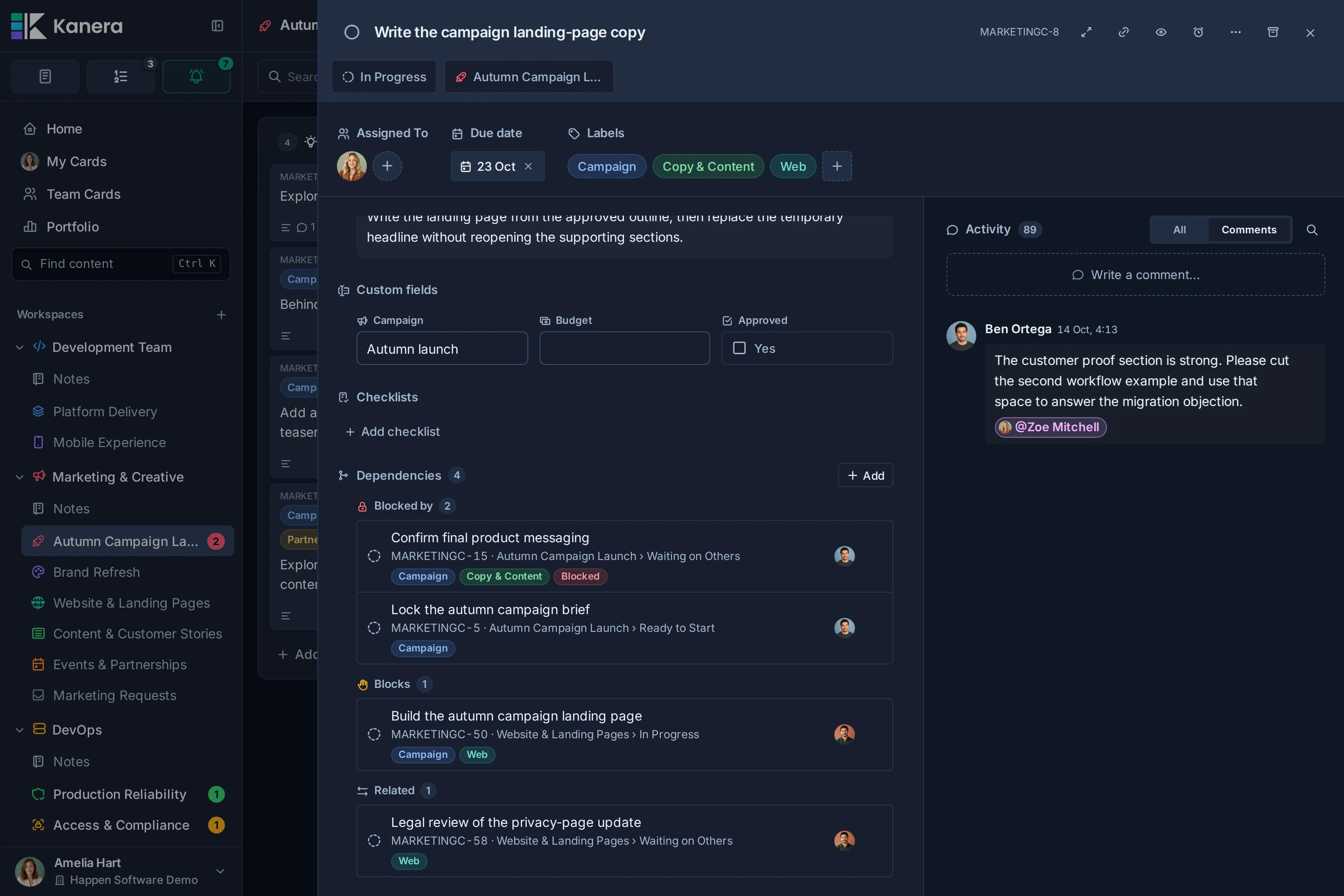
See and edit the whole chain
Open the Dependencies view on a board, in My Cards, or in Team Cards to explore relationships in Map, Timeline, or Steps. Find bottlenecks, filter risky or ready work, highlight critical paths, and add or remove blocking links directly on the map with undo and redo.
See Dependencies View, Timeline, and Editing for the full workflow and screenshots.
Choose the relationship
Directions read from the card you are editing:
| Choice | Meaning | Example |
|---|---|---|
| Blocked by | The selected card is a prerequisite for this card. | Landing-page copy is blocked by final messaging. |
| Blocks | This card is a prerequisite for the selected card. | Final messaging blocks landing-page copy. |
| Relates to | The cards share context without a required order. | A launch plan relates to an optional customer-image follow-up. |
Blocks and Blocked by describe the same dependency from opposite ends. Relates to is symmetric and never makes a card blocked.
Dependencies are separate from labels, workflow lists, and links in descriptions. A label named “Blocked” or a list named “Waiting” does not create a dependency. A pasted card link remains a reference; use Dependencies when Kanera should track whether work is blocked.
Add a dependency or related card
- Open a card you can edit.
- Find Dependencies and select Add.
- Choose Blocked by, Blocks, or Relates to.
- Search for a card by title or key.
- Select the matching card to add the relationship.
Search includes eligible cards you can open in the same workspace, including its other boards. The result shows the board and list so you can distinguish similar titles. You cannot link a card to itself or create a dependency loop, such as A blocking B while B already blocks A. A completed card cannot be added as a new blocker.
You can also right-click a card on the board or in Table view and choose Dependencies…. The popover keeps its search open so you can add several relationships without opening card detail.
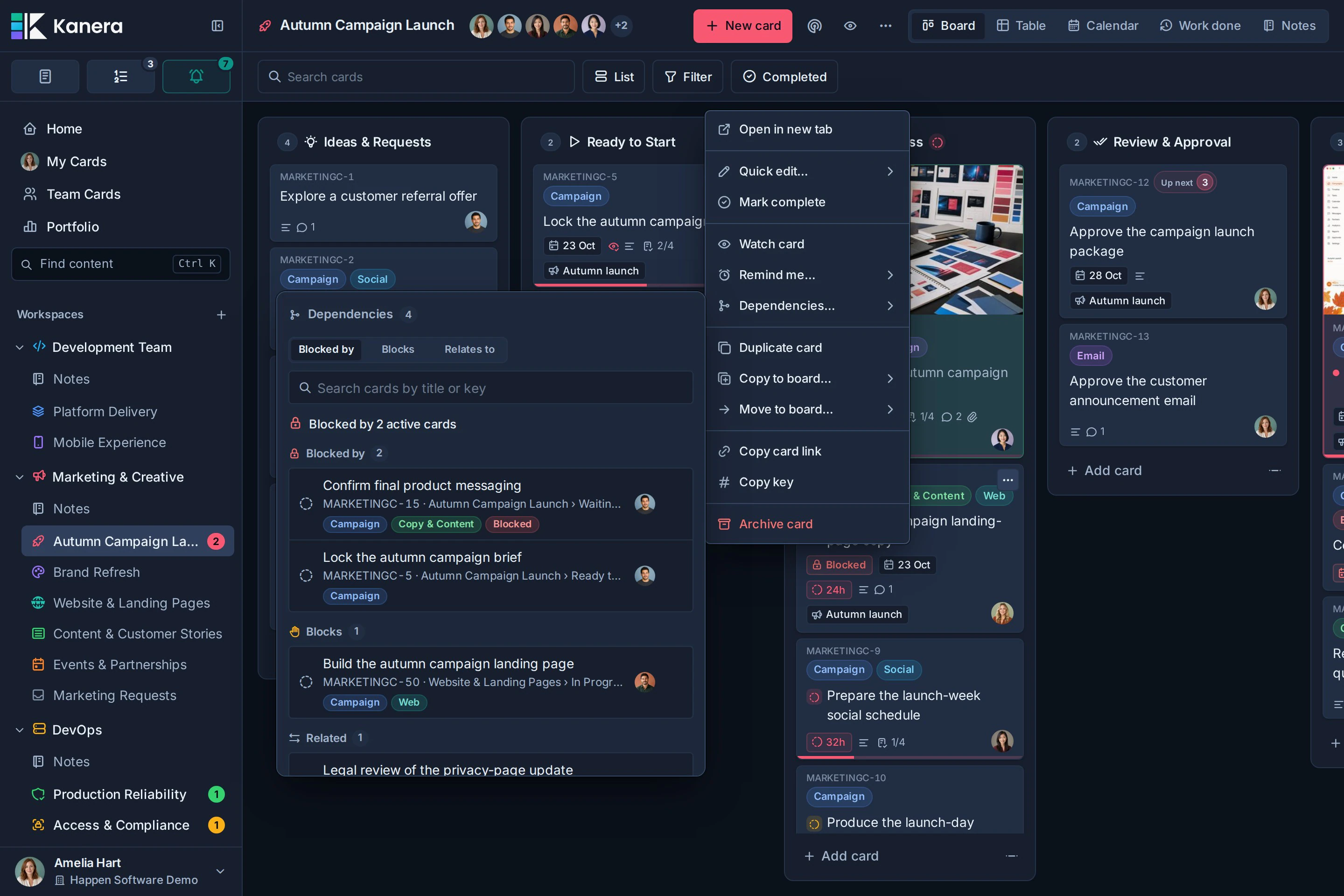
To remove a relationship, use Remove relation beside its row. This removes the connection from both cards, leaving the cards themselves in place. Additions and removals appear in both cards' activity histories.
Understand blocked and ready states
An active card is Blocked while at least one of its blockers is incomplete and not archived. Multiple prerequisites can block the same card. Completing only one does not make the card ready if another remains open.
The card tile shows a Blocked chip. At the top of card detail, the status says Blocked by 1 active card, the corresponding count for several blockers, or No active blockers. Select a relationship chip there to jump to Dependencies.
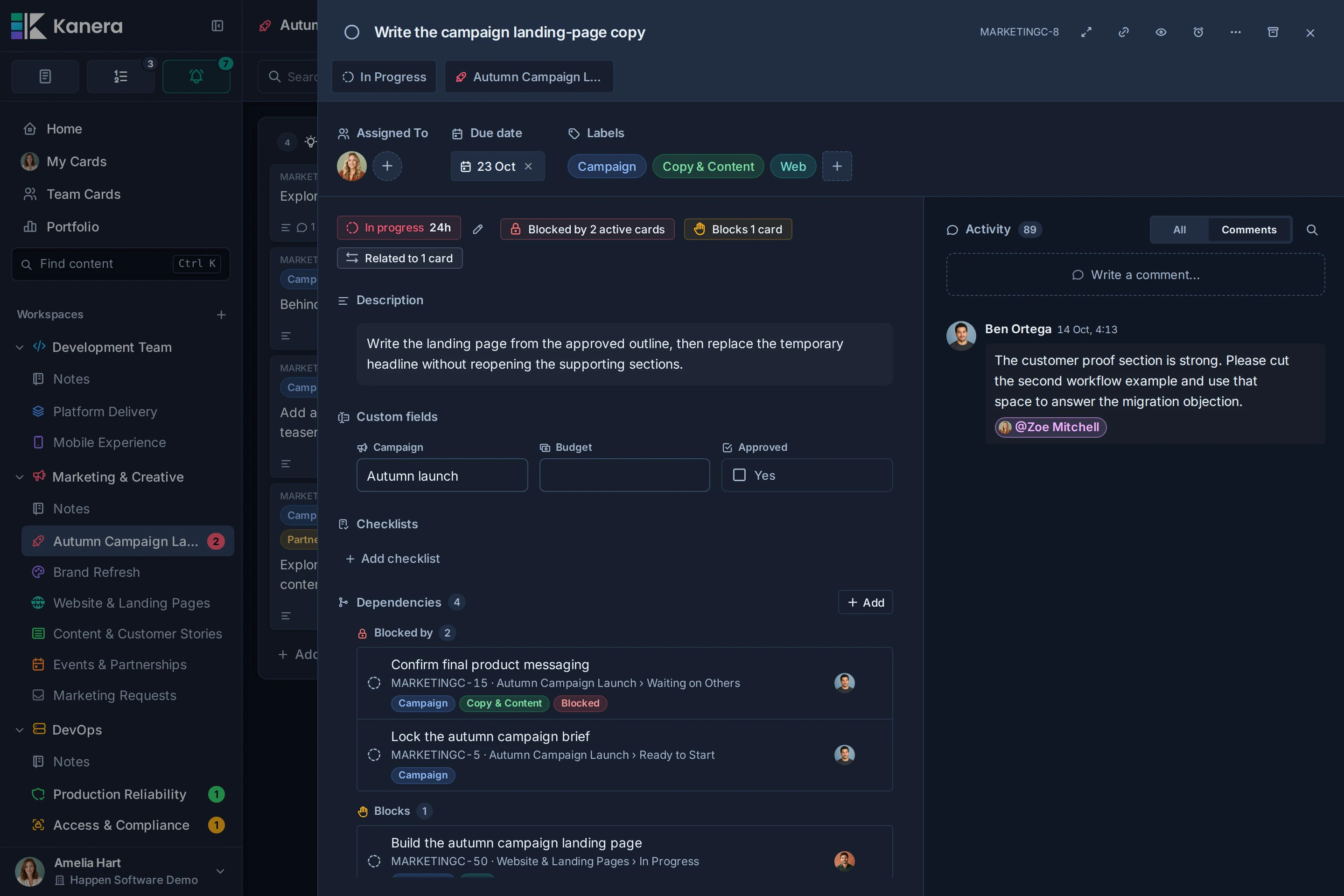
The dependency list shows the other card's key, title, board, list, labels, and assignees. Completed or archived prerequisites remain listed with their status, but no longer block the card. Renames, assignments, labels, moves, completion, and archive changes refresh live, including on other boards.
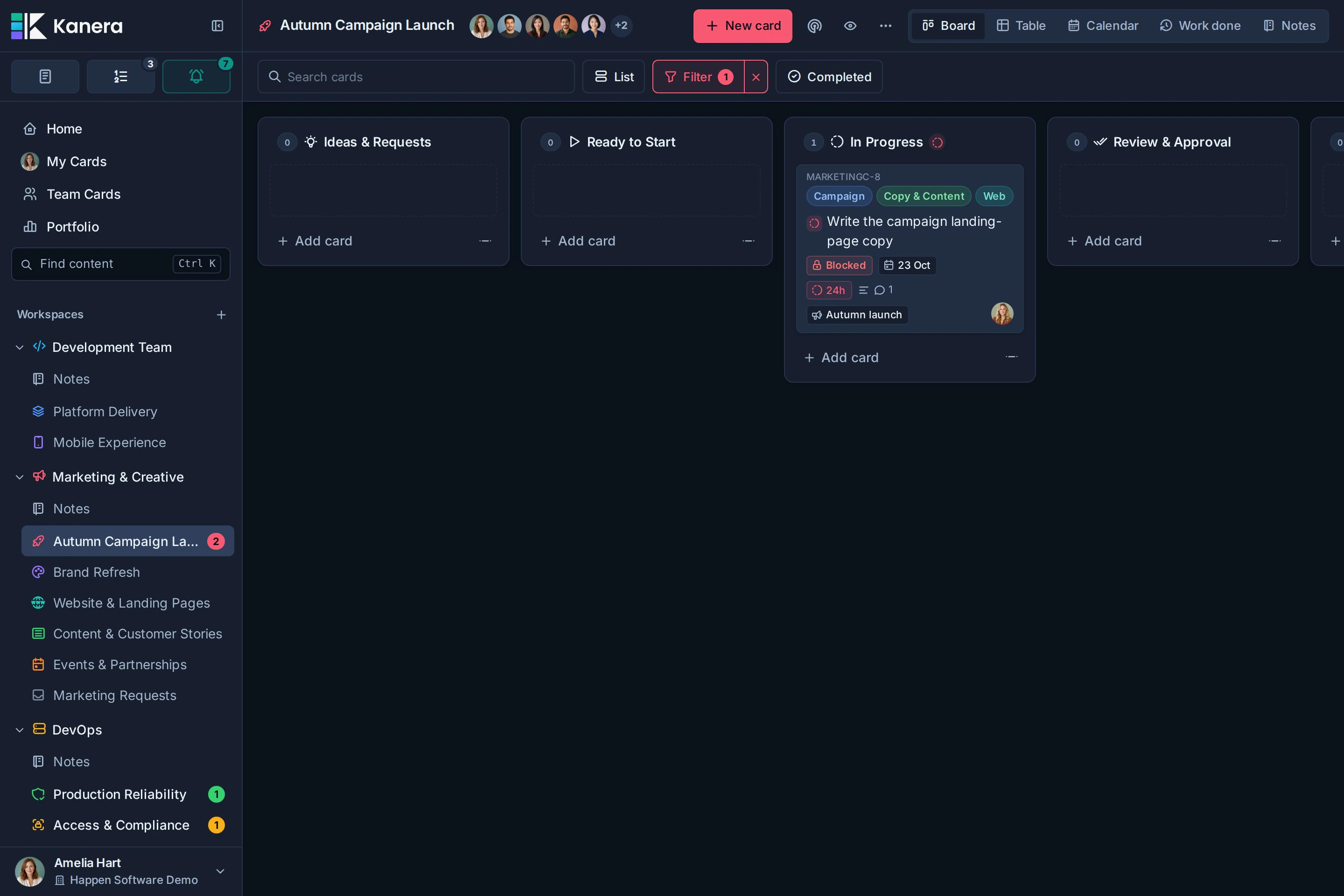
Use Filter -> Blocked to focus a board on waiting work. The same quick filter is available in Global Work, including My Cards and Team Cards, so you can find dependencies across boards you can access. Combine it with the other available search and filter controls.
The board overview and Portfolio count Blocked cards and At risk cards, whose blocker is overdue or due after them. Select a count to see those cards.
A blocked card can still be moved, edited, or worked on. Kanera does not move it to a different list automatically unless you configure an automation.
Complete blocked work deliberately
When you try to complete blocked work in the web app, Kanera offers Cancel or Complete anyway. The warning also covers bulk completion and priority queues. Don’t warn again this session suppresses further warnings for the current session.
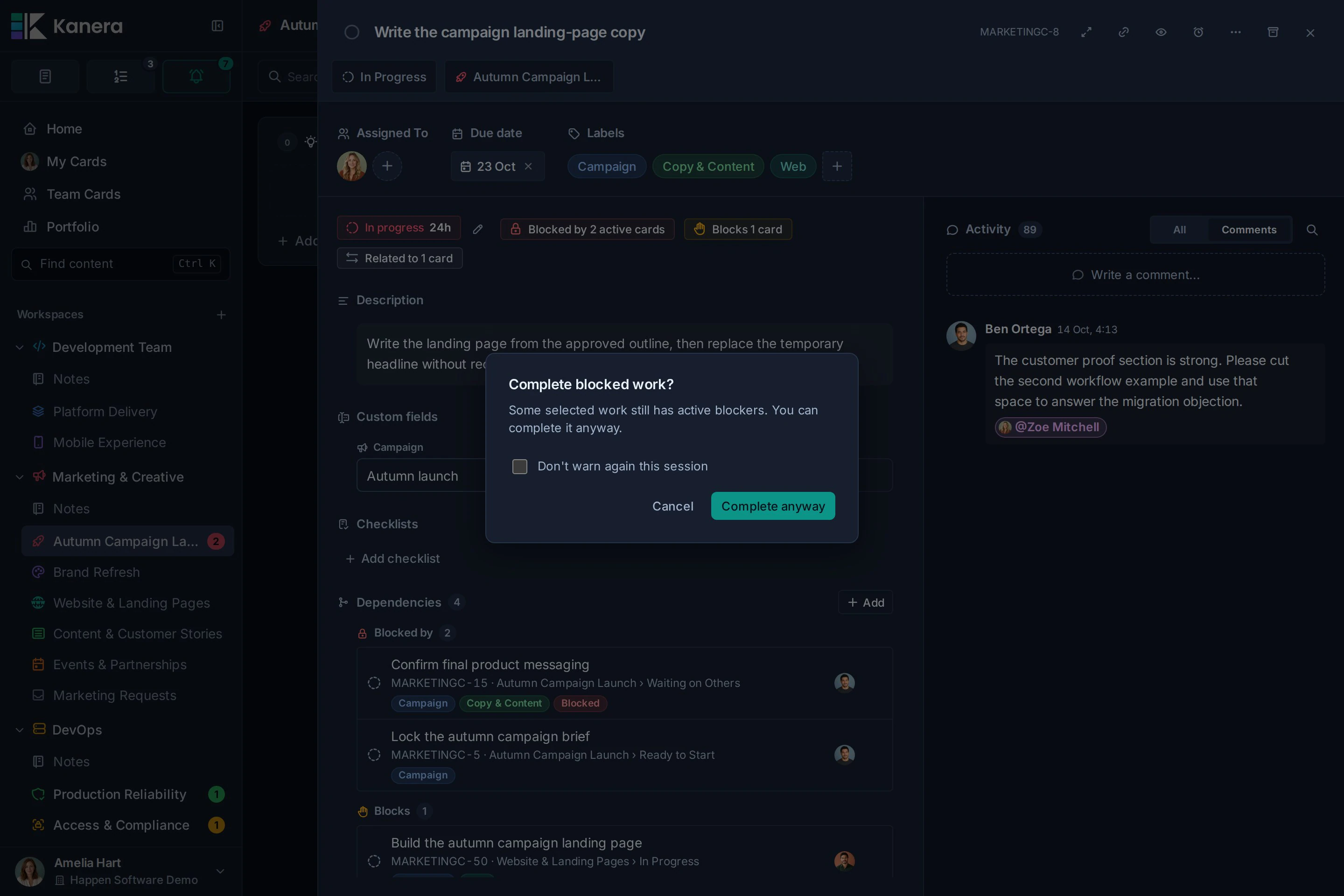
This is a warning, not a completion lock. API, MCP, CLI, and SDK completion remain available without an interactive prompt. Completing a dependent card does not complete its prerequisites.
Handoff when prerequisites clear
A card becomes ready when its last active blocker is completed, archived, or unlinked. Removing a blocker's list or board can clear it too. The same transitions apply to changes made by people, integrations, automations, and mirrored cards.
- The dependent card's assignees and watchers receive a ready-to-start notification; email and push follow their notification settings.
- The person who cleared the last blocker does not receive their own handoff.
- The card's activity records who cleared its last blocker.
- Reopening or restoring a blocker can make the card blocked again and notify its assignees and watchers.
- Adding a blocker notifies the dependent card's assignees and watchers; the blocker's watchers also hear which work it holds up. A person in several of these groups receives the update once.
Delivery follows the state after automations run. If an automation immediately completes or archives the dependent card, Kanera does not announce it as ready to start or newly blocked.
Control email, push, and personal delivery channels under Profile settings -> Notifications -> Card blocked, blocking or ready to start. See Notification Configuration.
Automate blocked and ready work
Use Card blocked to react when an active card gains its first open blocker, for example by moving it into Waiting or adding an escalation label. Use Card unblocked to move ready work into Ready to Start, assign its next owner, or post a handoff comment.
Adding a second blocker does not run Card blocked again. Clearing one of several blockers does not run Card unblocked. Each trigger follows the actual state transition and is bounded to once per card per transaction. See dependency automation triggers.
Access and lifecycle
You need edit access to the card you are changing. For blocking relationships, you must also be able to edit whichever card becomes blocked; read access is sufficient for the blocker on the other side. Observers can read visible relationships but cannot edit them.
Relationships never grant access to another board. If a blocker is on a board you cannot open, Kanera keeps its title and details private and shows only a count of hidden active blockers. A handoff notification may identify an inaccessible blocker by key only. Ask a board administrator for access if you need its context.
Moving a card to another board in the same workspace keeps its relationships and blocked state. Duplicating or copying cards does not copy relationships, and board exports do not include them. A mirrored copy starts without the source's dependencies. You can give the copy its own relationships; later synced completion or reopening affects cards waiting on that copy normally.
Troubleshooting
| Problem | What to check |
|---|---|
| A card is missing from search | It must be eligible for the selected direction, visible to you, and in the same workspace. Existing links in that direction are excluded. Archived cards cannot be added. |
| A blocking link is refused | Check for a completed blocker, a self-link, a dependency cycle, or missing edit access to the card that would become blocked. |
| The card is still blocked | Another active blocker may remain, including one on a private board. Completing one prerequisite is not enough when several are open. |
| A cleared blocker blocks the card again | Reopening or restoring it makes that prerequisite active again. |
| Relationships disappeared from a copy or export | They belong to the original cards and are not included in copies, exports, or the initial mirrored copy. |
On your phone
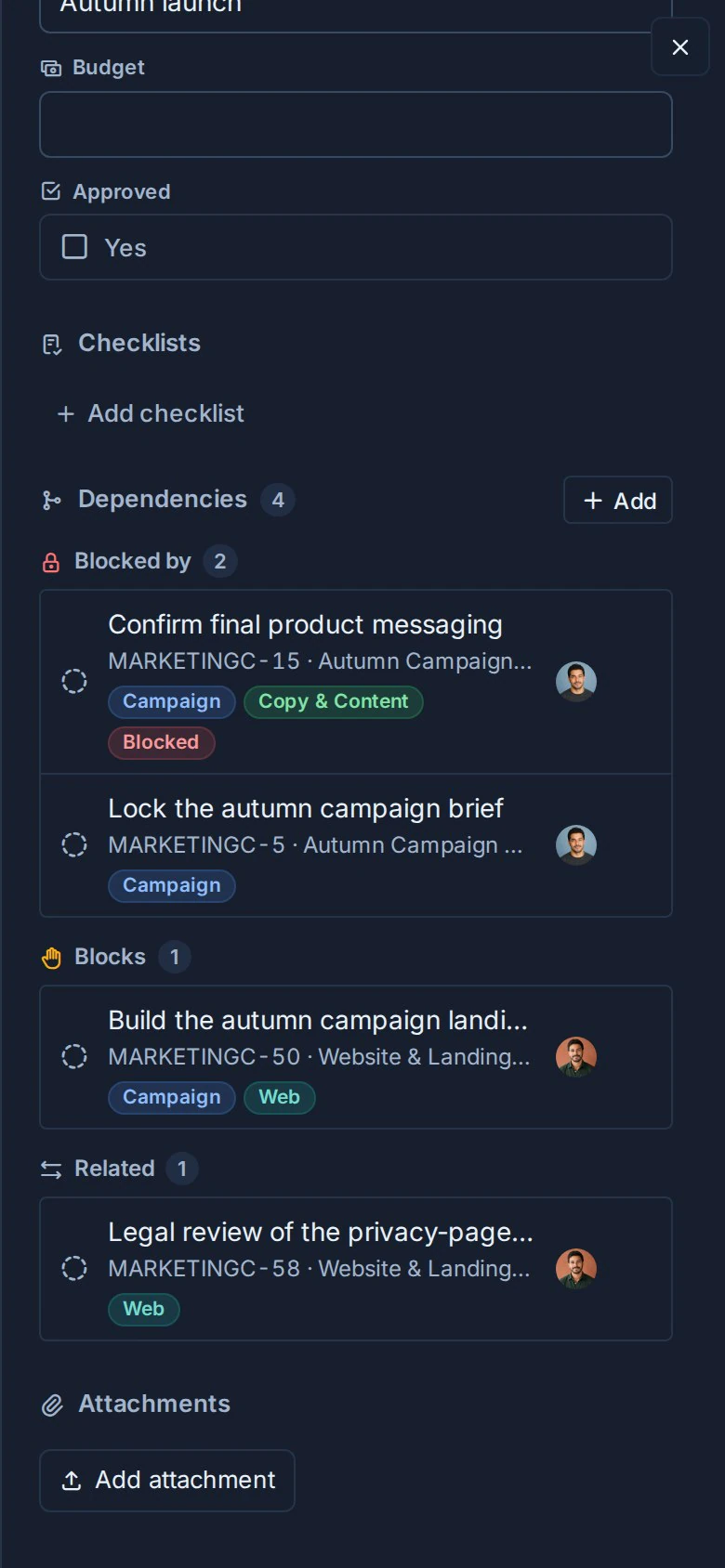
Open the same Dependencies section on mobile to review prerequisites and owners, follow a related card, or add and remove relationships when you have edit access.
Agents and integrations
Agents can read entire blocking chains with cards.dependency_graph and individual relationships with cards.get, add or remove them with MCP cards.set_relations, and find waiting work with blockedOnly or at-risk work with atRiskOnly on work.query_cards. They can subscribe to card.blocked and card.unblocked without configuring an automation rule.
Try: “Show me blocked cards on the launch board, explain the prerequisites I can see, and tell me who owns them.”
See the MCP reference, CLI commands, TypeScript SDK, or public API for exact inputs.