Automations
Automations help a standalone board or workspace do repeatable card housekeeping automatically. They are built from a When trigger and one or more Do actions.
Use automations when the same thing should happen every time a card reaches a workflow moment: add the right labels, assign the right people, apply a checklist, set a due date, populate structured field data, post a templated comment, call another system, move the card, or mark work complete.
Automations belong to a standalone board or workspace. A standalone automation runs only on its board. A workspace automation can run on cards across its boards using shared lists, labels, members, custom fields, and checklist templates.
Why use automations
Automations are useful when a process is predictable enough that people should not have to remember every small step.
Good automation use cases include:
- Add a QA Review checklist when a card enters Review.
- Mark a card complete when it moves into Done.
- Assign a support lead when a card is assigned to the support queue owner.
- Add a Blocked label when a card enters Waiting.
- Set an Escalation Date field when an Escalated label is added.
- Set a follow-up due date when a card enters Client Review.
- Move a card to the top of a list when its due date arrives.
- Add a Due soon label three days before a card is due.
- Remove a handoff label when a card leaves Review.
- Apply a launch checklist when Stage changes to Approved.
- Add a Needs attention label when a card becomes inactive.
- Remove a handoff label after the card is assigned.
Automations are not a replacement for good workflow design. Lists, labels, custom fields, and checklist templates should still describe the process clearly. Automations are the part that keeps the routine steps moving.
Open automation settings
- Open the workspace or standalone board.
- Go to Workspace settings or Board settings.
- Choose Automations.
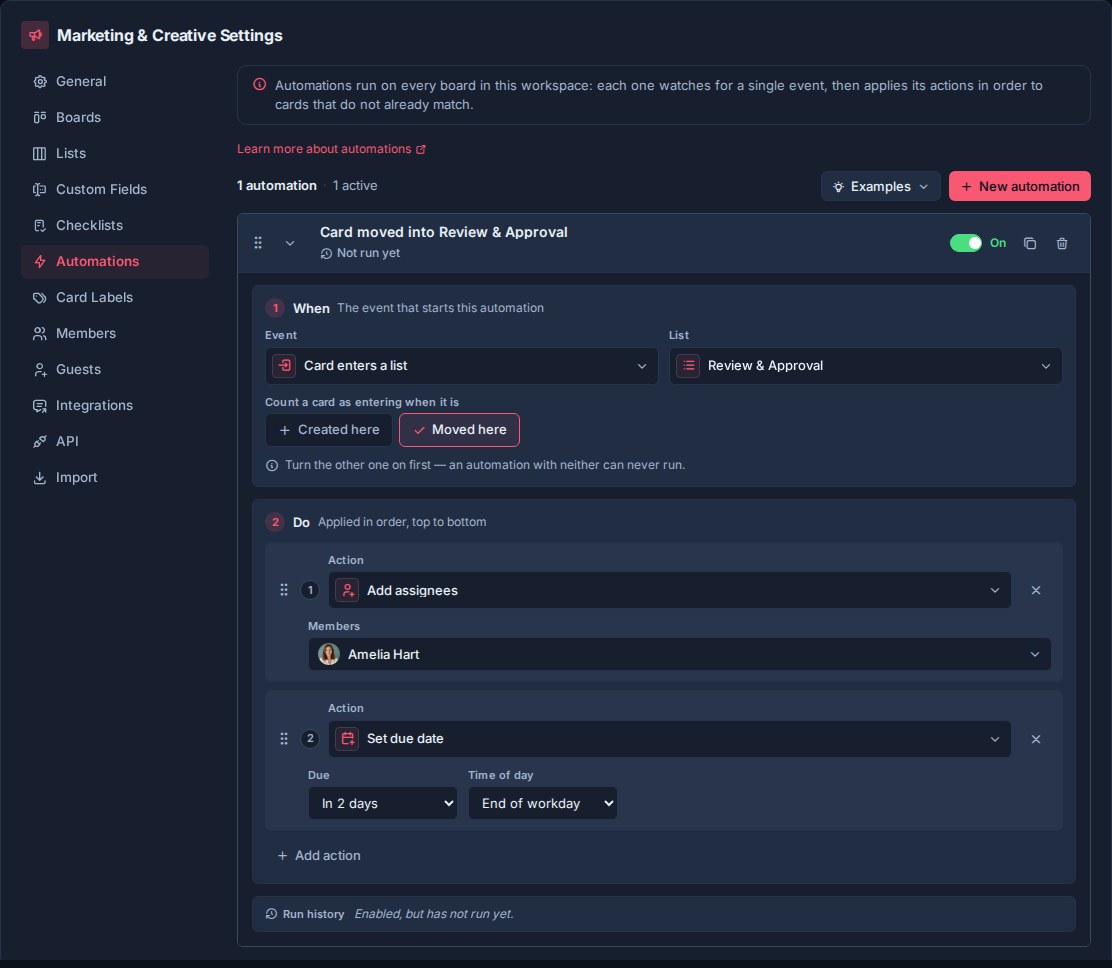
The Automations settings page lets workspace admins and owners create, enable, disable, reorder, configure, and delete automations.
How automations are structured
Every automation has:
- When: the event that starts the automation.
- Do: one or more actions Kanera performs on the card.
- Enabled or disabled: whether the automation is currently active.
- Order: where the automation sits relative to other automations in the workspace.
Automations run in workspace order. Actions inside an automation run in the order shown in the Do section.
An enabled automation must have at least one complete Do action. If you remove the final action, Kanera disables the automation so it cannot keep matching cards without doing anything.
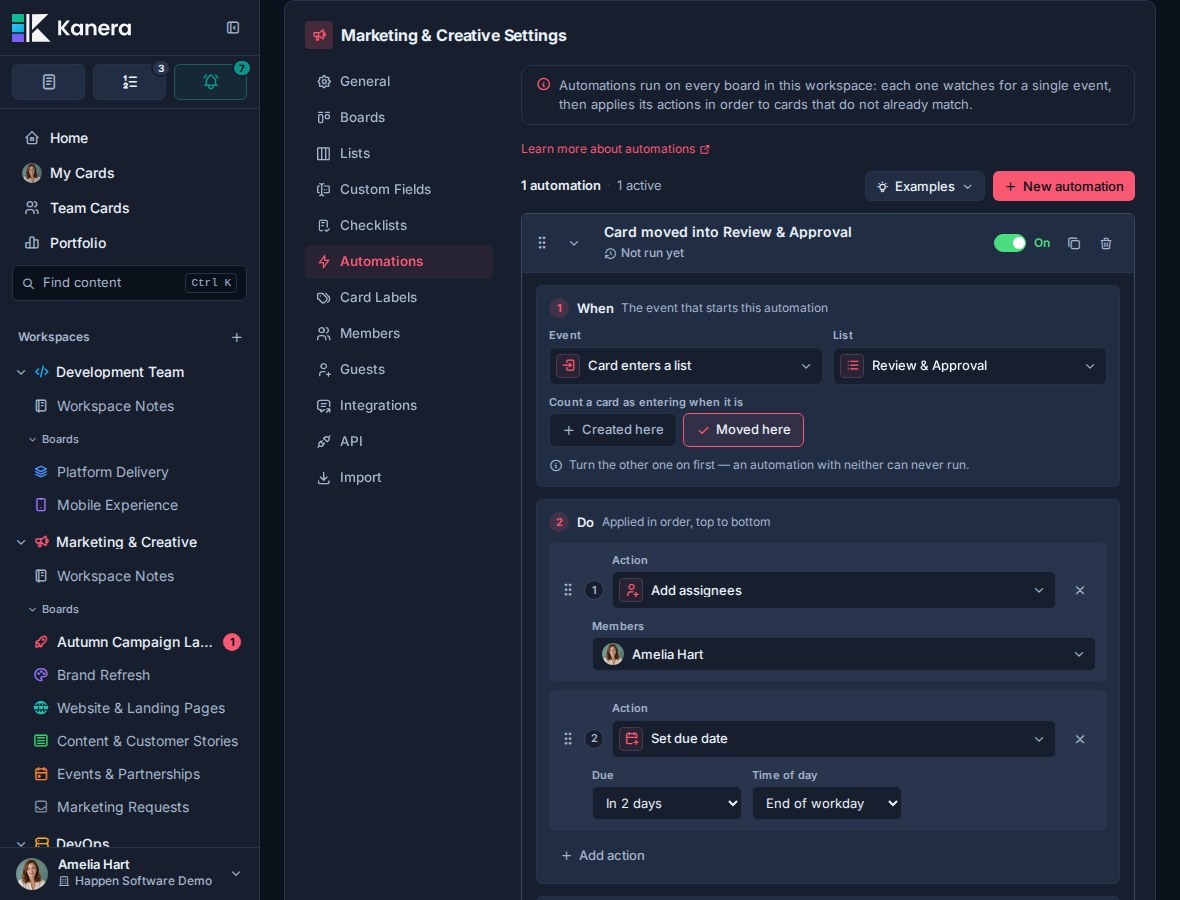
Create an automation
Click Add automation in Workspace settings -> Automations.
New automations start with a default trigger and a default action. Expand the automation to edit the When and Do sections.
Use the enabled/disabled toggle to control whether the automation is live. Disabled automations remain configured but do not run.
When triggers
The When section controls what causes the automation to run.
| Trigger | What it means | Extra settings |
|---|---|---|
| Card enters list | Runs when a card enters a selected workspace list. | Choose the list. Choose whether it applies when cards are created in that list, moved into that list, or both. |
| Card leaves list | Runs when a card moves out of a selected workspace list. | Choose the source list. |
| Due date arrives | Runs when a card's due date arrives or becomes overdue. | No extra target. Kanera checks due-date automations on a schedule. |
| Due date is approaching | Runs when an active, incomplete card enters a configurable window before its due date. | Choose the number of days before the due date. |
| Card becomes inactive | Runs when an active card reaches the standalone board or workspace inactivity period. | No extra target. Configure the inactivity period under General settings. |
| All checklist items complete | Runs when every checklist item on a card is complete. | No extra target. Cards with no checklist items do not trigger this. |
| Card assigned to user | Runs when a card is assigned to one of the selected workspace members. | Choose one or more assignable members. |
| Card marked complete | Runs when a card changes from incomplete to complete. | No extra target. |
| Label added to card | Runs when a selected workspace label is newly added to a card. | Choose the label. |
| Custom field changes to a value | Runs when a custom field transitions from another value to the selected typed value. | Choose the field and value. |
Card enters list
Use Card enters list for workflow-stage automation.
This trigger is especially useful with shared workspace lists such as Review, Waiting, Ready to Launch, or Done.
You can choose:
- Created: run when a card is created directly in the selected list.
- Moved: run when an existing card is moved into the selected list.
Enable both when the automation should apply no matter how the card arrived in that list.
Card leaves list
Use Card leaves list for cleanup and handoff work tied to the stage a card is leaving. For example, leaving Review might remove a review label, assign the delivery owner, or apply a release checklist.
The selected list is the source of the move. The trigger runs for moves to another list in the same board and for moves to another board that use a different workspace list. Moving a card within the same list does not run it.
Due date arrives
Use Due date arrives for time-sensitive work.
Kanera checks due-date automations on the server and runs the automation for active, incomplete cards whose due date has arrived. Kanera records due-date automation runs so the same automation does not keep firing repeatedly for the same card and the same due date.
Due date is approaching
Use Due date is approaching to prepare for a deadline before it arrives. Enter a lead time from 1 to 3,650 days; for example, 3 runs when a card enters the three-day window before its due date.
Kanera checks approaching-due automations on the server. If a scheduled check happens after the exact boundary, the rule still runs while the card remains inside the window, so a delayed check does not lose the event. Completed, archived, and already-due cards are skipped. A rule runs once for each card due date and lead-time setting; changing the card's due date, or changing the configured lead time, establishes a new event.
Card becomes inactive
Use Card becomes inactive to surface work that has stopped moving. For example, the automation might add a Needs attention label, assign a project lead, move the card to the top of its current list, or set a follow-up field.
Kanera uses the inactivity period configured in Workspace settings -> General or Board settings -> General. It checks inactivity automations on the server on a schedule and considers active, non-archived cards only. Completed and archived cards do not trigger the automation.
The trigger runs once when a card crosses its current inactivity boundary; later scheduled checks do not repeatedly run the same automation for that unchanged boundary. New card activity resets the period, so the automation can run again if the card later becomes inactive a second time. Changing the configured inactivity period also establishes a new boundary: lengthening it can make a card active again until the later boundary is reached, while shortening it can make an older card eligible on the next check.
All checklist items complete
Use All checklist items complete when checklist completion should advance the card.
For example, completing all QA items might mark the card complete, move it to Ready to Ship, or remove a Needs Review label.
This trigger only runs when the card has checklist items and all of them are complete. If a checklist item contains sub-checklists, their items must be complete too.
Card assigned to user
Use Card assigned to user when assigning a person should start a related process.
For example, assigning a delivery owner might apply a Handoff checklist, add a Delivery label, or set a due date.
The selected users must be assignable workspace members.
Card marked complete
Use Card marked complete when finishing a card should trigger follow-up housekeeping.
For example, marking a card complete might remove an Active label, clear its due date, assign a reviewer for post-work checks, or move it to a shared Done list.
This trigger runs when a card changes from incomplete to complete. It does not run when a card is already complete, when a card is marked incomplete, or when an automation marks the card complete as one of its own actions.
Label added to card
Use Label added to card when a label should start a standard response.
For example, adding Blocked might assign a lead, move the card to the top of its current list, and set a Blocked Since custom field. Adding Customer might apply a customer-handoff checklist and set a Review Type field.
This trigger runs only when the selected label is newly added to the card. Re-saving a card that already has the label does not run the automation again.
Custom field changes to a value
Use Custom field changes to a value when a structured workflow state should start a standard response. Choose a text, number, checkbox, date, URL, select, or user field, then choose the exact typed value to match.
The trigger is transition based: it runs when an edit changes the field from a non-matching value to the configured value. Re-saving the same matching value does not run it again. For multi-select and multi-user fields, the trigger matches when the configured option or member becomes part of the field value. If the field later stops matching and then changes back, the rule can run again.
Deleting a field or a selected option disables affected rules so an administrator can choose a replacement without an enabled automation silently becoming impossible to run.
Do actions
The Do section controls what Kanera changes on the card after the trigger happens.
| Action | What it does | Required setting |
|---|---|---|
| Add label | Adds a selected workspace label to the card. | Choose a label. |
| Remove label | Removes a selected workspace label from the card. | Choose a label. |
| Add assignees | Assigns one or more workspace members to the card. | Choose members. |
| Remove assignees | Removes one or more assignees from the card. | Choose members. |
| Apply checklist | Applies one or more checklist templates to the card. | Choose checklist templates. |
| Set due date | Sets the card due date relative to when the automation runs. | Enter an offset and choose a due-date slot. |
| Clear due date | Removes the card due date. | No target. |
| Populate custom field | Sets a selected custom field on the card. | Choose a field, then either set a value or copy from another field of the same type, and choose whether to overwrite existing values. |
| Mark complete or incomplete | Marks the card complete or incomplete. | Choose complete or incomplete. |
| Move to list | Moves the card to a selected list. | Choose a list and top or bottom placement. |
| Move to top | Moves the card to the top of its current list. | No target. |
| Move to bottom | Moves the card to the bottom of its current list. | No target. |
| Post a comment | Adds a Markdown comment to the card, with optional placeholders filled from that card. | Write the comment template. |
| Call a webhook | Sends the card to one selected generic webhook endpoint through Kanera's signed delivery pipeline. | Choose a webhook endpoint from the same workspace. |
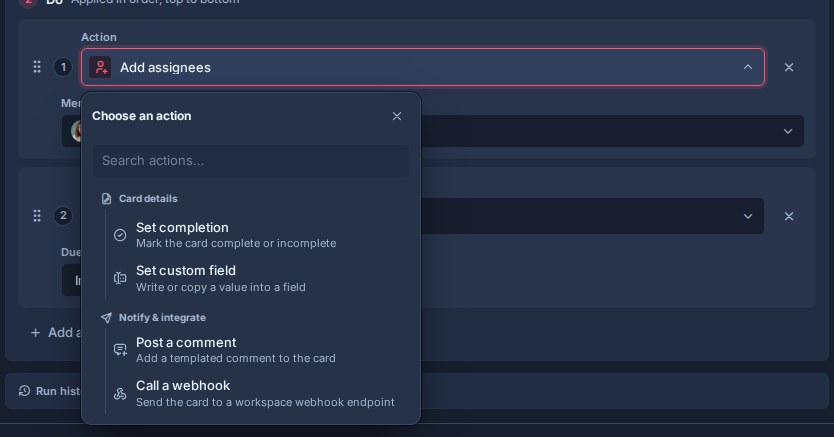
Action details
Labels
Use label actions to keep card categories accurate as work moves.
Examples:
- Add Needs Review when a card enters Review.
- Remove Needs Review when all checklist items are complete.
- Add Blocked when a card enters Waiting.
Assignees
Use assignee actions when a stage or trigger has a predictable owner.
Examples:
- Assign the QA lead when a card enters Review.
- Assign an account manager when a card enters Client Review.
- Remove a triage owner after a card is assigned to the final owner.
If an automation assigns someone to a card on a board where they need access, Kanera can add them to the board when the workspace and board rules allow it.
Checklist templates
Use Apply checklist when the card needs a repeatable set of steps.
Examples:
- Apply QA Review when a card enters Review.
- Apply Launch Prep when a card enters Ready to Launch.
- Apply Support Triage when a support card is created.
Kanera tracks which checklist templates have already been applied to each card. If the same automation runs again, it will not add the same template to the same card a second time.
Due dates
Use Set due date to set a due date relative to the day the automation runs.
The offset can be:
0for today.- A positive number for days after the trigger.
- A negative number for days before the trigger date.
Due-date slots are:
| Slot | Meaning |
|---|---|
| Any time | Date only. |
| Morning | Morning due slot. |
| Afternoon | Afternoon due slot. |
| End of work day | End-of-day due slot. |
Use Clear due date when a card entering a stage no longer needs the previous deadline.
Custom fields
Use Populate custom field when an automation should write structured metadata to the card.
Examples:
- Set Priority to High when Escalated is added.
- Set Blocked Since to the current date when Blocked is added.
- Set Review Month to the current month when a card enters Review.
- Set Billable to checked when a card enters Client Work.
- Set Reviewer to a workspace member when all checklist items are complete.
- Copy Estimated Hours into Actual Hours when a card enters Done.
For each custom-field action you choose the field to write, then how to supply its value:
- Set value: provide a fixed or computed value that matches the selected field type. Text fields can use fixed text or the current date formatted as a date, month, or date and time. Number, date, checkbox, select, and user fields use values of the matching type.
- Copy from field: copy the current value of another custom field on the same card. The source field must be the same type as the field you are setting. Use this to carry a value forward between fields, such as copying an estimate into an actuals field.
When copying between two select fields, Kanera matches options by their label, because each select field has its own options. A source option with no matching label on the target field is skipped. When the source field has no value on the card, the automation leaves the target field unchanged.
By default, Kanera only fills the field if it is empty. You can allow the automation to overwrite an existing value when the automation should be authoritative for that field.
Kanera validates the field when the automation runs. If the configured value does not match the field type, a select option was archived, or a selected user is no longer a workspace member, Kanera skips invalid values instead of writing broken data.
Comments
Use Post a comment when the result should stay with the card. The template supports Markdown and these placeholders:
| Placeholder | Inserts |
|---|---|
{{card.title}} | Card title |
{{card.key}} | Human-readable card key |
{{card.url}} | Canonical card link |
{{card.dueDate}} | Due date, or an empty value when the card has none |
{{list.name}} | Current list name |
{{board.name}} | Board name |
{{workspace.name}} | Workspace or standalone-board name |
For example, {{card.key}} is ready in **{{list.name}}**: {{card.url}} becomes a card-specific handoff note each time the rule runs. Unknown placeholders are left visible rather than silently erased, so a typo can be found and fixed.
Automation comments are labelled Automation in the card feed. They are informational system comments: they update connected clients and remain in the audit trail, but do not send mention, comment-email, or watcher notifications.
Webhooks
Use Call a webhook when one specific external system should receive the card only when this automation matches. Create a generic endpoint under Workspace settings -> API first, then select it on the action. Chat destinations do not appear in this list.
Kanera sends an automation:webhook:called event containing the automationId, boardId, cardId, full card, and current list. The call targets only the selected endpoint and ignores that endpoint's ordinary event filter, because choosing the endpoint on the rule is the subscription. It still uses the endpoint's signing secret, retries, and delivery log. See Webhooks for verification and delivery behaviour.
A disabled endpoint makes the action a no-op until it is re-enabled. If the endpoint is deleted, a later match fails and the automation records that error in its execution history.
Completion
Use completion actions when a workflow stage should control the card's completed state.
Examples:
- Mark complete when a card enters Done.
- Mark incomplete when a card moves back into In Progress.
Movement and priority
Use move actions to keep cards in the right place.
Examples:
- Move a card to Done when all checklist items are complete.
- Move overdue cards to the top of the current list.
- Move cards entering Escalated to the top of that list.
When moving to a list, choose whether the card lands at the top or bottom.
Example automations
| Goal | When | Do |
|---|---|---|
| Start QA consistently | Card enters Review | Apply QA Review checklist; add Needs Review label; assign QA lead. |
| Finish work cleanly | Card enters Done | Mark complete; clear due date; remove Needs Review label. |
| Reopen work when it moves back | Card enters In Progress | Mark incomplete; add Active label. |
| Triage new support cards | Card created in New | Add Support label; apply Support Triage checklist; assign support lead. |
| Clean up review handoff | Card leaves Review | Remove Needs review; assign delivery owner. |
| Prepare for a deadline | Due date is approaching by 3 days | Add Due soon; move to top. |
| Start approved work | Stage changes to Approved | Apply Launch Prep checklist; assign project lead. |
| Surface overdue work | Due date arrives | Move to top; add Overdue label. |
| Surface stalled work | Card becomes inactive | Add Needs attention label; assign project lead; move to top. |
| Advance checklist-driven work | All checklist items complete | Move to Ready to Ship; remove QA label. |
| Prepare handoff | Card assigned to delivery owner | Apply Handoff checklist; set due date for 2 days from now. |
| Clean up completed work | Card marked complete | Clear due date; remove Active label. |
| Escalate consistently | Label Escalated added | Set Priority to High; set Escalated Since to today; move to top. |
| Carry an estimate into actuals | Card enters Done | Copy Estimated Hours into Actual Hours. |
| Leave a handoff note | Card enters Client Review | Post a comment with the card link, due date, and current list. |
| Start an external workflow | Stage changes to Approved | Call the Launch pipeline webhook. |
Review run history
Each automation shows when it last ran and when it last changed a card. A failed run is surfaced on the rule so an admin can fix a stale target or invalid configuration instead of assuming the automation is healthy.
The public API, MCP tool automations.list_executions, and TypeScript SDK's kanera.automations.executions() return retained runs newest first. Each row identifies the outcome (effectful, noop, or failed), card, action type, time, and any truncated error text. A no-op is still useful evidence: the trigger matched, but none of the configured actions needed to change anything.
Reorder automations and actions
Drag automations to change their workspace order.
Drag actions inside an automation to change the order they run. This matters when one action affects the next. For example, you may want to apply a checklist before moving the card, or mark a card incomplete before assigning a new owner.
Delete an automation
Deleting an automation archives it so it no longer runs.
Existing changes made by earlier automation runs remain on cards. Deleting an automation does not remove labels, assignees, checklists, due dates, custom field values, comments, completion state, or card movements that already happened, and it cannot recall webhook deliveries that were already sent.
The automation disappears immediately and Kanera provides Undo for ten seconds before committing the deletion. See Undo Recent Actions.
Good automation design
Start with small automations that do one predictable job.
Good automations are:
- Easy to describe in one sentence.
- Built from shared workspace lists, labels, members, custom fields, and checklist templates.
- Safe to run more than once.
- Ordered intentionally.
- Reviewed when the workspace workflow changes.
Avoid automations that fight each other. For example, one automation should not move a card into a list that immediately triggers another automation to move it back.
Use automations for repeatable process steps. Keep judgment calls with people.