Use Your Private Scratchpad
Scratchpad is a private writing space for material that is not ready for a card, comment, or shared note. Use it for meeting prep, personal todos, rough drafts, reminders, pasted screenshots, and temporary research.
Only you can open your Scratchpad. Each organisation has a separate set of pages, so changing the active organisation also changes the Scratchpad you see.
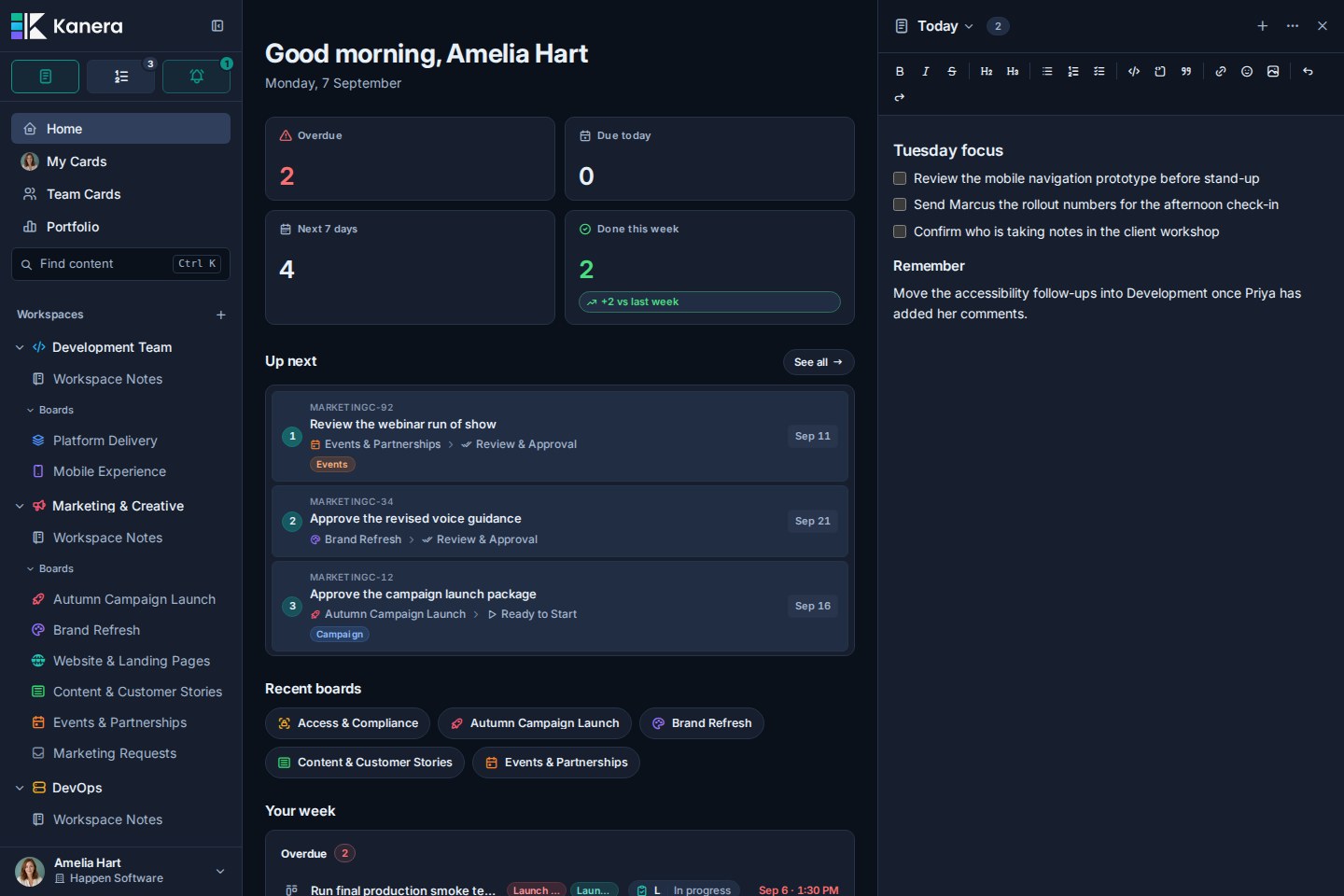
Open and close Scratchpad
Select the Scratchpad button in the sidebar utility row. You can also use:
- . outside a text field on any platform.
- Ctrl+Shift+. on Windows or Linux.
- Command+Shift+. on macOS.
On desktop, Scratchpad becomes a resizable column on the right. The page underneath stays interactive, so you can read a board, card, report, or Home while writing.
Drag the Scratchpad's left edge to change its width. Close it when you want the full app width again.
Work with pages
A Scratchpad can hold up to 50 pages.
- Select the New page button in the header, or open the page list and select New page.
- Select the current page name in the header to open the page list and switch pages. Each row shows when that page was last updated.
- When the Scratchpad contains more than five pages, use Search pages at the top of the list to filter it by name.
- Open the
⋯menu to rename the current page, or double-click its name in the header. - Open the
⋯menu to delete the current page when the temporary material is no longer useful. Use Undo in the ten-second toast if you remove one by mistake.
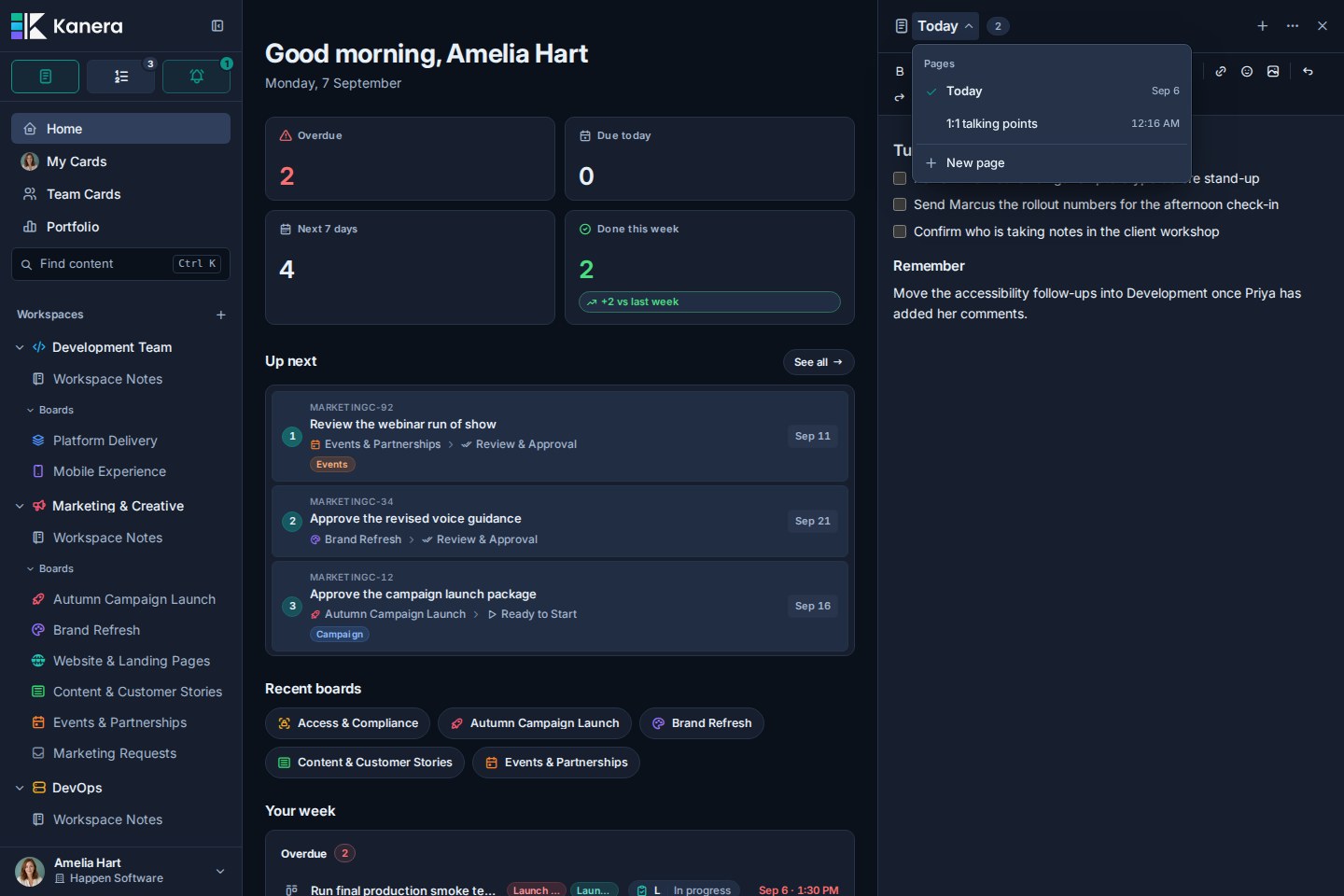
Scratchpad saves changes quietly as you type and keeps a browser draft so interrupted work can be recovered. The header stays out of the way during normal saving and shows Not saved only when the latest change could not be stored.
Page deletion is deferred until the Undo toast closes or expires. See Undo Recent Actions.
Add formatted content and files
The editor supports headings, emphasis, lists, checklists, links, code, quotes, emoji, and images. You can also:
- Paste a screenshot.
- Drag a file into the editor.
- Use the image control to upload a file.
Scratchpad attachments count toward the organisation's storage allowance, just like card and Note attachments.
Open Scratchpad in its own tab
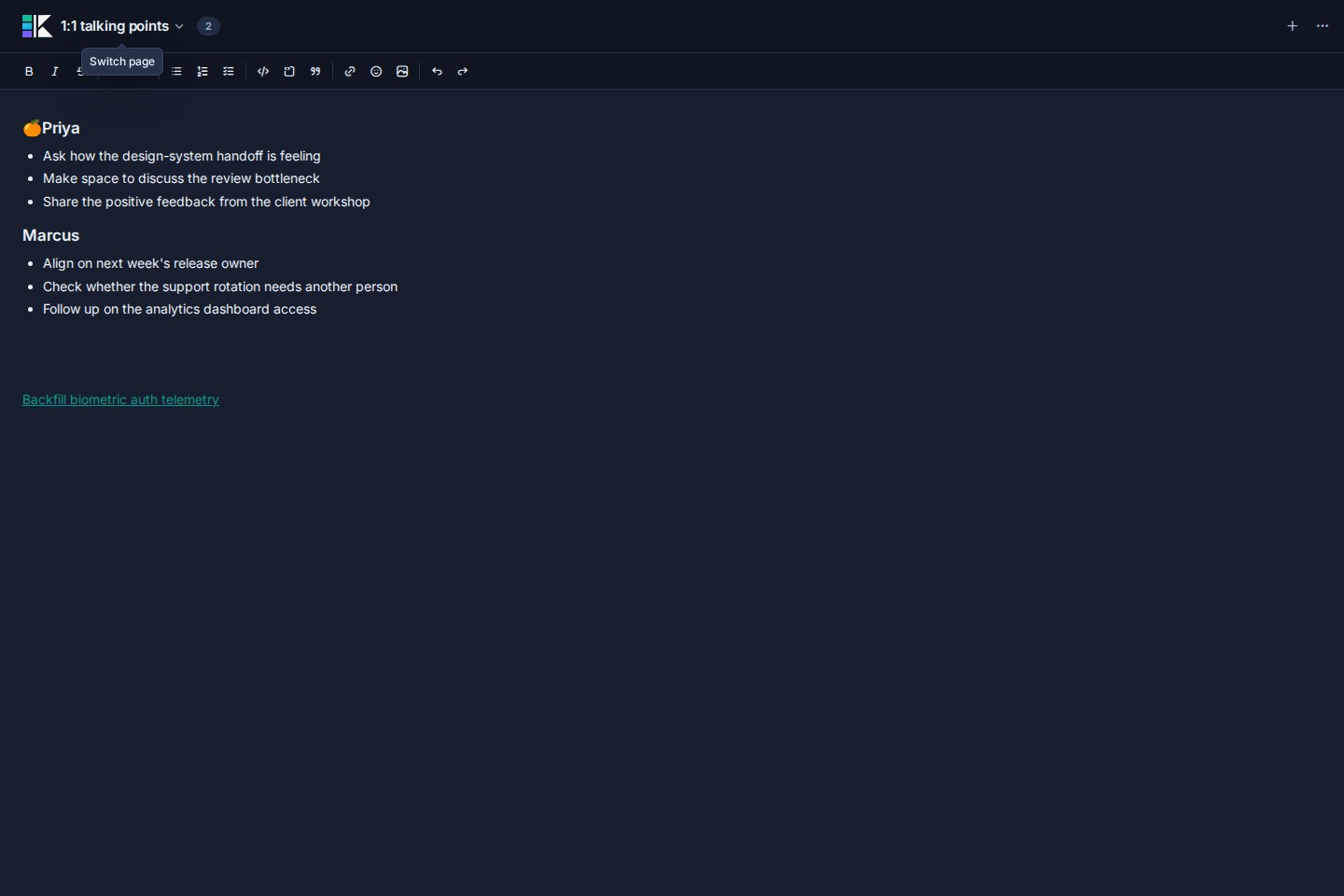
Open the ⋯ menu and select Open in a new tab when you want a focused writing window. The same pages and autosaved content remain available. In the focused tab, open the ⋯ menu and select Dock back in the app to return it to the main app.
Use Scratchpad on a narrow screen
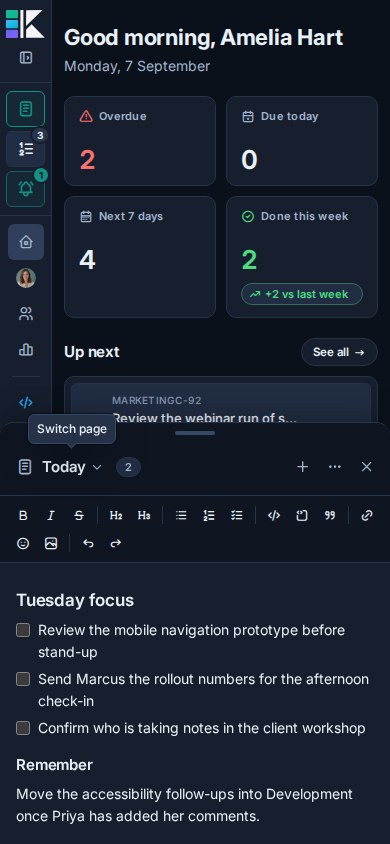
At narrow widths, Scratchpad becomes a bottom sheet instead of reducing the app to a small column. Drag its top handle to change the sheet height. The app remains visible above it.
Scratchpad compared with Notes
| Need | Scratchpad | Notes |
|---|---|---|
| Visibility | Private to you, including from organisation administrators | Personal in My notes, or shared in Team |
| Location | Available throughout the active organisation | Belongs to a workspace or board |
| Organisation | Up to 50 named pages in a page switcher | Nested page tree |
| Best for | Work in progress, meeting prep, reminders, and temporary material | Durable project context, processes, decisions, and team documentation |
| Discovery | Page-name finder inside Scratchpad | Kanera search, note links, and card backlinks |
| Integrations | Not exposed through the public API or MCP | Available through the public API and MCP, subject to access |
Move useful outcomes into a card, comment, or Note when the material becomes part of the team's work or long-term reference.
Privacy boundaries
Scratchpad pages are not included in organisation activity, global search, the public API, or MCP. Other sessions signed in as you can receive your saved updates, but another member or organisation administrator cannot open your pages.
Troubleshooting
| Problem | What to check |
|---|---|
| Scratchpad is empty | Confirm that you are in the organisation where you created the pages. |
| A change says Not saved | Check the connection, keep the page open, and try another edit after reconnecting. |
| A pasted image fails | Check the file type, file-size limit, and organisation storage allowance. |
| You cannot add another page | Delete an unused page. A Scratchpad holds up to 50 pages. |