Global Work
Global Work brings cards together across every organisation, workspace, standalone board, and guest board you can access. It has three lenses:
| Lens | Main question |
|---|---|
| My Cards | What needs my attention across all of my boards? |
| Team Cards | What is the team working on, and what should each person do next? |
| Portfolio | Where is delivery healthy, late, due in the next seven days, unassigned, or complete? |
The cards do not move into a separate Global Work database. Every result remains connected to its source board, list, labels, custom fields, assignees, comments, and activity.
Global scope and permissions
Global Work is not limited to one workspace. The Boards control can include:
- Every accessible board.
- One organisation.
- One workspace.
- One board.
- Standalone boards.
- Boards where you are an external guest.
Results always follow the viewer's real access:
- You only see boards and cards you can access.
- Observer access stays read-only.
- Editor actions are available only on boards where you can edit.
- An assigned-items-only board grant continues to limit the visible cards on that board.
- A shared saved view never grants access to its owner's boards.
Controls shared by the three lenses
Global Work can narrow results by source board, search text, labels, workflow lists, due dates, completion, archived state, and supported custom fields. Portfolio can also filter by assignee and unassigned status.
Depending on the display, you can also:
- Group by organisation, workspace, board, assignee, list, due date, completion, or no grouping.
- Sort by due date, title, created date, or updated date.
- Include completed cards from a chosen date range.
- Search card titles or card keys.
- Save the current setup as a named view.
Each Global Work lens remembers its own display and query setup.
Saved views
Choose Save view to preserve a useful Global Work setup. A saved view can include:
- The active lens.
- Board scope.
- Filters.
- Display mode.
- Grouping and sorting.
- Portfolio reporting period.
- Table columns, order, widths, aggregates, breakdown, and collapsed groups.
- Collapsed sections in the Board or Portfolio display.
Saved views can be private, visible to everyone in the organisation, or shared with selected colleagues. Only the owner can update or delete a shared view. Anyone opening it still sees only the boards they can access.
My Cards
My Cards shows cards assigned to you across accessible boards. It is the detailed execution companion to Home: Home focuses on this week and recent progress, while My Cards lets you work with the full result set.
My Cards supports:
| Display | Use |
|---|---|
| Board | Merge assigned cards into workflow lanes and move or prioritize work when permissions allow. |
| Table | Edit, group, sort, calculate, and export assigned cards. |
| Calendar | Review assigned cards with due dates and drag them to reschedule. |
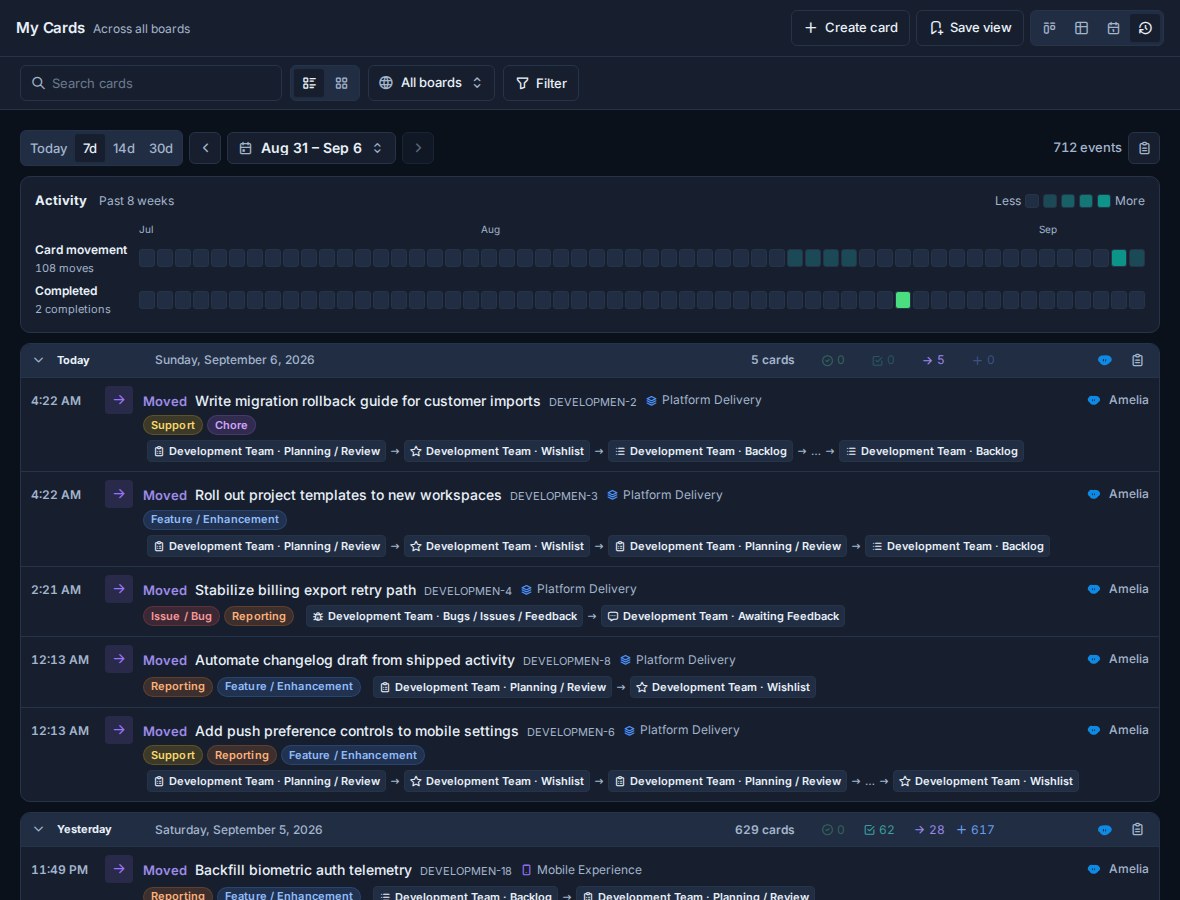
| Work Done | Review up to 60 days of created, moved, completed, and checked-off work. |
You can create a card directly from My Cards. Choose the destination board, and Kanera assigns the new card to you.
Set your Up next order
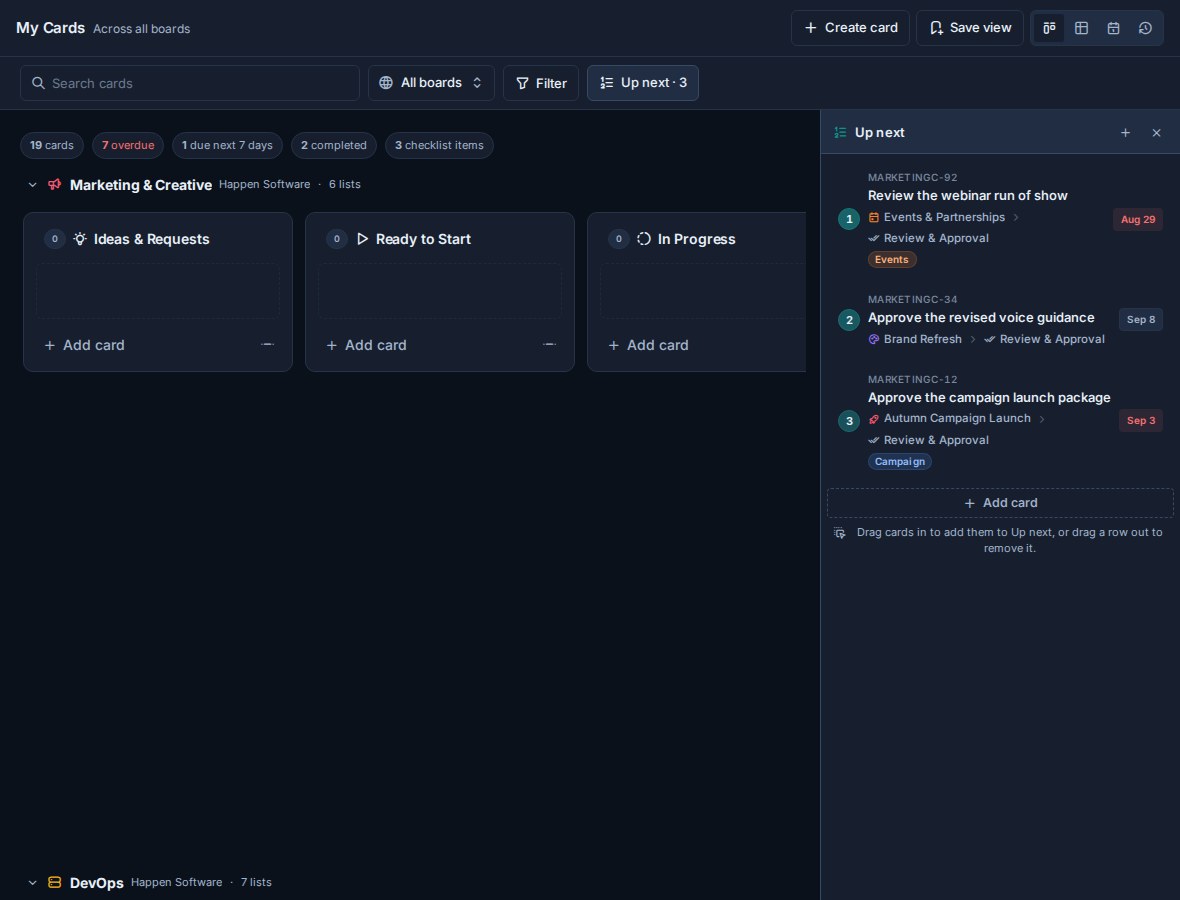
Open Up next beside Filter to dock your ranked queue beside the current My Cards display.
Add an assigned card with Add card, use the quick Add to Up next action on an eligible card, or drag a card tile into the queue. Drag rows to reorder them, use the up and down controls for a precise move, or drag a row out to remove it. Removing a row changes only the queue, not the card.
Queue positions stay consistent across Kanera:
- Home shows the first items in the same order.
- Board cards show their Up next rank.
- Table can show the Up next column and filter to queued cards.
- The dock keeps each card's source board, list, and due date visible.
Use Filter -> In Up next when you want the main My Cards result to show only cards already in your personal queue.
Only active cards assigned to you can enter your queue. Completing, archiving, or unassigning a card removes it from the active order.
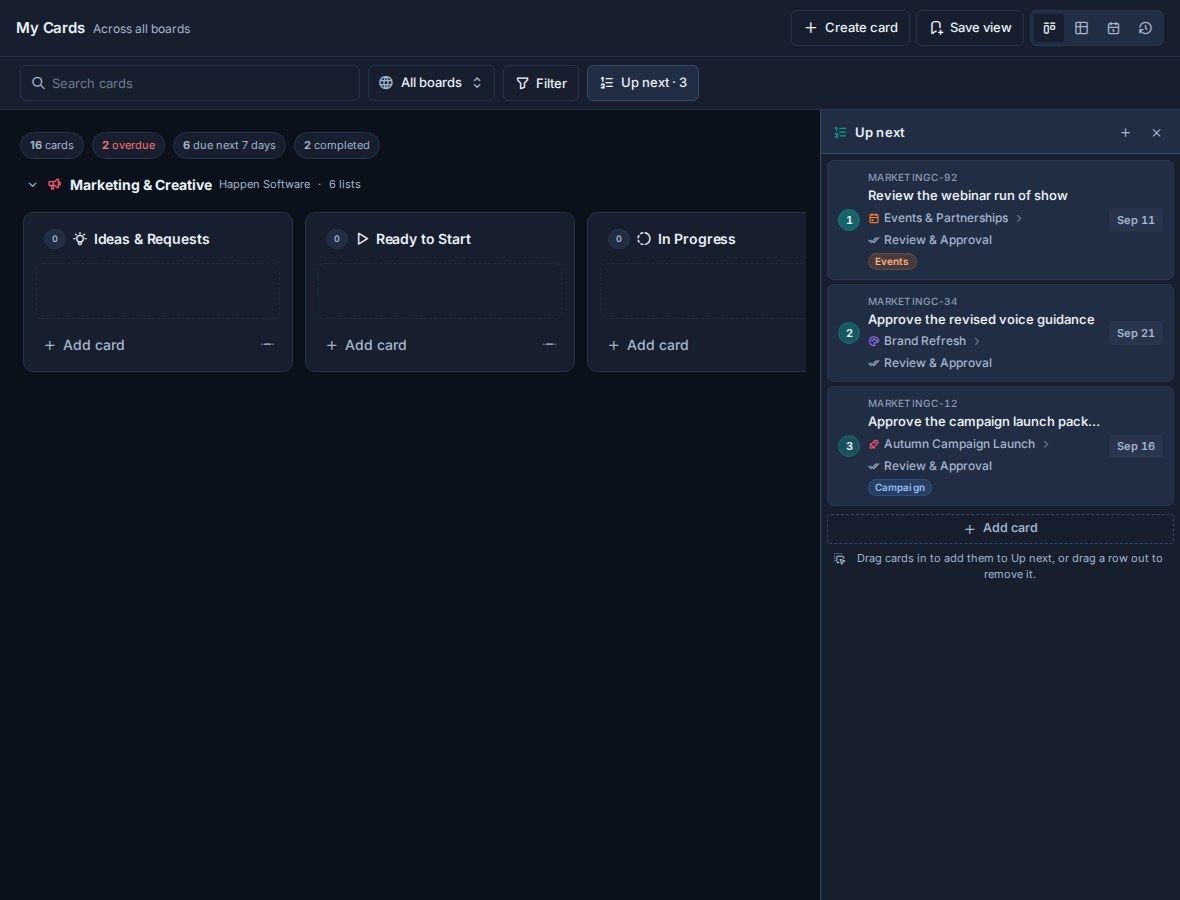
See Up next for the personal drawer, every way to add or reorder cards, and queue behavior outside My Cards.
Assigned checklist items
My Cards also shows incomplete checklist items assigned to you. They appear in a separate section with:
- The checklist item text.
- Parent card.
- Source board and list.
- Due date and overdue state.
- A link back to the parent card.
Checklist items stay separate from card rows because they have different actions and do not belong in Calendar, Work Done, completed-card history, or archived-card mode.
Team Cards
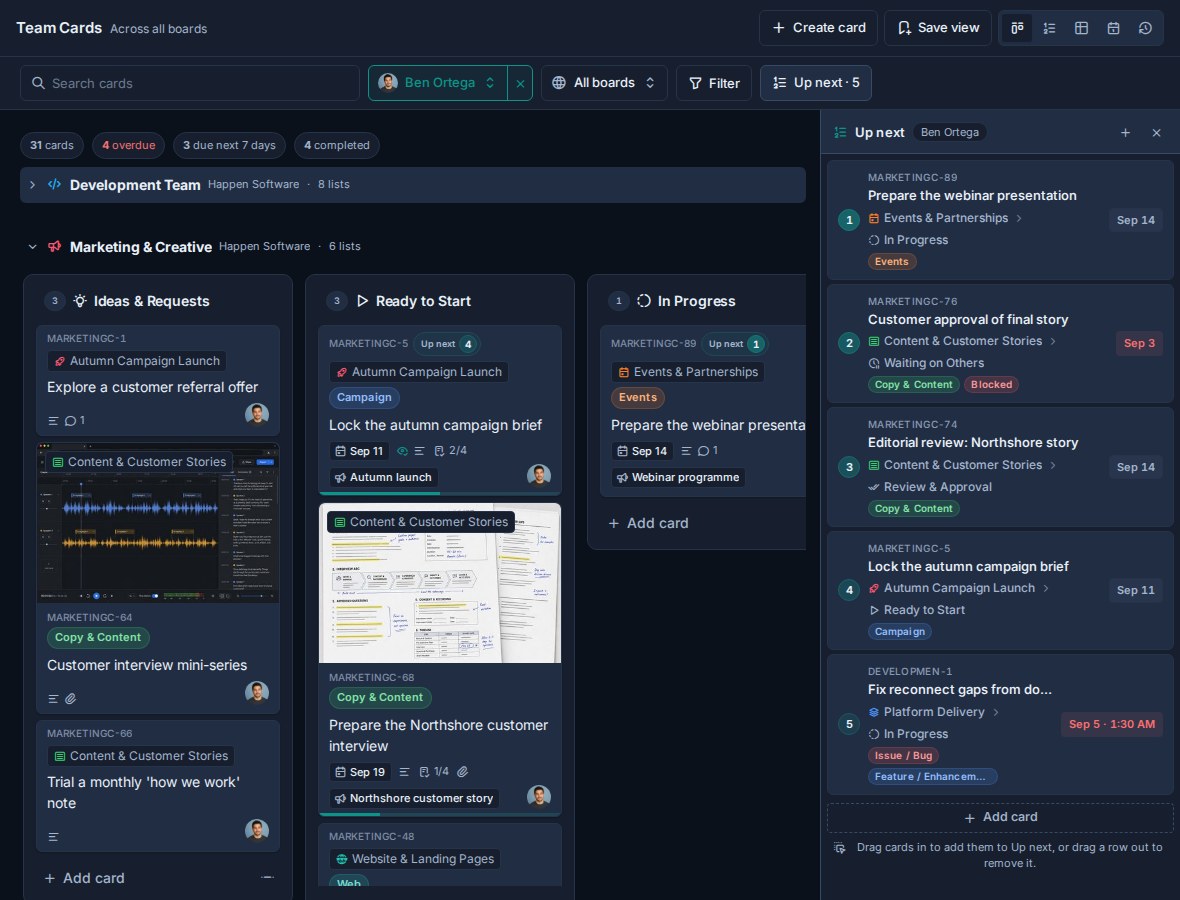
Team Cards can show the whole visible team or focus on one teammate.
Use the teammate control to:
- Review everyone together.
- Select one person.
- Search for a teammate across the current board scope.
- Create a card assigned to the selected person.
- Show that person's assigned checklist items.
Board, Table, Calendar, and Work Done remain available. Team Cards also adds a dedicated Up next display. The aggregate team view is useful for ownership and cross-board coordination. Selecting one teammate adds person-specific actions, their assigned checklist items, and an Up next control. Open it to place that person's ranked queue beside their current work display.
Team Up next view
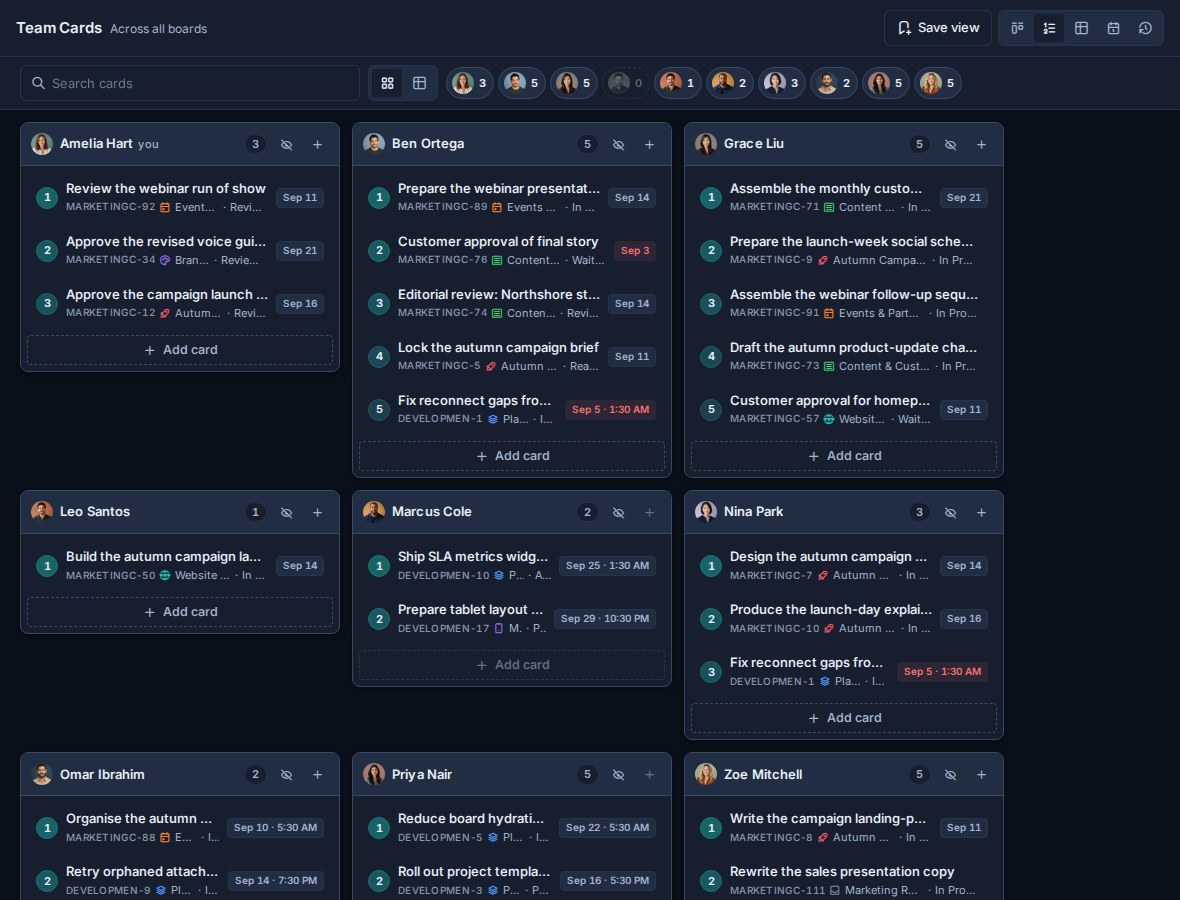
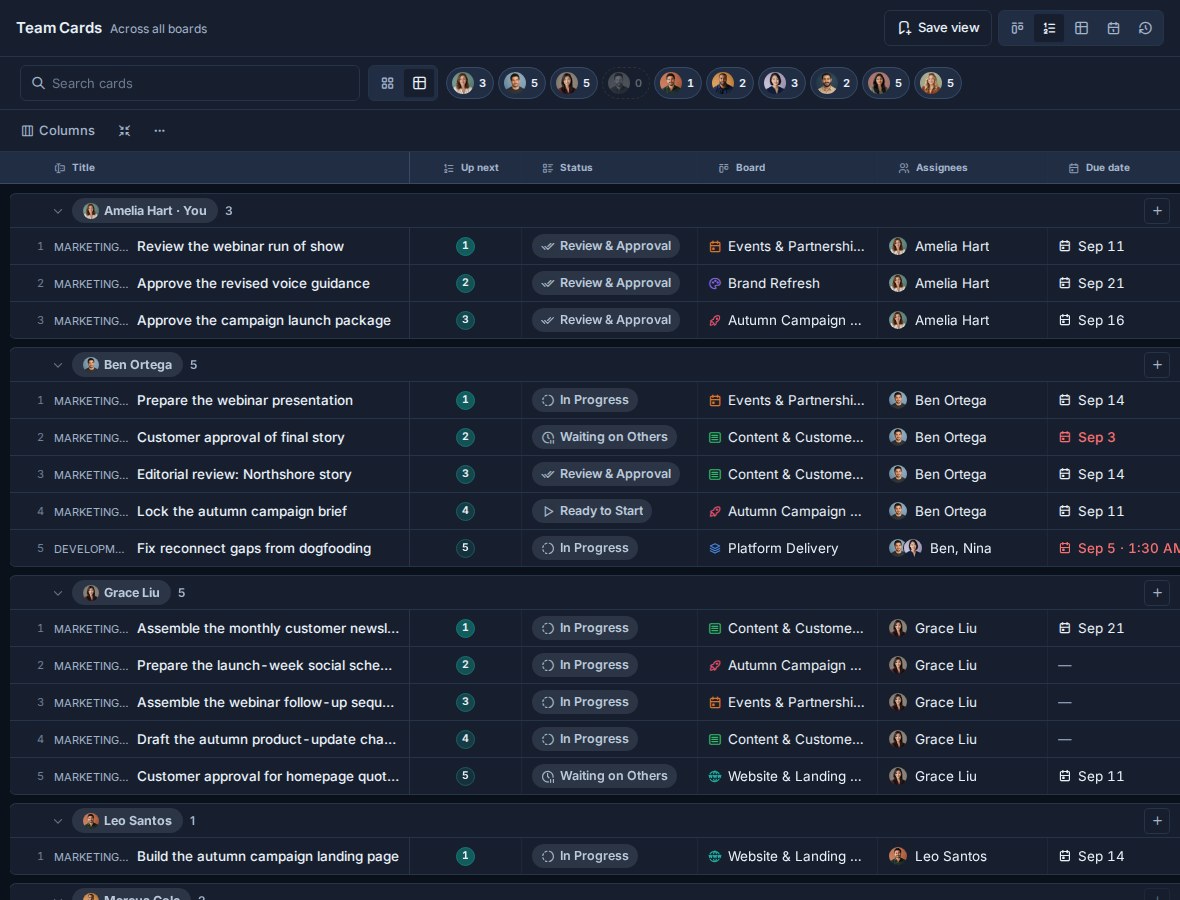
Choose Up next view in Team Cards to manage readable queues together. It has two layouts:
- Grid gives each person a compact lane. Add assigned cards, drag within an editable lane, move rows with controls, or remove a row without changing its card.
- Table groups the same queue entries by person and adds Status, Board, Assignees, Due date, and configurable table columns. Dragging preserves the person's real queue order.
The profile controls beside search show the queue size for each person and let you hide quiet lanes. Search narrows card titles without renumbering the queue or changing its underlying order.
You can always read and curate your own queue when you can see the card. Reading another person's queue requires effective admin authority in a workspace you share. Changing their order also requires admin authority in the card's workspace. Entries outside your card access stay private and keep their rank as locked placeholders.
Portfolio
Portfolio is the rollup lens. Its default Summary display reports on the accessible cards in the current scope and filter set.
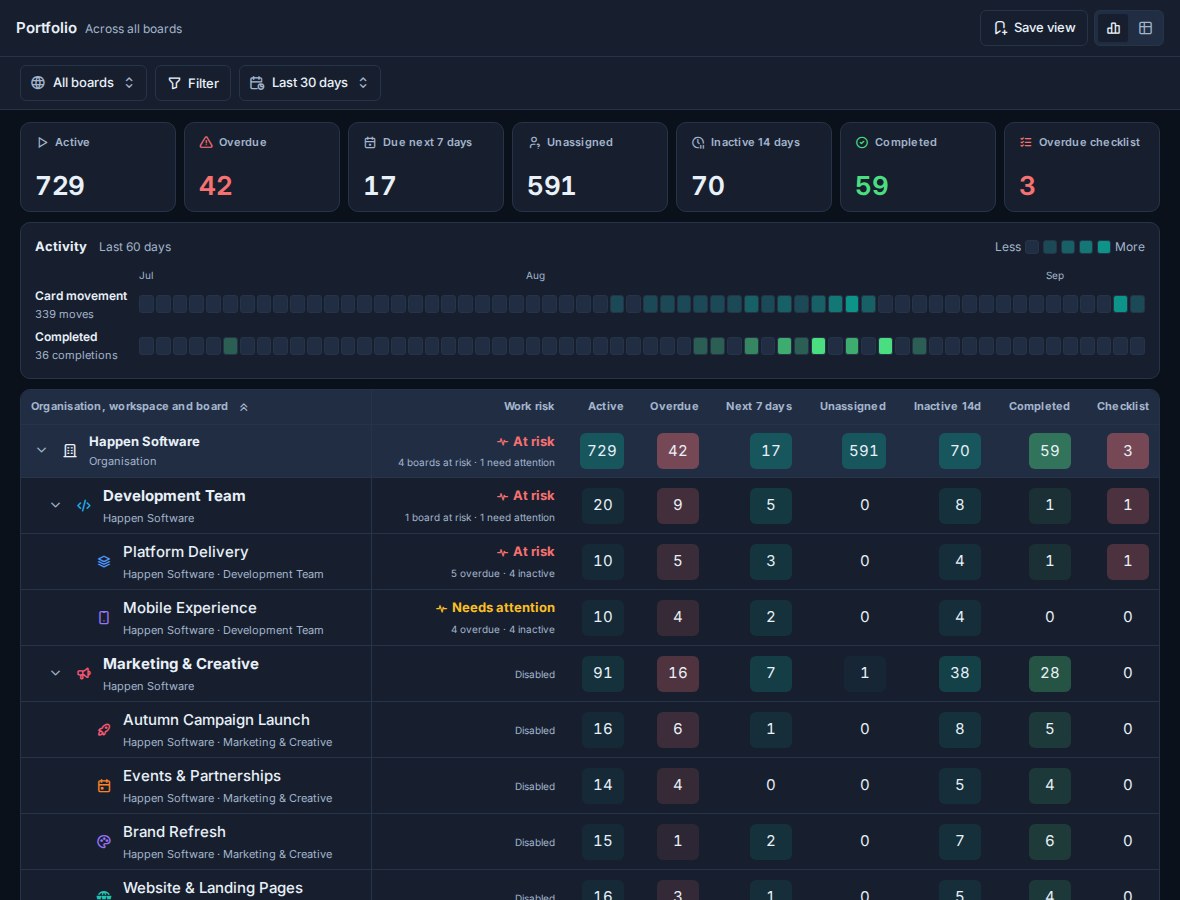
The headline metrics are:
| Metric | Meaning |
|---|---|
| Active | Open cards in the reporting scope. |
| Overdue | Open cards whose due date has passed. |
| Due next 7 days | Open cards due from today through the next seven days. |
| Unassigned | Open cards with no card assignee. |
| Completed | Cards completed inside the selected reporting period. |
| Overdue checklist items | Assigned checklist items whose due date has passed. |
Choose a 7-day, 30-day, or 60-day reporting period. Other filters continue to narrow the cards behind the summary.
Organisation-to-board rollup
The Portfolio table groups metrics through the same hierarchy as navigation:
Organisation
  -> Workspace or standalone-board group
     -> Board
Rows can be collapsed. Heat-tinted metric cells make concentration easier to scan without hiding the exact counts.
Activity
Portfolio includes 60-day activity strips for movement and delivery. They use the same filtered card set as the metrics, so changing the board scope, label, custom field, or assignee filter changes the activity picture too.
Metric drill-downs
Select a headline metric or a metric cell in the hierarchy to open the matching cards in Table view. The drill-down keeps a clear label and a Back to portfolio action.
Portfolio supports Summary and Table displays. It does not show Board, Calendar, or Work Done because Portfolio is a rollup over cards rather than one person's working lane.
Completed and archived cards
Recently completed cards remain in Global Work according to the source workspace or standalone board's completed-card visibility setting.
Use Filter -> Completed to include cards from an older completion-date range. Those cards can participate in the current Board, Table, or Calendar display. In Table, they can also be grouped, aggregated, and exported with active work.
Archived mode loads archived cards instead of mixing them with active work. Archived cards remain read-only until they are unarchived and follow the archived-card retention policy.
See Completed Cards and Archived Cards.
Practical workflows
For individual contributors:
- Start on Home with the first items in your Up next order.
- Open My Cards to add, remove, or reorder the full queue.
- Use Table to compare the queue with due dates, fields, and source boards.
- Use Calendar for deadline planning.
- Use Work Done for an update on recent progress.
For team leads:
- Open Team Cards for ownership and detailed execution.
- Use Up next grid to scan the team's active order.
- Switch to Up next table when status, board, assignees, or dates need to be compared.
- Focus on one teammate and open their docked queue beside the rest of their work.
- Open Portfolio for cross-board delivery health, then select a metric to investigate its cards in Table.