Lists
Lists are workflow stages for cards. A standalone board has its own list set. Every board in a workspace uses the workspace's shared lists in the same order.
Each board can also place titled, optionally colored separators between cards in a list. Separators belong to that board rather than to the shared list definition, so two boards can organize the same workflow stage differently without changing either board's cards.
If a workspace has lists such as Intake, Active, Waiting, and Done, every board in that workspace follows that same workflow. That consistency makes Kanban, Table, My Cards, Team Cards, Calendar, and Work Done easier to compare across boards. A standalone board can use a completely different list set without affecting other work.
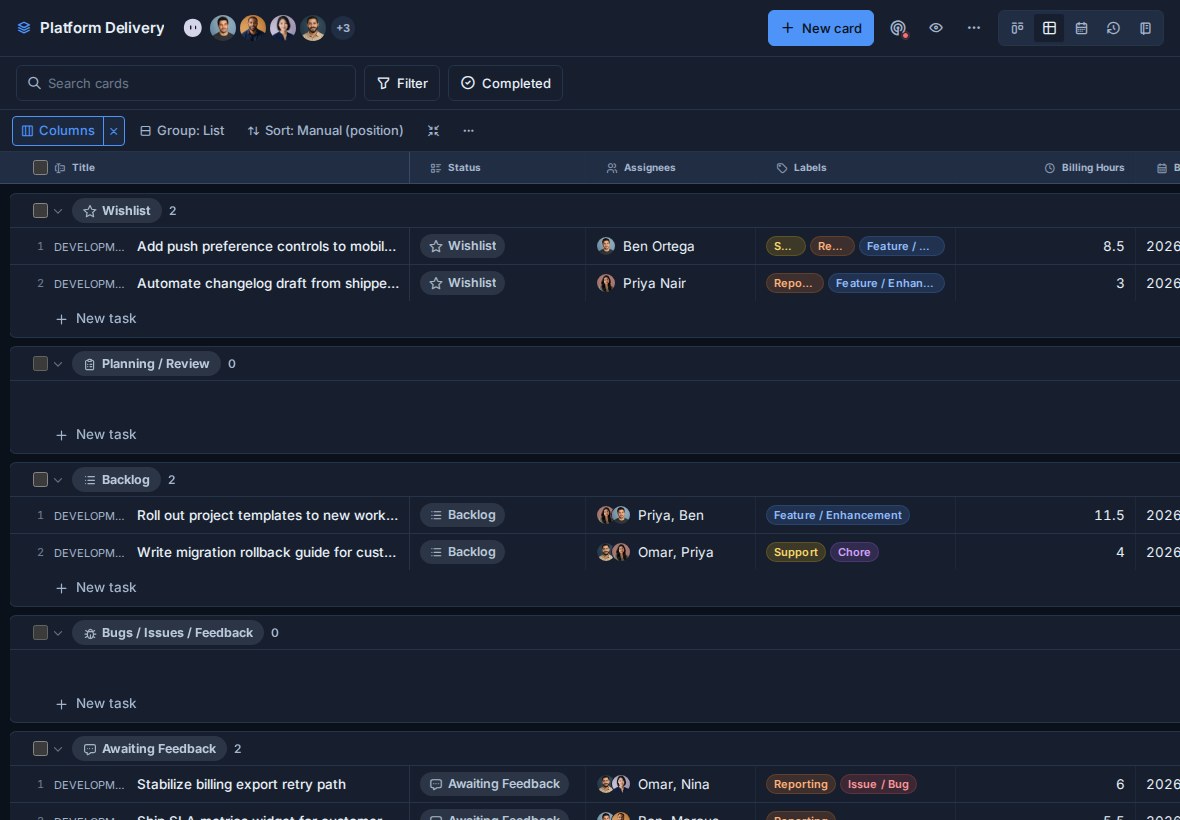
Open list settings
- Open the workspace or standalone board.
- Go to Workspace settings or Board settings.
- Choose Lists.
The Lists settings page lets you manage:
- Completed-card visibility.
- List names.
- List order.
- List icons.
- List colors.
- List deletion.
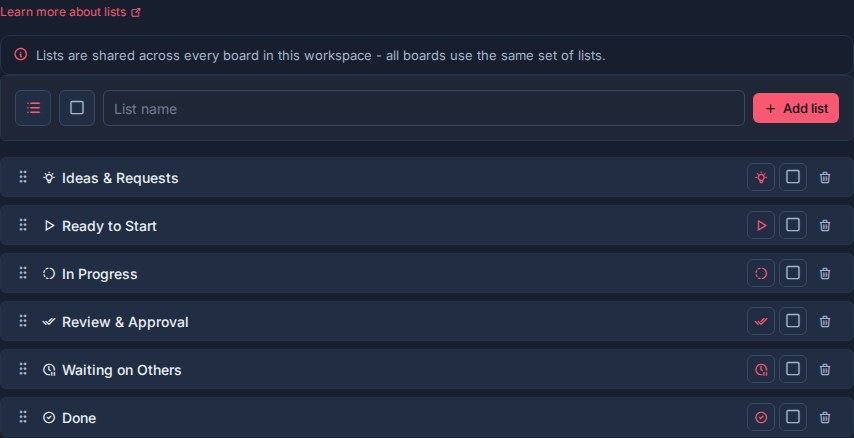
How lists work
In a workspace, lists belong to the workspace rather than an individual board. On a standalone board, they belong only to that board.
When you add, rename, reorder, style, or delete a workspace list, that change applies across every board in the workspace. The same action on a standalone board affects only that board.
Use lists for workflow stages that should be shared by related boards:
| Workflow | Example lists |
|---|---|
| Client delivery | Intake, Scoped, Active, Waiting, Delivered |
| Product work | Ideas, Backlog, In Progress, Review, Shipped |
| Support | New, Triage, Assigned, Waiting, Resolved |
| Content | Ideas, Drafting, Editing, Scheduled, Published |
| Operations | Requested, Assigned, Blocked, Complete |
Avoid creating a list for a status that only matters on one board. A label or custom field is usually better for board-specific categories.
Completed-card visibility
The Completed cards setting controls how long completed cards remain visible in active board and Global Work views.
Enter the number of days Kanera should continue showing completed cards in active views. The value can be from 0 to 365 days.
When the visibility window passes, completed cards are hidden from boards and Global Work by default. Use the Completed date-range filter to include selected completed work in the main views again. Completed cards do not become archived cards. Archived cards are a separate cleanup path and are permanently deleted after 30 days; see Completed Cards and Archived Cards.
For the full workflow, see Completed Cards.
Add a list
Use the list creation row in Workspace settings -> Lists.
- Choose an icon.
- Choose a color, if useful.
- Enter the list name.
- Click Add list.

New lists are added to the workspace list set and become available on every board in that workspace.
Rename a list
Click the list name to edit it.
- Press Enter or click away to save.
- Press Escape to cancel.

Because list names appear across boards, Table groups, Global Work, activity, and history, choose names that describe durable workflow stages.
Reorder lists
Drag lists by the grip handle to change their order.
List order affects:
- Kanban column order.
- Table grouping order.
- Global Work lane order.
- Board and card movement flows.
- Work Done list movement context.
Put the normal flow of work from left to right or top to bottom. For most workflows, that means intake or backlog lists first, active work in the middle, and completed or delivered lists last.
Organize cards with separators
Separators are first-class items in a board list's ordering lane. Use them to divide one workflow stage into meaningful sections such as This week, Waiting on customer, or Next release. A separator can have a title and an optional color.
Separators and cards share the same order. You can position a separator before or after a card or another separator, move it to another list on the same board, and place cards relative to it. Moving or deleting a separator does not move or delete any cards.
Unlike lists, separators are board-specific. Adding a separator to one board does not add it to other boards that share the list. Agents and integrations can create, edit, move, and delete separators through MCP, the CLI, the TypeScript SDK, or the public API.
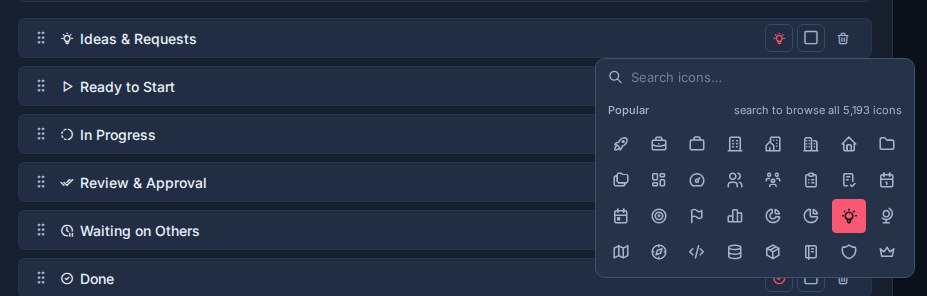
Set list icons
Each list can have its own icon.
Icons help people recognize workflow stages quickly in:
- Kanban columns.
- Table groups.
- My Cards and Team Cards.
- Card movement context.
- Work Done movement paths.
Good icon choices describe the stage:
| List | Icon idea |
|---|---|
| Intake | Inbox |
| Planning | Clipboard |
| In Progress | Progress or hammer |
| Waiting | Clock |
| Review | Eye or checklist |
| Done | Circle check |
Set list colors
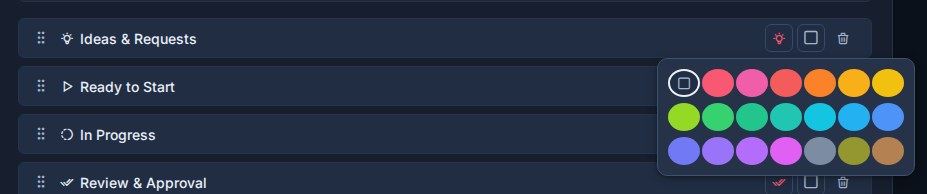
Each list can have a color.
Colors are useful when they communicate workflow meaning. For example:
- Red or orange for blocked, escalated, or urgent stages.
- Blue for active work.
- Green for done or resolved stages.
- Gray for backlog, parking lot, or archive-like stages.
Use color sparingly. If every list has a loud color, no list stands out.
Delete a list
Deleting a list removes it from the workspace.
Kanera shows how many cards will be deleted, removes the list from view, and provides Undo for ten seconds before committing the deletion. Use this carefully because lists are shared across all boards in the workspace. See Undo Recent Actions.
Before deleting a list, check whether active cards still use it. If the workflow has changed, move cards to the right replacement list first.
Good list design
Lists should describe the path work moves through.
Good list names are:
- Short.
- Reusable across boards.
- Clear to new team members.
- Stable enough for reporting and history.
Avoid:
- Lists that duplicate labels, such as Bug or Marketing.
- Lists that duplicate custom fields, such as High Priority.
- Lists that only one board understands.
- Too many tiny states that make boards hard to scan.
When in doubt, keep lists broad and use labels or custom fields for extra detail.