Board Syncing
Board syncing sends cards from selected lists on one Kanera board to another board. Kanera calls each configured one-way relationship a board mirror.
Use a mirror when work should stay visible in two contexts without copying updates by hand. For example, a client can report issues in a Bugs list on their board while each new issue appears in an internal Development queue. Changes made on the client board continue to flow to the internal copy, while the development team keeps control of its own assignments and scheduling.
How a board mirror works
A mirror has a clear direction:
Source board -> target board
You choose one or more source lists and where their cards should arrive on the target board. A card becomes linked when it is created in a selected source list or moved into one after the mirror is created.
The source remains authoritative for the card's shared content. The target receives a real Kanera card that its team can organize and plan locally.
A new mirror does not backfill cards already in the selected source lists. It starts with cards created in those lists after setup, plus cards moved into them later.
Good uses for board syncing
Board mirrors are useful when two teams need the same work but should not share one board.
| Source | Selected list | Target |
|---|---|---|
| Client project | Bugs | Internal development queue |
| Support board | Escalated | Engineering triage |
| Product intake | Approved | Delivery planning |
| Agency board | Ready for production | Internal production board |
| Team requests | Accepted | Operations queue |
Use shared workspace lists when several boards should follow one common workflow. Use board syncing when a specific stream of cards needs to cross from one board into another team's context.
Before you create a mirror
To create a board mirror:
- You need Editor access to the source board.
- You need permission to manage the target board.
- Enable board linking must be on for both participating workspaces or standalone boards.
- The source and target must be different boards.
- Neither board can already occupy the opposite side of another mirror relationship.
Workspace and organisation admins can find the board-linking setting under Workspace settings -> General -> Board linking. On a standalone board, use Board settings -> General -> Board linking.
Kanera only shows eligible target boards in the setup dialog. A board cannot be both a mirror source and a mirror target, so reverse and chained mirrors are not available.
Create a board mirror
Start from the board that should send cards.
- Open the source board.
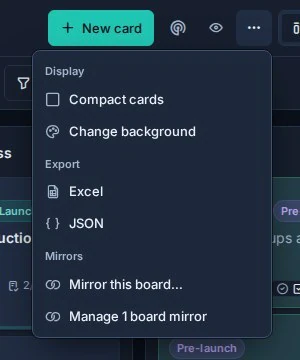
- Open the board menu.
- Under Mirrors, select Mirror this board (the overlapping-circles icon).
- Choose the target board and select Continue.
- Select at least one source list.
- If the boards are in different workspaces, choose a target list for every selected source list. Kanera preselects a target when there is exactly one list with the same name.
- Select Create mirror.
When both boards are in the same workspace, their lists are already shared. Each selected source list maps to that same list on the target board.
After setup, new in-scope cards receive a linked copy on the target board. The target card includes a Kanera system comment with a link back to the original.
What stays synced
Kanera keeps the source-owned content below aligned on the linked target card.
| Card content | Sync behavior |
|---|---|
| Title and description | Source changes update the target copy. |
| Card completion | Completing or reopening the source updates the target. |
| Lists | Source moves between mapped lists move the target while it remains in a mapped target list. |
| Labels | Labels are matched to the target workspace and kept aligned. |
| Custom fields | Compatible field values are mapped into the target workspace and kept aligned. |
| Comments | Source comments, edits, and deletions are reflected on the target. |
| Attachments | Source attachments are copied and kept aligned. |
| Checklists | Checklist titles, item text and descriptions, nesting, order, additions, and removals stay aligned. |
| Activity | Mirrored activity is attributed on the target card so its history remains understandable. |
| Archive state | Archiving the source can archive its linked copy; unarchiving reverses a mirror-owned archive. |
Syncing is one-way. Changes to shared content on the target do not update the source, and a later source change can replace the target's edit to that same synced content.
What the target board controls
The target team owns its operational planning. Kanera takes an initial snapshot where applicable, then does not continually overwrite these target-side choices:
- Card assignees.
- Card due date.
- Card cover.
- Checklist item completion.
- Checklist item assignee and due date.
New checklist items added later from the source arrive unassigned, incomplete, and without a due date so the target team can plan them.
The target can also move a linked card outside the mapped target lists. Its content remains linked, but later source list moves do not pull it back. This lets an internal team move a client issue into its own delivery workflow without losing subsequent client updates.
Target-only top-level checklists can coexist with mirrored checklists. Within a source-managed checklist, the source remains authoritative for its structure and items.
Dependencies on mirrored cards
Card relationships are not copied from source cards. A mirrored copy starts without dependencies, and you can add relationships of its own. They remain attached to that copy. If sync later completes or reopens it, cards waiting on the copy become ready or blocked just as they would after a manual change. See Card Relationships and Blocking.
Card lifecycle rules
Board syncing avoids recreating or deleting work unexpectedly:
- Deleting the source card ends its sync but leaves the target card in place.
- Deleting the target card is a final target-side decision; the mirror does not recreate it.
- If a target user archives a linked card independently, the source does not take ownership of that manual archive.
- Removing a board mirror stops future updates but leaves cards already created on the target.
These rules let the target board retain its work history even when the source or mirror relationship no longer exists.
Manage an existing mirror
Workspace admins can manage a board's mirror relationships.
- Open either participating board.
- Open the board menu.
- Under Mirrors, select Manage board mirrors (the overlapping-circles icon).
The dialog separates relationships into:
- Inbound: other boards send cards to this board.
- Outbound: this board sends cards to other boards.
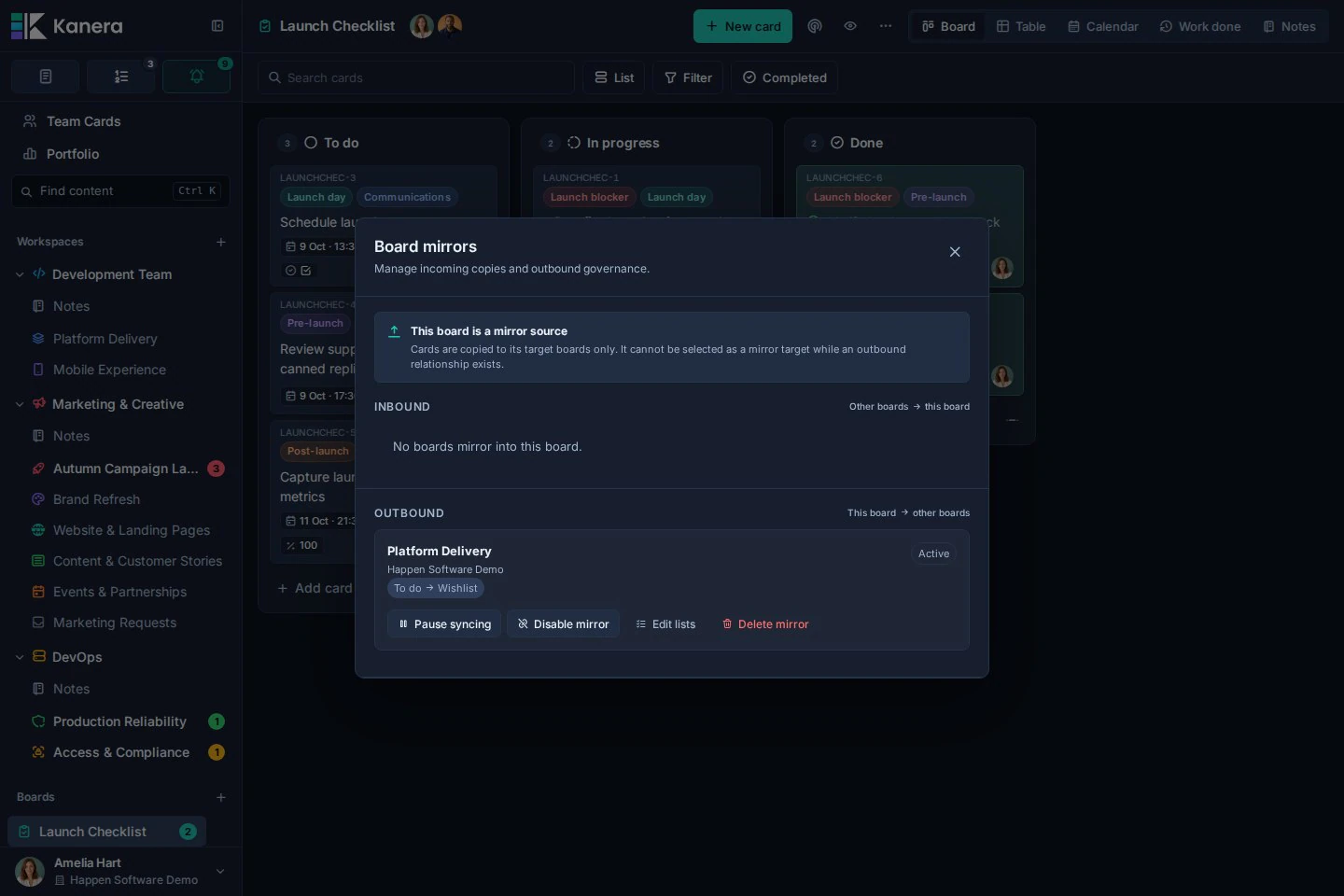
From there you can review the mapped lists, last sync status, and any error that needs attention. You can also edit the selected lists or delete the relationship.
Pause from the target
The target board owns the decision to receive updates. Under Inbound, select Pause syncing to pause a mirror and Resume syncing to restart it.
Disable from the source
The source board owns the decision to send updates. Under Outbound, select Disable mirror to stop sending and Enable mirror to restart it.
Pausing or disabling preserves the mirror relationship. Deleting it permanently removes the relationship and stops future syncs.
Change the list mapping
In Manage board mirrors, select Edit lists on an inbound or outbound relationship.
- Select at least one source list.
- For cross-workspace mirrors, choose an active target list for each selected source list.
- Select Save lists.
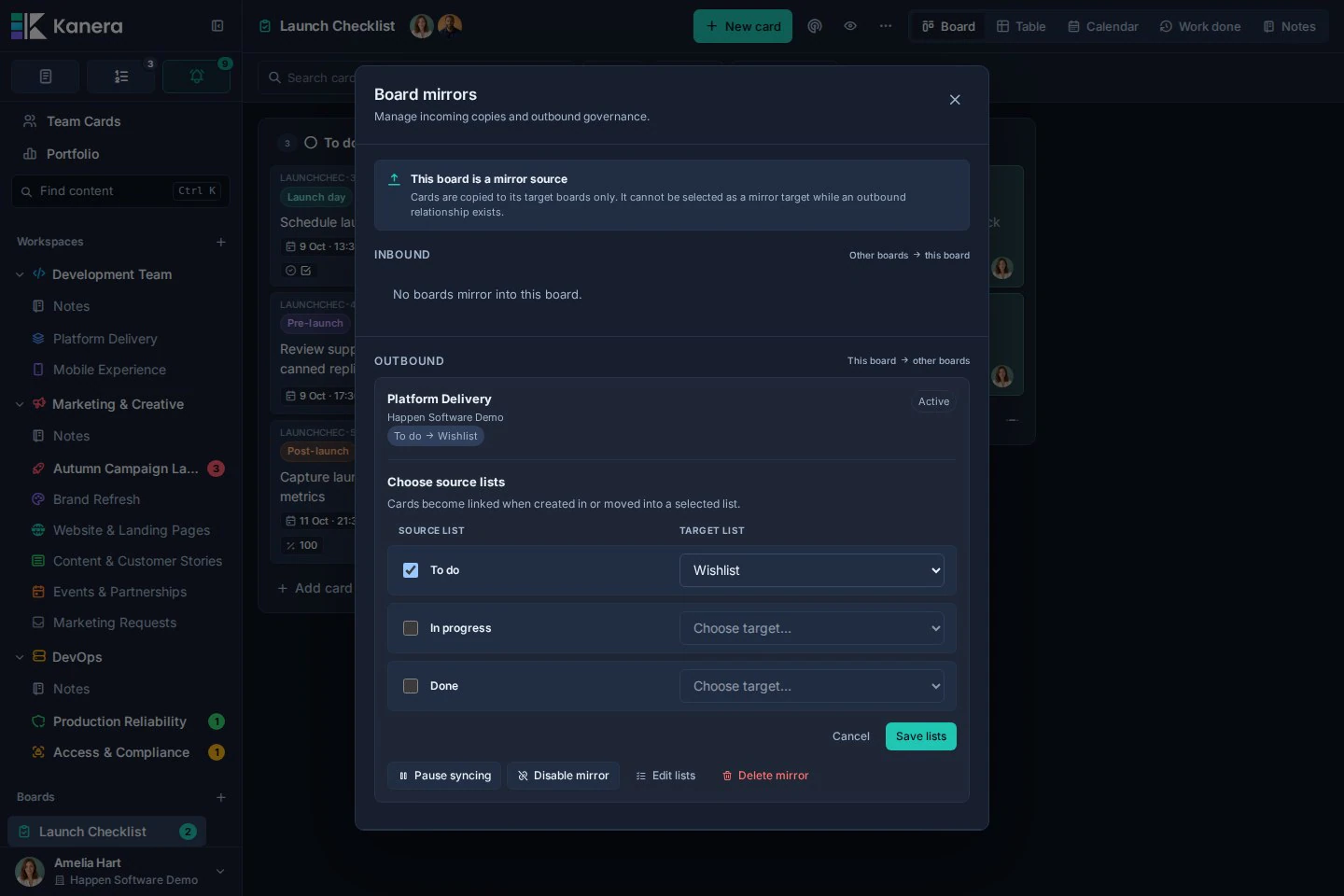
Changing the mapping controls which future cards become linked and how linked cards move between mapped lists. It does not backfill existing cards from a newly selected list.
Troubleshooting
No eligible target boards are available
Check that you can manage the intended target, that board linking is enabled on both sides, and that neither board would create a reverse or chained mirror. Existing mirror sources and boards already targeted by the current source are hidden from the picker.
A mirror says Needs attention
Open Manage board mirrors and read the message beneath the relationship. It shows the most recent sync error or the time Kanera last checked the mirror.
A mapped target list is archived
Kanera skips moves into an archived target list. Restore that list or select Edit lists and map the source list to an active target list.
Cards are not appearing
Confirm that:
- The card was created in, or moved into, a selected source list after the mirror was created.
- The mirror is not paused by the target or disabled by the source.
- The intended source list is still selected.
- The target list is active.
Synced content is not updating
Check the mirror's status and last error. Also confirm that the target card still exists. A target card that was deliberately deleted is not recreated.
Disable board linking
An admin can turn off Enable board linking from the workspace or standalone board's General settings.
If that workspace participates in any mirrors, Kanera shows the exact number of board links that will be deleted and asks for confirmation. Disabling board linking deletes those relationships and cannot be undone. Cards already created on target boards remain in place, but they no longer receive updates.