Card Labels
Card labels are lightweight visual categories for scanning, filtering, and automation. A standalone board has its own labels. Boards in a workspace share one label set.
Use labels for information that should be quick to see on a card, but does not need the structure of a custom field. Good examples include Blocked, Needs Review, Bug, Feature, Client, Internal, At Risk, Follow-up, or Urgent.
In a workspace, labels belong to the workspace rather than a single board. This keeps categories consistent across boards and makes cross-board views easier to understand. On a standalone board, label changes affect only that board.
Open label settings
- Open the workspace or standalone board.
- Go to Workspace settings or Board settings.
- Choose Card Labels.
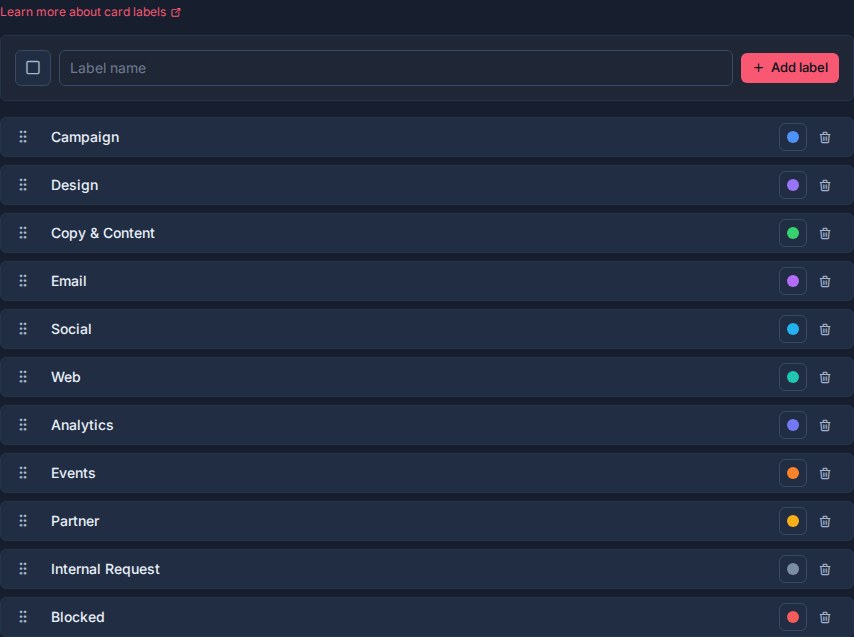
The Card Labels settings page lets the destination's admins create, rename, color, reorder, and delete labels.
How labels work
Labels are shared across all boards in a workspace.
If a workspace has a Blocked label, that label means the same thing on every board in the workspace. This is important because Table, My Cards, Team Cards, Portfolio, Calendar, and Work Done can all use labels across boards.
Use labels when a card needs one or more simple categories:
| Label pattern | Examples |
|---|---|
| Status signal | Blocked, Needs Review, Waiting on Client |
| Work type | Bug, Feature, Request, Incident |
| Audience or source | Client, Internal, Partner, Customer |
| Risk or urgency | Urgent, At Risk, High Impact |
| Process marker | Follow-up, Handoff, Ready for QA |
Avoid using labels for information that needs reporting, sorting, grouping, or aggregation. A custom field is usually better for structured values such as Priority, Effort, Target Date, Owner, or Severity.
Add a label
Use the label creation row in Workspace settings -> Card Labels.
- Choose a color, if useful.
- Enter the label name.
- Click Add label.
Label names can be up to 120 characters, but short names are easier to scan on cards and in filters.
Rename a label
Click the label name to rename it.
- Press Enter or click away to save.
- Press Escape to cancel.
Because labels are shared across the workspace, renaming a label changes how that label appears everywhere it is used.
Set label colors
Each label can have a color.
Colors help labels stand out on card fronts, in filters, in views, and in automation summaries.
Use color to reinforce meaning:
| Meaning | Color idea |
|---|---|
| Blocked, urgent, critical | Red or rose |
| Waiting, caution, medium risk | Amber or orange |
| Ready, approved, resolved | Green |
| Informational or neutral | Blue, sky, gray |
| Special process marker | Violet or pink |
Use color sparingly. If every label has a loud color, none of them stand out.
Reorder labels
Drag labels by the grip handle to change their order.
Label order affects how labels appear in label pickers, filters, card controls, and automation selectors. Put the most commonly used labels near the top.
Apply labels to cards
Labels can be applied from card controls and card details.
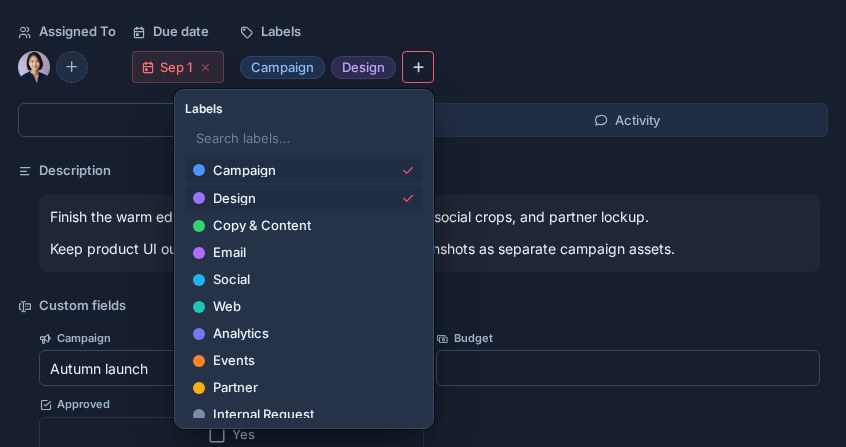
A card can have multiple labels. This makes labels useful for overlapping categories such as Bug, Urgent, and Customer on the same card.
When labels are changed on a card, Kanera records label activity so the card history shows what changed.
Labels in views
Labels appear throughout Kanera:
- Kanban: labels can be shown on card fronts.
- Table view: labels help with scanning, grouping, and filtering card rows.
- Calendar: labels help identify card categories around due dates.
- Global Work: labels help users and managers filter My Cards, Team Cards, and Portfolio across boards.
- Work Done: label filters can narrow the activity timeline to work involving specific categories.
Because labels are shared across the workspace, filtering by a label can work consistently across multiple boards.
Labels in automations
Automations can add or remove labels. They can also start when a selected label is newly added to a card.
Examples:
- Add Needs Review when a card enters Review.
- Remove Needs Review when all checklist items are complete.
- Add Blocked when a card enters Waiting.
- Add Overdue when a due date arrives.
- When Escalated is added, assign a lead, set a custom field, or move the card to the top of its list.
Use automation label actions for category changes that should happen every time a workflow event occurs.
Label triggers run when the label is added. If a card already has the label, saving or updating the card does not re-run the trigger for that label.
Labels vs custom fields
Labels and custom fields both describe cards, but they solve different problems.
Use labels when:
- The category should be fast to scan.
- A card can belong to several categories at once.
- The value is lightweight and visual.
- You want quick filtering or automation conditions.
Use custom fields when:
- The value needs a defined type, such as number, date, URL, user, checkbox, or select.
- You want to group, sort, export, or summarize the value.
- You need controlled reporting across boards.
- The value should appear as a column in Table view.
For example, Blocked can be a label because it is a visible signal. Priority is often better as a custom field because it has a controlled value and may be used for grouping or sorting.
Delete a label
Deleting a label removes it from the workspace and from cards that use it.
The label disappears immediately and Kanera provides Undo for ten seconds before committing the deletion. Use this carefully, especially for labels used across multiple boards or automations. See Undo Recent Actions.
If you want to stop using a label, review where it appears first. Rename it if the meaning has changed, or remove it from cards before deleting it.
Good label design
Good labels are:
- Short.
- Easy to recognize on a card.
- Reusable across boards in the workspace.
- Different from list names.
- Different from custom fields.
- Useful for filtering, scanning, or automation.
Avoid creating too many labels. A small set of clear labels is easier to use than a long list where every board invents its own categories.