CSV Import
Kanera can turn a CSV export or spreadsheet into cards without requiring a fixed column layout. You review what every column means, then map the lists, labels, custom fields, and members Kanera finds before anything is created.
- In a workspace, the import creates a new board and maps the CSV data onto the workspace's shared lists and custom fields.
- In a standalone board, the import adds cards to that board and keeps its existing cards, name, appearance, and permissions unchanged.
Before you begin
You need admin access to the destination workspace or standalone board and a CSV file no larger than 20 MB.
An import can contain up to 20,000 data rows and 200 columns. Kanera accepts comma-, semicolon-, tab-, and pipe-delimited files. It reads UTF-8 and UTF-16 files and can fall back to Windows-1252 for older exports.
For the cleanest result, keep one header row and one card per row. You can also combine repeated rows into one card by mapping a shared value to Card ID / group.
Open CSV Import
- Open the destination workspace or standalone board.
- Go to Workspace settings or Board settings.
- Open Import.
- Choose CSV.
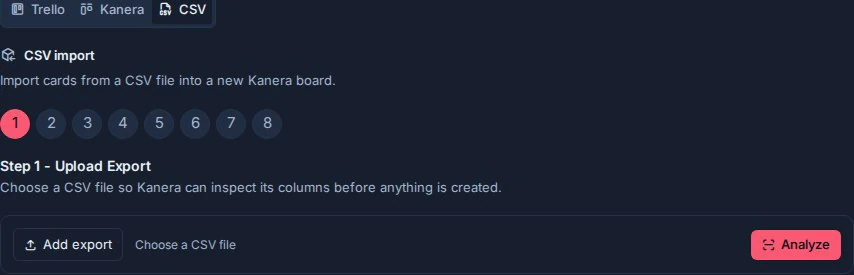
Step 1: Upload and analyse
Choose or drop the CSV file, then select Analyze. Kanera detects the file encoding and delimiter, reads a preview, and suggests mappings from common headings such as Title, Status, Labels, Assignee, Due date, and Description.
Blank rows are ignored. If a row has fewer cells than the header, Kanera pads it and reports the issue in the preview instead of shifting data into the wrong columns.
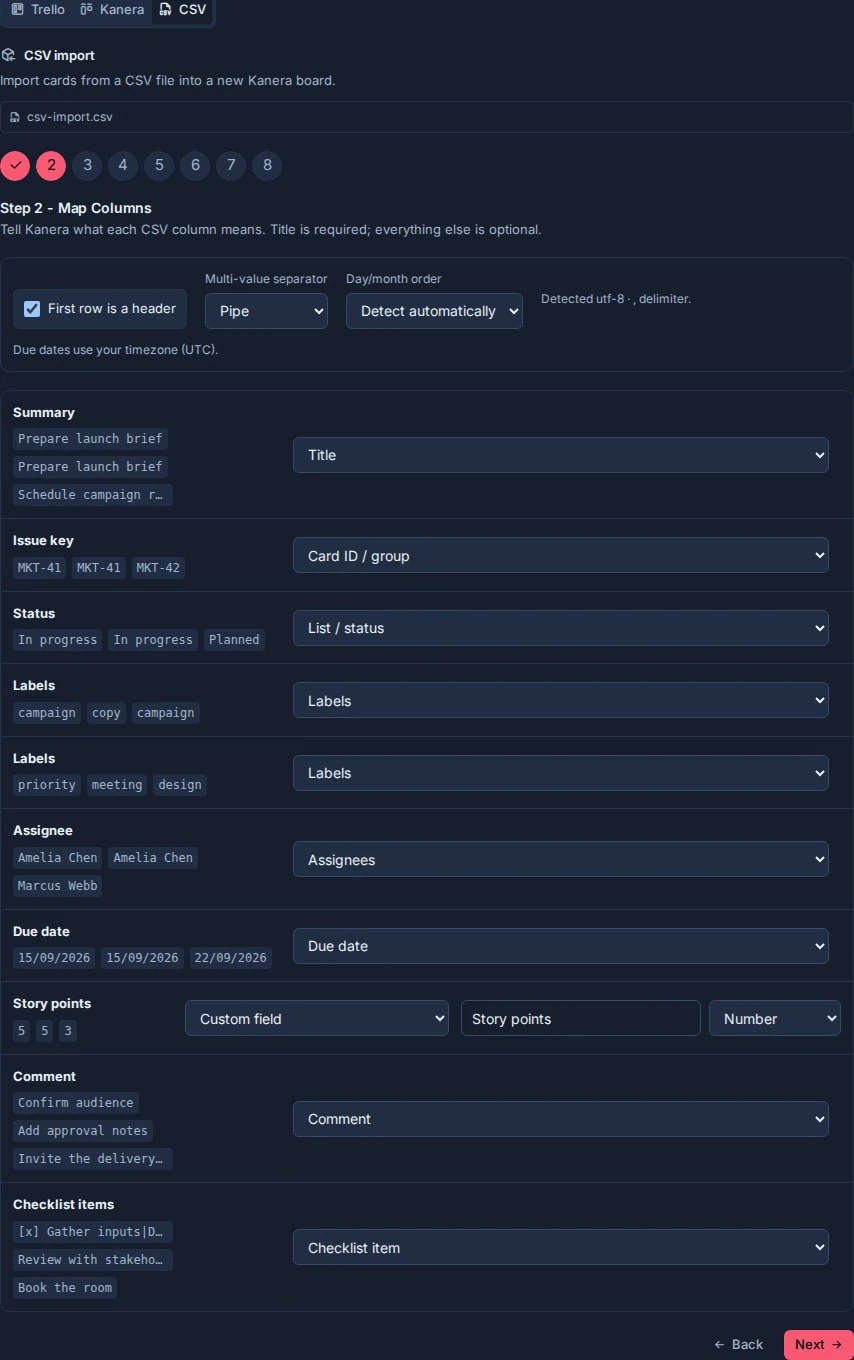
Step 2: Map columns
Confirm whether the first row contains headings, then map exactly one column to Title. Every other mapping is optional.
| Column target | What Kanera creates |
|---|---|
| Title | Card title. Exactly one Title column is required. |
| Description | Card description. |
| List / status | A source list that you can create, map, or skip in the next step. |
| Due date | A date-only Kanera due date. |
| Completed | Completed card state. |
| Archived | Archived card state. |
| Created at | Original card creation time when the value can be parsed. |
| Card ID / group | Combines rows with the same non-empty ID into one card. |
| Labels | One or more labels. |
| Assignees | One or more people to map to Kanera users. |
| Comment | One or more comments, attributed to the person running the import. |
| Checklist item | One or more items in an imported checklist. |
| Custom field | A Text, Number, Checkbox, Select, Date, or URL field. |
| Ignore | Leaves the column out of the import. |
Repeated headings remain separate columns. This is useful for exports such as Jira CSV files with several Labels or Comment columns: map each repeated column to the same multi-value target and Kanera accumulates their values.
Choose the separator used inside multi-value cells: comma, semicolon, pipe, or new line.
Group several rows into one card
Map a stable issue key or task ID to Card ID / group when one card spans several rows. Rows with the same non-empty ID become one card. The first row supplies single-value properties; labels, assignees, comments, and checklist items accumulate across every grouped row and repeated mapped column.
Without a group column, every data row becomes a separate card.
Dates and timezones
Kanera recognises ISO dates and timestamps, YYYY/MM/DD, YYYY.MM.DD, numeric dates, named months, Jira-style dates such as 01/Jan/25 1:30 pm, and Excel serial dates.
If values such as 01/02/2025 could mean either 1 February or January 2, choose Day / month / year or Month / day / year before continuing. Floating dates use the browser's displayed timezone. Due dates are imported as date-only, any-time due dates; their source time of day is not retained.
Steps 3–6: Review the destination
After column mapping, the wizard uses the same review flow as the Trello and Kanera archive importers:
- Create, map, or skip source lists.
- Create, map, or skip labels.
- Create, map, or skip custom fields and select-field options.
- Map source assignees to users with access, or leave them unassigned.
- Review the new board name and import summary, then confirm.
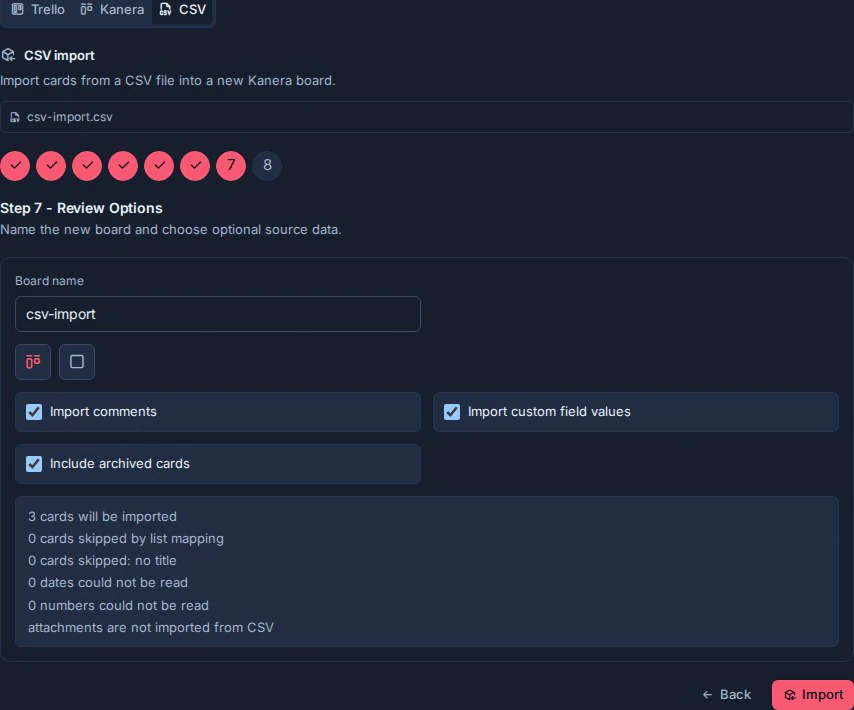
The review reports rows without titles, dates that could not be read, and invalid numbers. A row without a title is skipped. Invalid optional values are left off the card rather than blocking every valid row.
What gets imported
CSV can import card titles, descriptions, list placement, due dates, completed and archived state, creation dates, labels, mapped assignees, comments, checklist items, and supported custom-field values.
CSV imports do not include attachments, priority, start dates, or original comment authors. Use Trello Import instead when moving from Trello and you need attachment links or uploaded files copied into Kanera.
Cards are added at the end of their target lists and receive new keys from the destination workspace or standalone board.
Source export hints
- Jira: include Summary, Issue key, Status, Labels, Assignee, Due date, Comments, and the custom fields you need. Map Issue key to Card ID / group if the export repeats an issue across rows.
- Asana: map Name to Title, Section or Column to List / status, and Assignee to Assignees.
- Trello: use Trello JSON when attachments matter; CSV is useful for a simpler cards-only move.
- Spreadsheets: keep one header row and one card per row unless repeated rows deliberately share a group ID.
The import is a one-time copy. Changes made later in the source system or spreadsheet are not synced to Kanera.