Configuration
Notification configuration controls which Kanera updates reach you and which channel they use.
There are two useful places to know:
- Profile settings -> Notifications: personal notification preferences.
- Organisation settings -> Org: organisation-level push and SMTP settings.
How the layers fit together
Kanera decides delivery in three layers:
- Channel — is email, push, ntfy, Gotify, or your personal webhook allowed for your account at all?
- Type — may that channel deliver this kind of notification?
- Workspace rule — does an exception for that workspace or standalone board narrow it further?
Everything is opt-in downward: a later layer can restrict delivery, never widen it. Your in-app notification drawer sits outside all of this and always shows the complete feed.
Email, browser push, the drawer, and workspace rules are available on every plan. The ntfy, Gotify, and personal webhook channels need Pro or a Pro trial.
Personal notification settings
Open Profile settings -> Notifications to choose how Kanera sends card updates to you.
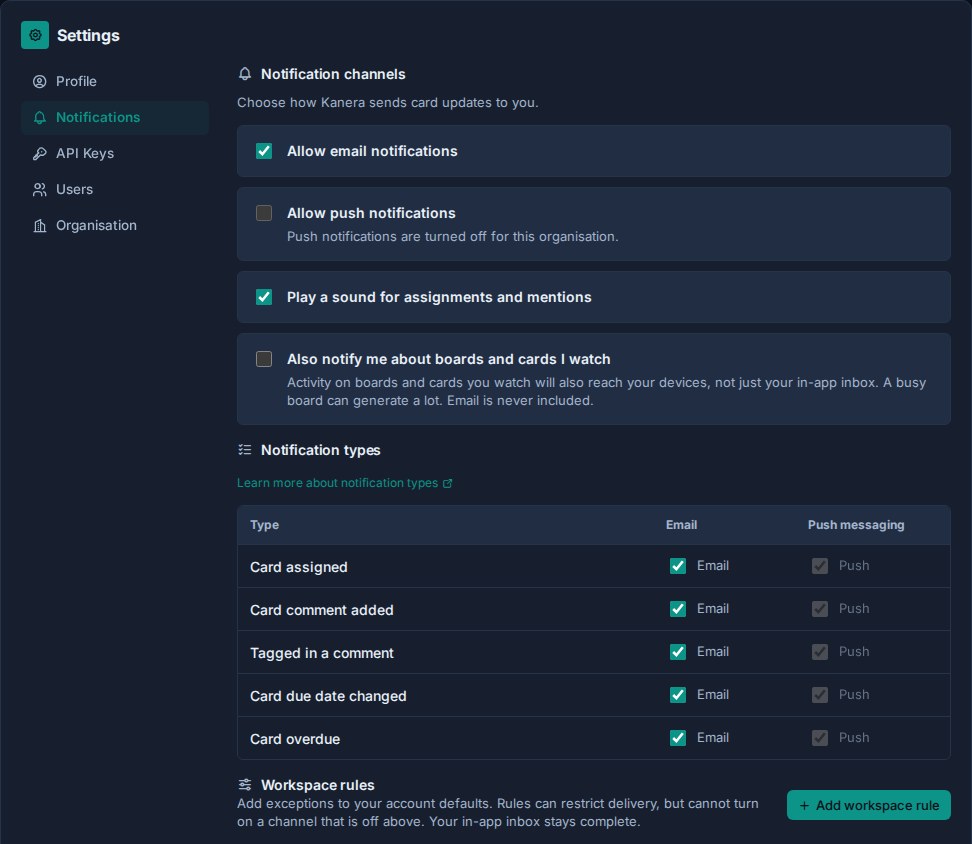
The top of the page has three account controls:
| Setting | What it does |
|---|---|
| Allow email notifications | Enables or disables email notifications for your account. |
| Allow push notifications | Enables or disables browser push notifications for your account and browser. |
| Play a sound for assignments and mentions | Plays an attention sound for assignment and mention notifications. |
Email is enabled by default and push is not, but push is the channel worth turning on for most people. See Good configuration. It needs organisation and system support as well as browser permission.
These master controls gate the whole channel for your account. For example, turning off Allow email notifications stops email delivery even if individual notification types are still enabled for email.
Notification types
Each notification type is configured separately per channel.
| Type | Use |
|---|---|
| Card assigned | Notify when you are assigned to a card. |
| Card comment added | Notify assignees when someone comments on their card. |
| Tagged in a comment | Notify when someone mentions you in a comment. |
| Card due date changed | Notify assignees when a card due date changes. |
| Card overdue | Notify when assigned cards or assigned checklist items become overdue. |
The Notification types grid covers email and push. Each additional destination has its own set of type toggles on its own card, so ntfy can be much quieter than email without either affecting the other.
A master toggle always wins. If email notifications are off, individual email type toggles do not send. If push notifications are off, individual push type toggles do not send.
Use the per-type toggles to decide what each channel is for. A common setup leaves every type on for push, since a dismissible alert costs little, and trims email back to assignments, mentions, and overdue work so the inbox only receives what matters. Anything switched off on every channel still appears in the notification drawer.
Additional notification destinations
Expand Additional Notification Destinations to send your notifications somewhere other than email and browser push:
| Destination | What you provide |
|---|---|
| ntfy | Server URL, topic, and an optional bearer token. |
| Gotify | Server URL and an application token. |
| Personal webhook | An HTTPS endpoint URL. Kanera generates a signing secret shown once. |
Each destination has its own enable toggle, notification type toggles, and a Test button. A destination cannot be enabled until its connection fields are complete.
These channels are personal and independent of the organisation push setting and browser permission. Destinations must use public HTTPS unless your installation allows receivers on an internal network.
They need Pro or a Pro trial. On hosted Free the section shows a plan message instead of the setup cards, and email, browser push, and the notification drawer carry on as normal.
For full setup steps, payload details, and signature verification, see Personal Delivery Channels.
Workspace rules
Under Workspace rules, add exceptions for a single workspace or standalone board.
A rule can stop that area from reaching you outside the app entirely, or limit which notification types each channel may deliver there. Rules never widen delivery beyond your account defaults, and never change the in-app drawer.
Use them to pause a reference workspace, keep mentions only in a busy one, or let just one client project reach your phone. See Workspace Rules.
Push notifications
Push notifications depend on three things:
- Kanera must be configured for push at the system level.
- The organisation must allow push notifications.
- Your browser must grant notification permission.
If push is unavailable, Kanera shows why in the notification settings page. Common reasons include push being turned off for the organisation, push not being configured for the deployment, browser support limitations, or browser permission being denied.
Push settings are browser-specific. Enabling push in one browser does not necessarily enable it in every browser or device you use.
If you use Kanera as an installed PWA, the push permission still belongs to the browser or operating system profile that installed it. Check the same browser/device if push appears enabled in Kanera but alerts do not arrive.
Organisation push setting
Organisation admins can control whether push is enabled for the organisation from Profile settings -> Org.
If organisation push is disabled, individual users cannot enable push notifications until an admin turns organisation push back on.
Good configuration
Turn push on. It is the better everyday channel for most people: the alert arrives while the work is still current, it is easy to dismiss, and it leaves nothing behind afterwards. Email is the one people tend to resent, because a busy board becomes a stack of messages competing with the rest of their inbox.
Push starts switched off, so enabling it takes two steps. An organisation admin allows push for the organisation from Profile settings -> Org, then each person turns on Allow push notifications and grants browser permission. Every notification type is already enabled for push, so alerts start arriving as soon as permission is granted.
With push carrying the immediate alerts, treat email as the fallback rather than the main channel. Assignments, mentions, and overdue cards are worth interrupting someone for. Comment and due-date changes are usually fine to catch up on in the notification drawer, so turning those two off for email is a good first trim.
Some people cannot use browser push, or would rather not grant the permission. ntfy or Gotify gives them phone alerts without it, and a personal webhook suits a notification that should trigger something rather than be read.
Then use workspace rules for the exceptions rather than lowering your defaults. Keeping strong defaults and pausing two noisy workspaces stays easier to reason about than switching individual types off account-wide.