Kanera API
Kanera's public API lets you build integrations around the same work your team manages in the app: workspaces, boards, cards, lists, board separators, comments, checklists, notes, attachments, labels, custom fields, assignments, ranked Up next queues, activity, and external links.
Use the API when Kanera needs to connect to another system, power an internal workflow, migrate data, build reports, or let another tool create and update Kanera work.
What you can build
Common API use cases include:
- Sync Kanera cards with another work tracker.
- Create cards from forms, support tickets, chat messages, or CRM records.
- Build custom reporting dashboards from boards, assignments, labels, custom fields, and activity.
- Import work into Kanera from another system.
- Keep external records linked to Kanera cards or notes.
- Add comments or status updates from another tool.
- Upload and attach files to cards or notes.
- Read activity history for audit, reporting, or automation.
Kanera integrations can target standalone boards or workspaces. A standalone board has its own lists, labels, and custom fields. A workspace shares those resources across its boards, which makes cross-board reporting and sync workflows easier to keep consistent.
Official clients
You do not have to start from curl. Two first-party clients wrap the same API:
| Client | Install | Use it for |
|---|---|---|
| Kanera CLI | npm install --global @kanera/cli | Terminal use, shell scripts, and AI agents that can run commands. |
| TypeScript SDK | npm install @kanera/sdk | TypeScript and JavaScript integrations. No runtime dependencies; runs on Node, Bun, Deno, workers, and browsers. |
The SDK is MIT-licensed, so embedding it in your own application raises no license-policy questions. Use the REST endpoints directly for any other language.
API reference
Kanera REST API is at:
https://api.kanera.app
Detailed endpoint-level reference is available at:
https://api.kanera.app/docs
The public API service includes the endpoint-level reference:
| Path | Use |
|---|---|
/docs | Interactive Scalar API reference. |
/swagger | Swagger UI reference. |
/openapi.json | OpenAPI document for SDK generation and tooling. |
For Kanera, open:
https://api.kanera.app/docs
https://api.kanera.app/swagger
https://api.kanera.app/openapi.json
Use this page as the getting-started guide, then use the API reference for exact endpoint paths, request bodies, response schemas, and available webhook event types.
Use the endpoint reference
Open Scalar for the primary endpoint reference. Each operation shows its method and path, required scope, path and query parameters, request schema, response schema, and error responses. Use Authorize to provide a bearer token when you want to try a request.
Use Swagger UI when your tooling or workflow is built around Swagger. Download OpenAPI JSON for SDK generation, request validation, or importing the API into another client.
The OpenAPI document is the source of truth. Copy an example from the reference rather than guessing a request body, and test write or delete operations against the intended workspace before automating them.
Endpoint groups
| Group | Typical operations |
|---|---|
| Workspaces and boards | Discover accessible work, open complete board state, manage members and guests, and create or reorder boards. |
| Lists, separators, and cards | Create, update, position, move, complete, archive, duplicate, and bulk-edit work. |
| Notes and attachments | Create nested notes, manage locks and backlinks, and upload or retrieve private files. |
| Fields and labels | Manage workspace-level custom fields, options, and reusable card labels. |
| Comments and activity | Read card feeds, write comments and reactions, and review board activity. |
| Up next priorities | Discover readable queues, list team order, and add, move, or remove ranked cards. |
| Agent runs | Announce that an agent is working a card, heartbeat while it runs, and record how it ended. |
| Search and external links | Search accessible content and maintain idempotent mappings to records in other systems. |
| Webhooks | Register and manage endpoints, inspect or retry deliveries, and receive signed change events without polling. |
Choose an API key type
Kanera has two API key types. They authenticate the same way, but their access model is different.
| Key type | Create it from | Use it when | Access model |
|---|---|---|---|
| Personal API key | Profile settings -> API keys | You are connecting your own script, CLI, or MCP client and want it to work across the boards you can personally access. | Acts as you, across every workspace and board you can access, respecting your role on each board. Its Read or Write scope caps what it may do within that access. It cannot perform workspace-admin actions. |
| Workspace or board API key | Workspace settings -> API or Board settings -> API | You are setting up a team integration, service account, webhook producer, sync job, or automation for one workspace or standalone board. | Scoped to that workspace or standalone board. Its Read, Write, or Admin scope controls what the integration can do. |
Use a personal key for user-owned workflows. Use a scoped workspace or board key for shared or production integrations that should be owned, rotated, and audited with the destination.
Plan requirements
API keys, webhooks, and chat destinations need Pro or the 30-day Pro trial. They are not available on hosted Free, where the settings page shows API keys aren't available on your plan instead of the create form. Requests blocked by a plan limit return 403 with the error code PLAN_LIMIT, so an integration can tell a plan problem apart from a permission problem.
Creating workspace or board API keys, OAuth clients, and chat destinations needs workspace admin permission. Admins also manage every webhook endpoint in a workspace; a write-capable API credential or interactive OAuth agent may register endpoints scoped to its own connection when its user is a workspace member. Personal API keys need no workspace role to be created, but all of these features follow the same plan rule.
The gate is not only on creation. When a hosted organisation moves to Free, Kanera revokes its active API keys — workspace, board, and personal — and /api/v1 rejects them at request time, so a key that survives elsewhere still cannot be used. Webhook endpoints and chat destinations are paused by the same downgrade. Upgrading back to Pro restores the keys and endpoints that the downgrade touched. See Webhooks for the full downgrade behaviour.
Create a personal API key
- Open Profile settings.
- Go to API keys tab.
- Create a personal API key.
- Choose Read-only or Read and write.
- Add an optional private label so you can recognize where the key is used.
- Copy the secret when it is shown.
Personal keys are always tied to the user who created them. They follow the owner's real board access and role, and activity appears as the owner. There is no admin scope: a personal key can never perform workspace administration, whatever its owner's role.
Read-only personal keys
A personal key is read and write unless you choose otherwise, which is what an existing key or an unchanged create flow gives you.
Choose Read-only when the credential is going somewhere you will not be watching: an AI agent, a reporting job, a CI check, a dashboard. A read-only key can list, read, search, and report, and Kanera refuses every mutation with 403 and the error code FORBIDDEN. Because the refusal happens at the API rather than in the client, a misbehaving or prompt-injected agent still cannot change your work.
Scope is fixed when the key is created. To change it, create a new key and revoke the old one.
The secret is shown once. Store it in your local secret manager, MCP client configuration, or environment variables.
Create a workspace or board API key
- Open the workspace or standalone board.
- Go to Workspace settings -> API or Board settings -> API.
- Create a workspace API key.
- Choose the smallest scope that fits the integration.
- Copy the secret when it is shown.
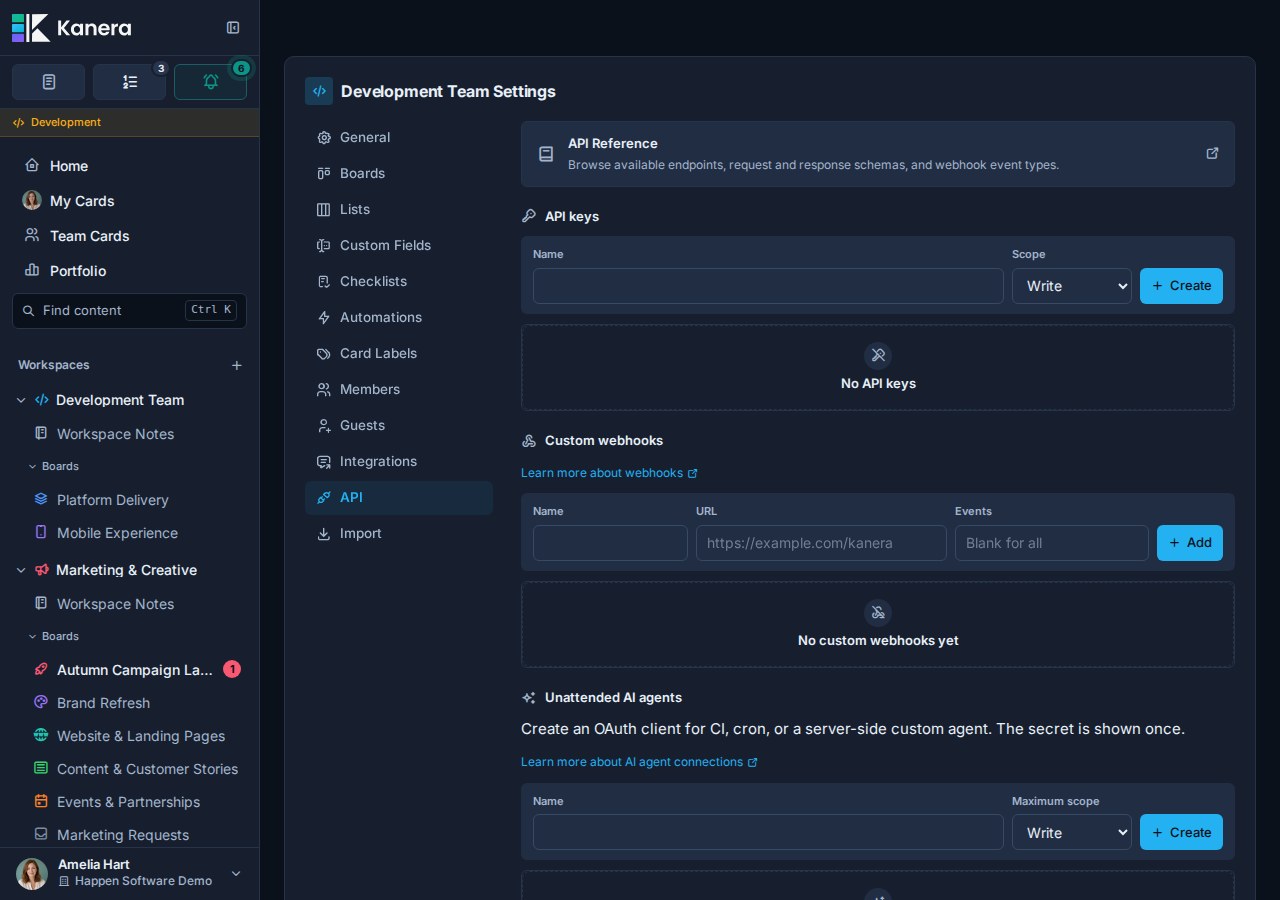
Workspace API keys are workspace-scoped. A key can only access resources in the workspace where it was created and where its creator still has access.
The secret is shown once. Store it in your integration's secret manager or environment variables.
Workspace API key scopes
| Scope | Use it when |
|---|---|
| Read | The integration only needs to read, search, report, or export Kanera data. |
| Write | The integration needs to create or update work, such as cards, comments, labels, assignees, custom field values, notes, or attachments. |
| Admin | The integration needs admin-level public API operations where supported. Use this sparingly. |
Read, Write, and Admin apply to workspace and board keys. Personal keys choose between Read and Write only, and always inherit the owner's board-level permissions on top of that.
Use separate API keys for separate integrations. This makes access easier to revoke, rotate, and audit. For shared systems, prefer workspace keys so access is not tied to one person's personal tooling.
Authentication
Send the API key as a bearer token:
curl "$KANERA_PUBLIC_API_URL/api/v1/workspaces" \
  -H "Authorization: Bearer kanera_live_..."
Kanera API keys use prefixes for the environment:
| Prefix | Environment |
|---|---|
kanera_live_... | Production |
kanera_stg_... | Staging |
kanera_dev_... | Development |
kanera_test_... | Test |
Personal keys carry a u marker after the vendor prefix, so kanera_u_live_... is a personal key and kanera_live_... is a workspace or board key. Both authenticate the same way.
Missing or invalid keys return 401. Valid keys without permission for a resource or operation return 403 — including a write attempted with a read-scoped key.
OAuth for AI agents
Kanera supports OAuth 2.0 so a compatible AI agent can connect to Kanera MCP through browser consent or a service connection instead of storing an API key.
An OAuth connection is for MCP; it is not a general public API credential. Use a personal, workspace, or board API key when your own integration needs to call /api/v1 directly.
There are three OAuth paths:
- Interactive agents use the authorization-code flow with PKCE. A person approves the connection once in the browser, and the agent acts as that user. This is how compatible MCP clients such as Claude, ChatGPT, Copilot, and Codex connect without an API key.
- Device clients use the device authorization grant (
urn:ietf:params:oauth:grant-type:device_code). The client shows a short code, a person approves it in a browser on any device, and the client polls for tokens. Use this for a CLI or headless client that cannot receive a browser redirect. See the device authorization reference. - Unattended agents use the
client_credentialsgrant. You create a client id and secret in Workspace settings -> API and exchange them for short-lived tokens, with no browser step. Use these for CI, cron, or server-side agents.
See Connect an AI agent for setup, scopes, and connection management. Custom OAuth client authors can find the protocol details in the MCP technical reference.
Base URL and versioning
REST endpoints live under /api/v1 on the public API service.
For example:
https://api.kanera.app/api/v1/workspaces
Operational helper paths such as /docs, /swagger, /openapi.json, signed media URLs, and webhook event discovery may live outside the /api/v1 prefix. Treat signed media URLs returned by the API as opaque URLs and use them as provided.
First requests
Start by listing workspaces the API key can access:
curl "$KANERA_PUBLIC_API_URL/api/v1/workspaces" \
  -H "Authorization: Bearer $KANERA_API_KEY"
Then list boards in a workspace:
curl "$KANERA_PUBLIC_API_URL/api/v1/workspaces/$WORKSPACE_ID/boards" \
  -H "Authorization: Bearer $KANERA_API_KEY"
Open a board to get the board, workspace lists, board separators, visible cards, members, labels, and custom fields needed to render or sync work:
curl "$KANERA_PUBLIC_API_URL/api/v1/boards/$BOARD_ID/open" \
  -X POST \
  -H "Authorization: Bearer $KANERA_API_KEY"
Create a card:
curl "$KANERA_PUBLIC_API_URL/api/v1/boards/$BOARD_ID/lists/$LIST_ID/cards" \
  -X POST \
  -H "Authorization: Bearer $KANERA_API_KEY" \
  -H "Content-Type: application/json" \
  -d '{"title":"Follow up with Acme"}'
Card responses include the immutable workspaceId, opaque organisationKey, positive number, current human-readable key such as PROJ-123, and clean browser url. A workspace prefix may change, but the card number does not.
Resolve a current or historical card key before calling an id-based mutation endpoint:
curl "$KANERA_PUBLIC_API_URL/api/v1/organisations/$ORGANISATION_KEY/cards/by-key/$CARD_KEY" \
  -H "Authorization: Bearer $KANERA_API_KEY"
Resolution is case-insensitive and returns the card's current id, workspace, board, list, number, key, and browser URL. The organisation key is the opaque value returned by Kanera, not an organisation name or slug. Missing and inaccessible cards both return 404.
Update a card:
curl "$KANERA_PUBLIC_API_URL/api/v1/cards/$CARD_ID" \
  -X PATCH \
  -H "Authorization: Bearer $KANERA_API_KEY" \
  -H "Content-Type: application/json" \
  -d '{"description":"Imported from CRM"}'
Add a comment:
curl "$KANERA_PUBLIC_API_URL/api/v1/cards/$CARD_ID/comments" \
  -X POST \
  -H "Authorization: Bearer $KANERA_API_KEY" \
  -H "Content-Type: application/json" \
  -d '{"body":"Customer confirmed the rollout window."}'
Replace the card's labels or assignees with an exact set:
curl "$KANERA_PUBLIC_API_URL/api/v1/cards/$CARD_ID/labels" \
  -X PUT \
  -H "Authorization: Bearer $KANERA_API_KEY" \
  -H "Content-Type: application/json" \
  -d "{\"labelIds\":[\"$LABEL_ID\"]}"

curl "$KANERA_PUBLIC_API_URL/api/v1/cards/$CARD_ID/assignees" \
  -X PUT \
  -H "Authorization: Bearer $KANERA_API_KEY" \
  -H "Content-Type: application/json" \
  -d "{\"userIds\":[\"$USER_ID\"]}"
These two PUT operations replace the whole set. Send an empty array to clear it; use the documented bulk add/remove operations when you need patch semantics across selected cards.
Complete a card:
curl "$KANERA_PUBLIC_API_URL/api/v1/cards/$CARD_ID/completion" \
  -X PATCH \
  -H "Authorization: Bearer $KANERA_API_KEY" \
  -H "Content-Type: application/json" \
  -d '{"completed":true}'
Manage board separators
A separator is a board-owned, titled, optionally colored item in a workflow list's mixed card-and-separator ordering lane. Create one at an exact typed anchor:
curl "$KANERA_PUBLIC_API_URL/api/v1/boards/$BOARD_ID/lists/$LIST_ID/separators" \
  -X POST \
  -H "Authorization: Bearer $KANERA_API_KEY" \
  -H "Content-Type: application/json" \
  -d "{\"title\":\"This week\",\"color\":\"blue\",\"beforeItem\":{\"type\":\"card\",\"id\":\"$CARD_ID\"}}"
Update its title or color with PATCH /api/v1/separators/{id}, move it with POST /api/v1/separators/{id}/move, and delete it with DELETE /api/v1/separators/{id}. Move bodies name the destination listId and supply exactly one beforeItem or afterItem; the item can be a { "type": "card", "id": "..." } or { "type": "separator", "id": "..." } reference. A null afterItem means the top and a null beforeItem means the bottom. Deleting a separator leaves cards unchanged.
Manage Up next order
The API exposes the same ranked queues used by Home, My Cards, and Team Cards:
| Endpoint | Use |
|---|---|
GET /api/v1/work/priority-targets | List the users whose queues the credential may read. |
GET /api/v1/work/priorities | Read every permitted queue in one response. |
GET /api/v1/work/priorities/{userId} | Read one queue in rank order. |
POST /api/v1/work/priorities/{userId}/cards | Add an assigned active card at an anchored position. |
POST /api/v1/card-priorities/{id}/move | Move one queue entry before or after another visible entry. |
DELETE /api/v1/card-priorities/{id} | Remove the entry without changing the card. |
Personal credentials can always read their own queue. Reading another person's queue requires effective admin authority in a shared workspace, and writes also require a write-capable credential plus authority for the target card. Use the entry ids returned by the queue as move anchors; ranks are presentation values, not mutation ids.
Track an agent's in-flight work
When the caller is an AI agent rather than a sync job, it can announce the work it is doing on a card. Kanera then shows a live chip on the card tile, lists the run in card detail, and records card-activity rows for the start and the end — so a person can see that something is happening and who is doing it, without waiting for the result.
| Endpoint | Use |
|---|---|
POST /api/v1/cards/{cardId}/agent-runs | Start a run. Body takes title (required), summary, and externalUrl. |
GET /api/v1/cards/{cardId}/agent-runs | List a card's runs. Live only by default; pass includeEnded=true for history, newest first. |
GET /api/v1/agent-runs/{id} | Read one run. |
PATCH /api/v1/agent-runs/{id} | Update, heartbeat, or finish a run. Every field is optional, so {} is a bare heartbeat. |
Start the run, and keep the id from the response:
curl "$KANERA_PUBLIC_API_URL/api/v1/cards/$CARD_ID/agent-runs" \
  -X POST \
  -H "Authorization: Bearer $KANERA_API_KEY" \
  -H "Content-Type: application/json" \
  -d '{"title":"Implementing OAuth refresh","externalUrl":"https://github.com/acme/api/pull/482"}'
Then report progress and close it out:
curl "$KANERA_PUBLIC_API_URL/api/v1/agent-runs/$RUN_ID" \
  -X PATCH \
  -H "Authorization: Bearer $KANERA_API_KEY" \
  -H "Content-Type: application/json" \
  -d '{"status":"succeeded","summary":"Merged in PR 482; realtime suite green."}'
Statuses are running, blocked, succeeded, failed, cancelled, and stalled:
runningandblockedare the two live states. Useblockedwhile the agent is waiting on a person, such as a question or an approval; the card's chip turns amber.succeeded,failed, andcancelledare terminal. A terminal status ends the run and makes it immutable, so any laterPATCHreturns409withmessage: agent run has already ended.stalledis set by Kanera, not by you, when a live run stops heartbeating for fifteen minutes, so a crashed agent cannot leave a card showing "working" indefinitely. A stalled run is not ended: the agent may still close it with a terminal status, or setrunningto resume.
Every PATCH refreshes the heartbeat, including one that changes nothing, so send a keep-alive well
inside the fifteen-minute window on a long job. Starting or updating a run needs board Editor
access and a write-capable credential, exactly like any other card write. Runs also emit the
agentRun:started and agentRun:updated webhook events.
An agent connected through OAuth is recorded as the agent acting for its user: its runs, comments, and activity rows carry the agent's name, and the person it acts for is notified about what it did. A personal API key used by your own script still acts as its owner.
Register a webhook from an integration
Workspace admins can manage every generic webhook endpoint. A non-admin write-capable API credential
or interactive OAuth agent can also create one when its user belongs to the workspace; Kanera marks
that endpoint scope: "connection", and only the same connection and workspace admins can list or
manage it. This lets an agent subscribe to board events without receiving workspace-admin authority.
Use POST /api/v1/workspaces/{workspaceId}/webhooks to create the endpoint and save the one-time
secret from the response. The same resource exposes list, update, delete, secret rotation,
delivery history, and failed-delivery retry operations. See Webhooks
for the endpoint map and signature rules.
A reliable integration flow
- Call
GET /api/v1/workspacesorGET /api/v1/boardsto discover only resources the credential can access. - Use
POST /api/v1/boards/{id}/openwhen you need the board plus its lists, cards, members, labels, and custom fields in one response. - Store returned ids for API mutations. Names are editable; a human-readable card key can be resolved to the current card id when a person or external record supplies one.
- Validate write bodies against the operation schema in Scalar or OpenAPI.
- Treat
401as invalid authentication,403as insufficient access or a plan gate,404as missing or inaccessible data,409as a state conflict, and429as a signal to back off. - Record the response
x-request-idin integration logs without logging credentials or sensitive content.
Board and workspace model
Kanera's API represents both user-facing models:
- A standard workspace contains multiple boards.
- A standalone board is returned with
kind: "board"by endpoints that expose its backing container, but users experience it as one independent board. - Boards contain cards.
- Lists, labels, and custom fields belong only to a standalone board or are shared across every board in a standard workspace.
- Assignment endpoints can return cards assigned across boards in the workspace.
- Private boards are only visible where the API key has access.
- A personal key can see boards across workspaces where its owner has access.
- A workspace key can see boards only inside its one workspace.
This is important when building integrations. Use a standalone board when its schema should stay independent. In a workspace, reuse existing lists and fields so reporting, assignment queries, and custom-field aggregation stay consistent. The Global Work UI can span every board the signed-in person can access, while a workspace API key remains scoped to its one workspace.
Pagination and errors
List endpoints that support pagination use:
| Parameter | Meaning |
|---|---|
limit | Number of records to return. |
before | Cursor-style filter for records before a timestamp. |
Errors return JSON with:
| Field | Meaning |
|---|---|
code | Stable error code. |
message | Human-readable error message. |
issues | Optional validation details. |
Use the HTTP status code and error code together when deciding whether to retry, fix input, or ask an admin to update access.
Webhooks
Webhooks let external systems react when work changes in Kanera. See Webhooks for setup, delivery verification, and the full list of supported webhook event types.
If the goal is posting card activity into a team chat channel, you do not need to build anything: use Chat Destinations for Slack, Discord, Telegram, or Zulip.
External links
External links let integrations store durable mappings between Kanera records and records in another system.
Use external links when you need sync jobs to be idempotent. For example, a Trello sync can remember which Kanera card maps to which Trello card without putting hidden integration metadata in the card description.
Security recommendations
- Use one API key per integration.
- Use the lowest scope that works.
- Store keys and webhook secrets in a secret manager.
- Rotate keys and webhook secrets when people leave or systems change.
- Do not put API keys in Scratchpad, Notes, cards, comments, source control, logs, or screenshots.
- Verify webhook signatures before processing payloads.
- Make webhook handlers idempotent because deliveries may be retried.
- Log enough request and event ids to debug sync behavior without logging secrets.