Storage
Every file uploaded to Kanera, whether attached to a card, pasted into a description or comment, or added to a note, counts toward one storage pool shared by the whole organisation. Organisation owners and admins can see what that pool holds and clear out files from Settings -> Organisation -> Storage.
Storage allowance
| Where Kanera runs | Allowance |
|---|---|
| Kanera Cloud, Free | 250 MiB shared by the organisation |
| Kanera Cloud, Pro and trial | 200 GiB shared by the organisation |
| Self-hosted | No limit. Capacity is whatever the server's volume or S3 bucket provides. |
Files count against the organisation that owns the board or note, not the person who uploaded them. A guest who attaches a file to your board uses your organisation's storage, and a file you add to another organisation's board uses theirs.
When a Kanera Cloud organisation is full, nobody in it can upload attachments or paste images until space is freed or the plan changes. Existing files stay available.
See what uses your storage
Open Settings -> Organisation -> Storage. The Usage section shows how much is used. On Kanera Cloud it also shows how much of the allowance that is, as a meter and a percentage.
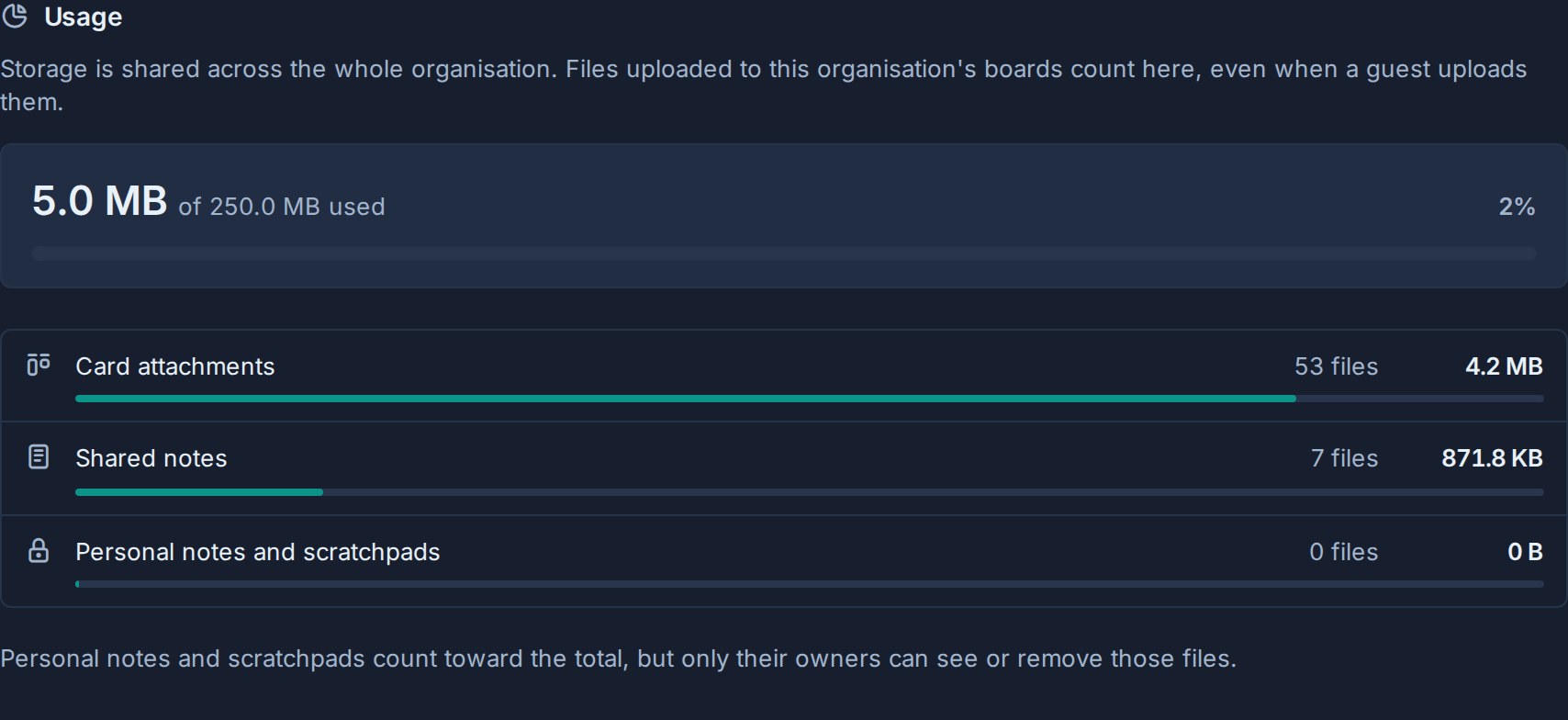
Usage is split three ways:
- Card attachments: files on cards, including images pasted into descriptions and comments.
- Shared notes: files in workspace and board notes.
- Personal notes and scratchpads: files in people's private notes and scratchpads. These count toward the total, but only their owners can see or remove them. Admins see the total only.
By workspace lists each workspace and standalone board with its file count and size, largest first. Select one to review its files in the cleanup list below.
Clean up files
Clean up files lists the card and shared-note files your organisation pays for, largest first. Each row shows the file, the card or note it belongs to, where that lives, who uploaded it, and when. Files on archived cards and boards carry an Archived badge: they are out of sight but still use storage.
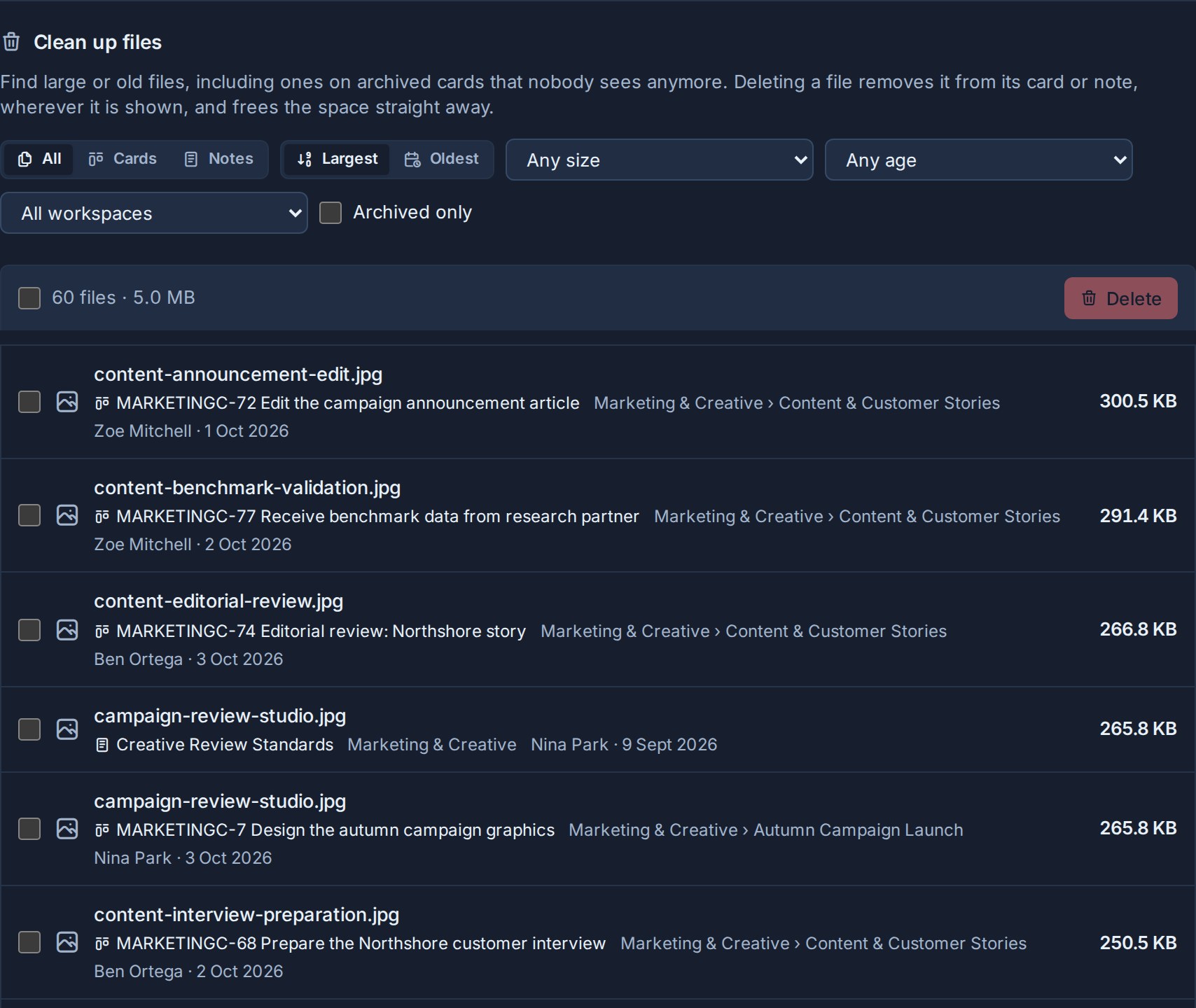
Narrow the list with:
- All, Cards, or Notes to show one kind of file.
- Largest or Oldest to change the order.
- A minimum size, such as Over 5 MB.
- A minimum age, such as Older than 6 months.
- A workspace or standalone board.
- Archived only to find files on archived cards and boards.
The summary above the list shows how many files match and how much space they take, across every page, so you know what a cleanup would free before you start. Select the card or note name on a row to open it and check before deleting.
To delete files:
- Tick the files, or tick the summary checkbox to select every file shown. You can select up to 100 at a time.
- Select Delete. The button shows how many files and how much space you selected.
- Confirm.
A deleted file is removed from its card or note for everyone straight away, including anywhere it was shown inline in a description, comment, or note. The card's history records the removal. Deleting from Storage cannot be undone, unlike removing an attachment from the card itself, which offers Undo for ten seconds.
Storage warning email
On Kanera Cloud, owners and admins receive one email when the organisation reaches 80% of its allowance, with a link to the Storage page. Kanera does not repeat it while usage stays high. Once a cleanup or an upgrade brings usage back below 70%, the warning is re-armed, so you hear again only if usage climbs back to 80%.
Self-hosted deployments have no allowance, so they never send this email.
Self-hosted storage backend
On a self-hosted deployment, the Storage page also has a Storage backend section where an admin can choose local disk or S3-compatible storage for uploads, unless the server sets S3 through environment variables. See Storage and Backups.
Troubleshooting
| Problem | What to check |
|---|---|
| Storage is missing from Settings | Only organisation owners and admins see the Organisation settings. Ask one of them. |
| A file you expected is not listed | Files in personal notes and scratchpads are never listed. Clear the filters, and check that the file belongs to this organisation's board rather than another organisation's. |
| Usage did not drop as much as expected | Image thumbnails and covers are removed with their file but are not counted separately. Files in personal notes and scratchpads can only be removed by their owners. |
| Uploads are still refused after a cleanup | Check the Usage meter. If it is still at the allowance, delete more files or upgrade to Pro. |