Checklist Templates
Checklist templates are reusable checklist definitions for a standalone board or workspace. They help teams add the same set of checklist items to cards without rebuilding the checklist by hand each time.
Use checklist templates for repeatable work such as definitions of done, onboarding steps, QA checks, launch reviews, handoffs, content reviews, client setup, support triage, or recurring approval processes.
When a template is applied to a card, Kanera creates a real checklist on that card using the template title and items. After that, the card's checklist can be edited as part of the card's own work.
Open checklist template settings
- Open the workspace or standalone board.
- Go to Workspace settings or Board settings.
- Choose Checklists.
The Checklists settings page is where admins create, edit, reorder, and delete checklist templates for the standalone board or workspace.
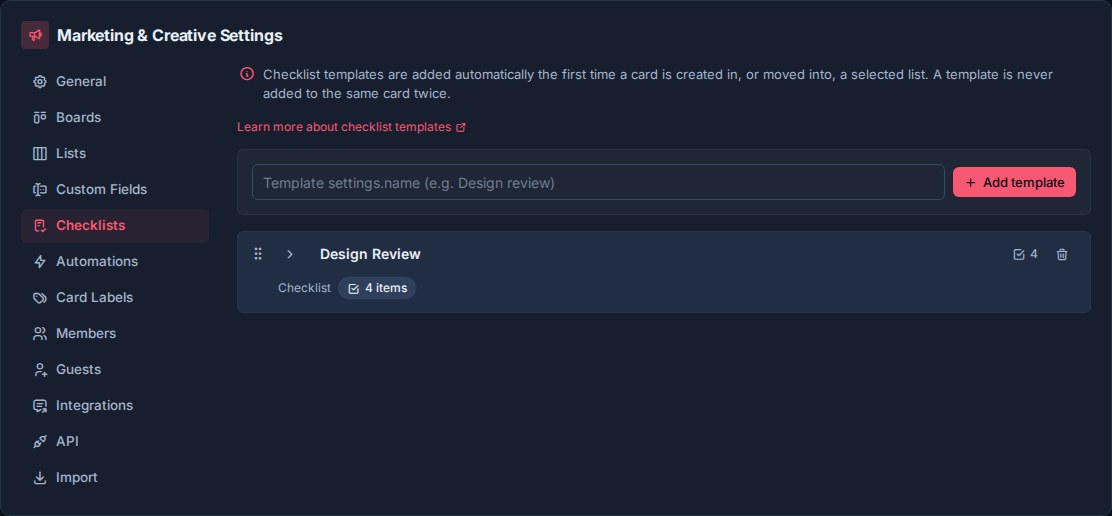
How checklist templates work
Checklist templates belong to their standalone board or workspace, not to an individual card.
In a workspace, the same template can be used across every board. A QA Review template, for example, can be added to cards on a product board, a client board, and a release board as long as those boards are in the same workspace. On a standalone board, the template stays with that board.
Workspace templates keep repeated processes consistent across related boards. Standalone templates support a workflow that should remain independent.
Templates and card checklists
A checklist template is the reusable source.
A card checklist is the actual checklist created on a card.
When you apply a template, Kanera copies the template into the card as a checklist with its own items. The card checklist then belongs to that card. People can complete items, edit items, assign checklist work, add descriptions and sub-checklists, and use it as part of the card's day-to-day progress.
Templates store the checklist title and top-level item text. Item descriptions, assignees, due dates, and sub-checklists are added to the card's copy after the template is applied.
Changing a template affects future uses of that template. It does not rewrite checklists that have already been created on cards.
Create a template
Use the template creation row in Workspace settings -> Checklists.
- Enter the template title.
- Click Add template.
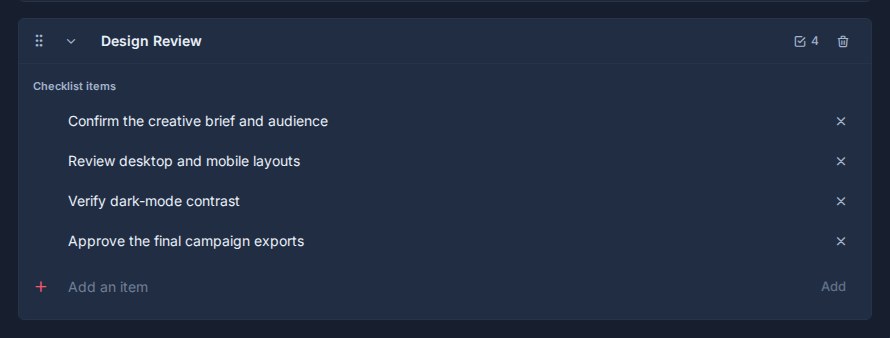
- Expand the template.
- Add the checklist items.
Good template titles are short and process-focused:
| Template | Use |
|---|---|
| Definition of Done | Standard completion checks before work is marked done. |
| QA Review | Product, content, or delivery checks before release. |
| Client Onboarding | Repeatable setup steps for a new client. |
| Launch Prep | Pre-launch checks for campaigns, releases, or projects. |
| Support Triage | Initial checks for new support issues. |
| Handoff | Steps needed before work moves to another person or team. |
Manage template items
Each template contains checklist items.
From the template editor, you can:
- Add an item.
- Edit item text.
- Remove an item.
- Drag items into a different order.
Keep item text action-oriented. Items such as Confirm owner, Review requirements, Attach final assets, or Notify client are easier to use than vague reminders.
Templates can contain many items, but shorter templates are usually easier to apply consistently. If a process has several distinct phases, consider using more than one template.
Reorder templates
Templates are draggable in the Checklists settings page.
Template order affects how templates appear when people choose one from a card or automation. Put the most commonly used templates near the top.
Quick add on cards
Templates can be added directly from a card.
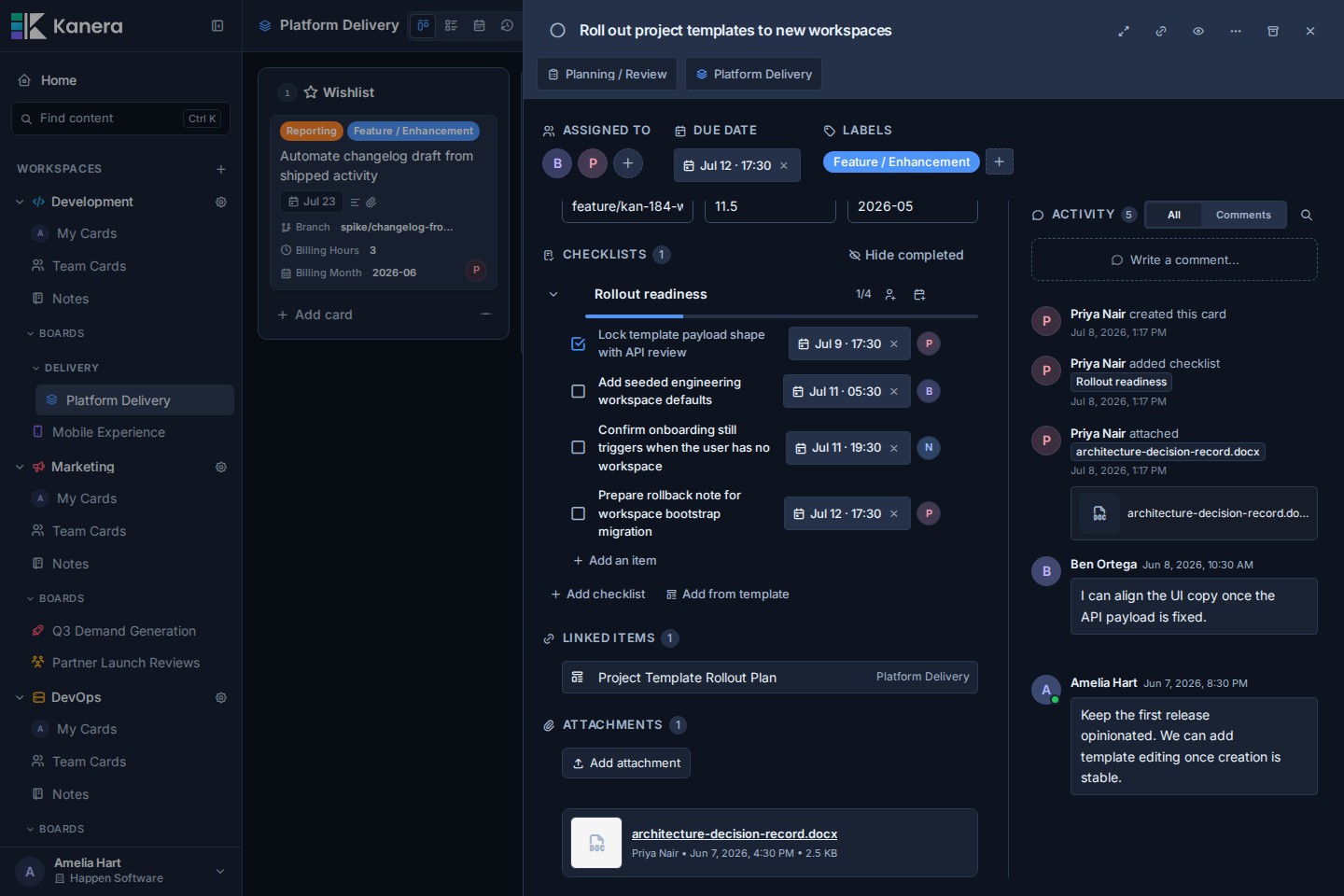
- Open a card.
- Go to the checklist area.
- Click Add from template.
- Search or choose the template.
- Apply it to the card.
Kanera creates a checklist on the card from the template. The checklist can then be completed and managed like any other card checklist.
A template can only be applied once to the same card. If the template has already been added, Kanera shows it as already added and prevents adding the same template again.
Use quick add when a checklist is useful for a card, but not every card in that workflow needs it.
Use templates in automations
Checklist templates can also be added by automations.
In Workspace settings -> Automations, add an action that applies checklist templates, then choose one or more templates.
This is useful when a checklist should be added automatically as part of a workflow. For example:
| Automation | Result |
|---|---|
| When a card enters Review | Add the QA Review checklist. |
| When a card enters Launch Prep | Add the Launch Prep checklist. |
| When a support card is created | Add the Support Triage checklist. |
| When work is assigned to a delivery owner | Add the Handoff checklist. |
Automations can apply multiple checklist templates to the same card. Kanera tracks which templates have already been applied, so an automation will not add the same template to the same card repeatedly if the automation fires again.
Use automations when the checklist is part of the normal process for a list, trigger, or workflow stage.
Delete a template
Deleting a template stops it from being used for new cards.
The template disappears immediately and Kanera provides Undo for ten seconds before committing the deletion. Checklists that have already been created on cards are kept, so existing card work is not removed. See Undo Recent Actions.
If a deleted template is used by an automation, Kanera removes that template from the automation action. If that automation action no longer has any checklist templates left, the action is removed.
Good template design
Checklist templates work best when they describe a repeatable standard.
Good templates are:
- Reusable across boards in the workspace.
- Specific enough to guide the work.
- Short enough to complete without becoming noise.
- Written as actions people can check off.
- Stable enough to use in automations.
Avoid templates for one-off notes or card-specific instructions. Put those directly in the card description, comments, or the card's own checklist.
Use quick add for optional processes. Use automations for required processes.