First-Time Setup
After your first sign-in, Kanera opens the onboarding wizard and asks whether you want one independent board or a workspace for several related boards. If you are not ready to decide, select Skip for now and continue to Home without creating anything.
- Choose a standalone board when its lists, labels, custom fields, automations, and access should be independent.
- Choose a workspace when several boards should share one setup and support consistent cross-board work.
Understand the structure
Your organisation is a top-level Kanera space. It can be a personal space for one person or a shared space for a team, company, community, or other group. It contains its members, plan and billing settings where applicable, workspaces, and standalone boards. One account can create or join several organisations and switch between them from the user menu.
Inside the organisation, work can be structured in two ways:
| Level | Meaning | Example |
|---|---|---|
| Organisation | The personal or shared Kanera space that owns the work. | Alex's Kanera |
| Workspace | Related boards that share lists, fields, labels, automations, and a member roster. | Freelance Clients |
| Board | One project, client, campaign, queue, or stream of work. | Acme Website |
| List | A workflow stage used to organize cards. | Intake, Active, Waiting, Done |
| Card | One piece of work on a board and in a list. | Book the kickoff meeting |
For example, Alex can use the Alex's Kanera organisation as a personal space. Inside it, a Freelance Clients workspace can give the Acme Website and Brightlane Retainer boards shared Intake, Active, Waiting, and Done lists while each board keeps its own cards. The same organisation can also have a Personal Projects standalone board with a completely different list set. A larger team or company can use the same structure with more members and workspaces.
See Organisations for creating, joining, and switching spaces, or the Kanera TL;DR for the complete hierarchy at a glance.
When onboarding appears
Kanera offers onboarding when an organisation administrator has no workspace, standalone board, guest board, or pending board invitation to open. The wizard appears after the first sign-in and when you enter a newly created empty organisation.
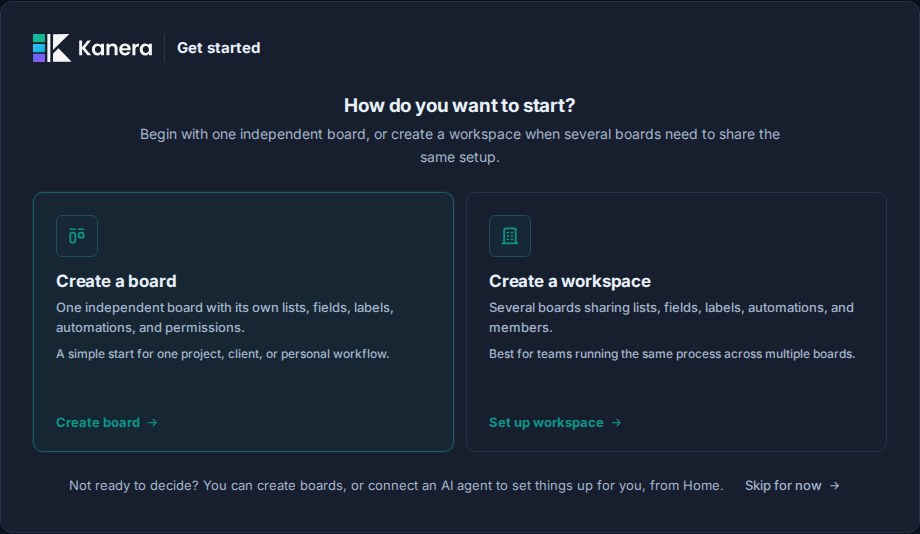
You can select Skip for now from the opening choice or a later setup step. Kanera then opens an empty Home page where you can:
- Return to the wizard with Start guided setup.
- Create a standalone board directly.
- Start a new workspace directly.
- Connect an AI agent and let it create and configure your starting structure, when your plan includes agent access.
Skipping does not create, discard, or lock in a board structure. The choice is remembered for that user and organisation on the current browser. If browser storage is cleared, or you sign in on another device, Kanera may offer onboarding again until the organisation has a workspace or another accessible starting point.
After setup, organisation admins can create more standalone boards from the Boards section in the sidebar or more workspaces from the workspace menu.
Before you begin, you need:
- A Kanera account.
- Organisation-admin permission to create boards or workspaces.
- A rough idea of the work you want Kanera to organize.
Step 1: Choose a standalone board or workspace
The first screen offers two ways to start:
| Choice | Best for |
|---|---|
| Create a board | One project, client, personal workflow, or Trello-style independent board. |
| Create a workspace | Several boards that should share lists, fields, labels, automations, and members. |
You can use both models in the same organisation. Your choice is about how this work should be structured, not a permanent organisation-wide mode.
Start with a standalone board
Choose Create a board, then:
- Enter the board name.
- Choose an icon and colour if you want to customise its identity.
- Pick a starting template.
- Select Create board.
The template can seed lists, labels, custom fields, checklist templates, starter cards, and automations for this board only. The exact starting content depends on the template. You can change or remove it later from Board settings without affecting any other board.
Read Standalone Boards for settings, access, imports, and the full comparison with workspaces.
Start with a workspace
Choose Create a workspace when several boards should share one operating model. Workspace setup lets you review the shared structure before entering the app.
Pick a workspace template
The first screen asks what type of work you are doing. Choose the template closest to your workflow.
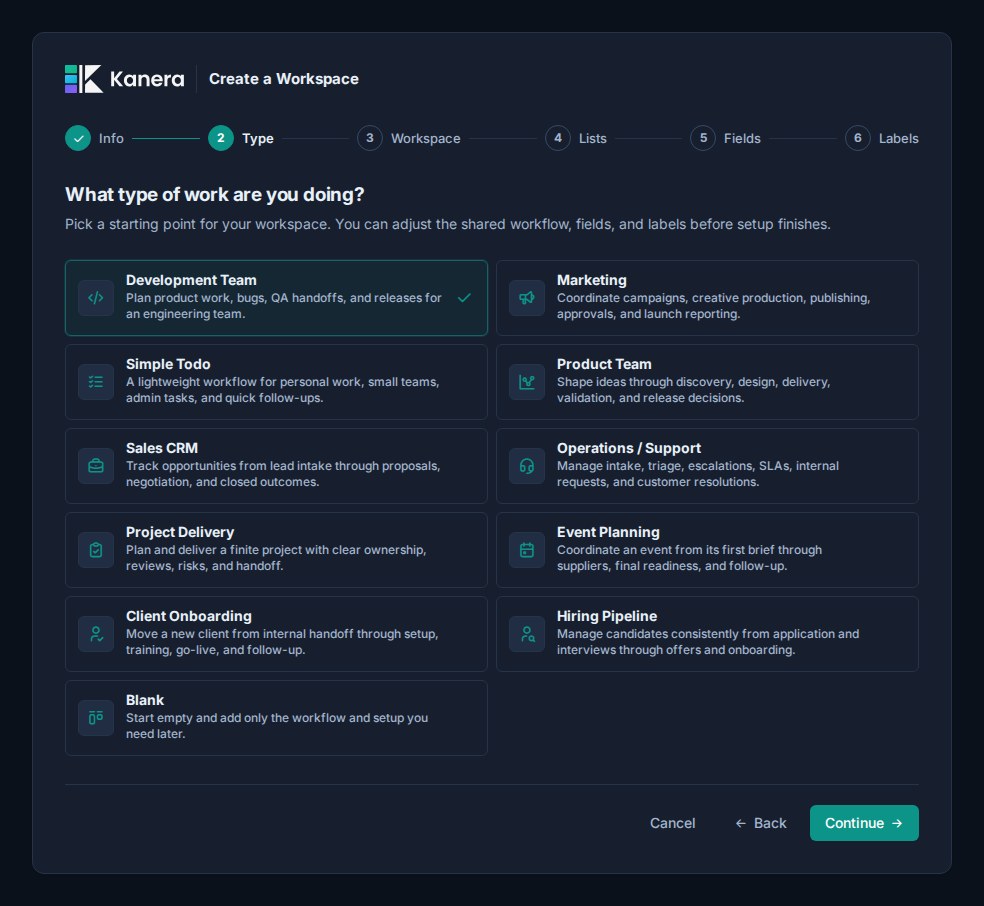
Templates can provide a workflow, fields, labels, checklist templates, starter cards, and useful automations. They are designed as working examples rather than empty category lists:
| Template | Useful starting behavior |
|---|---|
| Development Team | Labels incoming bug work automatically; moving a card to Complete marks it complete and records the billing month when it is empty. |
| Marketing | Separates channel fields from intent labels, records approval when work is scheduled, and completes cards in Done. |
| Simple Todo | Uses the card's native due date for reminders and overdue work, with a compact priority-and-blocked setup and automatic completion in Done. |
| Product Team | Moves ideas through discovery, design, delivery, and validation, then completes cards in Shipped. |
| Sales CRM | Flags follow-up deals At Risk, then clears that flag and completes cards when they are won or lost. |
| Operations / Support | Uses native due dates as SLA deadlines, moves due work to Escalated, sets its escalation flag, and completes resolved or closed cards. |
| Project Delivery | Includes kickoff and review checklists, four starter cards, risk labelling for blocked work, and completion in Done. |
| Event Planning | Includes an event brief, readiness checklist, four starter cards, and distinct workstream fields and cross-cutting labels. |
| Client Onboarding | Includes kickoff and go-live checklists, four starter cards, and automations that apply the right checklist at each milestone. |
| Hiring Pipeline | Starts without candidate cards to avoid placeholder personal data, applies interview and new-hire checklists, and completes rejected candidates. |
| Blank | Creates an empty workspace without an initial board, workflow, starter content, or automation. |
You can adjust the workspace name, lists, custom fields, and labels before setup finishes. Kanera keeps compatible checklist templates, starter cards, and automation actions from the selected template: for example, removing a list also omits starter cards and automation triggers that depend on that list. Everything created by the template remains ordinary workspace content that administrators can edit or remove later.
Set up your workspace
Give the workspace a name and pick an icon.
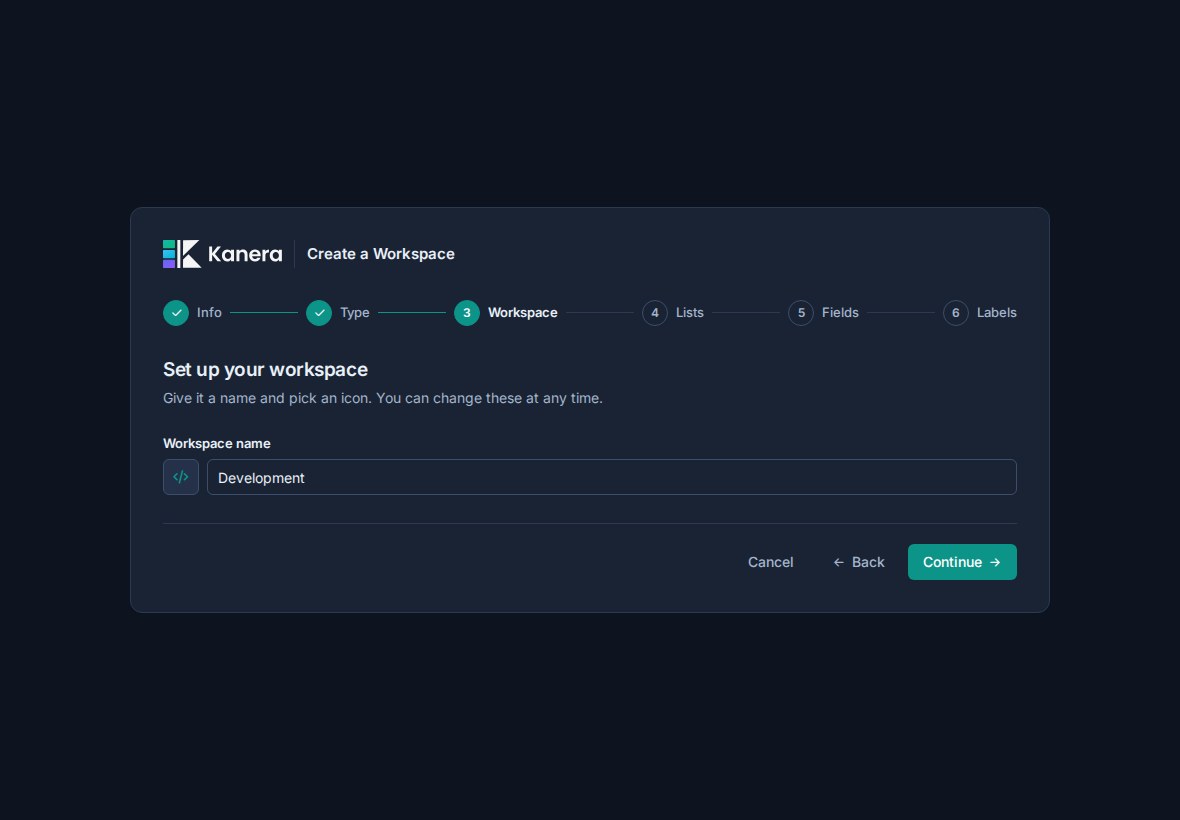
The template suggests a default name, such as Development, Marketing, or Operations. Rename it to match the team, company, client group, or operating area that will use it.
Use a workspace for work that should share the same process. For example, a development workspace might share the same lists and fields across multiple product boards.
Define lists
Next, review the lists that will become the shared workflow stages for the workspace.
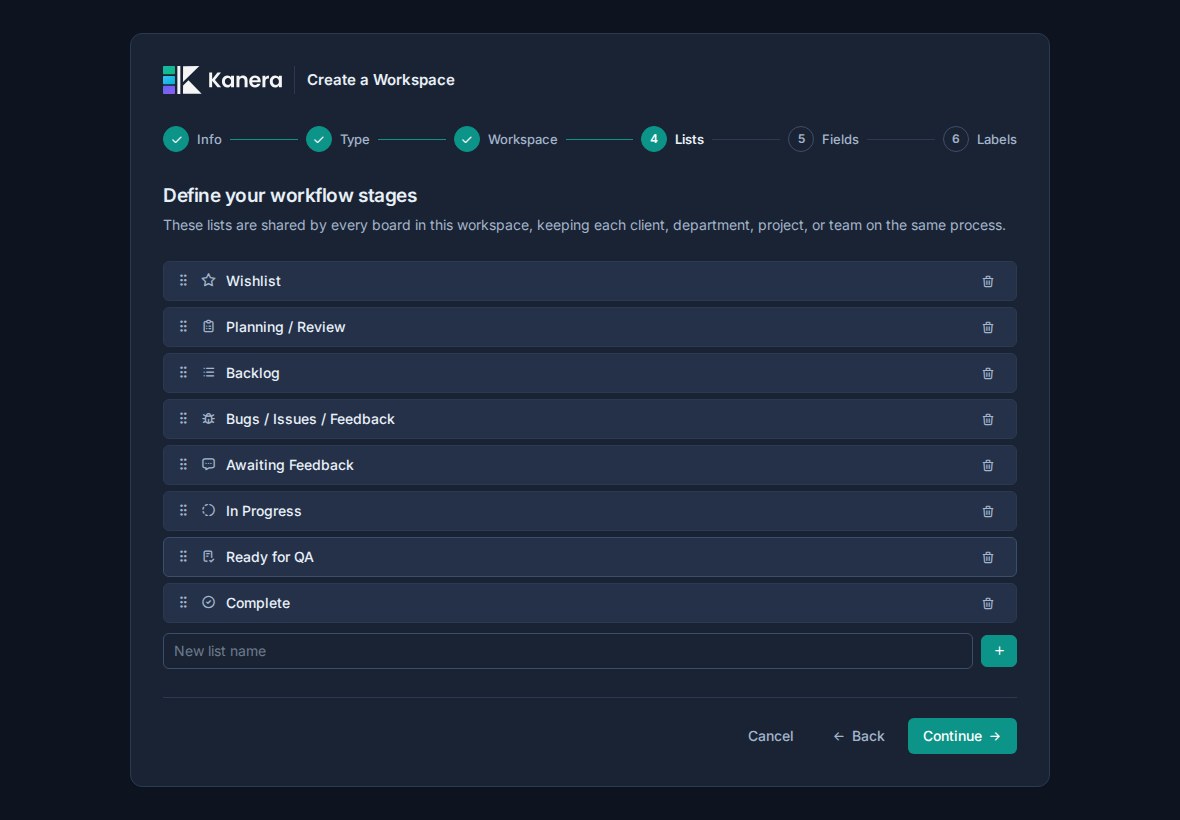
You can:
- Reorder lists.
- Remove lists you do not need.
- Add new lists.
- Rename the workflow around your team's language.
Kanera requires at least two lists before you can continue.
For example, the Development Team template starts with stages such as Wishlist, Planning / Review, Backlog, Bugs / Issues / Feedback, Awaiting Feedback, In Progress, Ready for QA, and Complete.
Keep the workflow broad enough to work across boards. If a status only applies to one board, it may be better as a label or custom field later.
Review custom fields
Custom fields are optional during onboarding, but they are one of the main ways Kanera keeps work structured across boards.
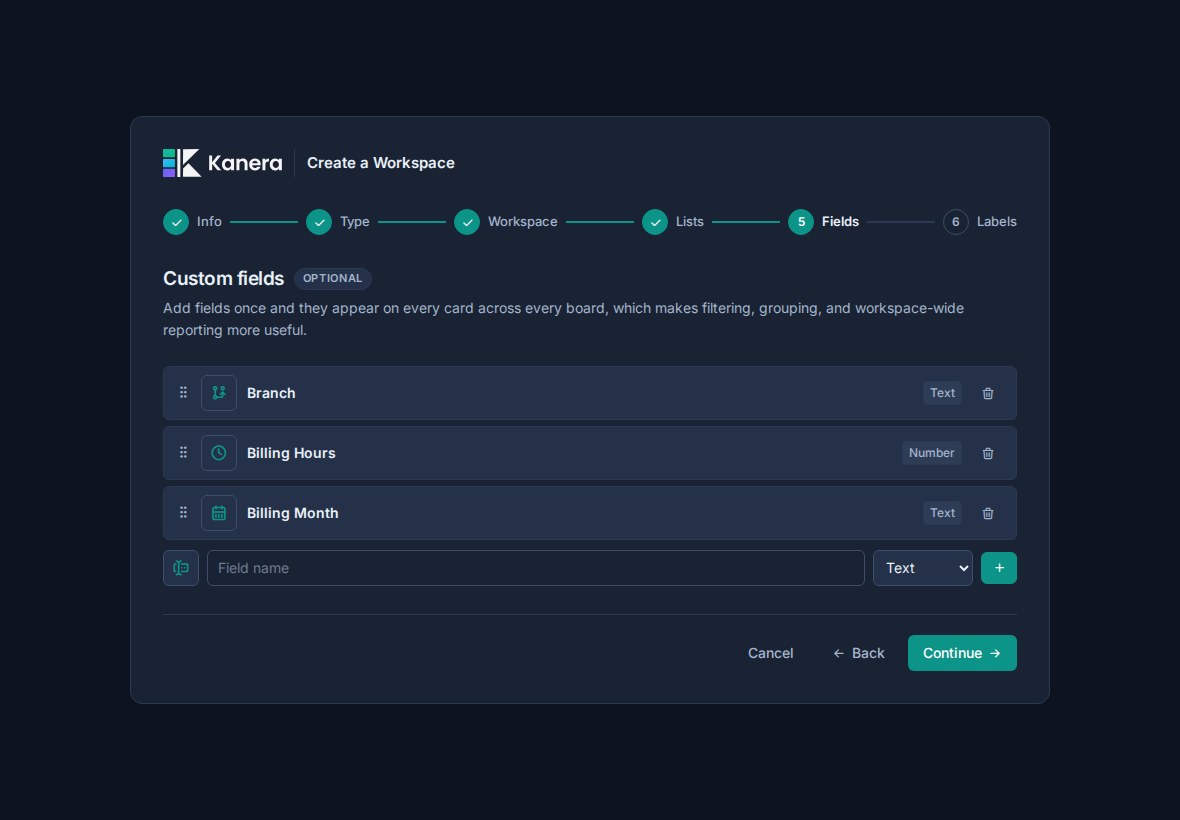
You can:
- Keep the fields from the selected template.
- Add fields.
- Remove fields.
- Reorder fields.
- Change field icons.
- Rename fields.
- Add and reorder options for select fields.
- Switch supported select and user fields between single and multiple values.
Supported field types during onboarding are:
| Type | Use |
|---|---|
| Text | Short free-form values. |
| Number | Estimates, scores, budgets, or quantities. |
| Checkbox | Yes/no flags. |
| Select | A controlled list of options. |
| Date | Due dates, launch dates, SLA dates, and review dates. |
| URL | Links to external resources. |
| User | A person connected to the card. |
Custom field names must be unique within a workspace.
Start with fields your team will actually use on many cards. You can add more later from workspace settings.
Review labels
Labels are optional too. They are shared across the workspace so categories mean the same thing wherever work lives.
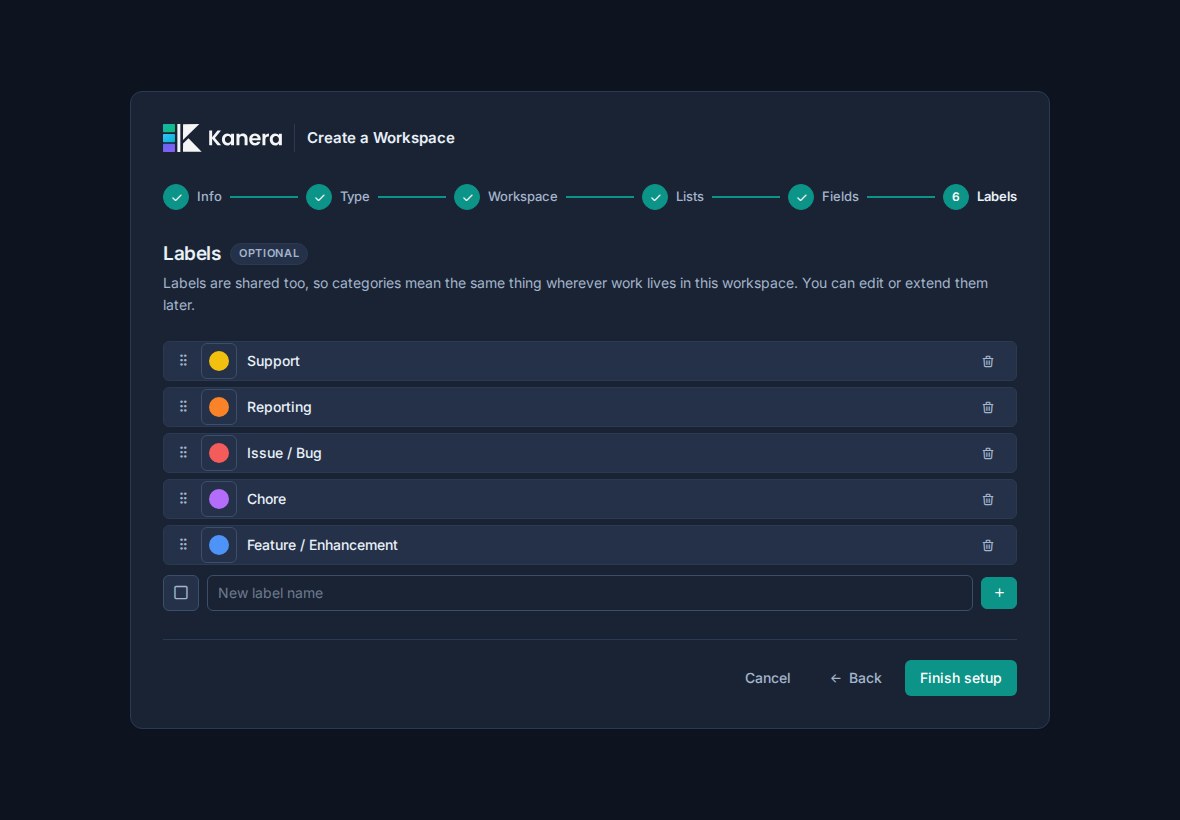
You can:
- Keep the labels from the selected template.
- Add labels.
- Remove labels.
- Reorder labels.
- Change label colors.
Use labels for lightweight categories such as Bug, Feature, Customer, Campaign, At Risk, or Follow-up.
Use custom fields when you need structured values that should be filtered, grouped, sorted, or summarized.
Finish workspace setup
When you choose Finish setup, Kanera creates the workspace with the name, icon, lists, custom fields, and labels you reviewed. Non-blank templates also create an initial board and can add their compatible checklist templates, starter cards, and automations.
After the workspace is created, you can start using the main app:
- Open the template's initial board, or create another board for an initiative, client, department, or workflow.
- Add cards to the board.
- Assign owners and due dates.
- Use the shared labels and custom fields you created during onboarding.
- Invite teammates once the workspace has enough shape to make sense.