Standalone Boards
A standalone board is an independent place to manage work. It does not appear inside a workspace, and its workflow and settings do not affect any other board.
Use a standalone board when you want the familiar flexibility of a board-first tool such as Trello: one board with its own lists, labels, custom fields, checklist templates, automations, people, and settings.
Use a workspace when several boards should share the same workflow, people, automation, and reporting context.
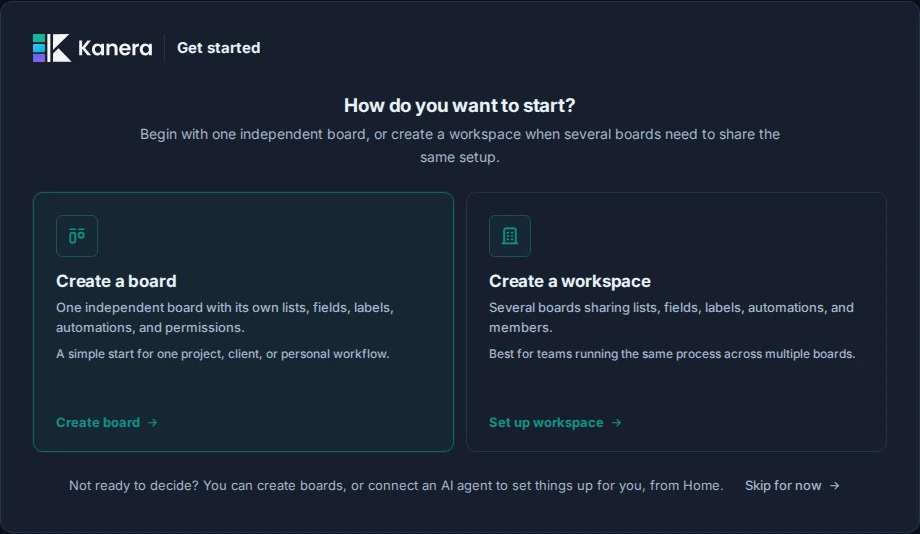
Standalone board or workspace?
Both models use the same Kanera cards and board views. The difference is how the setup is shared.
| Choose a standalone board when... | Choose a workspace when... |
|---|---|
| One board should have its own workflow. | Several boards should follow the same workflow. |
| Its lists, labels, and fields should stay independent. | Lists, labels, and fields should be reused across boards. |
| You want to invite people only to that board. | You want a shared member roster with access granted per board. |
| You are managing one project, client, or personal workflow. | You need shared workflow definitions, standardisation, or consistent reporting fields. |
| You are moving a Trello board without reconciling it with other boards. | You are coordinating related projects, clients, teams, or queues. |
You can use both models in the same Kanera organisation. For example, a product team can run delivery boards in a shared workspace while keeping a separate event plan or personal board standalone.
What stays independent
Every standalone board has its own:
- Lists and list ordering.
- Labels and custom fields.
- Checklist templates.
- Automations.
- Board access and guests.
- API keys, webhooks, and agent connections where available.
- Import settings.
- Completed-card visibility setting.
- Notes setting.
Changing any of these affects only that standalone board.
What workspaces add
A workspace is not required to use Kanera, but it adds a shared layer for related boards:
- One list, label, and custom-field catalogue across its boards.
- Shared checklist templates and automations.
- A workspace member roster, with access still granted board by board.
- Board groups for organising larger sets of boards.
- Consistent Table and Portfolio reporting across boards that use the same structure.
- One workspace-level integration and administration boundary.
This structure is useful when consistency is a feature. It is unnecessary when every board needs to be different.
Create your first standalone board
When a new account opens Kanera for the first time:
- Choose Create a board.
- Enter a board name.
- Pick a starting template.
- Optionally choose an icon and colour.
- Select Create board.
The template can seed lists, labels, custom fields, checklist templates, starter cards, and automations for this board only. The exact content depends on the template, and you can change or remove it later from Board settings.
Create another standalone board
Organisation admins can create another standalone board from the Boards section in the main sidebar:
- Select the + button beside Boards.
- Enter a board name.
- Choose a starting template.
- Select Create board.
Standalone boards appear directly under Boards, separate from workspace sections and guest boards.
Board creation still follows the board limit for your Kanera plan.
Manage settings and access
Open the board, then choose Board settings. A standalone board does not show the workspace-only Boards or Members settings tabs because it cannot contain another board and has no separate workspace roster.
Use Board settings -> General to turn the board's notes on or off, or to change its card key prefix. The prefix follows the same organisation-scoped uniqueness and permanent-alias rules as a workspace prefix; see Set the card key prefix.
Use the board's access menu to add people from your organisation as Editors or Observers. You can also limit either role to Assigned items only.
Use Board settings -> Guests for external collaborators. Guest access and hosted-plan seat rules work the same way as guest access to a board inside a workspace.
Import cards or another board
Create a standalone board first, then open Board settings -> Import. Choose CSV for card rows from a spreadsheet or another project tool, Trello for a Trello JSON export, or Kanera for a Kanera board archive.
On a standalone board, the import:
- Adds imported cards to the existing board.
- Lets you create, map, or skip lists, labels, and custom fields for that board.
- Leaves the board name, icon, colour, permissions, and existing cards unchanged.
This differs from importing into a workspace, where Kanera creates a new board inside the workspace and maps the source structure to the workspace's shared setup. See CSV Import or Trello Import for the complete workflow.
Delete a standalone board
Open Board settings -> General, then use Delete this board.
Deleting a standalone board permanently deletes the board, its cards, and all settings that belong only to it. Kanera shows a confirmation with the affected card count before deletion.