Trello Import
Kanera can import a Trello board from a Trello JSON export into either a standalone board or a workspace.
- In a workspace, the import creates a new board and maps the Trello lists, labels, custom fields, and members to the workspace's shared setup.
- In a standalone board, the import adds cards to that existing board and maps the Trello structure to settings that belong only to that board.
Kanera analyzes the export and gives you mapping choices before anything is created.
Before you begin
You need:
- Admin access to the destination workspace or standalone board.
- A Trello board JSON export.
- A Kanera workspace or standalone board to receive the import.
The import accepts .json files up to 50 MB. Trello exports with no lists cannot be imported.
Export the board from Trello
In Trello, export the board as JSON. The exact Trello menu may vary by workspace plan and interface, but the export should produce a single JSON file for one board.
Kanera imports from that JSON file. It does not keep the board synced after import.
If you also need a Trello-side attachment archive before importing, Atlassian documents workspace exports with Include raw attachments in Export data from Trello.
Open Trello Import
- Open the destination workspace or standalone board in Kanera.
- Go to Workspace settings or Board settings.
- Open Import.
- Choose Trello.
The Trello import wizard starts with an upload step.
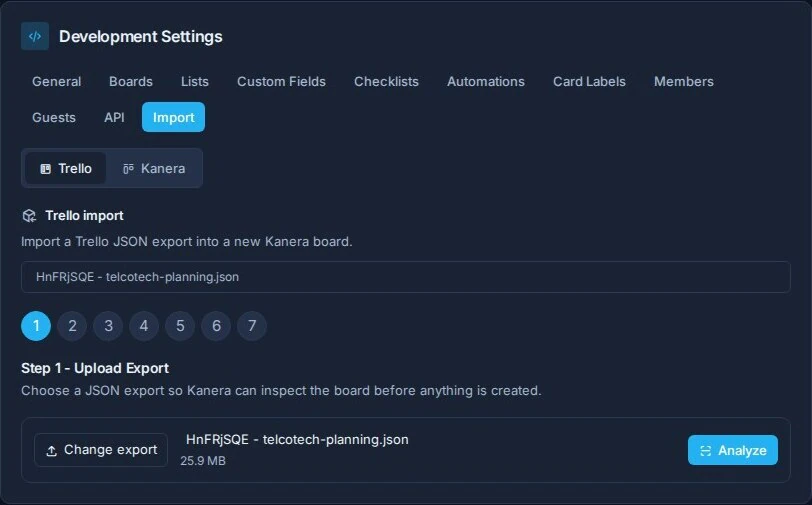
Step 1: Upload and analyze
Choose or drop the Trello JSON export, then select Analyze.
Kanera reads the file and prepares an import preview. During analysis, Kanera finds:
- Board name and description.
- Lists and whether each list is archived in Trello.
- Labels and their Trello colors.
- Custom fields and their Trello field types.
- Members from the export.
- Counts for cards, checklists, comments, uploaded attachments, and link attachments.
Analysis stores the source file temporarily so the reviewed import can be committed later.
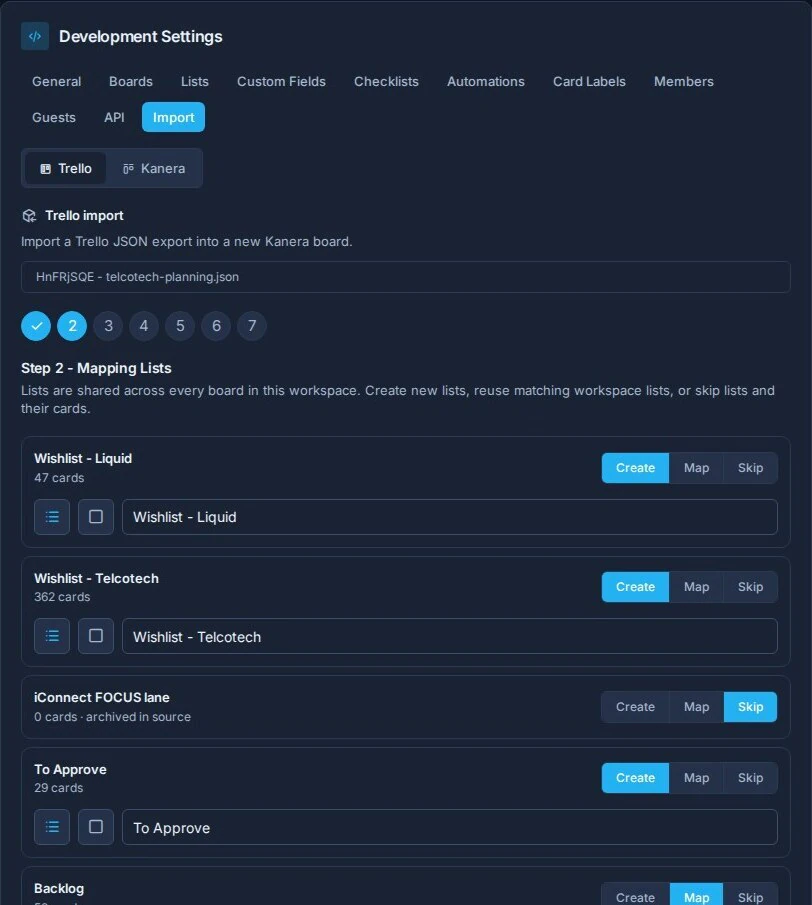
Step 2: Map lists
Trello lists become Kanera lists, or they can be mapped to existing lists in the destination.
For each Trello list, choose:
| Action | Result |
|---|---|
| Create | Create a new list in the destination. You can edit the list name, icon, and color. |
| Map | Reuse an existing list. Imported cards from the Trello list are added to that list. |
| Skip | Do not import that list or any cards in it. |
If a Trello list name matches an existing Kanera list name, Kanera suggests mapping it. Archived Trello lists are skipped by default.
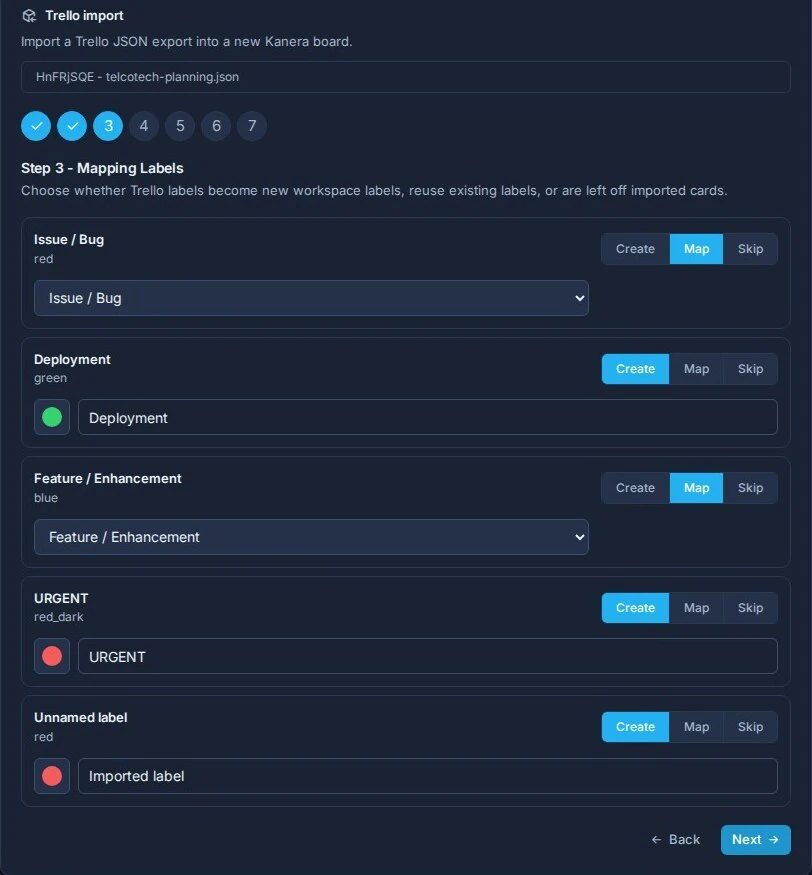
Step 3: Map labels
Trello labels become Kanera labels in the destination, or they can be mapped to existing labels.
For each Trello label, choose:
| Action | Result |
|---|---|
| Create | Create a new label in the destination. You can edit the label name and color. |
| Map | Reuse an existing label in the destination. |
| Skip | Leave that Trello label off imported cards. |
Kanera suggests a matching Kanera color from the Trello label color. Trello color variants such as light or dark are normalized to the closest Kanera color.
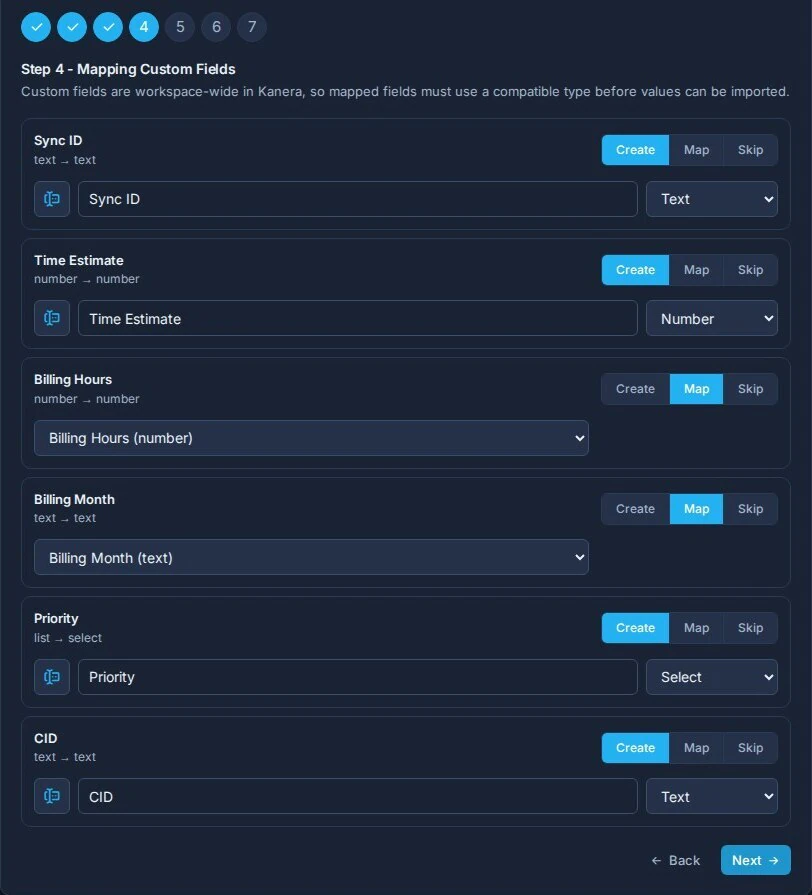
Step 4: Map custom fields
Trello custom fields become Kanera custom fields in the destination, or they can be mapped to existing compatible fields.
Kanera maps Trello field types like this:
| Trello field type | Kanera field type |
|---|---|
| Text | Text |
| Number | Number |
| Checkbox | Checkbox |
| Date | Date |
| List | Select |
For each custom field, choose:
| Action | Result |
|---|---|
| Create | Create a new custom field in the destination. You can edit the name, icon, and type. |
| Map | Reuse an existing custom field with a compatible type. |
| Skip | Do not import values for that Trello field. |
Mapped custom fields must use a compatible type before the import can finish. Select-field options are created for new fields. When mapping to an existing select field, Kanera reuses matching options by label and creates missing options as needed.
Step 5: Map members
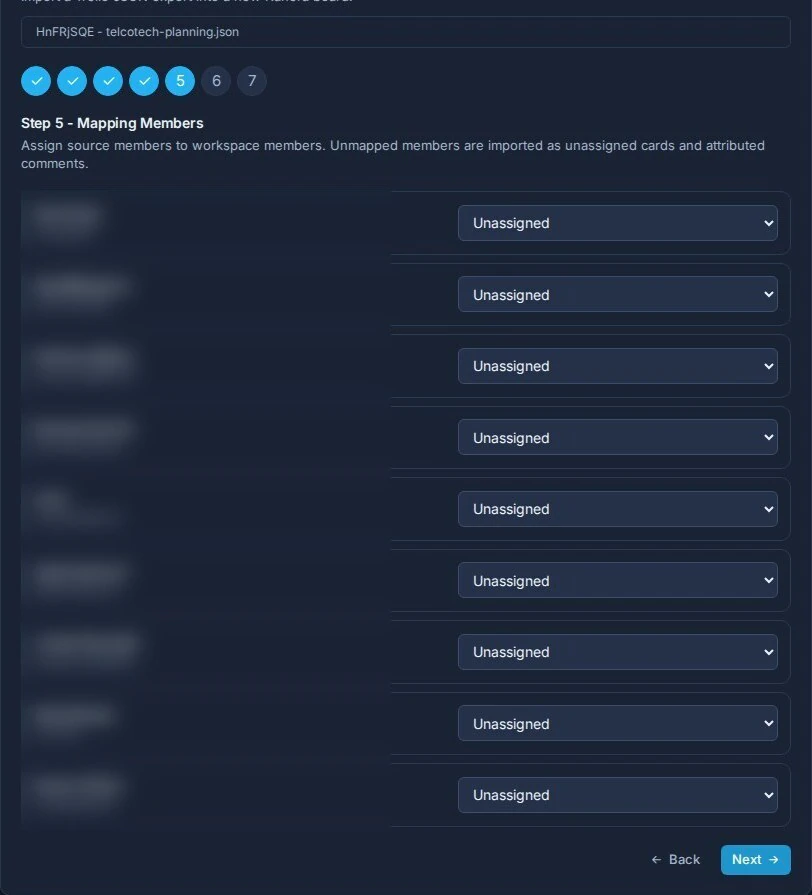
Map Trello members to Kanera users available in the destination.
Kanera tries to suggest matches by comparing Trello member details with Kanera member names and email addresses. Trello exports often include only usernames, so Kanera also checks whether a Trello username matches a Kanera email address or email local part.
For each member, choose an available Kanera user or leave them Unassigned.
Member mapping affects:
- Card assignees.
- Checklist item assignees.
- Comment authors.
If a card assignee is not mapped, that assignment is skipped. If an imported comment's author is not mapped, the comment is created by the importing user and the original Trello member name is added to the comment body.
Step 6: Review options and connect Trello
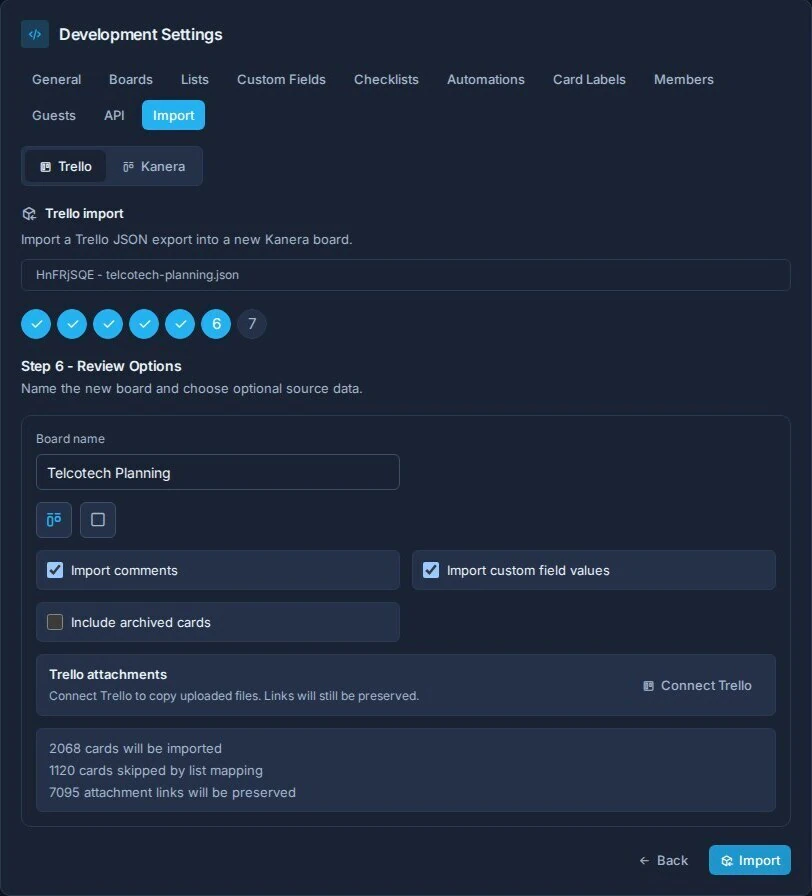
Before importing, review the board and import options:
| Option | What it does |
|---|---|
| Board name | Sets the new board name when importing into a workspace. A standalone import keeps the existing board name. |
| Icon and color | Sets the new board identity in a workspace. A standalone import keeps the existing icon and color. |
| Import comments | Imports Trello card comments. On by default. |
| Import custom field values | Imports Trello custom field values. On by default. |
| Include archived cards | Imports Trello archived cards and cards from archived Trello lists. Off by default. |
| Trello attachments | Lets you connect Trello so Kanera can securely download uploaded files. |
The summary shows how many cards will be imported, how many will be skipped by list mapping, and how many attachments were found. On a standalone board, the review also confirms that its permissions and existing cards remain unchanged.
Attachments
The review step includes Trello attachments with a Connect Trello button.
Select Connect Trello, approve the popup, then return to Kanera and start the import. Kanera uses that connection only for this import so it can securely download Trello uploaded files and add them as Kanera card attachments.
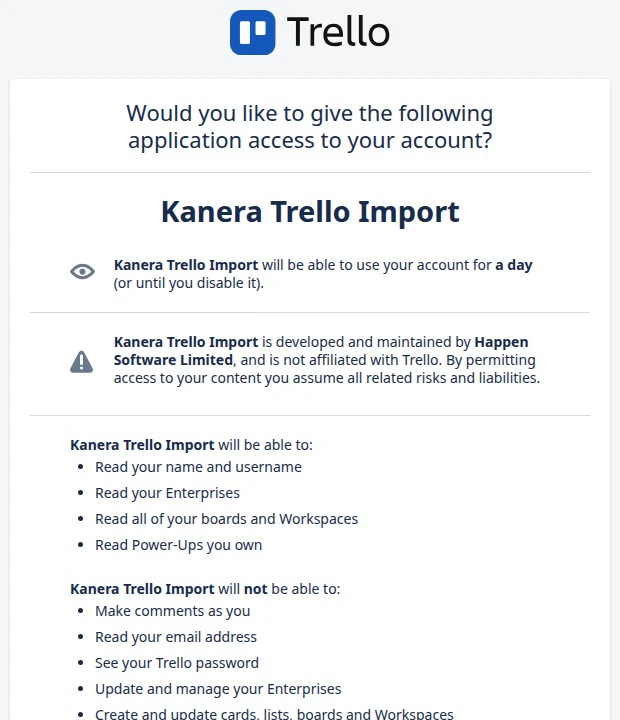
If Trello is not connected, Kanera still preserves attachment links back to Trello on the imported cards, but uploaded Trello files are not copied into Kanera.
If you want a separate Trello download for your records, use Trello's workspace export option with raw attachments before starting the Kanera import.
What gets imported
Kanera imports:
- One new board when the destination is a workspace. A standalone import uses the existing board.
- Mapped or newly created lists.
- Mapped or newly created labels.
- Mapped or newly created custom fields.
- Cards in imported lists.
- Card descriptions.
- Due dates.
- Completed due-date state.
- Archived cards when Include archived cards is enabled. Imported archived cards follow Kanera's archived card retention.
- Labels, assignees, and custom field values when they have valid mappings.
- Checklists and checklist items.
- Checklist item due dates, assignees, and completed state.
- Comments when Import comments is enabled.
- Trello attachment links.
- Trello uploaded files as Kanera card attachments when you connected Trello during review.
Cards are placed at the end of their target Kanera lists.
Every imported card receives a new key from the destination workspace or standalone board, such as PROJ-123. Trello ids, names, and positions are not used as Kanera card identities. The same rule applies when importing a Kanera board export: the source archive retains its original identity data, but the imported copies receive destination-local keys.
The importing workspace admin receives inherited access to the new board. After import, use Workspace settings -> Boards -> Manage access to add other workspace members as Editors or Observers.
When importing into a standalone board, its existing permissions are unchanged.
If attachments are skipped
Some Trello files may be skipped. Common reasons include:
- The file type is not supported by Kanera attachments.
- The file exceeds the organisation's file size limit.
- Copying the file would exceed the organisation's storage quota.
- Trello was not connected during review.
- Trello returns an authorization or download error.
When files are skipped, the import summary groups the reason and shows sample warnings. During a connected import, Kanera shows attachment progress such as copied and skipped files.
Avoid closing or navigating away from the import page while the import is running. Kanera asks for confirmation if you try to leave, because long imports are currently tied to the active import request.
After import
When the import completes, Kanera shows a summary and a link to the destination board.
Review the imported board for:
- Skipped lists or archived cards.
- Unmapped assignees.
- Labels or fields that should be merged, renamed, or cleaned up.
- Attachments that were skipped because of Trello access, file type, file size, or storage quota.
The import is a one-time copy. Changes made later in Trello are not synced to Kanera.