Board Health
Board health turns overdue, unassigned, and inactive work into a quick triage status. It appears in Board overview and Portfolio when health is enabled for the board's workspace. Use it to find work that deserves a closer look, not as a forecast of delivery dates, capacity, dependencies, or stakeholder confidence.
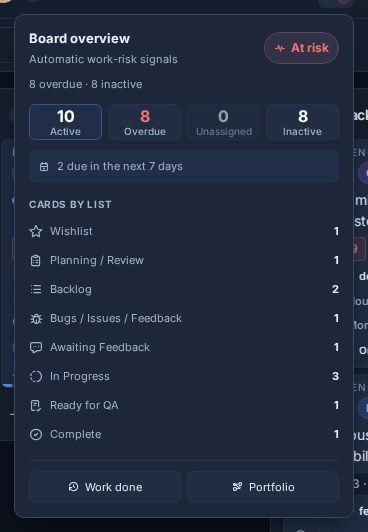
Statuses
Kanera evaluates incomplete, non-archived cards. It assigns the most severe result reached by any enabled signal:
- At risk
- Needs attention
- On track
When a board has no incomplete, non-archived cards, it shows No active work instead of calling the board healthy.
Signals and thresholds
| Enabled signal | What counts | Needs attention | At risk |
|---|---|---|---|
| Overdue cards | Active cards past their due date. | At least one overdue card. | At least 50% of active cards, or at least five cards, are overdue. |
| Unassigned cards | Active cards with no card assignee. | At least 25% of active cards, or at least five cards, are unassigned. | At least 75% of active cards are unassigned, and the board has at least two active cards. |
| Inactive cards | Active cards whose updatedAt activity clock has reached the workspace's inactivity window. Card changes and supported child-resource changes refresh this clock. | At least 25% of active cards, or at least five cards, are inactive. | At least 75% of active cards are inactive, and the board has at least two active cards. |
Counts are capped at the active-card population before percentages are calculated. Due-soon cards, completed cards, and cards-by-list counts provide context in Board overview and Portfolio, but do not determine health.
Example
A board with ten active cards, three unassigned cards, one inactive card, and no overdue cards is Needs attention when the Unassigned signal is enabled: three of ten cards is 30%, above the 25% threshold. Turning off Unassigned removes those three cards from the status calculation. Their count remains visible and can still be used as a drill-down.
Configure a workspace or standalone board
Open Workspace settings -> General -> Board health. For a standalone board, open Board settings -> General -> Board health.
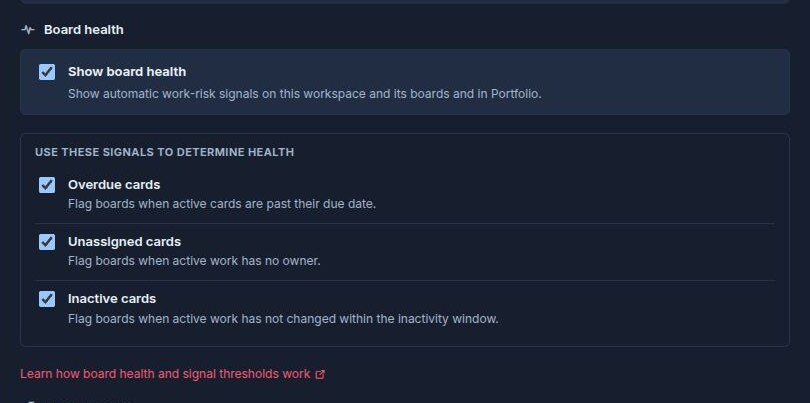
- Show board health controls the feature for that workspace and every board inside it.
- Overdue cards, Unassigned cards, and Inactive cards decide which signals participate in the status calculation.
- Mark cards inactive after sets the inactivity window for the workspace.
- Signal choices appear only while Show board health is enabled.
All three signals are enabled by default. Turning a signal off changes only the status calculation: Board overview and Portfolio can still show the raw metric and the board can still be filtered to those cards.
When Show board health is off, the Board overview health control is hidden, the board shows health as disabled in Portfolio, and the board is excluded from workspace and organisation health rollups.
Organisation default
Organisation owners and admins can open Profile settings -> Organisation -> New workspace defaults and choose Show board health by default.
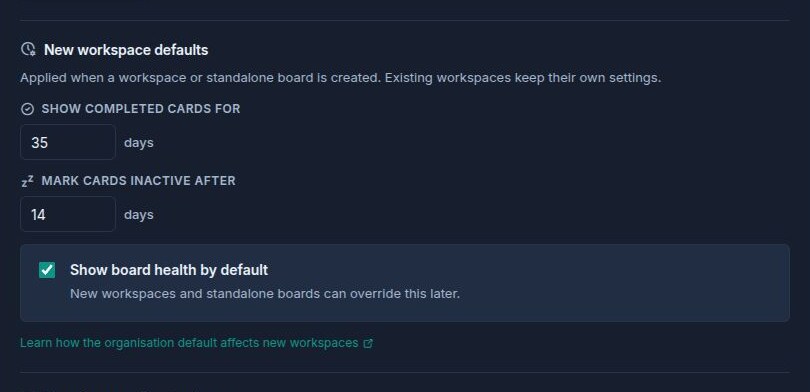
This is a creation default only:
- It decides whether health starts enabled for each new workspace or standalone board.
- It does not change existing workspaces.
- It does not configure which signals participate. New workspaces start with Overdue, Unassigned, and Inactive enabled and can change them in their own General settings.
- A workspace or standalone board can override the organisation default later.
Portfolio rollups
Portfolio calculates health for each enabled board using that board's workspace signal configuration. Parent workspace and organisation rows then use the worst child-board status:
- Any At risk child makes the parent At risk.
- Otherwise, any Needs attention child makes the parent Needs attention.
- Otherwise, a parent with active assessed boards is On track.
- A parent with no active assessed boards shows No active work.
Kanera does not combine all child cards into one large-board percentage. This prevents a large healthy board from diluting a concrete risk on a smaller board. Boards with health disabled are excluded from the rollup.
Use the drill-downs
Open Board overview from the radar button beside a board name. Select Overdue, Unassigned, or Inactive to filter the board to contributing cards. Select Active to clear that health drill-down. These filters combine with the board's normal search and filters.
Use Portfolio for the cross-board rollup and metric drill-downs. Use Work done to inspect movement and completion history behind the current snapshot.