Install Kanera
Kanera has a great experience through the web app. It is not available to download from the app stores, but it is easy to install on your mobile phone, tablet, or desktop from your browser.
In browsers that support standalone installation, Kanera opens in its own app-like window with the Kanera icon. Some Android browsers create a Home Screen shortcut that opens in the browser instead.
Before you start
You need:
- The Kanera web address:
https://board.kanera.app. - A Kanera account.
- A supported browser.
If your team runs Kanera at its own address, use that instead. For example, it may look like https://kanera.yourcompany.com.
Start in Kanera
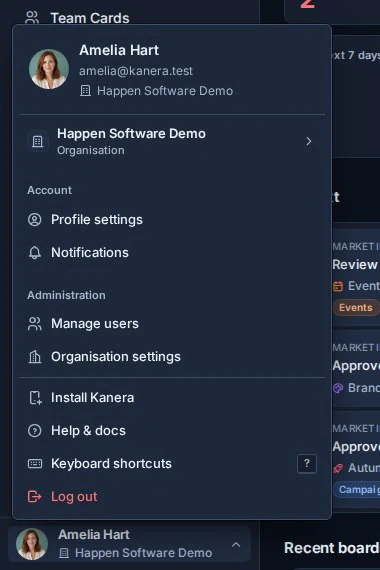
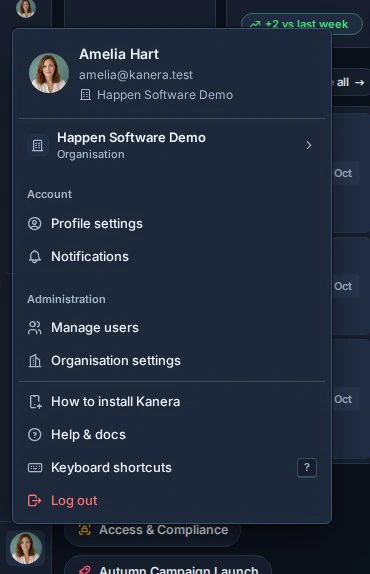
After signing in, open the account menu from your avatar at the bottom-left of Kanera. On a phone, the avatar is at the bottom of the narrow sidebar.
If Install Kanera appears, select it and confirm the browser's install dialog. This option appears when your browser offers an installation prompt.
If How to install Kanera appears instead, select it to return to this guide, then follow the steps for your device below. The browser's own Share, Add to Home Screen, or install menu completes the installation.
The browser confirmation screens vary by device and browser. Once you open Kanera from its installed icon, the account menu no longer shows the install option.
Android: Chrome or Edge
Chrome on Android usually gives the clearest install flow. Edge has a similar install option in its menu.
- Open Chrome or Edge.
- Go to your Kanera web address.
- Sign in if prompted.
- Tap the three-dot menu in the top-right corner.
- Tap Add to Home screen or Install app.
- Confirm the name Kanera.
- Tap Add or Install.
Kanera appears on your home screen or in your app drawer. Open it from that icon instead of opening a browser tab.
Samsung Internet
Open your Kanera web address in Samsung Internet, then use its menu or the install icon in the address bar to add Kanera to the Home Screen. Kanera uses a compatible install setup for this browser. To send text or links to Kanera from Android's Share menu, install it with Chrome instead; Samsung Internet installations do not include that shortcut.
If Samsung Internet displays a Google Play Protect warning, review the app address and the warning before deciding whether to continue. Chrome is an alternative install route on the same device.
Firefox on Android
Open the browser menu and choose Install or Add app to Home Screen. The wording and menu position vary by Firefox version. Firefox on desktop does not offer the same built-in PWA installation flow.
iPhone and iPad
Safari is the simplest installation route on iPhone and iPad. On iOS 16.4 or later, other browsers can also offer Add to Home Screen from their Share menu.
- Open Safari.
- Go to your Kanera web address.
- Sign in if prompted.
- Tap the Share button in Safari. In some Safari layouts, first tap the page menu and then Share.
- Scroll down and tap Add to Home Screen.
- Keep the name Kanera, or rename it if your team uses a custom name.
- If Open as Web App appears, turn it on, then tap Add.
Kanera appears as an icon on your Home Screen. Open Kanera from that icon for the installed app experience.
If you do not see Add to Home Screen, make sure you are in a full browser, not inside another app's built-in browser. If Kanera opened from an email, chat app, or password manager, copy the address, open Safari directly, and paste the address there. In Safari, scroll to the end of the Share menu and use Edit Actions if the option is hidden.
Windows: Chrome or Edge
Use Chrome or Edge to install Kanera on Windows.
- Open Chrome or Edge.
- Go to your Kanera web address.
- Sign in if prompted.
- Click the install icon in the address bar if Chrome shows one.
- If there is no install icon, click the three-dot menu.
- In Chrome, choose Save and share and then Install page as app. In Edge, choose Apps and then Install this site as an app.
- Confirm the name Kanera.
- Click Install.
Kanera opens in its own window. You can pin it to the taskbar or Start menu from Windows like any other installed app.
Mac and Linux
On macOS Sonoma 14 or later, open Kanera in Safari and choose File > Add to Dock (or Share > Add to Dock). Chrome and Edge on macOS also offer installation from the address bar or browser menu. On Linux, use Chrome or Edge's install icon or browser menu. Firefox on desktop does not provide built-in PWA installation.
Troubleshooting
If Kanera does not install:
- Check that the address starts with
https://. Browsers usually require a secure connection before they offer app installation. - Open Kanera in the main browser app, not an in-app browser from email, chat, or social apps.
- Refresh the page after signing in, then check the browser menu again.
- On iPhone or iPad, use Safari and the Share menu.
- On Android or desktop, use Chrome or Edge and look for Install app, Add to Home screen, or Install page as app. On macOS, Safari offers Add to Dock.
If you already installed Kanera but it opens in the browser, delete the old Home Screen shortcut or pinned item and install it again from the browser menu.