Chat Destinations
Chat destinations post workspace card activity straight into the channel where your team already talks.
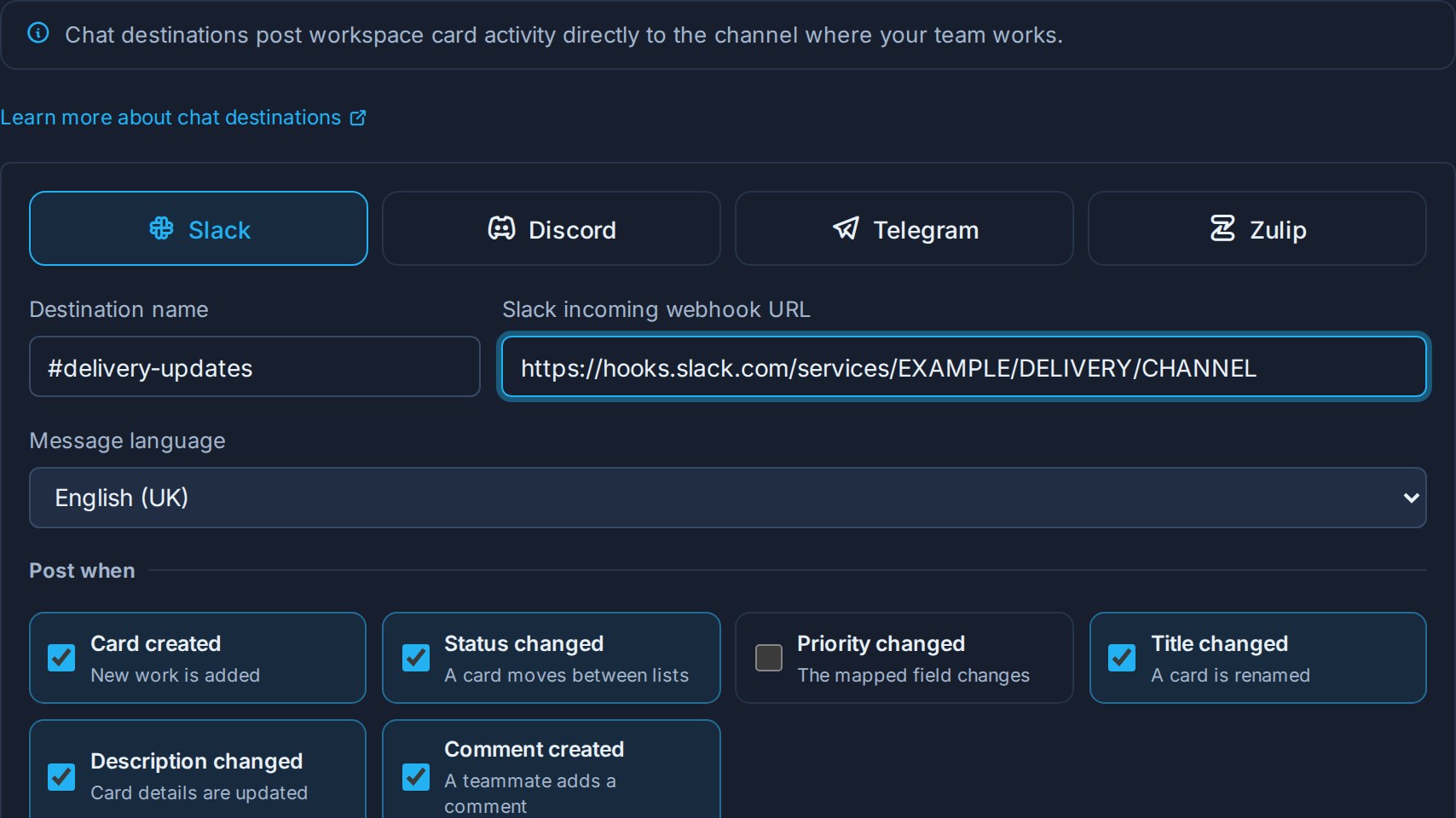
They are built in. You do not need the REST API, a middleware service, or a bot of your own: choose a provider, paste the connection your chat tool generates, pick the events worth posting, and Kanera formats and delivers each message natively for that platform.
| Provider | Connection you provide |
|---|---|
| Slack | An incoming webhook URL from a Slack app. |
| Discord | A channel webhook URL from channel settings. |
| Telegram | A bot token and chat ID, with an optional topic thread. |
| Zulip | A Slack-compatible incoming webhook URL. |
Chat destinations are a team feed, scoped to one workspace or standalone board. For your own private alerts, use Personal Delivery Channels instead.
When to use them
Use a chat destination when a group needs to see work moving without opening Kanera:
- A delivery channel. Post card created, status changed, and comment created so the team sees a board's heartbeat in the channel they already watch.
- A client or stakeholder channel. Post status changes only, into a shared channel, so stakeholders see progress without board access.
- An escalation channel. Map a Priority custom field and post only priority changes, so a card moving to Urgent lands in front of the people who react to it.
- A review channel. Post description changed and comment created for a board where wording and decisions matter.
- A standup channel. Post card created and status changed into a team channel with a topic thread in Telegram or Zulip, so the daily flow stays in one place.
Chat destinations post activity for the whole workspace, not per person. Anyone in the channel sees the message, regardless of assignment. Keep that in mind for boards with sensitive card titles.
Requirements
- You must be a workspace admin — the same permission that manages API keys and webhooks.
- Chat destinations need Pro or the 30-day Pro trial. They are not available on hosted Free.
- Kanera must be able to reach the provider over public HTTPS.
Open Workspace settings -> Integrations. Standalone boards have the same Integrations tab in their own board settings.
On hosted Free the tab shows Chat destinations aren't available on your plan instead of the setup form.
A destination created during a trial or on Pro is never deleted when the organisation moves to Free, but it stops posting. Kanera pauses it, nothing new reaches the channel, anything still waiting to send is dropped rather than arriving late, and Send test and re-enabling are unavailable. Upgrading back to Pro switches the paused destinations on again, with their events, priority mapping, and stored connection intact. See Webhooks for the full downgrade behaviour, which chat destinations share.
Choose what gets posted
Each destination subscribes to its own set of events under Post when:
| Event | Posts when |
|---|---|
| Card created | New work is added to the board. |
| Status changed | A card moves between lists. The message names the list it left and the list it entered. |
| Priority changed | The mapped custom field changes value. |
| Title changed | A card is renamed. The message uses the new title. |
| Description changed | Card details are updated. The message includes a plain-text excerpt. |
| Comment created | Someone comments on a card. The message includes a comment excerpt. |
New destinations start with everything except Priority changed selected. Trim it down: a channel that posts every description edit on a busy board gets muted quickly, and a muted channel is worse than no channel.
Priority changed needs a field mapping
Kanera has no fixed priority concept — priority is a custom field your workspace defines. So when you select Priority changed, you also choose which field to watch under Priority custom field.
- The field must be an active select or text custom field in that workspace.
- The destination posts only changes to that one field. Other custom field edits are ignored.
- If the mapped field is later archived or deleted, the destination shows a warning and priority posts pause until you map an active field again. Its other events keep working.
Set up Slack
- Go to Slack apps and create an app in your workspace, or open an existing one.
- Enable Incoming Webhooks.
- Click Add New Webhook to Workspace and choose the channel to post into.
- Copy the generated webhook URL. It starts with
https://hooks.slack.com/services/. - In Kanera, open Workspace settings -> Integrations, choose Slack, and name the destination after the channel, such as
#product-updates. - Paste the webhook URL, choose your events, and click Add destination.
- Click the send icon on the new destination to post a test message, and confirm it lands in the right channel.
Kanera only accepts Slack incoming webhook URLs on hooks.slack.com or hooks.slack-gov.com. Each message arrives with the card title as a link and the workspace and board named underneath, and Slack does not expand a preview of the link.
Set up Discord
- In Discord, open Channel settings -> Integrations -> Webhooks.
- Create a webhook, choose the channel, and optionally set its name and avatar.
- Click Copy Webhook URL. It starts with
https://discord.com/api/webhooks/. - In Kanera, choose Discord, name the destination, paste the URL, choose your events, and click Add destination.
- Send a test message and confirm it arrives.
Messages arrive as a Discord embed: the card title as a link, an excerpt beneath it, and the workspace and board along the bottom. Text from a card is never treated as a real mention, so card content can never ping @everyone or a role.
Set up Telegram
Telegram uses a bot rather than a webhook URL.
- Message @BotFather in Telegram, send
/newbot, and follow the prompts. - Copy the bot token BotFather returns.
- Add the bot to the group or channel that should receive updates, and give it permission to post.
- Find the chat ID. The simplest way is to send one message in the chat, then open
https://api.telegram.org/bot<token>/getUpdatesand readresult[].message.chat.id. Group and channel IDs are negative, such as-1001234567890. - In Kanera, choose Telegram, name the destination, and paste the Bot token and Chat ID.
- If the group uses topics and you want one specific topic, enter its numeric id in Topic thread. Leave it blank to post in the main thread.
- Choose your events, click Add destination, then send a test message.
Messages arrive formatted, with the card title as a link and no expanded link preview. In Kanera, the destination list shows the chat id partly hidden, plus the topic id when one is set, so you can tell two Telegram destinations apart without the credential being on screen.
Set up Zulip
- In Zulip, open Personal settings -> Bots, or your organisation's integrations page, and add the Slack-compatible webhook integration.
- Choose the stream and topic that should receive updates.
- Copy the generated integration URL. It is on your Zulip host and includes the bot's API key.
- In Kanera, choose Zulip, name the destination, and paste that URL.
- Choose your events, click Add destination, then send a test message.
Zulip Cloud and self-hosted Zulip both work, since the URL points at your own Zulip. Kanera sends messages in the format that integration expects.
What a message contains
Every message is built from the same pieces, then formatted for the provider:
- Who and what — the person's name and the action, such as moved a card from In progress to Review.
- The card — the title, linked to the card in Kanera.
- Context — the workspace and board names.
- An excerpt — for descriptions and comments, up to 500 characters of plain text.
Card descriptions and comments are written in Markdown, so Kanera converts them to readable text first: headings, images, code blocks, and links arrive as words rather than raw formatting. Link previews are turned off to keep the channel tidy, and mentions in card content are never treated as real mentions, so nobody can ping a whole channel by typing into a card.
The message links to the card but does not grant access to it. Someone who follows the link still needs permission to open the board.
Manage a destination
Each destination in the list shows its provider, connection summary, subscribed events, and last successful delivery, with these actions:
| Action | Use |
|---|---|
| Send test | Post a test message to confirm the connection works. The destination must be enabled. |
| Edit | Rename it, change which events it posts, or change the mapped priority field. |
| Replace connection | Paste a new webhook URL, or new Telegram credentials, without recreating the destination. Use this after rotating a webhook in Slack or Discord. |
| Pause / Enable | Stop or resume posting without deleting the setup. |
| Delete | Remove the destination permanently. |
Credentials are stored encrypted and never displayed again. To change them, use Replace connection.
Delivery and reliability
Messages are sent in the background, so posting to chat never slows the board down for the team using it.
If Slack, Discord, Telegram, or Zulip is having a bad afternoon, messages are not lost. Kanera keeps trying, waiting longer between attempts, for up to eight tries before it records the message as failed. Every destination keeps a delivery history you can open to see what went out and what failed, and you can retry a failed message yourself once the provider is healthy. That history covers roughly the last week of successful posts and the last two weeks of failures.
Pausing a destination stops posting from that moment. Activity during the pause is not saved up and delivered when you resume, so a paused channel picks up with what happens next rather than replaying what it missed.
Chat destinations, webhooks, and personal channels
Kanera has three ways to send activity somewhere outside the app. Use the one that matches the audience:
| Path | Audience | Payload | Where to set up | Plan |
|---|---|---|---|---|
| Chat destinations | A team channel | Formatted chat messages for Slack, Discord, Telegram, or Zulip | Workspace settings -> Integrations | Pro or trial |
| Webhooks | Another system | Signed JSON with the full event payload, across the whole event catalog | Workspace settings -> API | Pro or trial |
| Personal delivery channels | One person | ntfy, Gotify, or signed JSON to your own endpoint | Profile settings -> Notifications | Pro or trial |
Chat destinations are deliberately narrower than webhooks. They cover the six card events a chat channel benefits from, formatted for humans. When you need the full event catalog, exact payloads, or signature verification, use a webhook.
Troubleshooting
| Problem | Check |
|---|---|
| The Integrations tab is missing. | You need workspace admin permission. |
| Chat destinations aren't available on your plan. | They need Pro or a Pro trial, like webhooks. Existing destinations stay configured but stop posting on hosted Free. |
| Posting stopped and Send test is greyed out. | Check the organisation's plan. Hosted Free disables testing, re-enabling, and delivery for chat destinations. |
| Slack rejects the URL. | It must be a hooks.slack.com or hooks.slack-gov.com incoming webhook path under /services/. Bot tokens and other Slack API URLs are not accepted. |
| Discord rejects the URL. | It must be a discord.com/api/webhooks/ URL copied from channel settings. |
| Telegram test fails. | Confirm the bot is a member of the chat and can post, the chat ID is correct including its leading -, and the bot token has not been revoked. |
| Zulip test fails. | Re-copy the Slack-compatible webhook URL from Zulip; the API key is embedded in it and changes when the bot's key is regenerated. |
| Nothing posts after setup. | Confirm the destination is enabled and the event you expect is selected. Test posts confirm the connection, not the event selection. |
| Priority changes never post. | Confirm a priority field is mapped and still active, and that the field being edited is that exact field. |
| Deliveries fail after a webhook was rotated in the chat tool. | Use Replace connection with the new URL. |
| Messages stopped without any change. | Check the destination's delivery history for the recorded error, then retry the failed delivery. |