Workspace Users
Workspace users are people from your organisation who have been added to a workspace. Workspace membership makes them available for that workspace, but ordinary Members must also be added to each board they need.
Add a workspace user
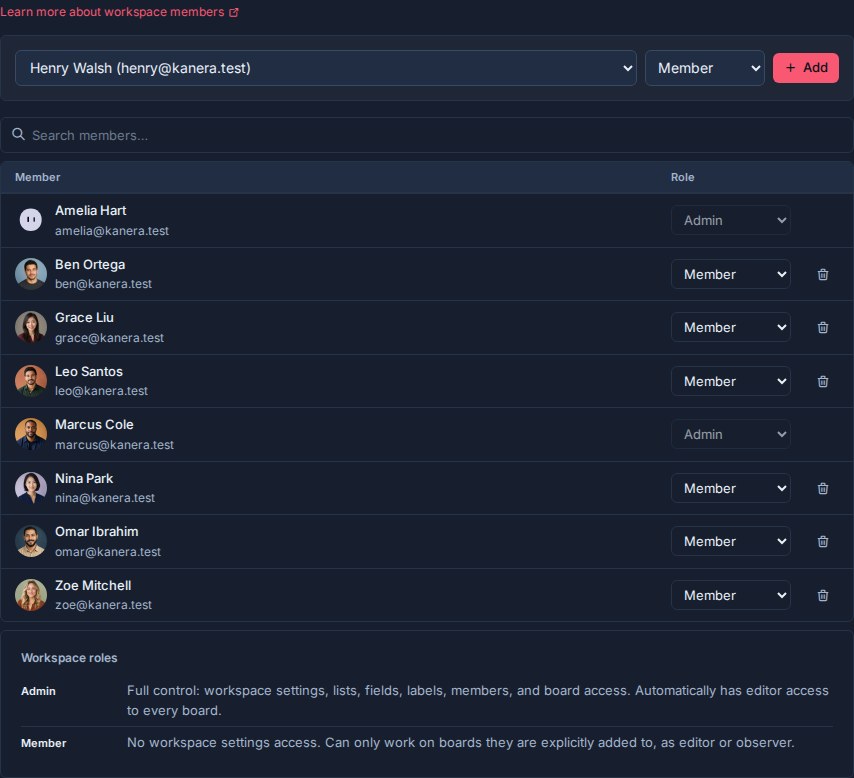
- Open Workspace settings -> Members.
- Select an existing organisation user.
- Choose Member or Admin.
- Click Add.
Only users who already belong to the active organisation can be added. Create an invitation from Profile settings -> Users first. The recipient can accept it with an existing account, including an account that already belongs to another organisation.
Workspace Admin and Member
- Admin has full workspace-settings access and automatically receives Editor access to every board.
- Member has no workspace-settings access and does not automatically receive board access. A workspace admin chooses which boards they can enter and whether they are an Editor or Observer on each one.
Use Admin for people who configure the workspace or manage access. Use Member for people who work on selected boards.
Give a Member board access
- Open Workspace settings -> Boards.
- Find the board and select Manage access (the people icon).
- Select a workspace member.
- Choose Editor or Observer.
- Optionally enable Assigned items only.
- Add the member.
From the same menu, admins can change a person's board role, toggle their restriction, or remove them from that board. Removing board access does not remove the person from the workspace or other boards.
Change or remove workspace access
Use the role selector in Workspace settings -> Members to promote a Member to Admin or demote an Admin to Member.
Promoting someone to Admin grants inherited Editor access to every board. Demoting an Admin removes that inherited access; any explicit board grants they already had are retained. Removing someone from the workspace removes their workspace access and their internal board grants, but does not delete content they created. A ten-second toast provides Undo before Kanera commits the removal.
Organisation owners and admins inherit workspace administration. Their inherited role cannot be changed from the workspace Members page.
Workspace users vs guests
Use workspace users for people who should be members of your organisation. Use guests for external people who should access selected boards only. Belonging to another organisation does not prevent a person from becoming a member of yours; the correct choice depends on the access scope they need.
Both internal Members and guests use the same board roles: Editor or Observer. Both can be restricted to assigned items only. The difference is organisational membership and seat treatment, not the board permission itself. On hosted Pro, a guest's first board is free; a second or later board uses one purchased seat while the person remains a guest.