Guests
Guests are external board guests.
A guest is someone outside your organisation who has access to selected boards only. They are not added to your organisation or a workspace roster. Guests can be invited to standalone boards and boards inside a workspace.
This is the most common confusion: a guest is not a lighter kind of workspace user. A guest is an external person with board-level access.
On hosted Pro, a guest's first board across your organisation is free. Giving the same guest access to a second board uses one purchased seat; third and later boards reuse that seat. Using a seat does not turn the guest into an organisation or workspace member.
When to use guests
Use guests for external people who should have access only to selected boards, even when they need several boards.
Good guest examples:
- A client who only needs their delivery board.
- A contractor who only needs one project board.
- A vendor who needs to review a small amount of work.
- A partner who needs read-only access to a shared board.
Use organisation and workspace membership when the person is part of your team, needs broad workspace access, or needs to appear consistently in workspace member lists.
Invite a guest
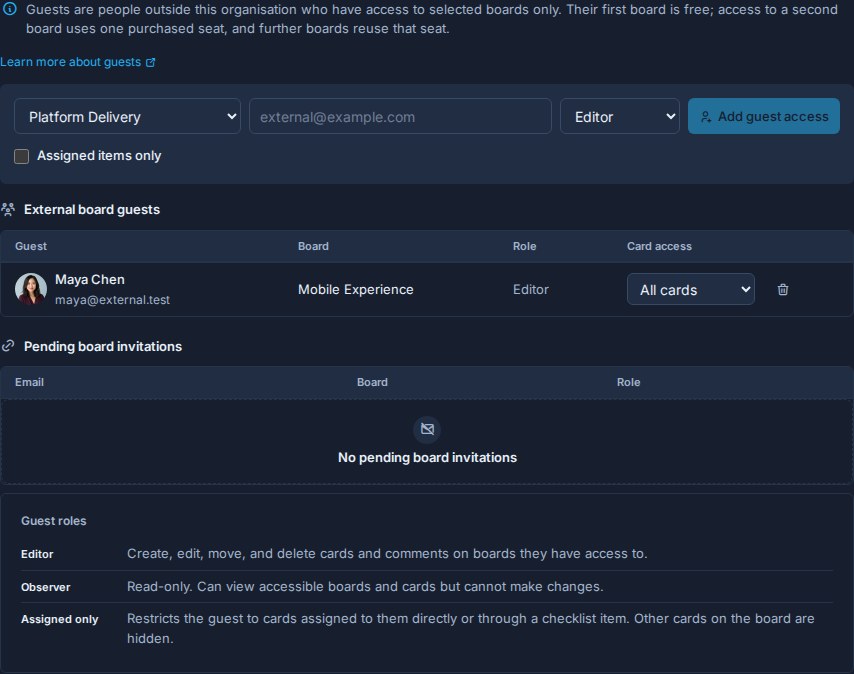
- Open the workspace or standalone board.
- Go to Workspace settings -> Guests or Board settings -> Guests.
- Choose the board.
- Enter the guest's email address.
- Choose Editor or Observer.
- Optionally enable Assigned items only.
- Click Add guest access.
- Share the generated invite link with the guest when Kanera creates one.
The invite is locked to the email address you enter. Existing users in your organisation use the normal member flow; users belonging to another organisation can receive board-scoped guest access.
Guest roles
Guest roles are board roles:
- Editor guests can work on that board.
- Observer guests can view that board without editing.
Guests cannot be invited as admins from the Guests page.
Either role can also use Assigned items only. A restricted guest sees only cards where they are a card assignee or own at least one checklist item. A restricted Editor can edit those cards; a restricted Observer can only read them.
Workspace and organisation admins can change accepted guest access from the board's Manage access menu. There they can switch Editor/Observer, toggle Assigned items only, or remove access. Pending invitation permissions are shown on the Guests page; revoke and recreate an invitation if its access needs to change before acceptance.
Existing users and pending invites
If the email belongs to an existing Kanera user outside your organisation, Kanera can add them to the selected board immediately as an external board guest.
If the email does not belong to an existing Kanera user yet, Kanera creates a pending board invitation and gives you a link to share.
When a pending invitation already includes one board, adding a second board previews that acceptance will require a purchased seat. Pending invitations do not reserve capacity. Signup or invitation acceptance performs the authoritative capacity check and either grants the complete bundle or grants none of it.
The Guests page shows:
- External board guests: accepted external users who currently have board access.
- Pending board invitations: invite links that have not been accepted yet.
You can remove accepted guests or revoke pending invitations from this page. Removing accepted guest access provides a ten-second Undo toast before Kanera commits the change. Revoking a pending invitation is a separate action.
Guest boards and paid seats
Hosted Kanera counts a guest's active board access across the whole host organisation, not separately per workspace:
| Guest access | Seat treatment |
|---|---|
| First board | Free; no guest seat is used. |
| Second board | Uses one purchased seat. |
| Third and later boards | Reuse the same seat. |
| Access returns to one board | Releases the used guest seat. |
For example, suppose an agency invites a client contact to the Launch board. That access is free. If the agency later adds the same person to Support, one purchased seat is required. Adding Roadmap after that does not use another seat, and the person still sees only those three boards—not the agency's organisation, workspace roster, or other boards.
Before allocating a seat, Kanera explains the change and asks an administrator to confirm. The seat comes from capacity your organisation has already purchased, so granting access does not automatically change the Stripe subscription quantity. If every purchased seat is occupied, Kanera blocks the second-board grant and directs the administrator to Account Plan to buy more capacity.
Releasing a guest seat makes that capacity available to another member or multi-board guest. It does not reduce the organisation's purchased seat quantity or current bill.
Hosted trials are not blocked by purchased capacity. Hosted Free organisations cannot use guests.
Guests vs workspace users
| Person type | Belongs to your org? | Access scope | Where to manage |
|---|---|---|---|
| Workspace user | Yes | Workspace membership; ordinary Members must be explicitly added to each board. | Workspace settings -> Members, then Boards -> Manage access. |
| Guest | No | Specific board access only. The first board is free on hosted Pro; a second or later board uses one purchased seat in total. | Workspace settings -> Guests. |
When in doubt, ask whether the person belongs in your organisation or should remain limited to selected boards. Use organisation and workspace membership for your internal team. Use guest access for an account belonging to another organisation. A guest who needs a second or later board remains a guest but uses one purchased seat.