Account Access and Sign-In
Use the sign-in and recovery screens to access an existing Kanera account or restore access when you forget the password.
Sign in
- Open your Kanera address.
- Enter the email address associated with your account.
- Enter your password.
- Select Sign in.
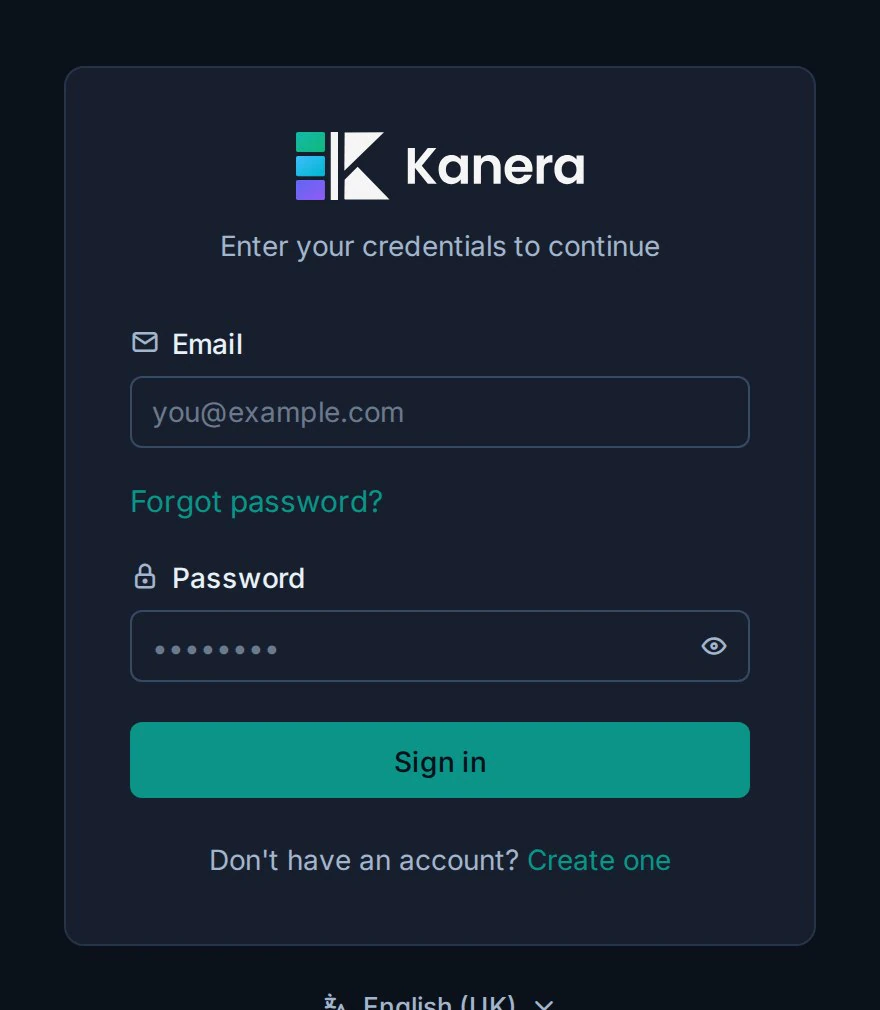
If your team runs Kanera at its own address, sign in there. An account on one Kanera does not automatically exist on another.
To read the sign-in page in another language, use the language menu below the form. See Choose your language.
Reset a forgotten password
- Open the sign-in page.
- Select Forgot password.
- Enter your account email address.
- Follow the reset link sent by email.
- Choose a new password and return to sign in.
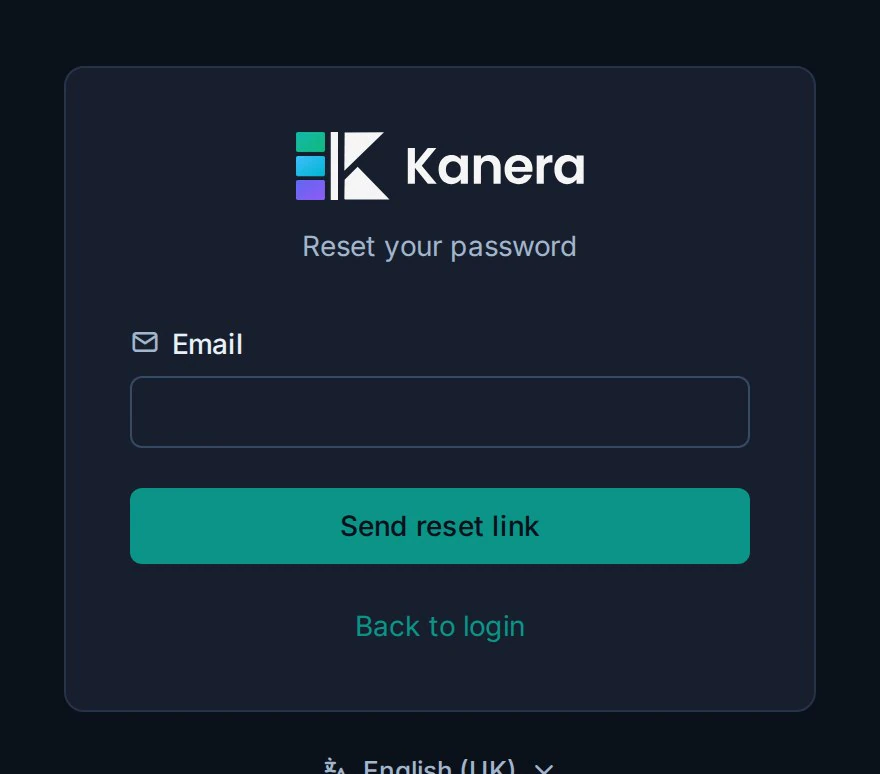
Password recovery depends on Kanera being able to send email. If no reset email arrives, ask your administrator to confirm email is working.
Accept a board invitation
Open the invitation link from the email or message you received. Sign in with the invited email address when Kanera asks you to authenticate.
If the invitation was intended for another address, ask a board or organisation administrator to send a new invitation to the correct account.
Accept an organisation invitation
An organisation invitation adds a membership to your existing user identity. Open the invitation link, sign in with the invited account, review the organisation and role, then accept it. Your other organisation memberships remain available.
If you are already signed in, you can also open the user menu, choose Join organisation, and paste the full invitation link or raw token. After acceptance, Kanera switches to the organisation you joined. See Organisations.
Troubleshooting
| Problem | What to check |
|---|---|
| The password is rejected | Confirm the email address and the Kanera address you are signing in to, then use Forgot password. |
| No reset email arrives | Check spam, confirm the address, and ask your administrator to verify that Kanera can send email. |
| An invitation cannot be accepted | Confirm that it has not expired or already been used and that you are signing in with the invited address. |
| The organisation is missing after sign-in | Open the user menu and check the organisation list. If it is absent, confirm that the invitation was accepted with this account. |
| Sign-in returns to the login page | Clear stale site data for the Kanera domain, reload, and try again. If it continues, contact the administrator. |