Examples of how to use Kanera with AI
Once an AI agent is connected to Kanera through MCP, it can see your real work across boards and act on it. That is the difference between an assistant that guesses from pasted text and one that reasons over live workspace data — cards, assignees, due dates, labels, custom fields, notes, comments, and activity.
The examples below are real workflows. Each shows what to ask, why the agent can do it, and what you get back. Most only read Kanera. The ones that change it are marked (changes Kanera) and need write access: an OAuth connection where you are an Editor on the board, or a Write-scoped API key.
Track blockers and handoffs
Try these prompts with a connected agent:
- “Make final product messaging block the landing-page copy. Relate the copy to the optional legal review without making it a prerequisite.”
- “Show blocked cards across the Marketing workspace and explain the blockers and owners I can see.”
- “Watch the launch board. When a card becomes unblocked, read its current details and tell me who can pick it up next.”
To explain whole chains, the agent uses cards.dependency_graph with one card, board, or workspace scope. It can also use cards.set_relations, work.query_cards with blockedOnly, and card.blocked / card.unblocked event subscriptions. A run marked blocked is separate from these card relationships. See Card Relationships and Blocking.
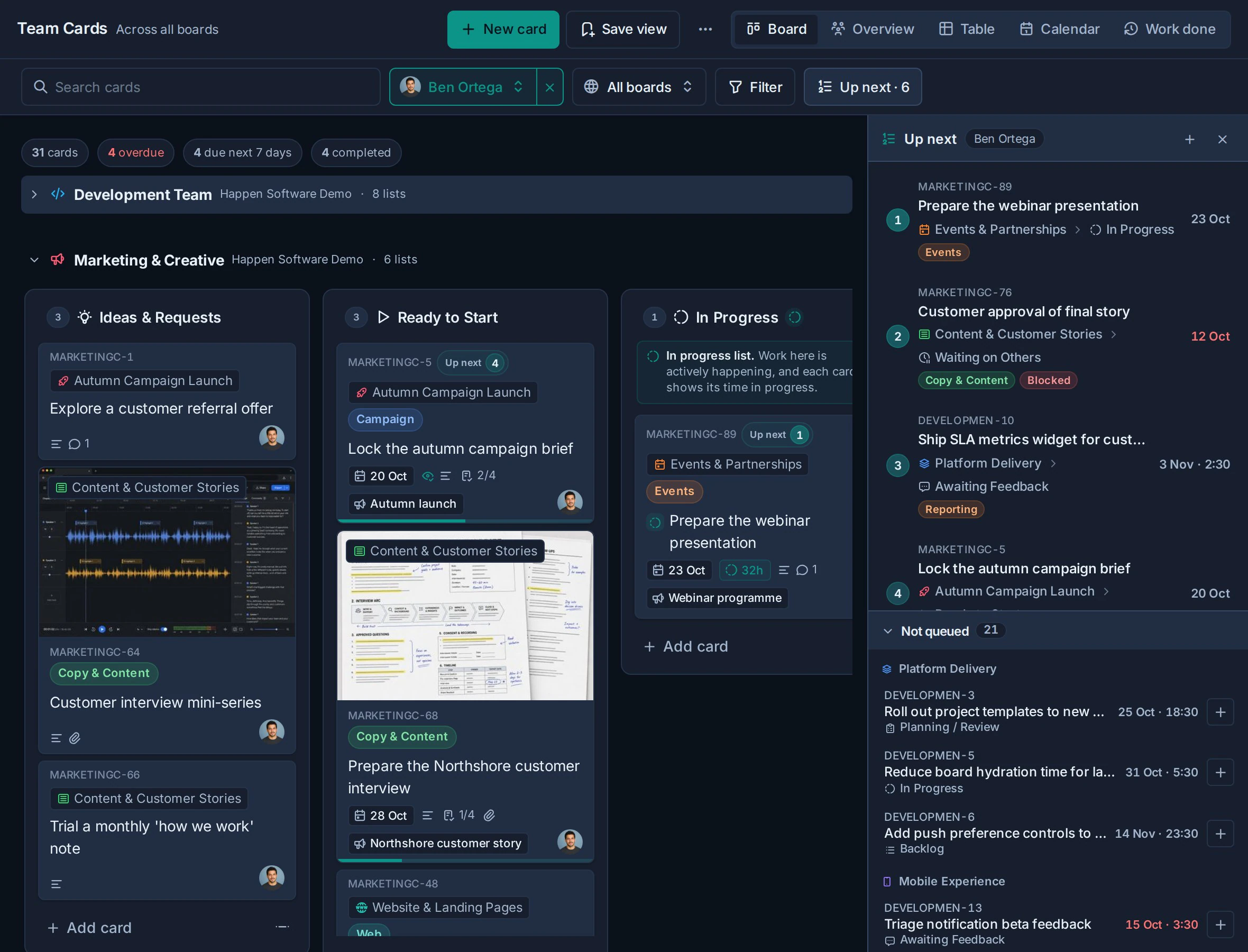
Put today's work in order
"Show my Up next queue, then move the payments release card to the top and place the documentation review immediately after it." (changes Kanera)
The agent reads the current ranked entries first, resolves the requested cards, and uses entry anchors to make the exact move. It changes the work order without changing due dates, workflow lists, or a Priority custom field. Ask it to show the proposed order before applying a broader reshuffle.
Plan the work, then track it as the code lands
This is the workflow that shows what MCP really unlocks: a coding agent that plans in Kanera, then updates the same card as it does the actual work. Because the agent's editor and Kanera are both reachable through MCP, the tracking card stays accurate on its own — no one switches tabs to tick boxes.
Step 1 — plan into the card. Point the agent at the work and ask it to record the plan where the team can see it:
"Read this repo and the 'Upgrade dependencies' card. Write an implementation plan into the card description, and add a checklist with one item per project that needs updating." (changes Kanera)
The agent inspects the codebase, drafts a plan, updates the card description with it, and builds a checklist item per project. Now the card is the source of truth for the effort, not a throwaway chat.
Step 2 — do the work, and let the agent close out its own checklist. In the same session (or a later one), have the agent implement the change across the projects:
"Work through the checklist on that card. Update the dependencies in each project, and as each one builds and passes, mark its checklist item complete." (changes Kanera)
As the agent finishes each project, it checks off the matching item on the tracking card. Anyone watching the board sees real progress in real time — the checklist fills in as the code actually ships, not when someone remembers to update it. Every check-off is recorded as the agent acting for you, with a via <agent> badge, so the card doubles as an audit trail of what the agent did and when.
This "plan into the card, then report progress back to the card" loop works for any multi-step effort — dependency upgrades, migrations, refactors, or a feature broken into tasks.
Let the board show that the agent is working
A long job is invisible until it finishes, which is how two people end up doing the same work. An agent can announce itself on the card instead:
"Before you start on
PLAT-42, open an agent run on it and keep it updated as you go. Mark it blocked if you need a decision from me." (changes Kanera)
The agent calls runs.start with a short title, and the card's tile immediately shows a live chip
naming the agent and the job. From then on runs.update is both the progress report and the
heartbeat:
runs.start—{ cardId: "PLAT-42", title: "Implementing OAuth refresh", }. The chip appears on the tile and the live run shows under the card's description.- Work, and keep reporting.
runs.updatewith{ runId, summary: "Refresh rotation done; wiring the retry path." }. Every call is a heartbeat, so send one at least every ten minutes on a long job — even an empty one. runs.updatewithstatus: "blocked"when it needs you. The chip turns amber and the summary says what it is waiting for, so the question is on the card rather than buried in a chat log.runs.updatewithstatus: "succeeded"(orfailed, orcancelled) to close it. The chip clears, the run stays in the card's history, and the outcome is recorded in the activity feed.
Ask for runs.list first when several agents share a board: it shows what is already in flight so
two of them do not start the same card. If an agent crashes mid-run, Kanera marks the run stalled
after fifteen minutes rather than leaving the card looking busy forever.
React when something changes, without being asked
The prompts above run when you type them. A client that supports MCP event subscriptions, such as ChatGPT, can also keep watching and act the moment a card is created, changed, moved, or commented on, or your Up next queue changes. Kanera delivers the change to the client; the client runs the task you described. Nothing is configured in Kanera, and ending the task ends the subscription.
Answer questions on a card while you are away.
"Watch the Launch board. When a new comment asks a question, read the card and its thread, and reply with the answer if it is in the card or linked notes. If it is not, reply that I will follow up, and tell me." (changes Kanera)
Each new comment arrives as an event with the comment text and the card. The agent reads the full thread with comments.list before answering, so it never replies from a one-line summary. Because every event says who made the change and whether the agent itself did, a task like this checks actor.self and skips its own replies rather than answering itself.
Keep a stakeholder channel current.
"Tell me whenever a card moves into the Done list on the Mobile board, with a one-line summary of what shipped."
The move event carries the destination list, so the agent can filter for Done and read only the cards that reach it. Pair this with a chat destination or let the client post the summary where your stakeholders read.
Triage new work as it lands.
"Watch the Intake list on the Support board. For each new card, suggest a priority label and an owner based on the description and similar past cards, and leave the suggestion as a comment. Do not change the card." (changes Kanera: the comment only)
A card.created event fires as soon as the card exists. The agent reads it with cards.get, searches for similar cards, and comments its suggestion for a person to accept. The decision stays human; the research is done before anyone opens the card.
Guard a critical card.
"Watch
PLAT-42. If anything about it changes, including comments, send me a short note saying what changed and who changed it."
Subscribe to one card when a release, contract, or incident card must not change quietly. The event names the actor, so the note says whether it was a teammate, an automation, or another agent.
Know when your priorities shift.
"Whenever my Up next queue changes because someone else reordered it, tell me what moved and what is now at the top."
A priorities.changed event fires when your queue gains, loses, or reorders an entry, including when a queued card is completed or reassigned. It carries no cards, so the agent reads the queue with priorities.list, compares it with the order it saw last time, and skips changes where actor.self is true or actor.userId is you. Only your own queue can be watched.
Get a morning briefing.
"Every weekday morning, tell me what is overdue, what is due this week, and what is at the top of my Up next queue."
A my_day.ready event arrives at 08:00 on weekdays in your time zone, while your daily digest email is on. The agent answers it with one work.my_day call, which returns overdue, due-this-week, overdue-checklist, and idle assigned cards plus the head of your Up next queue.
Two habits make these tasks reliable: ask the agent to read the card before it writes, since events are summaries, and to use idempotency keys for repeatable writes, since the same change can arrive more than once. Delivery is best-effort over a few minutes; if the client is unreachable for longer, the task should recover by reading current state instead of expecting a replay.
Morning triage in one prompt
"Show me everything assigned to me across the workspace, grouped by urgency. Flag anything overdue, anything with no due date, and anything that hasn't moved in a week."
For a quick start, work.my_day returns overdue, due-this-week, overdue-checklist, and idle work plus your Up next queue in one call. For custom groupings, the bounded work query pulls your whole workspace queue at once. It can filter by due date, overdue state, inactivity, and last movement, then surface the two or three things that need you today. In the app, Home and My Cards provide the human-facing versions of this workflow.
Instant standup update
"Prepare my standup: what I closed yesterday, what I'm working on today, and anything blocked."
The agent reads recent activity and your assigned cards, then drafts a tight update. Paste it into Slack or read it off. The built-in prepare_standup_update prompt does exactly this if your client surfaces prompts.
Board review for a manager
"Summarize the Roadmap board. Call out blockers, stale cards, cards with no owner, and what's likely to slip this sprint."
An agent with board read access can combine board metadata, bounded card pages, stale-work filters, and selected card histories to review a board the way a lead would — not just listing cards, but reasoning about risk. Great before a planning meeting.
Turn a meeting into cards
"Here are my notes from the customer call. Draft cards for each action item with a title, a Markdown description, and a suggested list. Show me the drafts first — don't create anything yet."
The agent proposes structured cards. You review, edit, then say:
"Create those in the Intake list and label them
customer-request." (changes Kanera)
This "draft, review, apply" pattern is the safest way to let an agent create work: you always see the plan before anything lands in Kanera.
Once you approve, the agent creates the whole plan in one call, with each card's labels, assignees, and due date already set, and it checks every card first so a wrong label name or teammate stops the batch before anything lands. Cards your agent creates are watched by you automatically, so replies on them reach your notifications, marked via <agent>.
Pick up replies while the agent works
"Post the migration plan on DEV-938, ask @Priya to sign off, and keep checking for her reply while you start on the tests." (changes Kanera)
The agent mentions Priya in its comment, which notifies her by inbox, email, and push. An agent running on your machine has no address Kanera can call back, so it checks your notifications every few minutes with notifications.list, seeing only what is new since it last looked and none of its own writes. When Priya replies, it reads the comment and carries on.
Capture a reminder without picking a board
"Remind me to renew the venue insurance next week." (changes Kanera)
When you name no board, the agent adds the item as an open task on the Inbox page of your private Scratchpad instead of asking where it should go. Later, ask "what's in my inbox?" to read it back, or "tick off the insurance one" to check it. Name a board when the item belongs to the team, and the agent creates a card there instead.
Dates work the way you say them. "Make MKT-42 due tomorrow at 1pm" sets tomorrow in your own time zone with the Afternoon due slot, and the agent tells you the date it used.
Come back to a card at the right time
"Remind me about MKT-42 on Friday at 3pm." (changes Kanera)
When you name a card that already exists, the agent sets a private reminder on it instead of creating a task. It tells you the exact time it resolved, in your own time zone, and Kanera notifies you once when it comes due, through the channels you chose for Your card reminders. Reminders reach up to eight weeks ahead. Ask "what reminders do I have?" to list them, or "clear my reminder on MKT-42" to remove one. "Watch MKT-42" follows the card's activity instead.
Attach evidence from a coding session
"Attach the screenshot of the failing login page and the test log to DEV-938, then summarise what the log says failed." (changes Kanera)
An agent working on your machine gets a one-time upload link for each file and uploads it with curl, so screenshots and long logs never pass through the chat. It can then read the log back from the card with cards.get_attachment, and look at screenshots others attached, to answer questions about them.
Cross-board search that understands context
"Find every card, note, or comment mentioning the payments migration, and tell me which are still open."
MCP search covers cards, notes, comments, and attachment filenames across the workspace. The agent doesn't just return matches — it groups them, tells you what's done versus open, and points you at the threads that matter.
Cleanup and hygiene
"List assigned cards in this workspace with no due date and no labels, and suggest a priority label and a realistic due date for each based on the description." (suggestions are read-only; applying them changes Kanera)
The agent proposes metadata so your board stays reportable. Approve the batch and it can set labels, due dates, and custom field values in one pass.
Keep a card current from an outside discussion
"Add a comment to the 'SSO rollout' card summarizing this email thread, and move it to In Progress." (changes Kanera)
The agent writes a concise summary comment and updates the card's list, so the board reflects reality without anyone re-typing status by hand. Each change carries a via <agent> badge in the card's activity, so it stays auditable.
If you know the card key, use it directly: "Add this summary to PLAT-42 and mark it complete." Current keys, exact historical keys, and canonical Kanera card links can all be used as MCP card references. A canonical link disambiguates the rare case where the same key is visible in more than one organisation.
Divide a busy list into sections
"In the Roadmap board's Backlog list, add blue separators titled 'Next release' and 'Later'. Put 'Next release' before PLAT-42, place 'Later' after the existing Research separator, then move PLAT-57 immediately below 'Next release'." (changes Kanera)
The agent reads the board's current cards and separators, resolves the requested anchors, and creates or moves each first-class separator at an exact position. Cards and separators share one ordering lane, so the agent can also position a card relative to a separator. The dividers remain board-specific even when the workflow list is shared with other boards.
Workload balancing across a team
"Across this workspace, show open assigned work per person. Who's overloaded, who has room, and which cards could reasonably move?"
The bounded team-work query returns visible assigned, unassigned, overdue, and stale work across the selected scope. The agent can reason about the whole team's load and propose rebalancing — then, with your approval, reassign specific cards. (reassigning changes Kanera)
Portfolio status without enumerating every board
"Give me a portfolio summary for this organisation. Show active, overdue, due-soon, unassigned, and recently completed work by workspace and board, then call out the areas that need attention."
The portfolio query returns bounded organisation, workspace, and board rollups directly. The agent can use those aggregates for the first pass, then inspect only the boards or cards that need supporting detail.
Draft from a note you already wrote
"Turn my 'Q3 onboarding revamp' note into a card with a clear title and a Markdown description that lays the steps out as a checklist."
The draft_card_from_notes prompt turns loose thinking in a Kanera note into structured, actionable work.
Tips for getting the most out of it
- Keep unattended credentials narrow. Use a Read API key or service connection for triage, summaries, and search when automation should never make changes. Personal OAuth is read/write-capable, so configure tool permissions and confirmations in the MCP client instead.
- Ask for a plan first. For anything that changes Kanera, request drafts or a proposed plan, review it, then say "apply it."
- Be specific about scope. Name the board, list, workspace, or person so the agent targets the right data.
- Let it work across boards. The biggest wins come from questions a single-board view can't answer — workload, cross-project search, and portfolio-level status.
For setup, API keys, scopes, and the full list of resources and actions the agent can use, see Connect Kanera to your AI agent, the technical reference, and the tool inventory.