Connect an AI agent
Connect an AI agent to Kanera with interactive OAuth, an unattended service connection, or an API key. The right method depends on whether the agent acts as a person, runs without supervision, or only supports static credentials.
For ChatGPT or a supported Codex surface, install the Kanera plugin and connect your account through its OAuth prompt. Follow Set up ChatGPT or Set up Codex; the plugin includes the Kanera skill and MCP connection.
For other personal assistants, use OAuth when your client supports remote MCP with browser authentication. You add Kanera's MCP address, approve the connection, and the agent acts as you while respecting your role on every board. Use an unattended connection for CI or server-side automation, or an API key when the client does not support OAuth.
Quick setup for coding agents
Paste this into Claude Code, Codex, Cursor, GitHub Copilot, Gemini CLI, OpenCode, or another coding agent:
Fetch https://www.kanera.app/agent-setup/prompt.md and follow it.
The prompt installs Kanera's official Agent Skill, registers the hosted MCP server using the current agent's configuration, and starts OAuth where the client supports it. Review the browser consent screen before approving access.
Choose a connection method
| Connection | Who it acts as | Where you set it up | Best for |
|---|---|---|---|
| OAuth (interactive) | You, after a browser consent screen. No API key. | You add the MCP address to your agent; Kanera handles sign-in and consent. Manage it in Profile settings -> API keys. | A personal AI assistant in Claude, ChatGPT, Copilot, or Codex. |
| OAuth (device code) | You, after approving a short code in a browser. No API key. | The client shows a code; you approve it on the Kanera Connect a device page. Manage it in Profile settings -> API keys. | A CLI, SSH session, or headless machine that cannot open a browser redirect. |
| Unattended agent (service connection) | A workspace service identity, scoped Read, Write, or Admin. | Workspace settings -> API, "Unattended AI agents". | CI, cron jobs, or a server-side agent with no human to click Allow. |
| API key | The key's owner (personal) or the workspace (workspace key). | Profile settings -> API keys or Workspace settings -> API. | Local stdio MCP, or clients that do not support OAuth. |
Requirements
- Your AI client must support remote MCP servers with OAuth. Clients that only support a static bearer token should use an API key instead.
- Interactive agent connections work on every Kanera plan, including Free. On a Free organisation's boards each person's agents share a limit of 5 requests per second and 60 per minute; Pro boards allow 20 and 400. See Rate limits.
How do I know if my agent supports OAuth?
There is no fixed list, and client support changes over time, so the reliable check is to try it:
- Add Kanera's MCP address to your client as a remote or custom MCP server.
- If the client supports OAuth, it opens a Kanera browser tab for sign-in and consent. That is your confirmation.
- If the client instead asks you for an API key, a token, or an
Authorizationheader, or it simply fails to connect, it does not support OAuth. Use an API key instead.
Clients that describe support for "remote MCP servers", "custom connectors", or "OAuth" generally work. For a client that only runs local stdio servers, point it at kanera mcp from the Kanera CLI after kanera auth login; it relays the hosted server with your OAuth sign-in, so you still do not need a key.
Connect an agent (interactive)
-
Open Profile settings -> API keys.
-
In the AI agent connection section, copy the MCP address. For Kanera's hosted service this is:
https://mcp.kanera.app/mcp -
Add that address to your AI client as a remote MCP server. Under Or configure it by hand, pick Claude Code, Cursor, VS Code / GitHub Copilot, Codex, or Gemini CLI to copy a ready-made command or configuration with your MCP address already filled in. For other clients, follow the client's own steps for adding a custom or remote MCP connector.
-
The client opens a Kanera browser tab. Sign in if you are not already, then review the consent screen.
-
Choose Allow access. Kanera returns you to the agent, which is now connected.
You do not enter an API key at any point. The agent receives a short-lived access token and refreshes it automatically in the background.
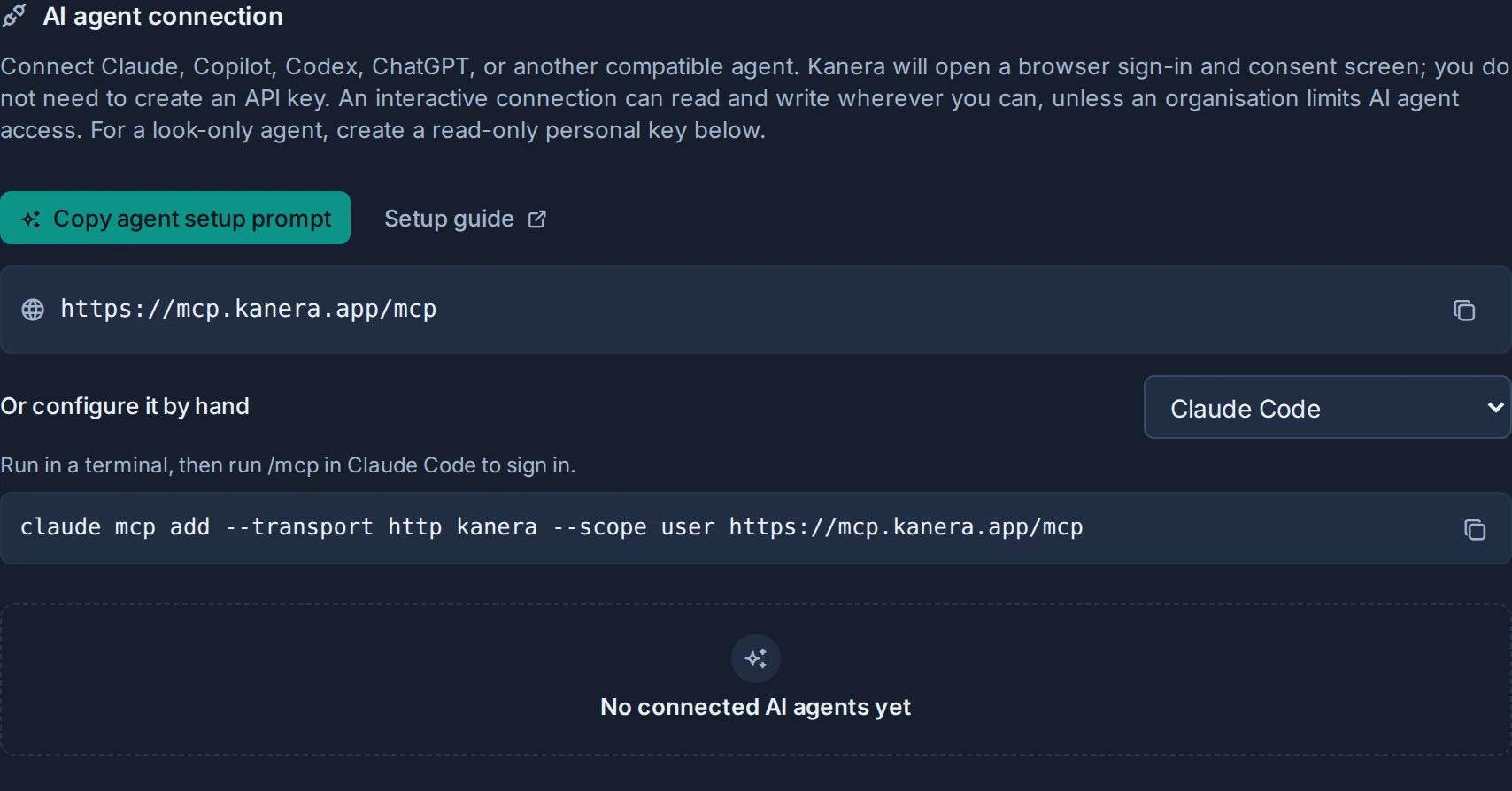
OAuth connects the tools; it does not by itself teach the client Kanera-specific workflows. If your client supports Agent Skills, also install the Kanera agent skill:
npx -y skills add https://github.com/happendev/Kanera/tree/main/integrations/skills/kanera --yes --global
The skill guides the agent to read current state, resolve stable IDs, make requested changes safely, and handle authentication or permission failures correctly. See the client-specific setup guides in this section for manual skill locations.
What you approve on the consent screen
The consent screen names the agent and explains the connection boundary. An agent connected this way will:
- Read boards, cards, notes, comments, and activity you can access.
- Create and update board content wherever you are an editor.
- Create and administer workspaces wherever you are an administrator: as an organisation admin it can create workspaces and standalone boards, and as a workspace admin it can add boards to that workspace and create, edit, enable, and delete its automations. Other administration, such as editing lists, fields, labels, and members, stays in the Kanera interface.
Kanera uses these OAuth scopes for user-authorized agents:
| Scope | Grants |
|---|---|
kanera:read | Read board content you can access. |
kanera:write | Create and update board content where you are an editor. |
offline_access | Accepted when a client requests it. Kanera issues a refresh token whenever the client registered for refresh, so the agent can stay connected without asking you to sign in again. |
Interactive and device-code connections always receive kanera:read and kanera:write, even when a client omits scopes or requests only Read. This keeps the server compatible with clients that handle action permissions differently. The AI client remains responsible for deciding which tools the user can access and when to require confirmation. Kanera independently checks the connected user's current role on every request, so an Observer cannot write to a board. On Kanera Cloud, the organisation AI agent policy can also make agents read-only or turn them off for an organisation's boards. offline_access remains optional because it controls token refresh rather than Kanera tool permissions.
Manage and disconnect agents
Open Profile settings -> API keys and find the AI agent connection section.
- Each connected agent shows its name, its granted scopes, and when it connected.
- Choose Disconnect agent to revoke a connection. Its access and refresh tokens stop working immediately, so the agent loses access right away.
Disconnecting is the fastest way to cut off an AI client you no longer use or trust.
Unattended agents (service connections)
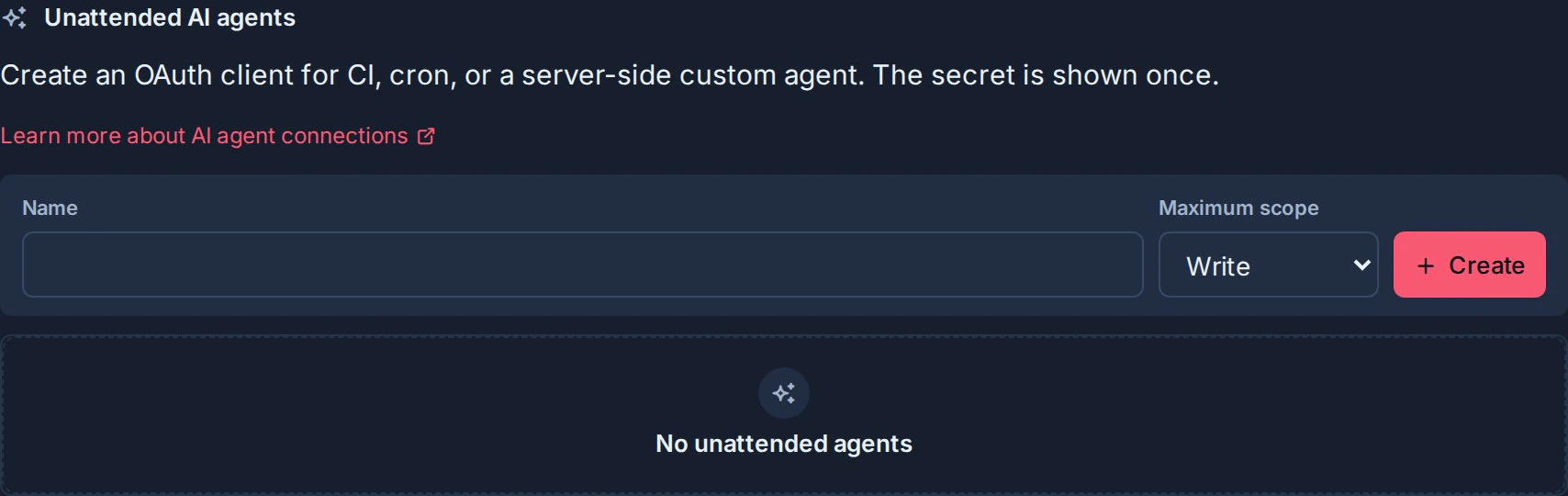
Interactive OAuth needs a person to click Allow. For CI, cron jobs, or a server-side custom agent with no human present, create an unattended agent in workspace settings. It authenticates with a client id and secret using the OAuth client_credentials grant.
If a person is present but the client cannot open a browser redirect, such as a CLI or an SSH session, use device authorization instead. You approve a short code in a browser on any device and the connection acts as you.
Create an unattended agent
- Open the workspace and go to Workspace settings -> API.
- In the Unattended AI agents section, enter a Name.
- Choose a Maximum scope: Read, Write, or Admin. The agent can request this scope or lower, never higher.
- Choose Create agent connection.
- Copy the credentials shown once:
client_id,client_secret, andtoken_url. Store them in your agent's secret manager. Kanera never shows the secret again.
Creating an unattended agent requires workspace admin access. On hosted Kanera it also requires Pro or the Pro trial, and a downgrade to Free disables it until the organisation upgrades again.
Admin adds automation management within the connection’s workspace: create, edit, enable, and delete rules. It does not allow workspace creation or general board, list, field, label, or membership administration through MCP. An enabled rule can publish comments or send card and list data to a configured external webhook endpoint; inspect its actions before enabling it. Use a supported REST integration for administration not exposed by an MCP tool.
Use an unattended agent
Exchange the client id and secret for a short-lived MCP access token, then configure the agent to use it with the MCP server. The resource value is the exact MCP address shown by Kanera.
# 1. Get an access token (valid for 15 minutes).
curl -X POST https://api.kanera.app/oauth/token \
  -u "$CLIENT_ID:$CLIENT_SECRET" \
  -d grant_type=client_credentials \
  -d scope=kanera:read \
  -d resource=https://mcp.kanera.app/mcp

# Response: { "access_token": "kanera_mcp_...", "token_type": "Bearer", "expires_in": 900, "scope": "kanera:read" }
Configure the agent to call the MCP endpoint with:
Authorization: Bearer kanera_mcp_...
Unattended agents do not receive a refresh token. Request a new access token when the current one expires. The requested scope is always capped to the maximum scope you chose when creating the connection. Use a workspace or board API key when a custom unattended integration needs to call the public REST API directly.
To revoke an unattended agent, delete it from the Unattended AI agents list. Its tokens and the underlying workspace credential stop working immediately.
For custom OAuth clients
Compatible clients handle this flow automatically. If you are building your own client, the important requirements are:
- Discover the authorization server from the metadata advertised by the MCP endpoint.
- Use PKCE with an exact registered redirect address.
- Send the exact MCP address as
resourceduring authorization and every token or refresh exchange. - Send the resulting access token only to that MCP address, not to
/api/v1.
See the MCP technical reference for device authorization and request examples.
Upgrading from a release that issued unbound OAuth tokens revokes existing grants and tokens because they have no trustworthy MCP audience. Registered client definitions remain, but each user or unattended client must connect again once after that older audience-binding migration. The read/write policy change does not revoke current connections: existing valid OAuth sessions become write-capable after the server is upgraded and do not need to reconnect.
Troubleshooting
| Problem | What to check |
|---|---|
| The client asks for an API key instead of opening a browser. | The client does not support remote MCP OAuth. Use an API key instead. |
| "Workspace API keys and unattended AI agents are not available on your plan." | Unattended service agents need Pro or the Pro trial. Upgrade the organisation, or connect interactively as yourself, which works on every plan. |
| The browser consent step fails or the connection is "invalid or expired". | Restart the connection from the client. Authorization codes are single-use and expire after five minutes. |
The token endpoint returns invalid_target. | Ensure the client sends the exact MCP address from Profile settings -> API keys as resource during authorization and every token exchange. |
| A previously working OAuth connection fails immediately after upgrading from an unbound-token release. | Reconnect it once. Only the older audience-binding migration intentionally revokes unbound grants and tokens; the read/write policy update does not. |
| The agent connects but cannot edit. | Confirm the client allows the write action and that your Kanera user is an Editor on the target board. Observers cannot write. Creating workspaces or boards and managing automations also need the matching admin role. If the board's organisation has set its AI agent policy to Read only, agents cannot write there at all. |
| "AI agent access is turned off for this organisation." | An admin of the organisation that owns the board has set its AI agent policy to Off. Ask them to change it; reconnecting the agent does not help. |
An unattended agent gets 403 on a request. | The requested scope exceeds the connection's maximum scope, or the workspace credential no longer has access. |