Set up GitHub Copilot for Kanera MCP
GitHub Copilot in VS Code connects to Kanera through the Model Context Protocol. This guide covers the VS Code desktop application; Copilot CLI and the GitHub.com coding agent use different MCP configuration locations.
You need access to GitHub Copilot and VS Code 1.99 or later. If Copilot comes from a Business or Enterprise organisation, its administrator must enable the MCP servers in Copilot policy.
Connect with OAuth (recommended)
For a remote connection, add Kanera's MCP address and authenticate in your browser. You do not need to create or store an API key.
-
Run MCP: Add Server from the Command Palette, choose HTTP, enter
https://mcp.kanera.app/mcp, name itkanera, and save it to your user profile. Alternatively, run MCP: Open User Configuration and add Kanera manually, or create.vscode/mcp.jsonfor the current workspace. -
For manual configuration, add Kanera as a remote HTTP server:
{"servers": {"kanera": {"type": "http","url": "https://mcp.kanera.app/mcp"}}} -
Start the server and confirm that you trust its configuration. VS Code detects the OAuth requirement and opens the browser authentication flow; if the inline actions show Auth, select it.
-
Sign in to Kanera, review the requested access, and choose Allow access.
-
Run MCP: List Servers to confirm Kanera is connected. Open Copilot Chat in Agent mode and confirm that the Kanera tools appear in the tools picker.
See Connect an AI agent for scopes and disconnecting an agent.
Install the Kanera skill
The MCP connection gives Copilot access to Kanera's tools. The optional Kanera agent skill teaches it how to use those tools reliably: resolve names to stable IDs, read live state before reporting or changing work, distinguish completed work from newly created work, use idempotency keys, and handle permission or rate-limit failures safely.
Install the skill globally with the open Agent Skills installer:
npx -y skills add https://github.com/happendev/Kanera/tree/main/integrations/skills/kanera --yes --global
For a manual installation, download the complete kanera skill directory and place it in one of these locations:
~/.agents/skills/kanera/or~/.copilot/skills/kanera/for a personal skill available across projects..agents/skills/kanera/or.github/skills/kanera/in a repository to share the skill with that project.
In Copilot Chat, use /skills to confirm the skill is available. Copilot can load it automatically when a request involves Kanera, or you can invoke the kanera skill explicitly.
Exception: connect with an API key
An API key is a long-lived secret that you store and rotate yourself, and work done with a personal key is recorded as you, without the via <agent> label. Use one only when OAuth genuinely cannot work:
- Your VS Code setup cannot complete the remote OAuth flow.
- You need a local stdio server and cannot use the Kanera CLI.
kanera auth loginsigns in with OAuth, andkanera mcpserves stdio with that sign-in, no key required. - The machine has no browser for the sign-in. Try device authorization first if your client supports it.
When you do use a key, create it Read-only unless the agent must change work, and keep it in an environment variable rather than a committed file.
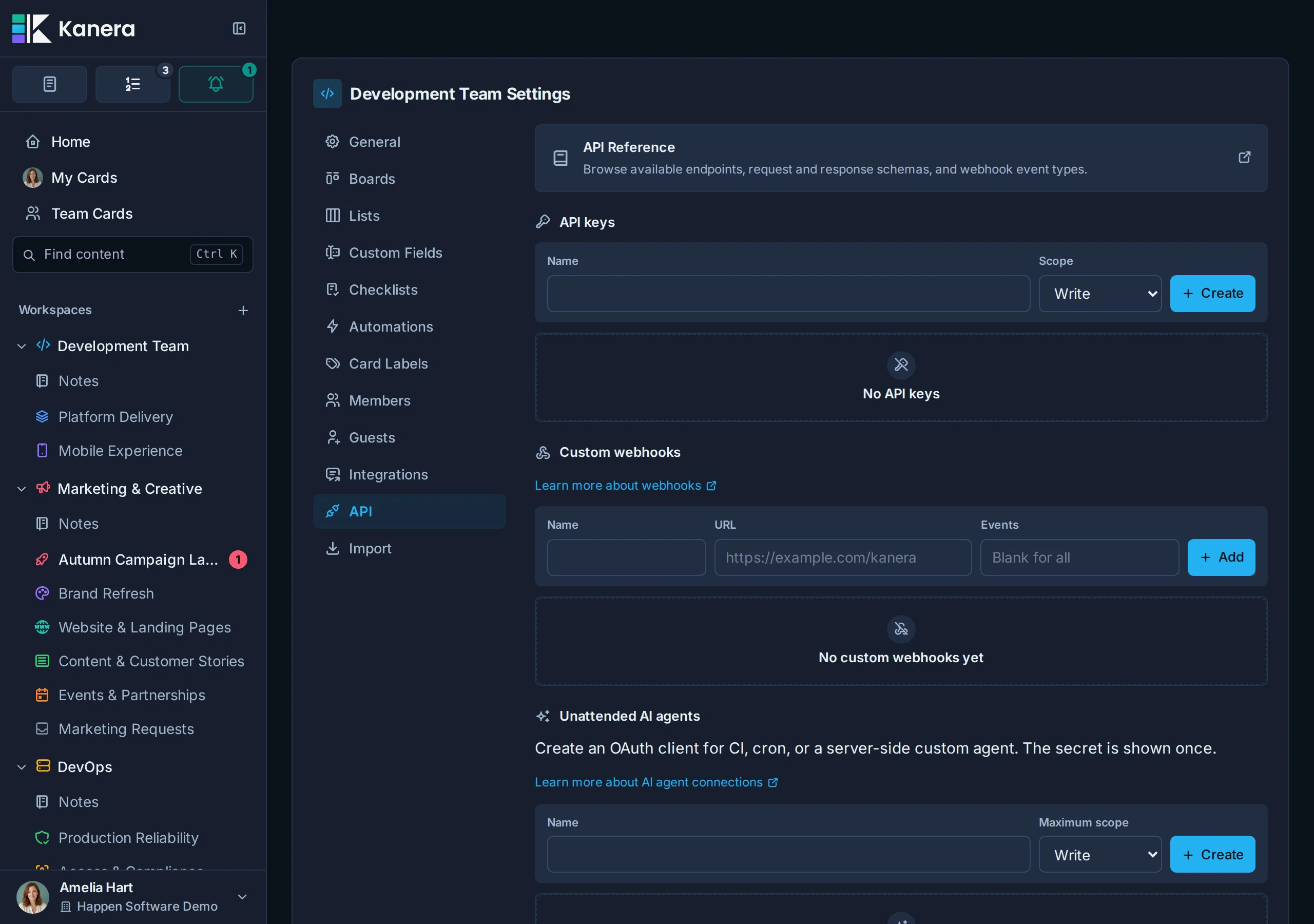
Replace kanera_live_... with a personal key from Profile settings -> API keys or a workspace key from Workspace settings -> API, and set KANERA_PUBLIC_API_URL to https://api.kanera.app. For a personal VS Code setup, a personal key is usually the right fit because it follows your own board access across workspaces.
VS Code desktop app
GitHub Copilot reads MCP servers from a .vscode/mcp.json file in your workspace. For a personal configuration available across projects, run MCP: Open User Configuration from the Command Palette and edit the user mcp.json file.
For a local stdio server, run the Kanera CLI as the server (Node 22 or later). If you already ran kanera auth login, you can omit env; kanera mcp reuses the stored credential.
{
  "servers": {
    "kanera": {
      "type": "stdio",
      "command": "npx",
      "args": ["-y", "@kanera/cli", "mcp"],
      "env": {
        "KANERA_API_KEY": "kanera_live_...",
        "KANERA_PUBLIC_API_URL": "https://api.kanera.app"
      }
    }
  }
}
For a remote HTTP endpoint with a static API key:
{
  "servers": {
    "kanera": {
      "type": "http",
      "url": "https://mcp.kanera.app/mcp",
      "headers": {
        "Authorization": "Bearer kanera_live_..."
      }
    }
  }
}
Use the tools
Open the Copilot Chat view, switch to Agent mode, and the Kanera tools appear in the tools picker once the server starts.
Do not commit an API key in .vscode/mcp.json. Put personal configuration in the user-level file, or use VS Code's input-variable support so the secret is requested instead of stored in the repository.