Set up Claude for Kanera MCP
Claude on the web, Claude Desktop, and Claude Code can connect to Kanera through the Model Context Protocol.
Claude and Claude Desktop: connect with OAuth
Kanera is a published Claude connector. Search for Kanera under Customize -> Connectors and select Connect. Claude opens a browser sign-in and consent screen; you do not create or paste an API key. It works on every hosted Kanera plan, including Free.
If the published connector is not visible for the current account or workspace, add the same production endpoint as a custom connector:
-
Open Customize -> Connectors.
-
Select + -> Add custom connector.
-
Enter Kanera's MCP address:
https://mcp.kanera.app/mcp -
Select Add, then Connect.
For a Team or Enterprise organisation that restricts connectors, an Owner or Primary Owner may need to enable Kanera under Organization settings -> Connectors before members can connect it.
Claude opens a Kanera tab. Sign in, review what the agent can do, and choose Allow access. Enable Kanera for a conversation from the + -> Connectors menu beside the composer.
Manage or disconnect the agent later from Profile settings -> API keys. See Connect an AI agent for details. If OAuth is not an option, see the API key exception below.
Claude Code: connect with OAuth
When Claude Code is signed in with the same Claude account, first run claude mcp list. If the
published Kanera connector is already present, start Claude Code, enter /mcp, and connect or
authenticate it there. Do not add a duplicate server.
If Kanera is not present, add the hosted server for your user so it is available across projects:
claude mcp add --transport http kanera --scope user https://mcp.kanera.app/mcp
Start Claude Code and enter /mcp. Select Kanera and complete the browser authentication flow. Run claude mcp list to confirm it reports Connected.
Shell-only fallback
If an agent can run shell commands but cannot use MCP, install the Kanera CLI rather than automating the web interface:
npx -y @kanera/cli commands          # inspect it without a global install
npm install --global @kanera/cli     # persistent command; requires Node 22+
kanera auth login
kanera setup claude --global
kanera whoami --json
The CLI exposes the same Kanera tool layer. kanera auth login signs in through your browser with
OAuth, the same way the connector does, so there is no key to create; use --with-api-key for an
unattended agent. Prefer the published connector when it is available, since it needs no install.
Install the Kanera skill
The MCP connection gives Claude access to Kanera's tools. The optional Kanera agent skill teaches it to resolve names to stable IDs, read current state before reporting or changing work, use idempotency keys, and handle failures safely.
npx -y skills add https://github.com/happendev/Kanera/tree/main/integrations/skills/kanera --yes --global
Restart Claude if the skill does not appear. Claude can load it automatically for relevant work, or you can invoke it explicitly.
Exception: connect with an API key
An API key is a long-lived secret that you store and rotate yourself, and work done with a personal key is recorded as you, without the via <agent> label. Use one only when OAuth genuinely cannot work:
- Your Claude setup cannot use the published connector or a custom connector with OAuth.
- You need a local stdio server and cannot use the Kanera CLI.
kanera auth loginsigns in with OAuth, andkanera mcpserves stdio with that sign-in, no key required. - The machine has no browser for the sign-in. Try device authorization first if your client supports it.
When you do use a key, create it Read-only unless the agent must change work, and keep it in an environment variable rather than a committed file.
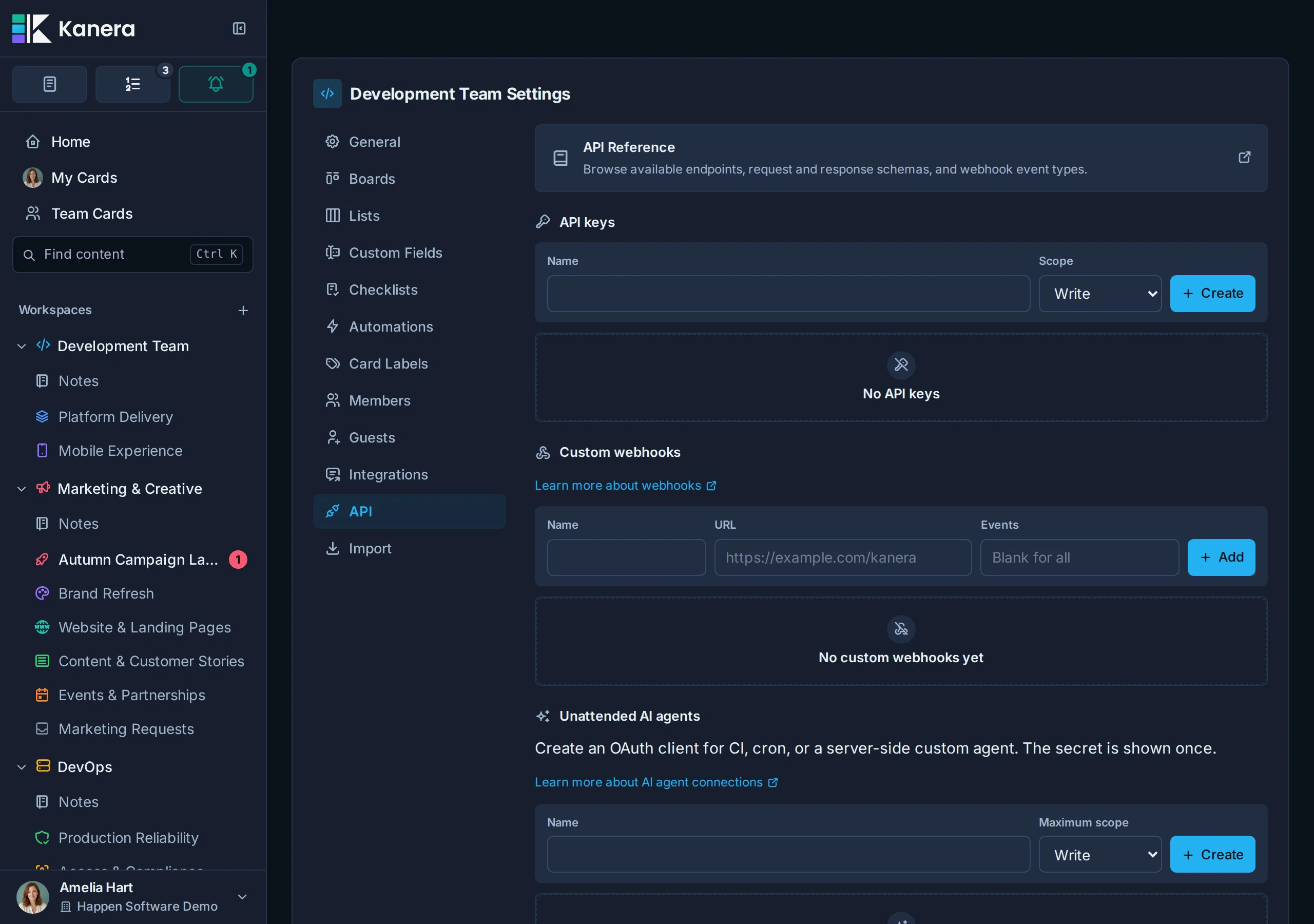
Replace kanera_live_... with a personal key from Profile settings -> API keys or a workspace key from Workspace settings -> API. For a personal Claude setup, a personal key is usually the right fit because it follows your own board access across workspaces.
Claude Code
For the hosted HTTP endpoint with a static key:
claude mcp add --transport http kanera --scope user https://mcp.kanera.app/mcp \
  --header "Authorization: Bearer kanera_live_..."
For a local stdio server, run the Kanera CLI as the server:
claude mcp add kanera --scope user \
  --env KANERA_API_KEY=kanera_live_... \
  --env KANERA_PUBLIC_API_URL=https://api.kanera.app \
  -- npx -y @kanera/cli mcp
If you already ran kanera auth login, drop both --env flags; kanera mcp reuses the stored credential. Run claude mcp list to confirm the server is connected.
Claude Desktop
Open Settings -> Developer -> Edit Config, which opens claude_desktop_config.json, and add the server under mcpServers:
{
  "mcpServers": {
    "kanera": {
      "command": "npx",
      "args": ["-y", "@kanera/cli", "mcp"],
      "env": {
        "KANERA_API_KEY": "kanera_live_...",
        "KANERA_PUBLIC_API_URL": "https://api.kanera.app"
      }
    }
  }
}
Restart Claude Desktop after saving, then open a new conversation and confirm the Kanera tools are available. This configuration runs the server locally through stdio and needs Node 22 or later.
If you already configured Kanera in Claude Desktop and later install Claude Code, Claude Code can import the desktop configuration with:
claude mcp add-from-claude-desktop
This import command is available on macOS and Windows Subsystem for Linux (WSL).