Receiving Notifications
Kanera's notification drawer is a personal feed of work that needs your attention.
Open it from the bell button. If you have unread notifications, the bell shows an unread count.
What appears in the drawer
The drawer shows notifications for work you are connected to, including:
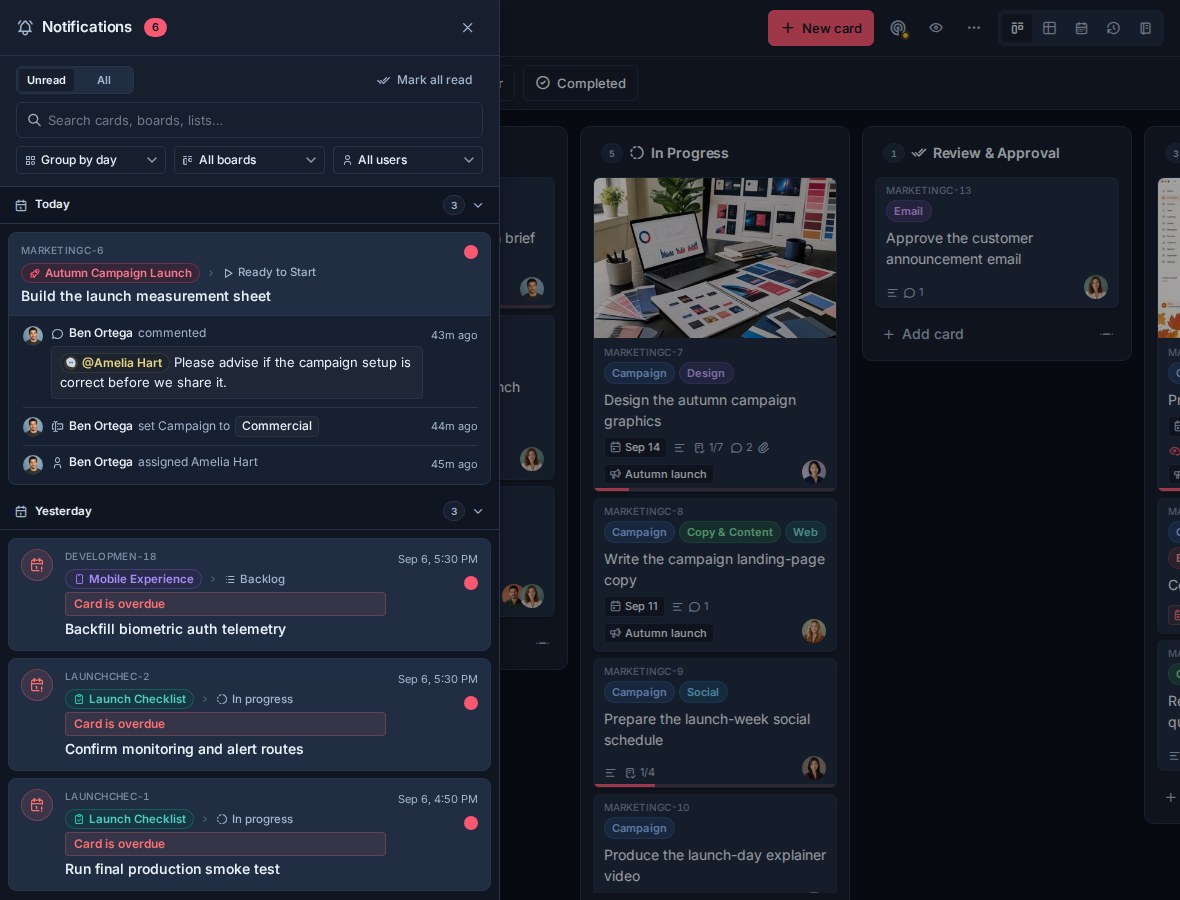
- Assignments.
- Mentions in comments.
- Comments and activity on assigned cards.
- Activity on watched cards and boards.
- Overdue cards.
- Overdue checklist items assigned to you.
Notifications include context such as the board, list, actor, action, card title, comment excerpt, attachment preview, and time.
Unread, Agent, and all notifications
The drawer has up to three modes:
| Mode | Use |
|---|---|
| Unread | Focus only on items you have not cleared yet. |
| Agent | Review everything AI agents connected to your account did for you, read or unread. The tab label shows how many of those are still unread. |
| All | Review recent notifications, including read ones. |
The Agent tab appears only once an agent has acted on your behalf, so people who do not use one never see it. Agent rows carry a via <agent> badge in every mode; see Connect Kanera to your AI agent for how agent work is attributed.
Kanera keeps recent read notifications visible in the drawer for review, while unread notifications stay visible until you mark them read.
Grouping the feed
The first control above the feed chooses how notifications are arranged. Grouping never hides anything: it rearranges the same notifications, and each group header shows how many it holds.
| Grouping | Group headers | Use it to |
|---|---|---|
| Group by day | Today, Yesterday, then the date | Work through a backlog in arrival order and see what happened while you were away. This is the default. |
| Group by board | The board name and its icon | See which areas are busy and which are quiet. Best when you follow several client or project boards. |
| Group by user | The person's name and avatar | See who has been active. Automated activity groups separately as API key, Kanera support, or Kanera. |
Click a group header to collapse it. Collapsing is a good way to park a board or a day you have already handled while keeping the rest in view. Your choice of grouping is remembered next time you open Kanera; which groups are collapsed lasts for the current session.
Group by board pairs well with watching. Watching a board brings its activity into your feed without assigning you anything, and grouping by board keeps each board's activity together instead of interleaved by time with everything else.
Narrowing the feed
Three more controls narrow what the feed contains. They combine, so you can search within one board, or review one person's activity on one board.
| Control | Default | What it does |
|---|---|---|
| Search | Empty | Matches board names, list names, card titles, current card keys, and checklist item text. An exact key using a previous workspace prefix also matches. Case does not matter. |
| Board | All boards | Limits the feed to one board or standalone board. |
| User | All users | Limits the feed to activity by one person. |
Use the board filter when catching up on a specific client, team, or project. Use the user filter to see what one person has been doing, which is useful before a one-to-one or when picking up a colleague's work.
The board and user filters stay as you set them, including after you close the drawer or sign in again, so it is worth knowing you have left one on. Search lasts for the current session.
A filter can hide unread notifications, so Kanera says so rather than showing an empty feed: it reports how many unread notifications an active filter is hiding, with a Clear filters button that resets the search, board, and user controls together. Grouping and the Unread/Agent/All choice are not filters and are left alone.
Opening notifications
Click a notification to open its board or card.
If the notification belongs to a card, Kanera opens the card detail. Opening an unread notification marks it read.
You can also open notifications or boards in a new tab with a middle click.
Mark read and unread
Each notification has a read indicator.
Use it to:
- Mark a notification read when you have handled it.
- Mark a notification unread when you want to come back to it.
- Mark all notifications read when you have finished a catch-up pass.
Kanera also tracks unread counts by board and card, so unread work can be surfaced close to where the work happens.
How Kanera decides who receives notifications
Kanera avoids notifying the person who performed the action.
For card activity, notifications are usually sent to:
- Card assignees.
- Card watchers.
- Board watchers.
- People mentioned in comments.
Mentions take priority because they are explicit requests for attention. Assignments also take priority over passive watcher updates.
Some lower-signal card changes are sent only to assignees, not passive watchers. For example, label changes, custom field updates, checklist item edits, attachment changes, and description edits are useful to people doing the work but can be too noisy for everyone watching.
Channels outside the app
The notification drawer is the in-app feed. It always shows everything you are connected to.
The channels that reach you elsewhere are configurable per notification type: email, browser push, ntfy, Gotify, and your own webhook. Open Profile settings -> Notifications to turn each channel on or off and choose which notification types may use it.
You can also add workspace rules to pause or narrow what one workspace or standalone board sends you outside the app. Rules never change the drawer, so a paused workspace still appears here in full.
Push notifications also require organisation/system support and browser permission. If push is unavailable, Kanera explains the reason in the notification settings page.
Some events, such as card due date changes, are handled through email and push preferences for assignees rather than being regular in-app drawer items.
Overdue cards and overdue checklist items can create both in-app notifications and email or push notifications depending on your settings.
Keeping track of work
Use notifications as a lightweight daily rhythm:
- Open unread notifications.
- Handle mentions and assignments first.
- Review overdue items.
- Group by board, or filter to one board, when working through a specific area.
- Mark items read as you clear them.
- Leave important follow-ups unread until you have acted on them.
For daily personal priorities, use Home. For workload planning across people, use Global Work. Use Notifications for event-by-event catch-up and direct attention.