Workspace Rules
Workspace rules let you set notification exceptions for one workspace or standalone board without changing your account defaults.
Most people want one set of notification preferences. In practice, not every board deserves the same attention. A client project you are actively delivering should reach your phone. A shared internal board you were added to for visibility should not. Workspace rules solve that without forcing you to choose between "notified about everything" and "notified about nothing".
What a rule does
A rule is a per-workspace exception layered on top of your account defaults.
Two things can be adjusted:
| Control | Effect |
|---|---|
| Pause | Stops that workspace or standalone board from reaching you anywhere outside the app. |
| The grid of types and channels | Chooses which notification types each channel may deliver for that workspace. |
Rules can only restrict delivery. They can never turn on a channel or a type that is off in your account defaults. If a channel is off for your account, its column in the grid shows — and the rule cannot switch it on.
Rules also never affect your in-app notification drawer. The drawer always shows the complete feed, so pausing a workspace hides the noise from your inbox and phone while keeping the history available when you go looking for it.
Rules are personal and available on every plan, including hosted Free. They need no admin permission: each person manages their own rules for the workspaces they can reach.
The channels a rule can narrow are the ones your account has. On hosted Free that is email and browser push, because the ntfy, Gotify, and personal webhook channels need Pro; their columns show — until the organisation is on a plan that includes them.
Good uses
- Pause a reference workspace. You are a member for visibility, not delivery. Pause it and read it in the drawer when you choose to.
- Mentions only in a busy workspace. Leave Tagged in a comment on for every channel and turn off comments, due-date changes, and assignments.
- Phone alerts for one client only. Keep ntfy or push enabled for the workspace you are actively delivering, and off everywhere else.
- Email-only for internal work. Keep email on for an internal workspace and turn off push and personal channels so it never interrupts.
- Quiet a standalone board. A standalone board gets its own rule, so a single noisy board can be paused without touching anything else.
Set up a rule
- Open Profile settings -> Notifications.
- Scroll to Workspace rules.
- Click Add workspace rule and choose the workspace or standalone board.
- Use Pause to stop delivery entirely, or leave it active and edit the grid below.
- In the grid, tick a column heading to turn a whole channel on or off for that workspace, or a single cell to allow one notification type on one channel.
- Click Save rule.
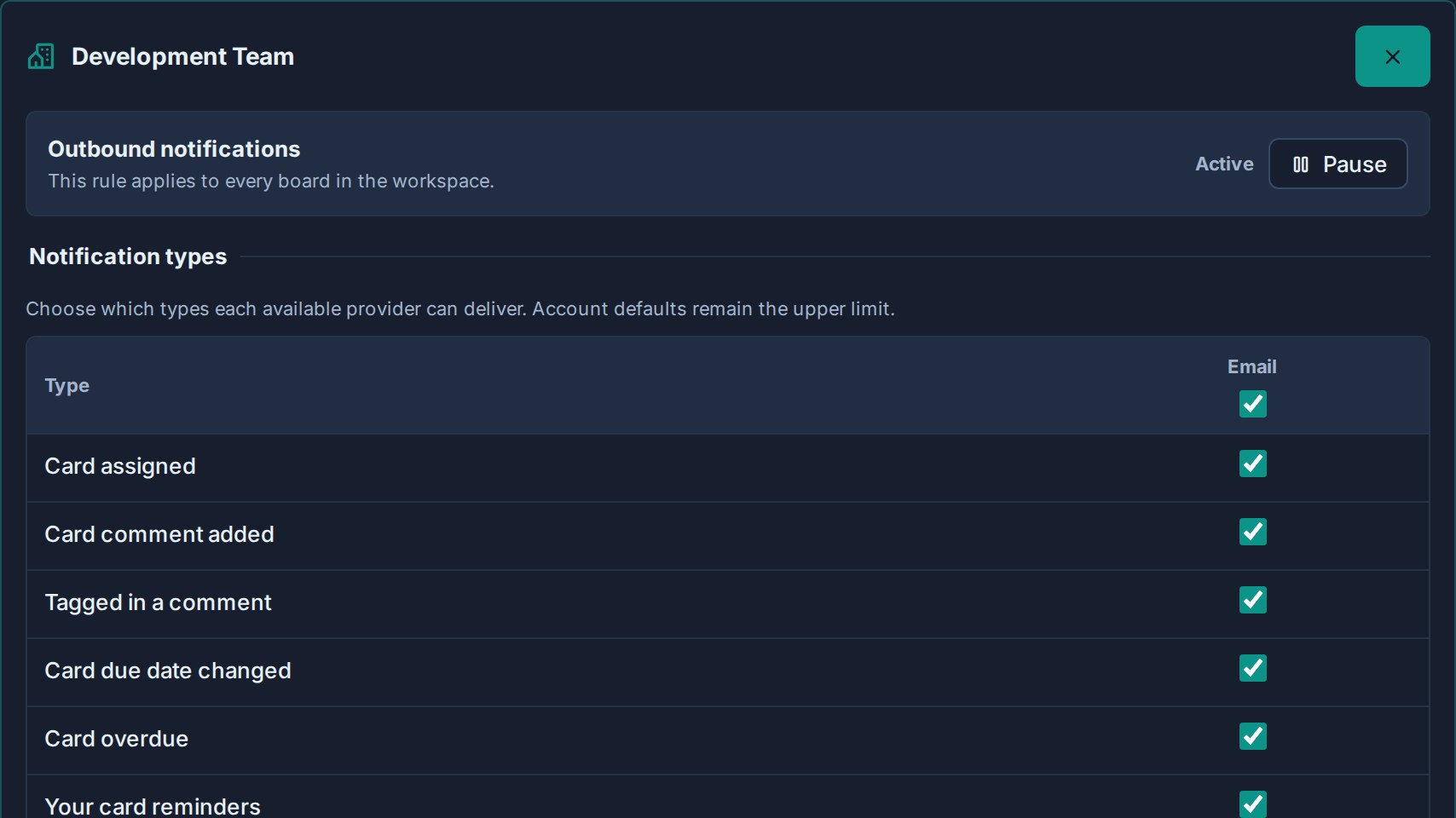
Rules are grouped so the page stays readable:
| Group | Contents |
|---|---|
| Custom rules | Workspaces where you have saved an exception. |
| Standalone boards | Standalone boards where you have saved an exception. |
| Using account defaults | Everything still following your account settings, collapsed. Click Customize to add a rule. |
Each saved rule shows a short summary such as Paused or the channels it still allows, so you can see the shape of your setup without opening every rule.
Which workspaces appear
The list covers everywhere you can actually receive card notifications, including:
- Workspaces where you are a member.
- Workspaces you can reach as an organisation admin.
- Standalone boards you belong to.
- Boards shared with you as a guest from another organisation.
Standalone boards are listed separately from workspaces because a standalone board owns its own configuration, so a rule for it applies to that board alone.
Remove a rule
Open the rule and click Use account defaults.
The exception is deleted and that workspace immediately follows your account settings again. It moves back into the Using account defaults group.
How rules combine with account defaults
Delivery happens only when every layer allows it:
- The channel is on at account level — email, push, ntfy, Gotify, or personal webhook.
- The notification type is on for that channel at account level.
- The workspace rule is not paused.
- The workspace rule allows that type on that channel.
This is why the grid shows — where your account defaults already block something: a rule cannot override them. To widen delivery, change your account defaults first, then narrow specific workspaces with rules.
The daily digest email follows the workspace rule too. Pausing a workspace keeps its cards out of your digest.
Troubleshooting
| Problem | Check |
|---|---|
| The Workspace rules section is not shown. | It appears once you can receive notifications from at least one workspace or standalone board, and at least one channel outside the app is available to you. |
A cell in the grid shows — and cannot be changed. | That channel or type is off in your account defaults. Enable it there first. |
| A workspace is missing from the list. | You may no longer have access to any board in it. Board access drives the list. |
| Notifications still arrive from a paused workspace. | Confirm you saved the rule, and check whether the notification came from a different workspace or standalone board with a similar name. |
| The drawer still shows activity from a paused workspace. | That is expected. Rules only control what leaves the app; the in-app feed stays complete. |