Time in Progress
Mark the lists where work is actively happening as In progress, and every card in them tracks its time in progress: how many working hours it has spent being worked on. The total shows on the card, in card detail, in Table and exports, and on completed cards in Work Done.
Kanera counts working hours only: 09:00 to 17:00, Monday to Friday, in the workspace's time zone. A card left in progress over a weekend adds nothing for Saturday and Sunday, and two weeks in progress reads as 80h rather than 336h.

Time in progress measures time in a workflow stage, not individual work sessions. Admins can correct the total, but it is not a personal stopwatch or timesheet. Use numeric custom fields for separate estimates or billable-hour records, and Table reporting to total and export them.
Mark lists as In progress
Workspace admins choose which lists count:
- Open Workspace settings or Board settings for a standalone board.
- Choose Lists.
- Select In progress on each list where someone is actively doing the work.
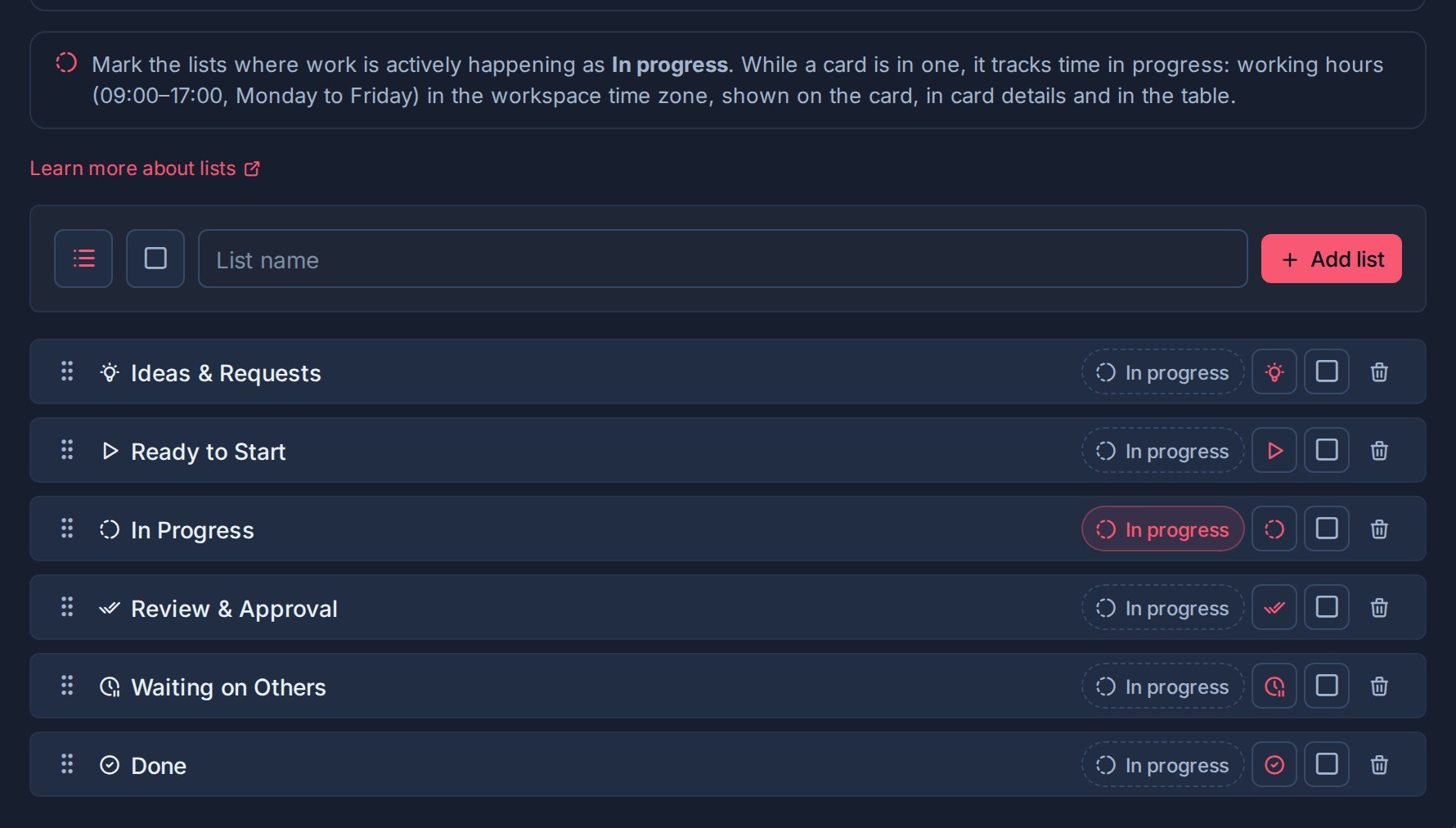
Mark working stages such as In Progress, Doing, Build, or Drafting. Leave queues, waiting stages, and review hand-offs unmarked, so time spent waiting on someone else is not counted as work.
You can also mark lists while setting up a new workspace. The onboarding Lists step has an In progress toggle on every stage, and each workspace template marks its working stages for you.
Existing lists named In progress or Doing start marked. Each open card already in one counts its time from when it entered the list.
How time is counted
A card's clock runs while it is open and sits in an In progress list. It stops when the card moves to a list that is not In progress, when the card is completed, or when it is archived.
The total is cumulative. Every stint in progress adds to it, so a card that goes back to In Progress after review keeps counting from where it stopped. Completing or reopening a card keeps the total too.
| What happens to the card | Its time in progress |
|---|---|
| Created in, or moved into, an In progress list | Starts counting working hours. |
| Moved between two In progress lists | Keeps counting. |
| Moved to a list that is not In progress | Stops, and keeps its total. |
| Completed | Stops, and keeps its total. |
| Reopened in an In progress list, or moved back into one | Counts on from its total. |
| Its list is unmarked as In progress | Stops, and keeps its total. |
Times show in hours, never days, because a working day counts at most 8 hours. Card tiles and Table round to the hour, such as 32h; card detail adds minutes, such as 21h 53m.
The working-hours time zone is set per workspace. See Set the alert and time zone.
Where time in progress shows
On the board
An In progress list has a marker beside its name. The first time you see one, a short hint explains what it means; dismiss it once and it stays dismissed on every board.

Each card with tracked time shows a chip:
| Chip | Meaning |
|---|---|
| Accent, with a progress icon | The clock is running. |
| Amber | The clock is running, and the card has been in progress longer than the workspace alert. |
| Muted, with a clock icon | The clock is stopped. The card is not in progress, or is complete, and the chip shows its total. |
While a card's clock runs, an in-progress icon also sits beside its title.
Use Filter -> In progress to show only open cards in In progress lists.
In card detail
Card detail shows the time above the description. A running clock reads In progress with the total.

A stopped clock reads Not in progress with the tracked total, a pause icon, and a dashed outline.

In Table, exports, and Work Done
Table has a Time in progress column, shown by default. Its footer can show the Sum or Average of the cards in view, and a grouped table totals each group. You can sort by In progress (longest) or In progress (newest). Excel and JSON exports include the column. See Views and Reporting.

Completed cards in Work done show how long they spent in progress.
Across boards
- Board overview counts the board's cards In progress and those in progress Too long. Select either count to filter the board to those cards. See Boards.
- Team Cards overview shows in-progress work per person, and Work Done Report highlights work in progress too long. See Global Work.
- My Cards and Team Cards can sort by In progress (longest) to bring the oldest active work to the top.
- Team overview in Team Cards lists each teammate's In progress cards longest-running first, and gives unassigned In progress cards their own No assignee panel. See Global Work.
Set the alert and time zone
Open Workspace settings -> General or Board settings -> General to find the Time in progress section.

| Setting | What it does |
|---|---|
| Flag cards in progress for more than N days | Once a card's current stint in progress passes this many days, its time turns amber and Kanera flags it. The default is 7. Enter 0 to turn the alert off. |
| Working hours time zone | The time zone whose 09:00 to 17:00, Monday to Friday, counts toward time in progress. |
The alert measures calendar days in the card's current stint, not its tracked working hours. A card that leaves progress and comes back starts a new stint, and can be flagged again.
When a card is in progress too long
When a card passes the alert, Kanera records it in the card's activity: Kanera flagged this card as in progress for more than 7 days. That activity notifies the card's assignees, the card's watchers, and the board's watchers through their usual notification channels and preferences. It happens once for each stint. See Receiving Notifications and Watchers.
To act on slow work automatically, use the Card in progress too long automation trigger. Choose Workspace alert, Set time for the rule's own calendar hours or days, or Number field, such as an estimate to compare total tracked working time with a card's estimate. One working day in a number-field rule is 8 tracked hours.
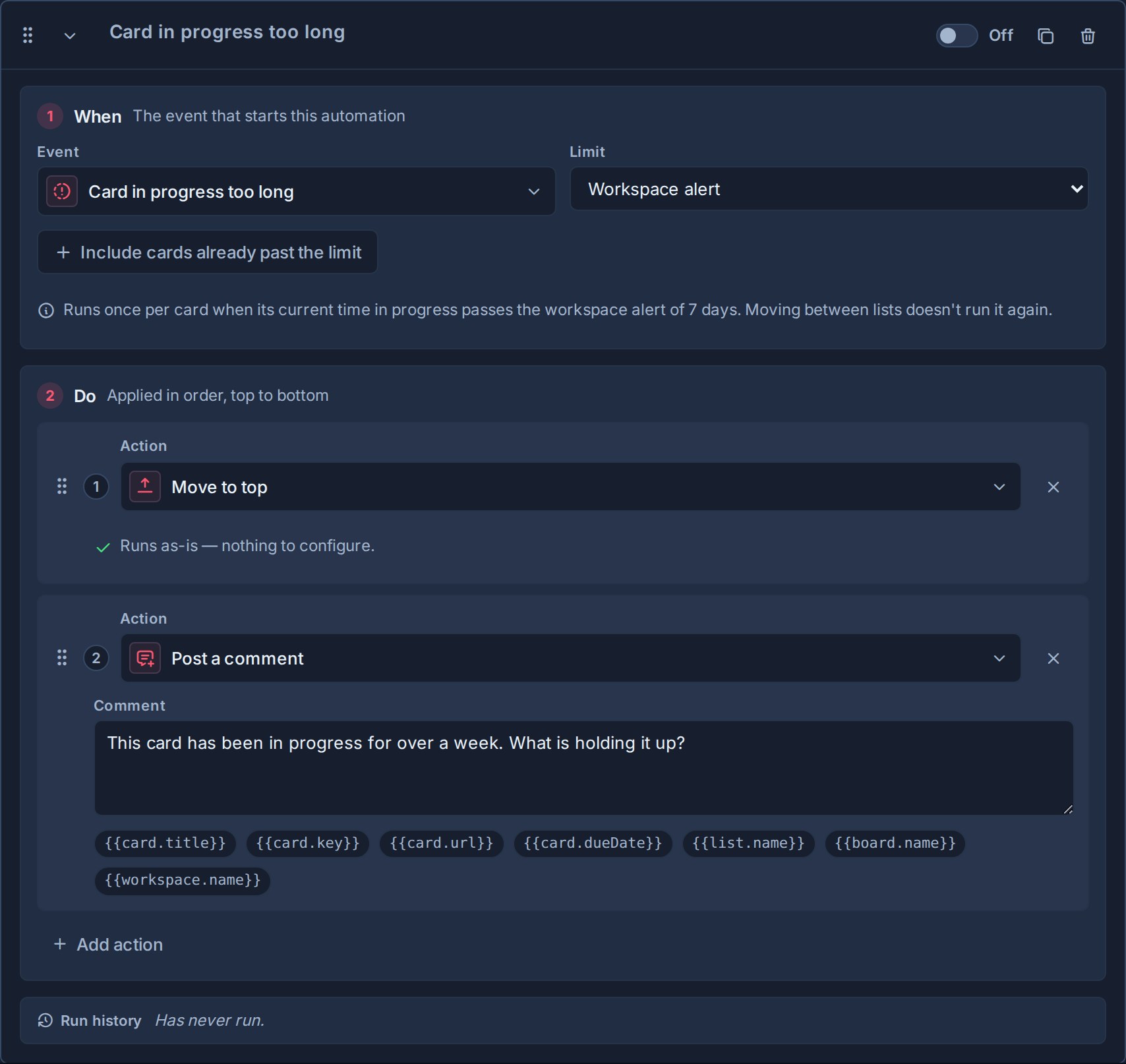
The automation runs once per card for its limit; leaving and returning to progress does not repeat it. An estimate rule can run again when a raised estimate is reached. Include cards already past the limit is off by default, so enabling a rule does not alert on all old work. These rules are checked hourly and are separate from the built-in per-stint flag and notifications described above.
See Automations for the limits, repeat behavior, and an estimate overrun example.
Correct a card's time
Workspace admins can correct a card's tracked time, for example when a card was left in progress by mistake.
- Open the card.
- Select the pencil button beside the time in progress.
- Enter the hours and minutes, then select Save.

The card's activity records the change, such as changed the time in progress from 32h to 24h. If the clock is running, it counts on from the corrected value.
For agents and integrations
The public API, MCP, and the TypeScript SDK expose time in progress:
| Field or option | Where | Meaning |
|---|---|---|
inProgressSince | Cards | When the running stint started, or null when the clock is stopped. |
inProgressSeconds | Cards | Working seconds banked from finished stints. Add the running stint's working hours for the live total. |
inProgress | Lists | Whether the list is an In progress list. |
inProgressAlertDays, timeZone | Workspaces | The alert in days (0 is off) and the working-hours time zone. |
inProgressOnly, inProgressTooLongOnly | Work queries | Only open cards in progress, or only those past the alert. |
inProgressAsc, inProgressDesc | Work query sorts | Longest in progress first, or most recent first. Cards not in progress sort last. |
PUT /cards/{id}/in-progress-time | Public API | Correct a card's tracked time. Workspace admins only. |