Automations
Automations help a standalone board or workspace do repeatable card housekeeping automatically. They are built from a When trigger and one or more Do actions.
Use automations when the same thing should happen every time a card reaches a workflow moment: add the right labels, assign the right people, apply a checklist, set a due date, populate structured field data, post a templated comment, call another system, move the card, or mark work complete.
Automations belong to a standalone board or workspace. A standalone automation runs only on its board. A workspace automation can run on cards across its boards using shared lists, labels, members, custom fields, and checklist templates.
Why use automations
Automations are useful when a process is predictable enough that people should not have to remember every small step.
Good automation use cases include:
- Add a QA Review checklist when a card enters Review.
- Mark a card complete when it moves into Done.
- Assign a support lead when a card is assigned to the support queue owner.
- Add a Blocked label when a card enters Waiting.
- Set an Escalation Date field when an Escalated label is added.
- Set a follow-up due date when a card enters Client Review.
- Move a card to the top of a list when its due date arrives.
- Add a Due soon label three days before a card is due.
- Bring a card to the top of its list when its start date arrives.
- Flag work that exceeds its estimated working hours.
- Add a Schedule risk label when a prerequisite is planned to finish too late.
- Remove a handoff label when a card leaves Review.
- Apply a launch checklist when Stage changes to Approved.
- Add a Needs attention label when a card becomes inactive.
- Remove a handoff label after the card is assigned.
Automations are not a replacement for good workflow design. Lists, labels, custom fields, and checklist templates should still describe the process clearly. Automations are the part that keeps the routine steps moving.
Open automation settings
- Open the workspace or standalone board.
- Go to Workspace settings or Board settings.
- Choose Automations.
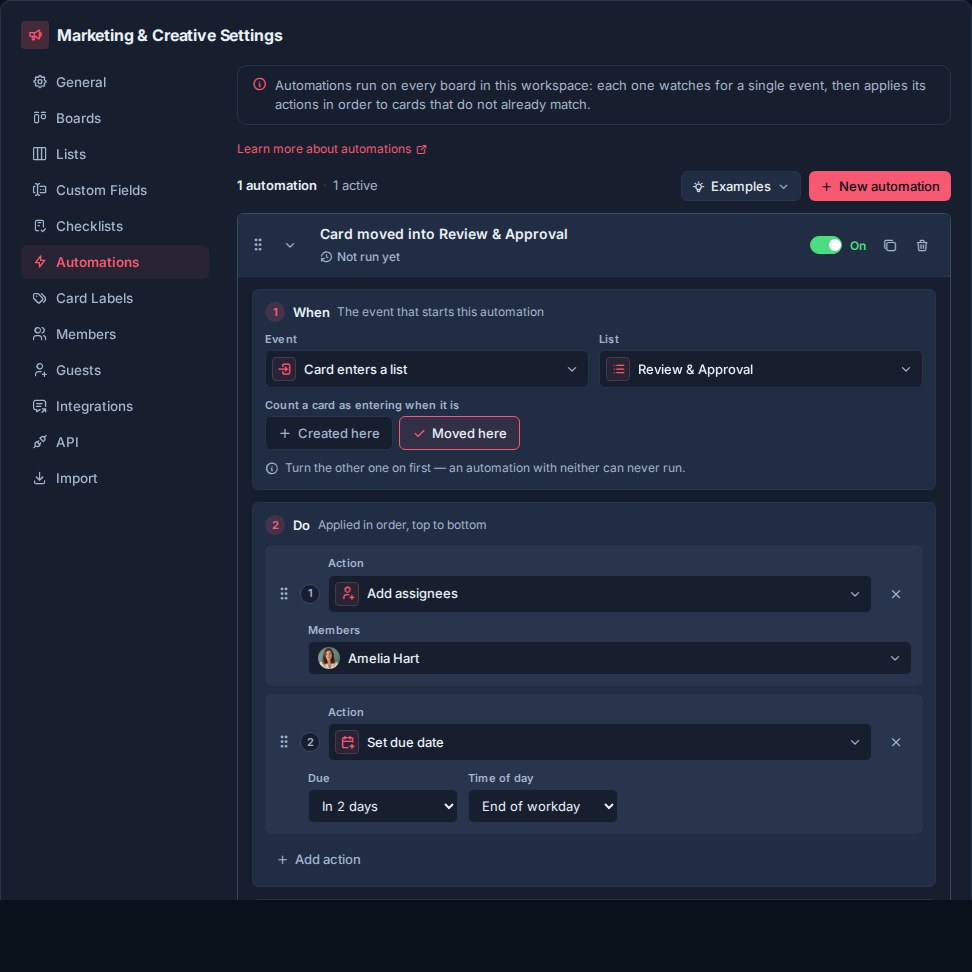
The Automations settings page lets workspace admins and owners create, enable, disable, reorder, configure, and delete automations.
How automations are structured
Every automation has:
- When: the event that starts the automation.
- Do: one or more actions Kanera performs on the card.
- Enabled or disabled: whether the automation is currently active.
- Order: where the automation sits relative to other automations in the workspace.
Automations matching an event run in workspace order. Actions inside an automation run in the order shown in the Do section. Put steps that depend on each other in the same automation; for example, add a label and post the handoff comment together.
The editor has a trigger and actions, with settings specific to each trigger. There is no separate If condition builder or board filter for a workspace rule: a selected list, label, member, or field is what narrows its match across the workspace's boards.
An enabled automation must have at least one complete Do action. If you remove the final action, Kanera disables the automation so it cannot keep matching cards without doing anything.
Create an automation
Click New automation in Workspace settings -> Automations. Examples beside it opens ready-made automations you can start from.
New automations start with a default trigger and a default action. Expand the automation to edit the When and Do sections.
Use the enabled/disabled toggle to control whether the automation is live. Disabled automations remain configured but do not run.
Start from an example
The Examples menu groups ready-made rules under Intake, In progress, Planning, and Wrap-up. It matches your own lists, labels, fields, and checklist templates. An unavailable example explains what you need to add; examples for planning features switched off in your workspace are hidden.
Choosing an example creates it switched off and expanded. Check its selected targets and actions, adjust it for your team, and then enable it.
First automation: give campaign reviews an owner and deadline
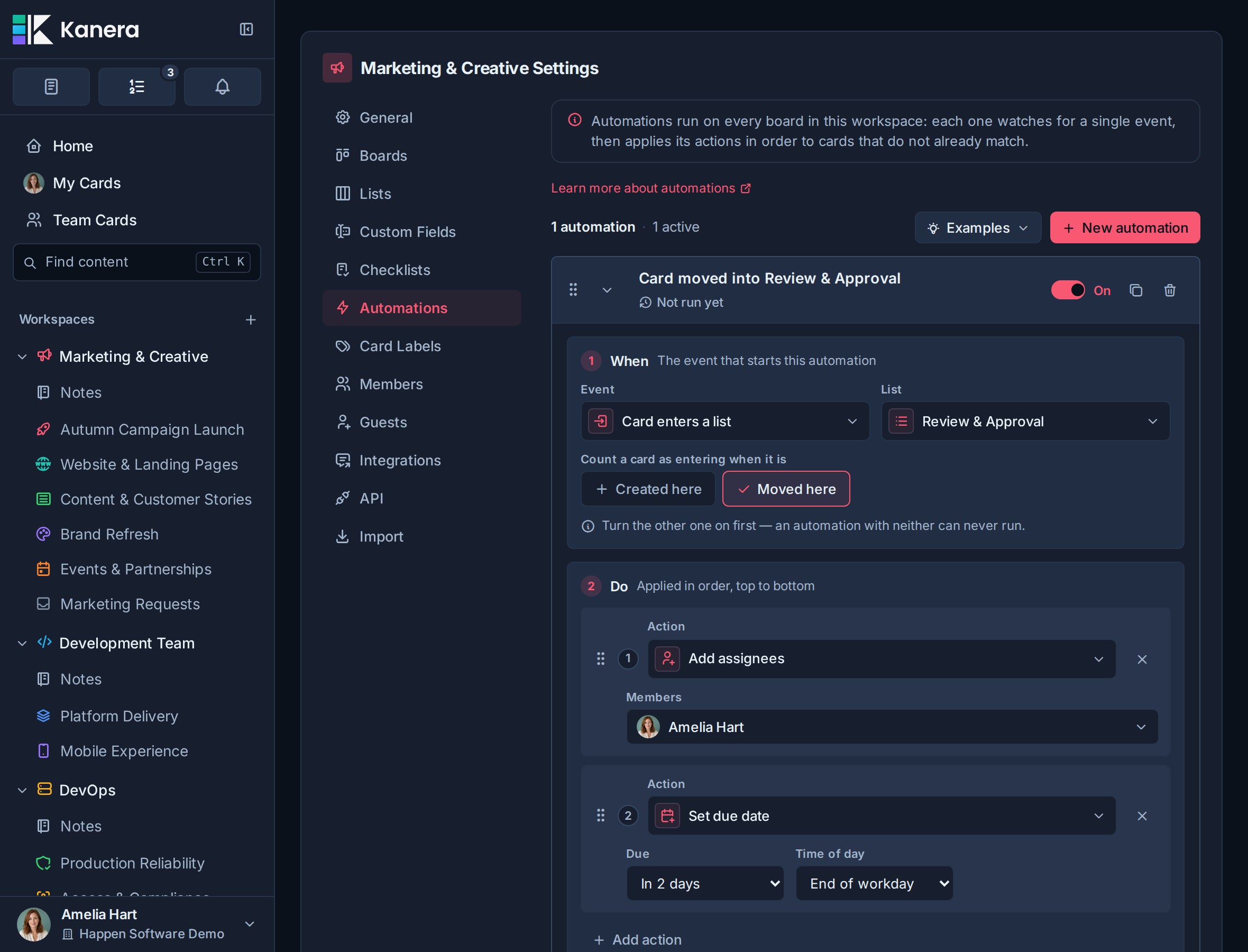
The screenshots show a rule from Kanera's Marketing & Creative demo workspace: when a card moves into Review & Approval, add Amelia Hart as a reviewer and set a deadline two calendar days later. The same rule covers each board in that workspace, so the campaign team has one review process across creative, web, and email work.
Use your own review list and reviewer to build this rule. If you are exploring the demo, inspect its existing enabled rule rather than creating a duplicate.
- Click New automation and keep it switched off while configuring it.
- Under When, choose Card enters list, then select Review & Approval.
- Select Moved here and leave Created here off, matching the demo. Enable both if directly created review cards should get the same treatment.
- Under Do, configure Add assignees with Amelia Hart, then add Set due date with an offset of
2days and the End of work day slot. - Enable the rule and move a test card from another list into Review & Approval.
- Open the card and confirm Amelia was added and the deadline changed. Check the rule's Run history too.
Add assignees keeps the card's existing owners, so the person who prepared the work stays assigned alongside the reviewer. Set due date replaces the previous deadline. Its two-day offset counts calendar days, including weekends.
Enabling this list-entry rule does not process cards already sitting in Review & Approval. Test a new move into the list, then remove your test card or restore its original state.
When triggers
The When section controls what causes the automation to run.
| Trigger | What it means | Extra settings |
|---|---|---|
| Card enters list | Runs when a card enters a selected workspace list. | Choose the list. Choose whether it applies when cards are created in that list, moved into that list, or both. |
| Card leaves list | Runs when a card moves out of a selected workspace list. | Choose the source list. |
| Due date arrives | Runs when a card's due date arrives or becomes overdue. | No extra target. Kanera checks due-date automations on a schedule. |
| Due date is approaching | Runs when an active, incomplete card enters a configurable window before its due date. | Choose the number of days before the due date. |
| Start date arrives | Runs when an active, incomplete card reaches its planned start date. | Set a start date on the card; Timeline must be enabled. |
| Card becomes inactive | Runs when an active card reaches the standalone board or workspace inactivity period. | No extra target. Configure the inactivity period under General settings. |
| Card in progress too long | Runs when an open card passes a time limit or its own estimate. | Use the workspace alert, a set number of hours or days, or a number field. |
| All checklist items complete | Runs when every top-level checklist item on a card is complete. Sub-checklist items do not count. | No extra target. Cards with no checklist items do not trigger this. |
| Card assigned to user | Runs when a card is assigned to one of the selected workspace members. | Choose one or more assignable members. |
| Card marked complete | Runs when a card changes from incomplete to complete. | No extra target. |
| Card blocked | Runs when an active card goes from no open blockers to at least one. | No extra target. |
| Card unblocked | Runs when an active card loses its last open blocker. | No extra target. |
| Scheduling conflict appears | Runs when an open card gains its first scheduling conflict with a prerequisite. | Timeline and dependencies must be enabled. |
| Critical path slips | Runs when a critical-path card's planned end moves later and delays the board's projected finish. | Timeline and dependencies must be enabled. |
| Label added to card | Runs when a selected workspace label is newly added to a card. | Choose the label. |
| Custom field changes to a value | Runs when a custom field transitions from another value to the selected typed value. | Choose the field and value. |
Card enters list
Use Card enters list for workflow-stage automation.
This trigger is especially useful with shared workspace lists such as Review, Waiting, Ready to Launch, or Done.
You can choose:
- Created here: run when a card is created directly in the selected list.
- Moved here: run when an existing card is moved into the selected list.
Enable both when the automation should apply no matter how the card arrived in that list.
Card leaves list
Use Card leaves list for cleanup and handoff work tied to the stage a card is leaving. For example, leaving Review might remove a review label, assign the delivery owner, or apply a release checklist.
The selected list is the source of the move. The trigger runs for moves to another list in the same board and for moves to another board that use a different workspace list. Moving a card within the same list does not run it.
Due date arrives
Use Due date arrives for time-sensitive work.
Kanera checks due-date automations on the server and runs the automation for active, incomplete cards whose due date has arrived. Kanera records due-date automation runs so the same automation does not keep firing repeatedly for the same card and the same due date.
Due date is approaching
Use Due date is approaching to prepare for a deadline before it arrives. Enter a lead time from 1 to 3,650 days; for example, 3 runs when a card enters the three-day window before its due date.
Kanera checks approaching-due automations on the server. If a scheduled check happens after the exact boundary, the rule still runs while the card remains inside the window, so a delayed check does not lose the event. Completed, archived, and already-due cards are skipped. A rule runs once for each card due date and lead-time setting; changing the card's due date, or changing the configured lead time, establishes a new event.
Start date arrives
Use Start date arrives to surface planned work on the day it should begin. For example, move the card to the top of its current list and add a Ready to start label. This does not automatically move it into an In progress list or clear its blockers.
The trigger uses the card's planned start date, not the date it is due. It becomes eligible at the start of that day in the card's due-date time zone, falling back to the workspace time zone. Kanera runs it on a scheduled check for open, non-archived cards, once per card and start date. Rescheduling the start allows another run when the new date arrives.
Past start dates count too: enabling a rule can process existing open cards whose start dates have already arrived. Use a small test board or review those cards before enabling a workspace-wide rule. Cards with no start date are skipped.
Card becomes inactive
Use Card becomes inactive to surface work that has stopped moving. For example, the automation might add a Needs attention label, assign a project lead, move the card to the top of its current list, or set a follow-up field.
Kanera uses the inactivity period configured in Workspace settings -> General or Board settings -> General. It checks inactivity automations on the server on a schedule and considers active, non-archived cards only. Completed and archived cards do not trigger the automation.
The trigger runs once when a card crosses its current inactivity boundary; later scheduled checks do not repeatedly run the same automation for that unchanged boundary. New card activity resets the period, so the automation can run again if the card later becomes inactive a second time. Changing the configured inactivity period also establishes a new boundary: lengthening it can make a card active again until the later boundary is reached, while shortening it can make an older card eligible on the next check.
Card in progress too long
Use Card in progress too long to follow up on work that is taking longer than expected. For example, add an At risk label, move the card to the top of its list, or post a comment asking what is holding it up.
Choose a Limit:
| Limit | What Kanera compares | Example |
|---|---|---|
| Workspace alert | Calendar time in the current stint against Time in progress in General settings. An alert of 0 disables this option's runs. | Follow up after the workspace's 7-day alert. |
| Set time | Calendar time in the current stint against this rule's Amount and Unit (Hours or Days). | Flag a request after 24 elapsed hours in progress. |
| Number field, such as an estimate | Total tracked working time across stints against a positive number field on the card. Choose Working hours or Working days, where one working day is 8 tracked hours. | Flag a card when tracked work reaches its Estimated Hours value of 16. |
Calendar limits include nights and weekends. Number-field limits count only tracked working time: 09:00–17:00, Monday–Friday, in the workspace time zone. An empty, zero, or negative estimate does not trigger a run. The card must be open and currently in progress; completed and archived cards are skipped.
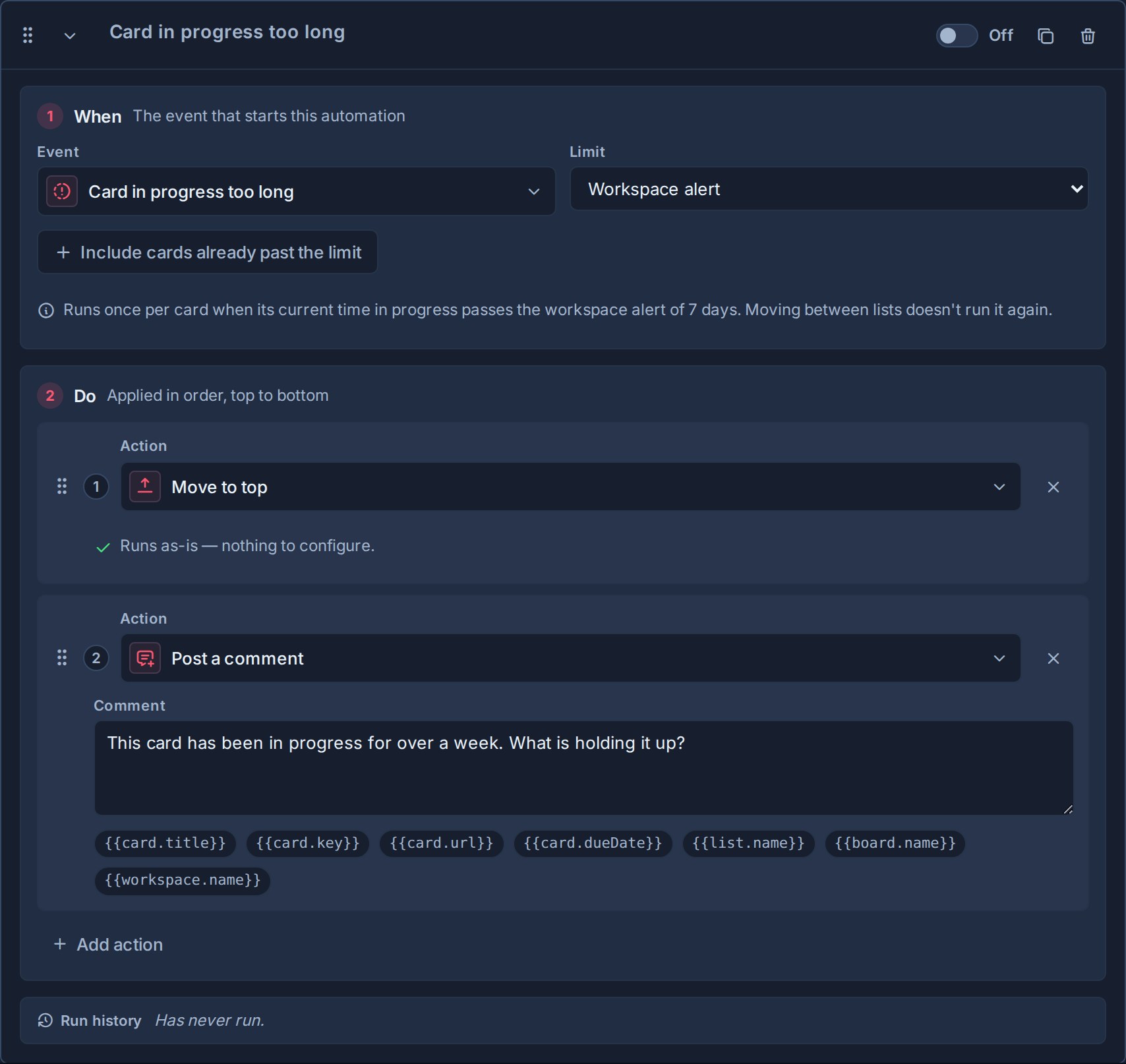
The automation runs once per card for its limit, rather than on every hourly check or every return to an In progress list. Moving between lists does not reset its run. With a number-field limit, raising an estimate permits another run only when the card reaches that higher estimate too; lowering it or switching back and forth does not keep firing the rule.
Include cards already past the limit is off by default. Cards already over the limit when you enable the rule or change its limit are skipped. Turn it on if you want those cards included on the next check. A card already over an estimate when that estimate is first filled in is also recorded without firing, so bulk-filling estimates does not alert on every old card.
These automation settings do not change the workspace's amber chip or its built-in alert notifications. See Time in Progress.
All checklist items complete
Use All checklist items complete when checklist completion should advance the card.
For example, completing all QA items might mark the card complete, move it to Ready to Ship, or remove a Needs Review label.
This trigger only runs when the card has top-level checklist items and the last incomplete one is completed. Sub-checklist items do not count toward this trigger, and completing a sub-checklist alone does not run it.
Card assigned to user
Use Card assigned to user when assigning a person should start a related process.
For example, assigning a delivery owner might apply a Handoff checklist, add a Delivery label, or set a due date.
The selected users must be assignable workspace members.
Card marked complete
Use Card marked complete when finishing a card should trigger follow-up housekeeping.
For example, marking a card complete might remove an Active label, clear its due date, assign a reviewer for post-work checks, or move it to a shared Done list.
This trigger runs when a card changes from incomplete to complete. It does not run when a card is already complete, when a card is marked incomplete, or when an automation marks the card complete as one of its own actions.
Card blocked and Card unblocked
Use Card blocked when a card gains its first active dependency. For example, move it to Waiting and add a Needs attention label. Reopening or restoring a prerequisite can trigger the rule again; adding a second blocker while already blocked does not.
Use Card unblocked for the handoff when the last active blocker is completed, archived, or unlinked, including when its board or list is deleted. For example, move the dependent card to Ready to Start, assign the next owner, and post a handoff comment. Clearing one of several blockers does not run it.
Both triggers include changes from integrations, other automations, and mirrors. Each trigger runs at most once per card per transaction to bound chains. Ready-to-start notifications reflect the final state after actions run, so a card an automation immediately completes is not announced as ready to start.
Scheduling conflict appears
Use Scheduling conflict appears to catch a plan that overlaps a prerequisite. It runs on the dependent card when an open blocker is first planned to finish on or after that card's planned start. Either card's dates can cause the conflict.
For example, on the demo's Autumn Campaign Launch board, Approve the campaign launch package waits on Produce the launch-day explainer video. If the video is rescheduled to finish on or after approval's planned start, a rule could add a Schedule risk label and post a comment asking the team to adjust the dates on Timeline. Create that label and rule if you want to try this extension; they are not part of the demo's review rule.
This differs from Card blocked: blocked means a prerequisite is still open; a scheduling conflict means the planned dates overlap. A card can be blocked while its dates still leave enough time for the handoff.
Adding another conflict while the card is already in conflict does not repeat the rule. Clear all its conflicts, then introduce a new one to trigger it again.
Critical path slips
Use Critical path slips when a delay affects the board's projected finish. A critical-path card has no scheduling slack: moving its planned end later moves the finish of the chain too.
For example, Build release → QA → Launch is the critical chain. Delaying Build release pushes the projected finish out by two working days. Add an At risk label or call a webhook to update your release dashboard. A card moving within its available slack does not trigger this rule, and adding a new card that extends the board's finish is not a slip of an existing card.
Kanera evaluates both scheduling triggers shortly after schedule-affecting edits, including edits by integrations and automations. An unchanged schedule does not keep firing; a further critical-path delay can produce a new slip. The first evaluation establishes a baseline silently, so these triggers do not announce every existing issue when scheduling is first enabled.
Both require Timeline and dependencies to be enabled at organization and workspace level. They act on the card without automatically fixing its dates. See Views and Card Dependencies.
Label added to card
Use Label added to card when a label should start a standard response.
For example, adding Blocked might assign a lead, move the card to the top of its current list, and set a Blocked Since custom field. Adding Customer might apply a customer-handoff checklist and set a Review Type field.
This trigger runs only when the selected label is newly added to the card. Re-saving a card that already has the label does not run the automation again.
Custom field changes to a value
Use Custom field changes to a value when a structured workflow state should start a standard response. Choose a text, number, checkbox, date, URL, select, or user field, then choose the exact typed value to match.
The trigger is transition based: it runs when an edit changes the field from a non-matching value to the configured value. Re-saving the same matching value does not run it again. For multi-select and multi-user fields, the trigger matches when the configured option or member becomes part of the field value. If the field later stops matching and then changes back, the rule can run again.
Deleting a field or a selected option disables affected rules so an administrator can choose a replacement without an enabled automation silently becoming impossible to run.
Do actions
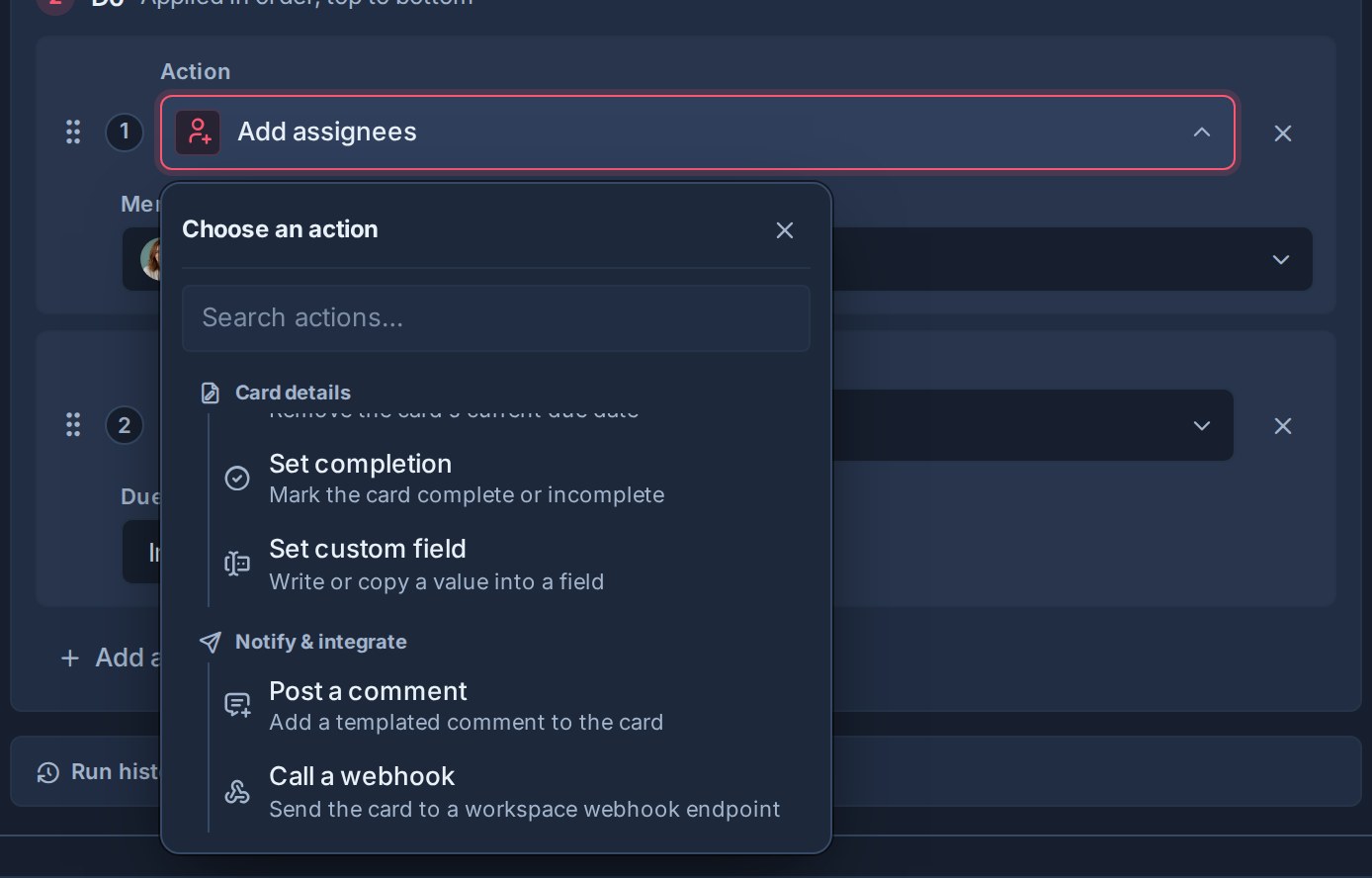
The Do section controls what Kanera changes on the card after the trigger happens.
| Action | What it does | Required setting |
|---|---|---|
| Add label | Adds a selected workspace label to the card. | Choose a label. |
| Remove label | Removes a selected workspace label from the card. | Choose a label. |
| Add assignees | Assigns one or more workspace members to the card. | Choose members. |
| Remove assignees | Removes one or more assignees from the card. | Choose members. |
| Apply checklist | Applies one or more checklist templates to the card. | Choose checklist templates. |
| Set due date | Sets the card due date using a relative day offset. | Enter an offset and choose a due-date slot. |
| Clear due date | Removes the card due date. | No target. |
| Populate custom field | Sets a selected custom field on the card. | Choose a field, then either set a value or copy from another field of the same type, and choose whether to overwrite existing values. |
| Mark complete or incomplete | Marks the card complete or incomplete. | Choose complete or incomplete. |
| Move to list | Moves the card to a selected list. | Choose a list and top or bottom placement. |
| Move to top | Moves the card to the top of its current list. | No target. |
| Move to bottom | Moves the card to the bottom of its current list. | No target. |
| Post a comment | Adds a Markdown comment to the card, with optional placeholders filled from that card. | Write the comment template. |
| Call a webhook | Sends the card to one selected generic webhook endpoint through Kanera's signed delivery pipeline. | Choose a webhook endpoint from the same workspace. |
Action details
Labels
Use label actions to keep card categories accurate as work moves.
Examples:
- Add Needs Review when a card enters Review.
- Remove Needs Review when all checklist items are complete.
- Add Blocked when a card enters Waiting.
Assignees
Use assignee actions when a stage or trigger has a predictable owner.
Examples:
- Assign the QA lead when a card enters Review.
- Assign an account manager when a card enters Client Review.
- Remove a triage owner after a card is assigned to the final owner.
If an automation assigns someone to a card on a board where they need access, Kanera can add them to the board when the workspace and board rules allow it.
Checklist templates
Use Apply checklist when the card needs a repeatable set of steps.
Examples:
- Apply QA Review when a card enters Review.
- Apply Launch Prep when a card enters Ready to Launch.
- Apply Support Triage when a support card is created.
Kanera tracks which checklist templates have already been applied to each card. If the same automation runs again, it will not add the same template to the same card a second time.
Due dates
Use Set due date to set a due date relative to the day the automation runs.
For Due date arrives, the offset is relative to the card's due date; for Start date arrives, it is relative to the planned start date. This keeps the result tied to the intended day even if the scheduled check runs late. Other triggers use the day the rule runs.
The offset can be:
0for today.- A positive number for days after the trigger.
- A negative number for days before the trigger date.
Due-date slots are:
| Slot | Meaning |
|---|---|
| Any time | Date only. |
| Morning | Morning due slot. |
| Afternoon | Afternoon due slot. |
| End of work day | End-of-day due slot. |
Use Clear due date when a card entering a stage no longer needs the previous deadline.
Custom fields
Use Populate custom field when an automation should write structured metadata to the card.
Examples:
- Set Priority to High when Escalated is added.
- Set Blocked Since to the current date when Blocked is added.
- Set Review Month to the current month when a card enters Review.
- Set Billable to checked when a card enters Client Work.
- Set Reviewer to a workspace member when all checklist items are complete.
- Copy Estimated Hours into Actual Hours when a card enters Done.
For each custom-field action you choose the field to write, then how to supply its value:
- Set value: provide a fixed or computed value that matches the selected field type. Text fields can use fixed text or the current date formatted as a date, month, or date and time. Number, date, checkbox, select, and user fields use values of the matching type.
- Copy from field: copy the current value of another custom field on the same card. The source field must be the same type as the field you are setting. Use this to carry a value forward between fields, such as copying an estimate into an actuals field.
When copying between two select fields, Kanera matches options by their label, because each select field has its own options. A source option with no matching label on the target field is skipped. When the source field has no value on the card, the automation leaves the target field unchanged.
By default, Kanera only fills the field if it is empty. You can allow the automation to overwrite an existing value when the automation should be authoritative for that field.
Kanera validates the field when the automation runs. If the configured value does not match the field type, a select option was archived, or a selected user is no longer a workspace member, Kanera skips invalid values instead of writing broken data.
Comments
Use Post a comment when the result should stay with the card. The template supports Markdown and these placeholders:
| Placeholder | Inserts |
|---|---|
{{card.title}} | Card title |
{{card.key}} | Human-readable card key |
{{card.url}} | Canonical card link |
{{card.startDate}} | Planned start date, or an empty value when the card has none |
{{card.dueDate}} | Due date, or an empty value when the card has none |
{{list.name}} | Current list name |
{{board.name}} | Board name |
{{workspace.name}} | Workspace or standalone-board name |
{{schedule.blocker}} | The conflicting blocker's key and title, when safe to show; only for Scheduling conflict appears |
{{schedule.days}} | Working days of conflict, or the increase in the board's projected finish for Critical path slips |
For example, {{card.key}} is ready in **{{list.name}}**: {{card.url}} becomes a card-specific handoff note each time the rule runs. Unknown placeholders are left visible rather than silently erased, so a typo can be found and fixed.
Schedule placeholders are empty for other triggers. The blocker is also left empty for cross-board dependencies or boards with members restricted to assigned cards. Write a comment that still makes sense without a blocker name, such as Scheduling conflict on {{card.key}}: review the planned dates on Timeline. {{card.url}}. For a critical-path slip, try The projected finish moved later by {{schedule.days}} working days. Please review {{card.url}}.
Automation comments are labelled Automation in the card feed. They are informational system comments: they update connected clients and remain in the audit trail, but do not send mention, comment-email, or watcher notifications.
Webhooks
Use Call a webhook when one specific external system should receive the card only when this automation matches. Create a generic endpoint under Workspace settings -> API first, then select it on the action. Chat destinations do not appear in this list.
Kanera sends an automation:webhook:called event containing the automationId, boardId, cardId, full card, and current list. The call targets only the selected endpoint and ignores that endpoint's ordinary event filter, because choosing the endpoint on the rule is the subscription. It still uses the endpoint's signing secret, retries, and delivery log. See Webhooks for verification and delivery behavior.
A disabled endpoint makes the action a no-op until it is re-enabled. If the endpoint is deleted, a later match fails and the automation records that error in its execution history.
Completion
Use completion actions when a workflow stage should control the card's completed state.
Examples:
- Mark complete when a card enters Done.
- Mark incomplete when a card moves back into In Progress.
Movement and priority
Use move actions to keep cards in the right place.
Examples:
- Move a card to Done when all checklist items are complete.
- Move overdue cards to the top of the current list.
- Move cards entering Escalated to the top of that list.
When moving to a list, choose whether the card lands at the top or bottom.
Example automations
The campaign review example matches the demo data. The Development Team, Project Delivery, and Operations / Support examples below come from workspace templates; those templates already configure the listed rules. The remaining rows are ideas you can build with your own targets.
| Goal | When | Do |
|---|---|---|
| Give campaign reviews an owner and deadline (demo) | Card moves into Review & Approval | Add Amelia Hart; set due date in 2 calendar days at End of work day. |
| Classify incoming bugs (Development Team) | Card enters Bugs / Issues / Feedback | Add Issue / Bug label. |
| Finish engineering work (Development Team) | Card enters Complete | Mark complete; fill Billing Month with the current month if empty. |
| Prepare a delivery review (Project Delivery) | Card enters Review | Apply Delivery review checklist. |
| Flag held-up deliverables (Project Delivery) | Card enters Blocked | Add Risk label. |
| Escalate an overdue request (Operations / Support) | Due date arrives | Move to the top of Escalated; set the Escalated checkbox. |
| Reopen work when it moves back | Card enters In Progress | Mark incomplete; add Active label. |
| Triage new support cards | Card created in New | Add Support label; apply Support Triage checklist; assign support lead. |
| Clean up review handoff | Card leaves Review | Remove Needs review; assign delivery owner. |
| Prepare for a deadline | Due date is approaching by 3 days | Add Due soon; move to top. |
| Surface planned work | Start date arrives | Move to top; add Ready to start. |
| Flag work over its estimate | Card in progress too long; Limit = Number field, such as an estimate; Estimated Hours, counted in Working hours | Add At risk; post a comment asking for a revised plan. |
| Follow up after a fixed delay | Card in progress too long; Limit = Set time, Amount = 24, Unit = Hours | Move to top; add Needs attention. |
| Pick up a dependency handoff | Card unblocked | Move to top; remove Waiting; post a ready-to-pick-up comment. |
| Flag a new blocker | Card blocked | Add Blocked; move to Waiting. |
| Catch overlapping plans | Scheduling conflict appears | Add Schedule risk; post a comment asking for a Timeline review. |
| Escalate a release delay | Critical path slips | Add At risk; call the release dashboard webhook. |
| Start approved work | Stage changes to Approved | Apply Launch Prep checklist; assign project lead. |
| Surface overdue work | Due date arrives | Move to top; add Overdue label. |
| Surface stalled work | Card becomes inactive | Add Needs attention label; assign project lead; move to top. |
| Advance checklist-driven work | All checklist items complete | Move to Ready to Ship; remove QA label. |
| Prepare handoff | Card assigned to delivery owner | Apply Handoff checklist; set due date for 2 days from now. |
| Clean up completed work | Card marked complete | Clear due date; remove Active label. |
| Escalate consistently | Label Escalated added | Set Priority to High; set Escalated Since to today; move to top. |
| Carry an estimate into actuals | Card enters Done | Copy Estimated Hours into Actual Hours. |
| Leave a handoff note | Card enters Client Review | Post a comment with the card link, due date, and current list. |
| Start an external workflow | Stage changes to Approved | Call the Launch pipeline webhook. |
Configure an estimate overrun rule
The Project Delivery template provides a number field named Estimate, an In Progress list, and a Risk label. Extend it with this rule when your team records estimates in hours; the template does not create the overrun rule for you.
- Fill in a positive Estimate on a test card before work begins. For this example, enter
16to mean 16 working hours. If you use a different workspace, add an equivalent number field and a risk label first. - Make sure the card's working list is marked In progress and the workspace's Time in progress feature is on.
- Create a rule with When → Card in progress too long.
- Set Limit → Number field, such as an estimate, select Estimate, and choose Counted in → Working hours. Use Working days instead if that is how your team fills the field.
- Add Add label → Risk and Post a comment, for example:
{{card.key}} has reached its estimate. Please review the remaining work and update the plan. {{card.url}}. - Leave Include cards already past the limit off for future crossings only, then enable the rule.
A card estimated at 16 hours becomes eligible once it has tracked 16 working hours, even if those hours span several visits to In progress. Returning to the list does not repeat the same alert. If the estimate is raised to 24 hours, the rule can run again when the total reaches 24.
Test a scheduling-conflict rule
- Enable Timeline and dependencies, then create two open test cards on one board: Approve assets and Publish campaign.
- Set Publish campaign to wait on Approve assets. Give approval a due date before publishing's planned start, so the initial plan has no conflict.
- Create and enable Scheduling conflict appears → Add label: Schedule risk → Post a comment.
- Allow the worker to evaluate the healthy schedule, then move approval's due date to publishing's start date or later.
- After the schedule recheck, confirm the label and comment appear on Publish campaign, and review the rule's run history.
To test a second run, clear the overlap, allow the recheck to see the healthy state, and introduce the conflict again. Delete the test cards afterwards. A workspace rule covers every board, so use a temporary standalone board if you need an isolated test.
When rules run and what can pause them
List, label, assignment, checklist, custom-field, completion, and blocker triggers react to changes. Enabling one does not replay all cards that already match; make a fresh matching change to test it.
Due dates, approaching due dates, start dates, inactivity, and time-in-progress limits are checked by the server hourly, so they do not run at the exact second a boundary is reached. Scheduling conflicts and critical-path slips use a separate recheck, normally within seconds of a schedule-affecting edit. Self-hosted installations need the worker service running for these background checks.
Planning features can pause related triggers:
| Feature switched off | Triggers paused |
|---|---|
| Dependencies | Card blocked, Card unblocked, Scheduling conflict appears, Critical path slips |
| Timeline | Start date arrives, Scheduling conflict appears, Critical path slips |
| Time in progress | Card in progress too long |
A feature must be enabled by both the organization and the workspace. Turning it off keeps the rule and stored card data. Turning it back on resumes the feature; scheduling rechecks establish a fresh baseline without announcing existing conflicts or slips.
Each standalone board or workspace can hold up to 30 automations, with up to 5 actions per automation. Kanera Cloud also applies your plan's enabled-rule and monthly execution allowances; check Account settings → Plan if a rule cannot be enabled or stops making changes. Self-hosted installations have no billing or plan execution quotas.
Review run history
Each automation shows when it last ran and when it last changed a card. A failed run is surfaced on the rule so an admin can fix a stale target or invalid configuration instead of assuming the automation is healthy.
The public API, MCP tool automations.list_executions, and TypeScript SDK's kanera.automations.executions() return retained runs newest first. Each row identifies the outcome (effectful, noop, or failed), card, action type, time, and any truncated error text. A no-op is still useful evidence: the trigger matched, but none of the configured actions needed to change anything.
Individual execution records are retained for six months; lifetime run counters remain.
If an automation does not run
| What you see | What to check |
|---|---|
| No run after configuration | Enable the rule, keep at least one complete action, and make a fresh matching change. Existing cards are not replayed by change-based triggers. |
| A list rule ignores a new card | Check Created here and Moved here, and confirm the selected list is the one the card entered. |
| A date or inactivity rule has not fired yet | Allow the next hourly check. Confirm the card is open, unarchived, and has the relevant date or inactivity period. For due dates, check its due-date slot and time zone too. |
| An in-progress rule skips a card | Confirm it is currently in progress, its limit is valid, and it has not already been handled. Check Include cards already past the limit, the number field's value and units, or a workspace alert of 0. |
| A scheduling rule stays quiet | Check Timeline and dependencies at both settings levels. Test a new conflict after a healthy baseline; for a slip, both the card's planned end and the board's projected finish must move later. |
| The trigger ran but nothing changed | Review the no-op count. The label or assignee may already be present, the checklist may already be applied, or a field may be protected by the empty-only setting. |
| A failed run | Check the error and replace deleted or invalid targets, then test a fresh trigger. For a webhook delivery failure, inspect its separate delivery log. |
| Background checks do not run on self-hosted | Confirm the worker is running and inspect its logs. |
An automation comment stays on the card without sending comment or mention notifications. If the comment exists but nobody was notified, that is expected; choose a webhook action when an external system needs to be called.
Reorder automations and actions
Drag automations to change their workspace order.
Drag actions inside an automation to change the order they run. This matters when one action affects the next. For example, you may want to apply a checklist before moving the card, or mark a card incomplete before assigning a new owner.
Delete an automation
Deleting an automation archives it so it no longer runs.
Existing changes made by earlier automation runs remain on cards. Deleting an automation does not remove labels, assignees, checklists, due dates, custom field values, comments, completion state, or card movements that already happened, and it cannot recall webhook deliveries that were already sent.
The automation disappears immediately and Kanera provides Undo for ten seconds before committing the deletion. See Undo Recent Actions.
Good automation design
Start with small automations that do one predictable job.
Good automations are:
- Easy to describe in one sentence.
- Built from shared workspace lists, labels, members, custom fields, and checklist templates.
- Safe to run more than once.
- Ordered intentionally.
- Reviewed when the workspace workflow changes.
Keep related steps in the same rule. An automation's own list move, label, assignment, custom-field edit, or completion action does not start the corresponding change-triggered automation. For example, if a rule moves a card to Done, put Mark complete in that rule too instead of relying on a separate Card enters list → Done rule.
Dependency handoffs and scheduling rechecks do include automation changes. Avoid rules that fight over the same result, such as two rules matching the same event and moving the card to different lists.
Use automations for repeatable process steps. Keep judgment calls with people.