Profile and Security
Open Settings from your user menu. Your profile options are now organized across three pages:
- Profile: picture, display name, appearance, language, privacy, and email.
- Security: two-factor authentication, recovery codes, and password changes.
- Preferences: Card Keys and Scratchpad visibility.
Organization admins see these under Your account, followed by a separate Organization group. The organization's Security page controls organization policy; use Your account -> Security for your own password and authenticator.
Update your profile
From the Profile tab you can:
- Upload, crop, replace, or remove your profile picture.
- Change the display name shown to teammates.
- Choose an account theme and accent color.
- Choose Comfortable or Compact density for this browser on this device.
- Choose the language used across the app, emails, and notifications.
- Review cookie settings when optional analytics is available.
Changing your display name or picture updates how you appear across boards, comments, assignments, and activity.
Choose a theme and accent
Under Appearance, choose one of four interface themes:
- Dark: Kanera's deep navy dark theme.
- Carbon: a more neutral, graphite-toned dark theme.
- Light: Kanera's cool blue-gray light theme.
- Paper: a warmer, paper-toned light theme.
Each theme is shown as a miniature preview of its colors. Then choose an accent color from the row of swatches; the selected color's name appears beside it. Default keeps the selected theme's signature color. The other choices retint primary actions, links, focus states, and other interface emphasis without changing the underlying light or dark theme.
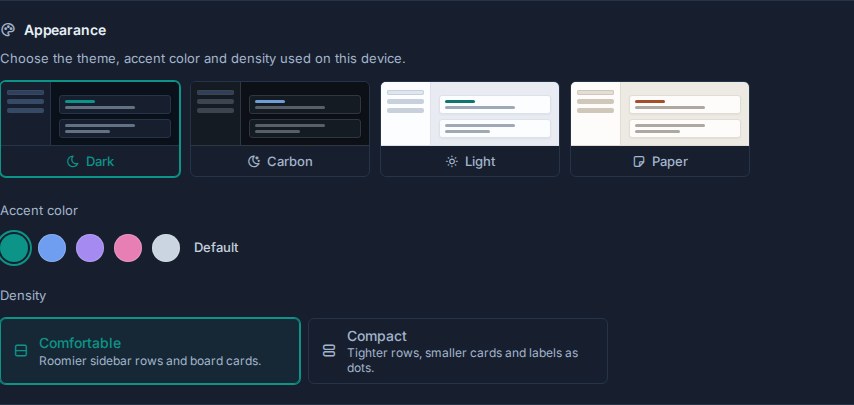
After you choose a theme or accent while signed in, Kanera saves it to your account. The same theme and accent follow you to other browsers and devices, and an open Kanera session updates when you change the appearance elsewhere. A small browser cache paints the saved colors before the app loads so the page does not flash through the wrong theme.
Until an account chooses an appearance, Kanera follows the device's light or dark preference and uses the theme's default accent. Signing out clears that account's appearance from the shared browser, so the next person who signs in does not inherit it.
Each theme presents five useful accent choices. Carbon already uses blue as its default, so its cool-color option is Green instead of Blue. If you switch between Carbon and another theme while that cool option is selected, Kanera carries the selection between Green and Blue automatically.
The light/dark command in global search switches theme families and remembers which theme you last used in each family during the session. For example, switching from Carbon to a light theme and back returns to Carbon.
Choose your display density
Open Settings -> Profile -> Appearance -> Density and choose:
- Comfortable (the default): roomier sidebar rows and board cards, with labels shown as chips.
- Compact: tighter sidebar rows and smaller board cards, with labels shown as a color dot beside plain text.
Density changes spacing without changing the theme or text contrast. The separate Board menu -> Compact cards option hides extra card metadata on that board; density keeps the information and makes it smaller. Touch controls keep their minimum target size in either mode.
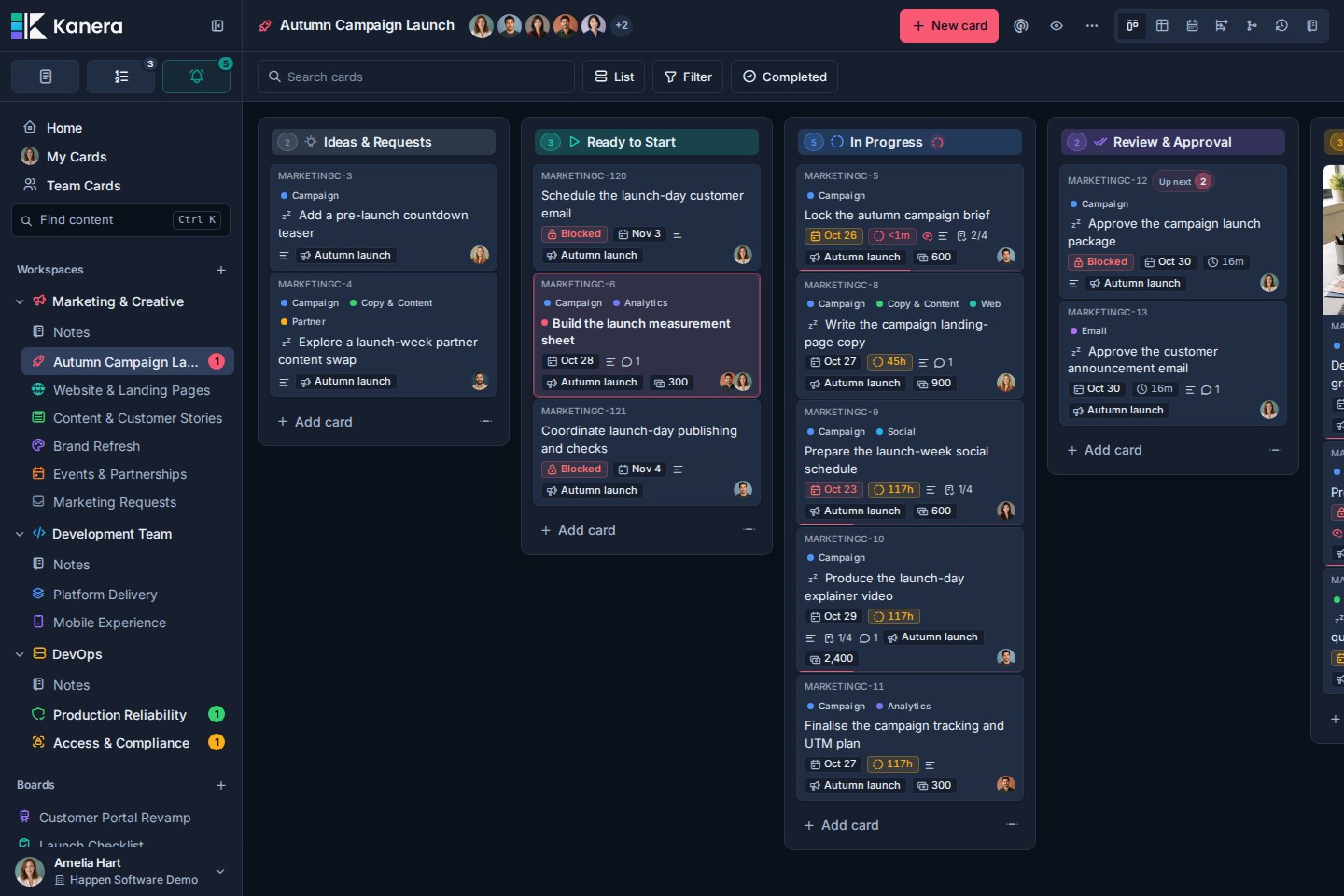
Density is saved in this browser on this device, separately from your account's theme and accent. Other open tabs in the same browser follow the change. It does not sync to other devices, so you can keep a compact desktop board and a comfortable layout on your phone. Clearing this site's browser storage returns density to Comfortable. Both options are available in Kanera Cloud and self-hosted Kanera.
Choose your language
Under Profile settings -> Profile -> Language, open the language menu and choose the language you want to use. Each option shows its own name, followed by its name in your current language, so you can find yours even if you cannot read the interface. Kanera saves the choice to your account and reloads the page to apply it. The same choice follows you to other devices when you sign in.
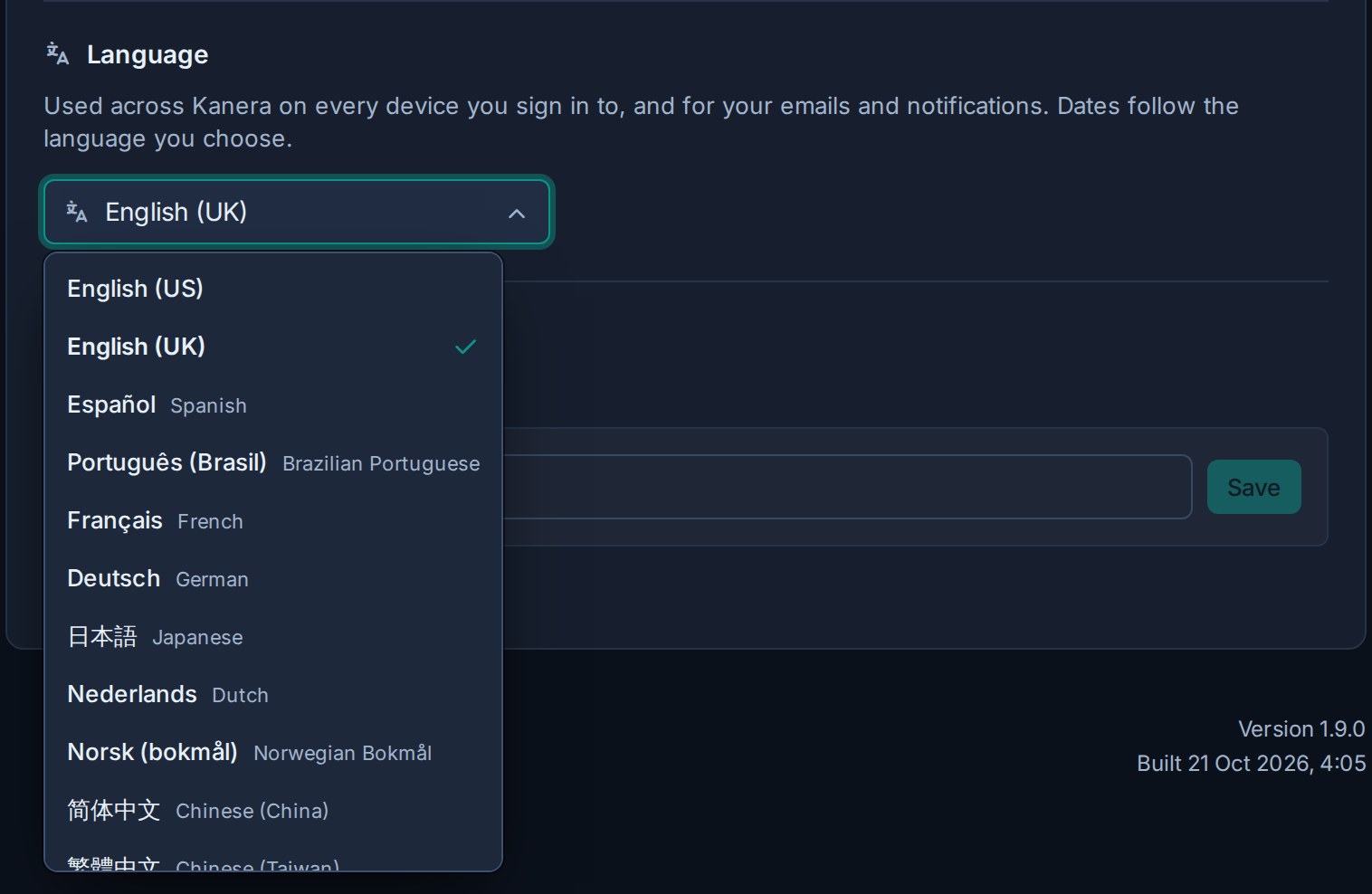
Kanera supports 11 language options:
- English (US) and English (UK).
- Spanish and Brazilian Portuguese.
- French, German, and Dutch.
- Japanese and Norwegian Bokmål.
- Simplified Chinese and Traditional Chinese.
The interface, emails, push notifications, dates, and numbers follow your choice. Each teammate can use a different language while working on the same boards. Cards, comments, and other content your team writes stay in the language you wrote them in.
You can also choose a language from the menu below the sign-in form before signing in.
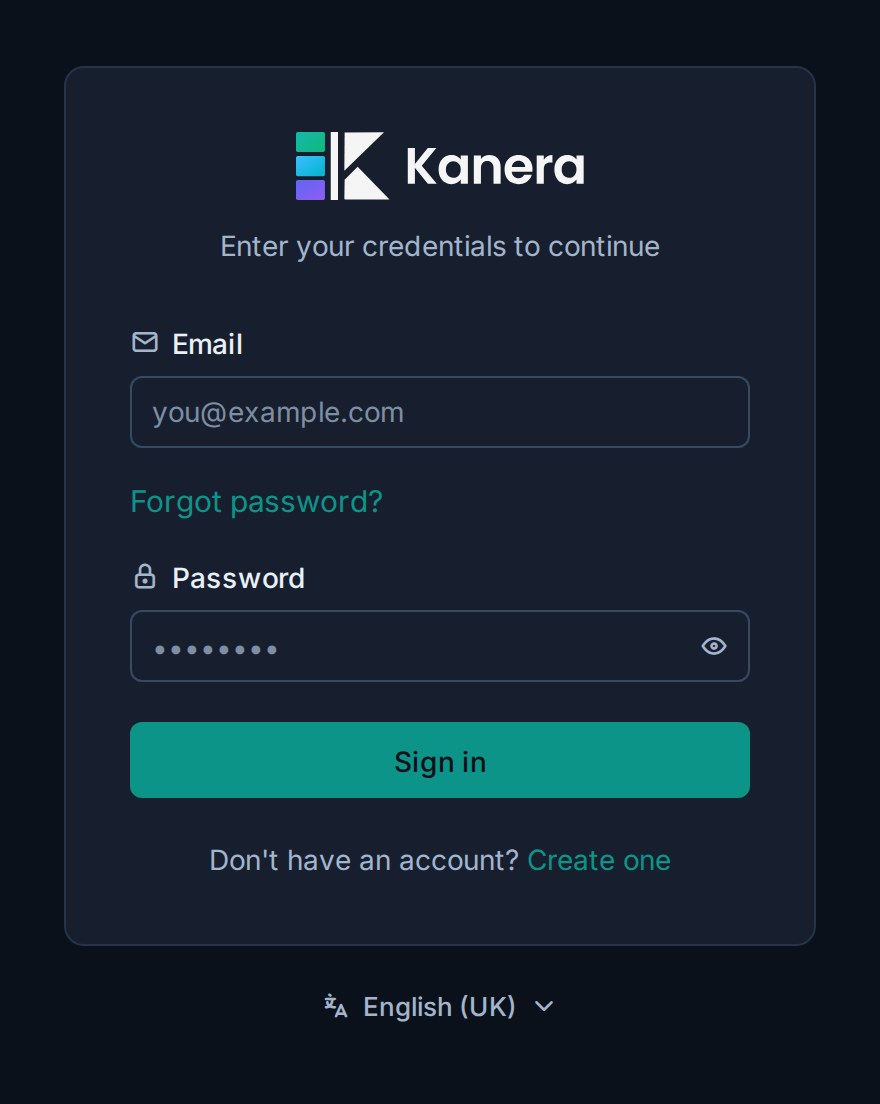
Your pick on the sign-in page applies straight away. Until you make a choice, Kanera uses a supported browser language when available. These options are included in Free, Pro, and self-hosted Kanera.
Change your email address
- Enter the new address under Email.
- Select Verify & save when email verification is enabled, then enter the six-digit code sent to the new address.
- Otherwise, select Save.
Your email address is also your sign-in name. If the verification message does not arrive, keep the old address and ask an administrator to check SMTP before retrying.
Change your password
Open Settings -> Security under Your account. Enter the current password, then enter and confirm the new password. After a successful change, Kanera signs out your other sessions.
Use Account Access and Sign-In when you do not know the current password.
Set up two-factor authentication
Open Settings -> Security under Your account. Kanera uses time-based one-time passwords from an authenticator app.
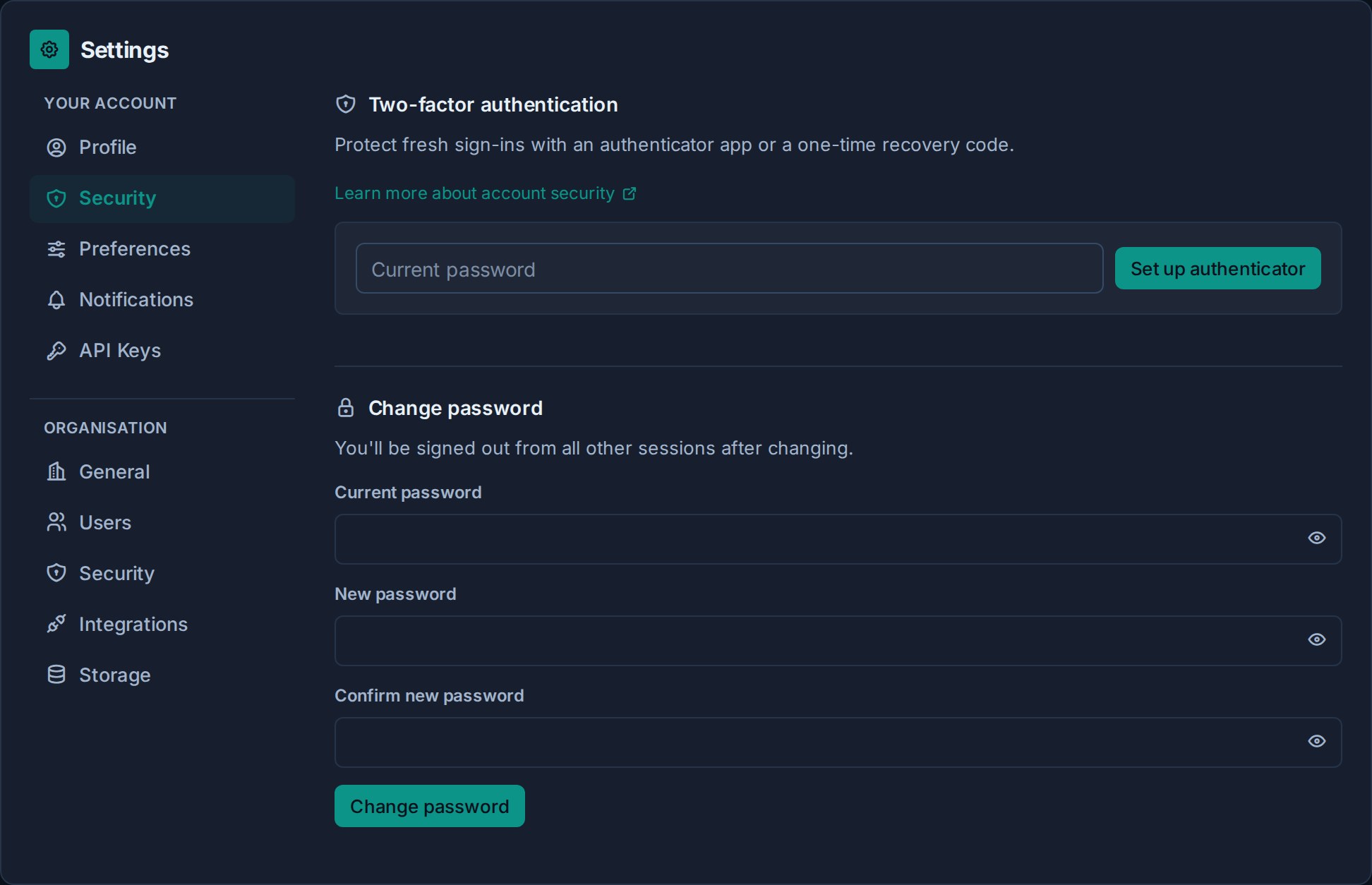
- Under Two-factor authentication, enter your current password.
- Select Set up authenticator.
- Scan the QR code with an authenticator app, or enter the displayed secret manually.
- Enter the six-digit code from the app and select Confirm.
- Save the recovery codes somewhere secure before leaving the page. They are shown once.
The next fresh sign-in asks for an authenticator code. A recovery code can be used once when the authenticator is unavailable.
Do not put the QR code, setup secret, or recovery codes in Scratchpad, Notes, cards, screenshots, chat, or source control.
Replace recovery codes
Under Two-factor authentication, enter your current password and an authenticator or unused recovery code, then select New recovery codes.
The new set replaces the previous set. Save it before leaving the page.
Disable two-factor authentication
Enter your current password and an authenticator or unused recovery code, then select Disable.
You cannot keep MFA disabled if your organization requires it. At the next fresh sign-in, Kanera asks you to enroll again.
Choose your app preferences
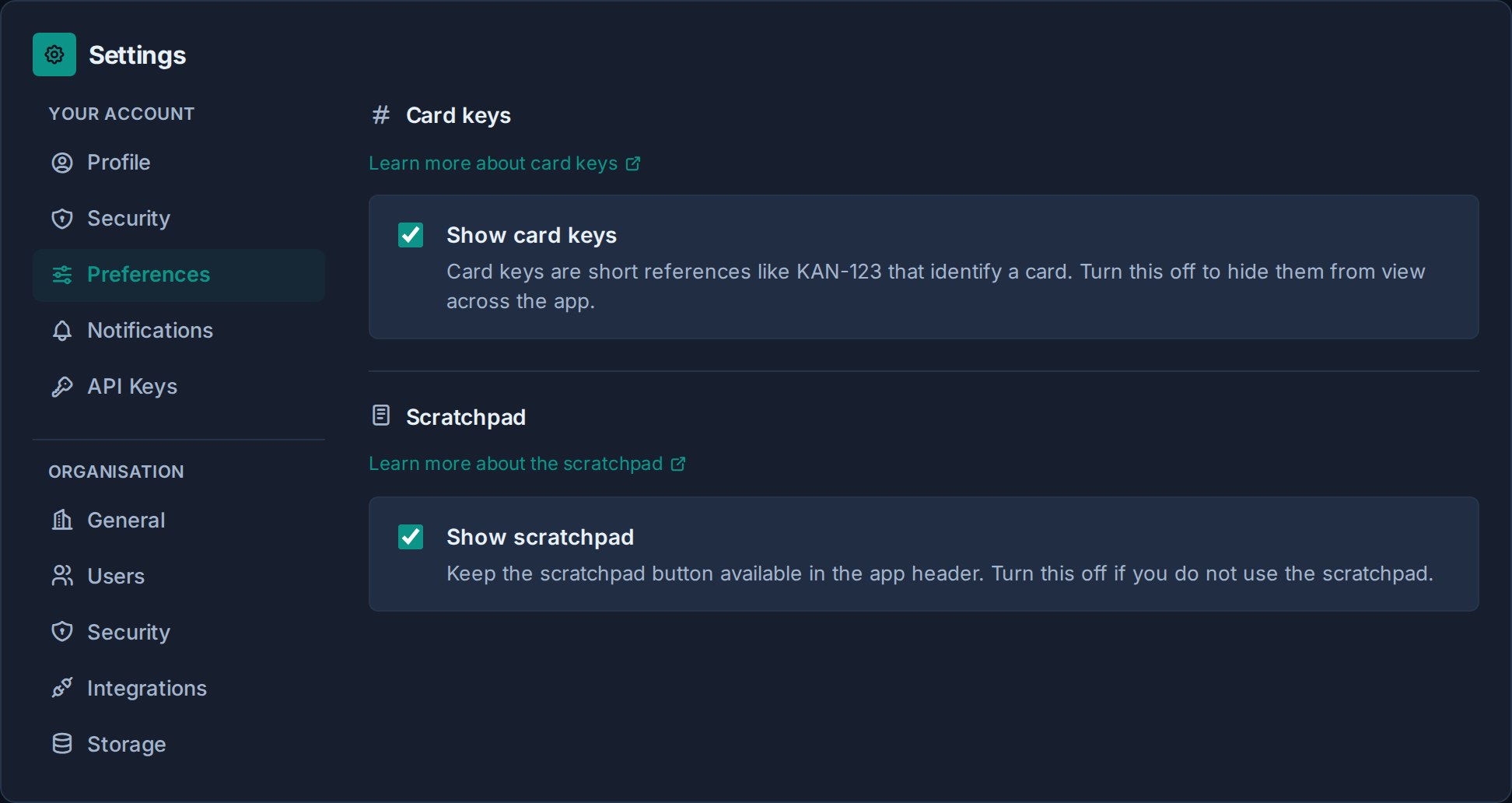
Open Settings -> Preferences under Your account:
- Show card keys controls whether short references such as
KAN-123appear across the app. Hiding them does not change the cards' identities. See Card keys and links. - Show scratchpad controls whether the Scratchpad button is available in the app. See Use Your Private Scratchpad.
Require MFA for an organization
Organization admins can open Settings -> Organization -> Security, enable Require two-factor authentication for everyone, and save the security policy.
- Members who have already enrolled continue using their authenticator.
- Members without MFA must enroll at their next fresh sign-in.
- Existing signed-in sessions remain active.
- Disabling the organization requirement does not remove MFA from members who enabled it personally.
Before enabling the policy, tell members to keep recovery codes outside Kanera and establish an account-recovery process for lost authenticators.
Troubleshooting
| Problem | What to do |
|---|---|
| A six-digit code is rejected | Confirm the device clock is set automatically, then try the current code rather than one that is about to expire. |
| A recovery code is rejected | Recovery codes are single use. Try an unused code without added spaces. |
| The QR code cannot be scanned | Enter the displayed setup secret manually in the authenticator app. |
| You lost the authenticator and every recovery code | Contact your operator or support contact. A management-portal administrator can perform an audited MFA reset after verifying your identity. |
| Everyone is asked to enroll unexpectedly | Ask an organization admin to review Settings -> Organization -> Security. |
| Existing authenticators all stopped working after a deployment | The operator should restore the previous MFA_ENCRYPTION_KEY; changing it invalidates enrolled authenticators. |