Organizations
An organization is an independent Kanera space with its own people, roles, workspaces, standalone boards, settings, plan, billing, and storage. One user account can belong to several organizations, so you do not need a separate login for each team, company, client, community, or personal space.
Only one organization is active in the main Kanera shell at a time. Switching changes the work and administration settings shown in the sidebar. Global Work can still bring together cards from every organization and guest board your account can access.
Switch organizations
Open your user menu at the bottom of the sidebar. The Organizations section lists every active organization membership for your account. The check marks the active organization, and unread counts show where notifications are waiting.
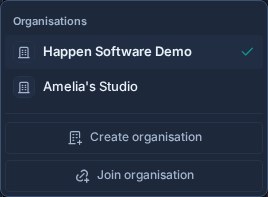
Select another organization to switch to it. Kanera reloads the shell with that organization's work, permissions, plan, settings, and sidebar preferences.
Your role can differ between organizations. For example, you can own a personal organization, be an admin in one team, and be a member in another.
Create another organization
- Open your user menu.
- Select Create organization.
- Enter the organization name.
- Select Create organization.
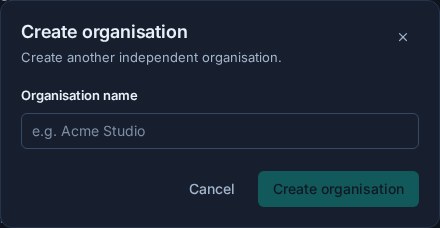
Kanera creates an independent organization, makes you its owner, switches to it, and opens onboarding. Choose a standalone board or workspace to create its first work, or select Skip for now to continue to an empty Home and decide later.
On Kanera Cloud, each organization has its own plan and billing. On a self-hosted installation, the organization is still an independent access and administration boundary even though the operator controls the deployment.
Join an organization
An organization admin creates an invitation from Settings -> Organization -> Users. The invitation sets your organization role and can grant access to selected workspaces. It can be given an expiry date and revoked before acceptance.
If you receive an invitation link:
- Open the link and sign in with your existing Kanera account, or create an account if you do not have one.
- Review the organization name and role.
- Select Join.
You can also join from inside Kanera:
- Open your user menu.
- Select Join organization.
- Paste the full invitation link or its invite token.
- Select Continue, review the invitation, and accept it.
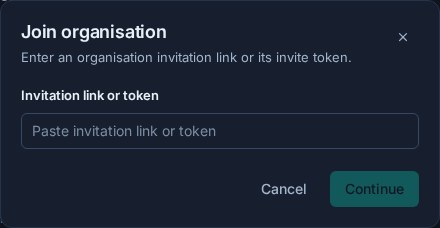
Accepting an invitation keeps your existing identity and other organization memberships. Kanera switches to the organization you just joined. The invitation must be active, use an available seat where the plan requires one, and match the invited email address when an email restriction is present.
Invite someone as a member
Organization owners and admins can create membership invitations from Settings -> Organization -> Users:
- Choose the organization role: Member or Admin.
- Select at least one workspace and choose the person's role in each one.
- Choose when the invitation expires.
- Create and copy the invitation link.
The recipient can accept with an existing Kanera account even when that account already belongs to another organization. Membership is different from guest access: a member joins the organization and can receive workspace membership, while a guest remains external and can access only explicitly granted boards.
Rename your organization or change its logo
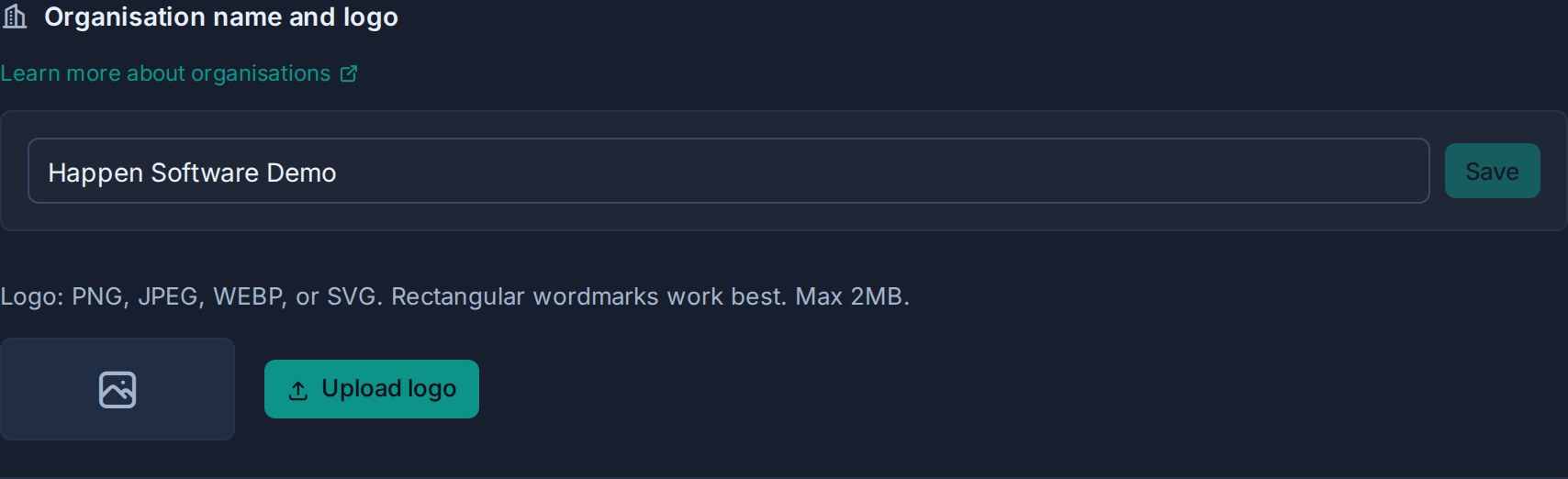
Organization owners and admins can change the organization name and logo in the Organization name and logo section at the top of Settings -> Organization -> General. Edit the name and select Save, or upload a PNG, JPEG, WEBP, or SVG logo of up to 2MB. Rectangular wordmarks work best. Both changes apply only to the active organization.
Understand the boundaries
| Setting or resource | Scope |
|---|---|
| Organization role | Separate for each organization membership. |
| Workspaces and standalone boards | Owned by one organization. |
| Plan, billing, seats, and storage | Managed per organization on Kanera Cloud. Owners and admins can review and clean up storage on any deployment. |
| Organization settings and users | Apply only to the active organization. |
| AI agent access | Set per organization on Kanera Cloud. The AI agent policy of the organization that owns a board applies to everyone's agents on it, guests included. |
| Sidebar layout preferences | Remembered separately for each organization. |
| Profile, password, and authenticator | Belong to your user identity and follow you across memberships. |
| Global Work | Can show permitted work across organizations and guest boards. |
Removing someone from one organization removes their access to that organization's work. It does not delete their identity or remove their memberships in other organizations.